
Introduction
The Perixx PERIBOARD-313 is a wired, full-sized keyboard featuring an integrated touchpad and a 3-level LED backlight. Designed for convenience and efficiency, this keyboard combines typing and pointing functionalities into a single device, making it suitable for various computing environments. Its dimensions are approximately 456mm x 160mm x 30mm, with a touchpad measuring 57mm x 40mm.
This manual provides comprehensive instructions for the proper setup, operation, and maintenance of your PERIBOARD-313 keyboard to ensure optimal performance and longevity.
Package Contents
- 1 x Perixx PERIBOARD-313 Wired USB Backlit Keyboard with Touchpad
- User Manual (this document)

Image: The Perixx PERIBOARD-313 keyboard, its USB cable, and the user manual shown next to the product packaging.
System Requirements
- Operating System: Windows 7, 8, or 10
- Connectivity: Available USB port
Setup
- Unpack the Keyboard: Carefully remove the PERIBOARD-313 from its packaging.
- Connect to Computer: Plug the USB connector of the keyboard into an available USB port on your computer.
- Driver Installation: The keyboard is plug-and-play. Your operating system will automatically detect and install the necessary drivers. No additional software installation is required.
- Verify Functionality: Once connected, the keyboard and touchpad should be immediately functional. Test by typing and moving the cursor.
Operating Instructions
Keyboard Layout
The PERIBOARD-313 features a standard full-size US English QWERTY layout with 104 keys, including a dedicated numeric keypad and function keys.

Image: Detailed diagram illustrating the full QWERTY keyboard layout, including the numeric keypad and integrated touchpad.
Touchpad Functions
The integrated touchpad provides precise cursor control and includes two buttons that function as left and right mouse clicks.
- Cursor Movement: Slide your finger across the touchpad surface to move the cursor on the screen.
- Left Click: Press the left button below the touchpad or tap once on the touchpad surface.
- Right Click: Press the right button below the touchpad or tap with two fingers on the touchpad surface (if supported by OS settings).
- Scrolling: Use two fingers to scroll vertically on the touchpad (if supported by OS settings).
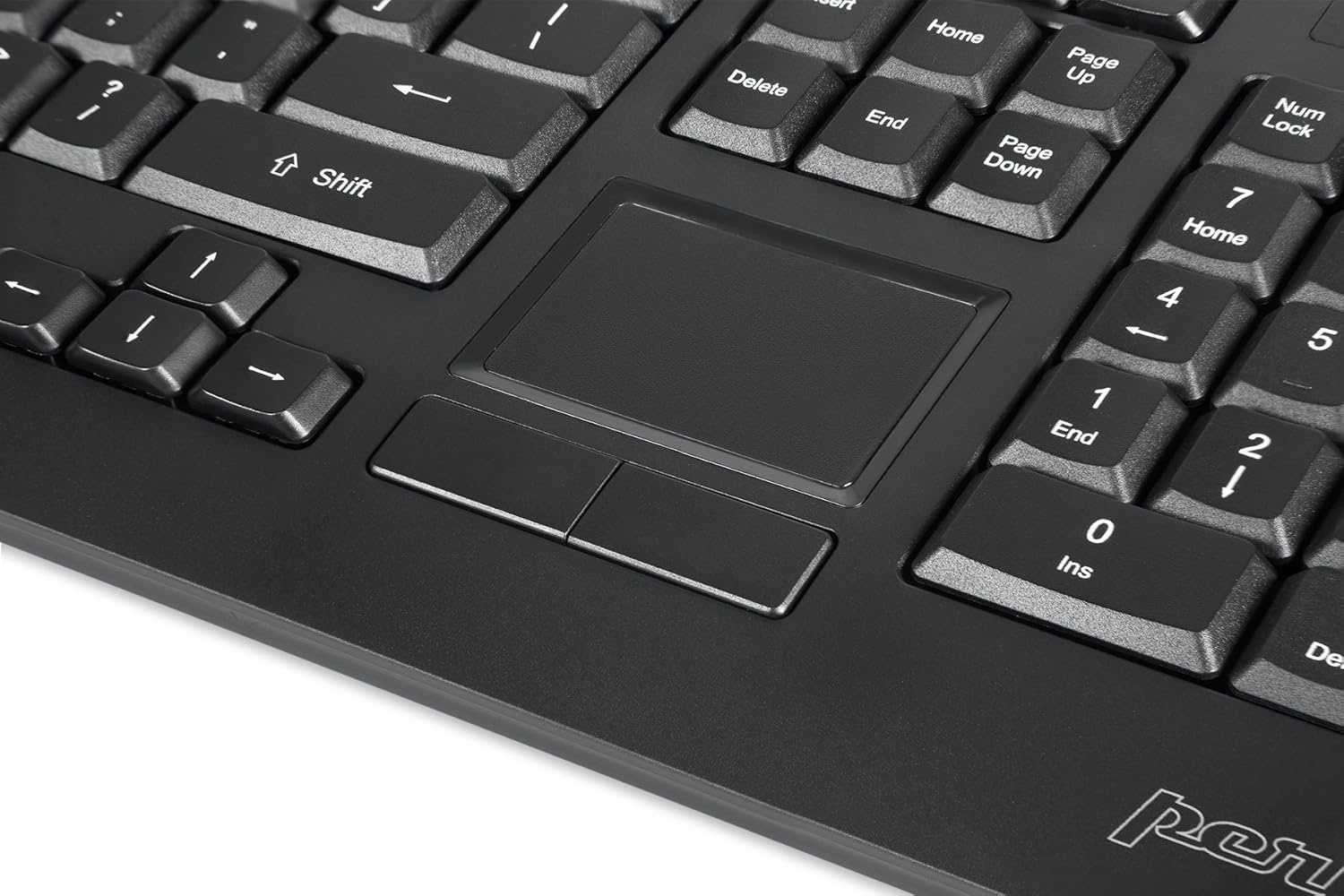
Image: A close-up of the integrated touchpad, highlighting its surface and the two dedicated click buttons.

Image: A user's hand interacting with the touchpad for cursor control.
Backlight Control
The keyboard features a white LED backlight with three adjustable brightness levels. Use the dedicated backlight control keys to adjust the illumination.
- Turn On/Off Backlight: Press the Fn + F12 key combination.
- Adjust Brightness: Press Fn + F11 to cycle through the three brightness levels.
Multimedia Keys
The PERIBOARD-313 includes 10 multimedia function keys for quick access to media controls and internet features. These functions are activated by holding the Fn key and pressing the corresponding function key (F1-F10).
- Fn + F1: Open Media Player
- Fn + F2: Volume Down
- Fn + F3: Volume Up
- Fn + F4: Mute
- Fn + F5: Previous Track
- Fn + F6: Next Track
- Fn + F7: Play/Pause
- Fn + F8: Stop
- Fn + F9: Open Web Browser
- Fn + F10: Open Email Client
Integrated USB Hubs
The keyboard features two integrated USB 2.0 hubs, allowing you to connect additional USB devices directly to the keyboard for convenience.

Image: The side of the keyboard displaying the two built-in USB 2.0 ports for connecting peripherals.
Maintenance
- Cleaning: Disconnect the keyboard from your computer before cleaning. Use a soft, damp cloth to wipe the surface. For deeper cleaning between keys, use compressed air to remove dust and debris. Avoid using harsh chemicals or abrasive cleaners.
- Storage: Store the keyboard in a dry environment, away from extreme temperatures and direct sunlight.
- Liquid Exposure: This keyboard is not water-resistant. Avoid spilling liquids on it. If liquid exposure occurs, immediately disconnect the keyboard and allow it to dry completely before reconnecting.
Troubleshooting
| Problem | Possible Cause | Solution |
|---|---|---|
| Keyboard not responding | Loose USB connection, faulty USB port, driver issue. |
|
| Touchpad not working | Driver issue, touchpad disabled (unlikely for wired), physical damage. |
|
| Backlight not turning on/off or adjusting | Incorrect key combination, software conflict. |
|
| Multimedia keys not working | Incorrect key combination, software conflict. |
|
Specifications
| Brand | Perixx |
| Model Name | PERIBOARD-313 US |
| Model Number | 11445 |
| Connectivity Technology | USB-A (Wired) |
| Keyboard Description | QWERTY, Full-sized, Backlit |
| Special Feature | Backlit, Integrated Touchpad, USB Hubs |
| Color | Black |
| Keyboard Backlighting Color | Single Color (White LED) |
| Material | ABS Plastic |
| Number of Keys | 104 |
| Switch Type | Membrane |
| Touchpad Dimensions | 57mm x 40mm (2.24" x 1.57") |
| Keyboard Dimensions | 456mm x 160mm x 30mm (17.95" x 6.30" x 1.18") |
| Item Weight | 1.85 Pounds |
| Total USB 2.0 Ports | 2 (Integrated Hubs) |
Image: Technical drawing with key dimensions of the PERIBOARD-313 keyboard.
Warranty
The Perixx PERIBOARD-313 comes with a 1-Year Limited Warranty from the date of purchase. This warranty covers manufacturing defects and workmanship under normal use. It does not cover damage caused by misuse, accident, modification, or unauthorized repair. Please retain your proof of purchase for warranty claims.
Support
For further assistance, technical support, or warranty inquiries, please visit the official Perixx website or contact their customer service. You can find more information and contact details on the Perixx Brand Store on Amazon.


