
Comix CS-3302
Comix CS-3302 12-Digit Desktop Calculator User Manual
Model: CS-3302 (P/N: 11821063)
Brand: Comix
1. Introduction
This user manual provides comprehensive instructions for the Comix CS-3302 12-Digit Desktop Calculator. Please read this manual thoroughly before using the calculator to ensure proper operation and to maximize its lifespan. This calculator is designed for general office and school use, featuring a large LCD display, dual power source, and various calculation functions.
2. Safety Information
- Do not expose the calculator to extreme temperatures, direct sunlight, or high humidity.
- Avoid dropping the calculator or subjecting it to strong impacts.
- Do not attempt to disassemble or modify the calculator. This will void the warranty.
- Use a soft, dry cloth for cleaning. Do not use liquid cleaners or abrasive materials.
- Keep out of reach of small children.
3. Product Overview

Figure 3.1: Front view of the Comix CS-3302 Desktop Calculator, showing the large LCD display and full keypad.
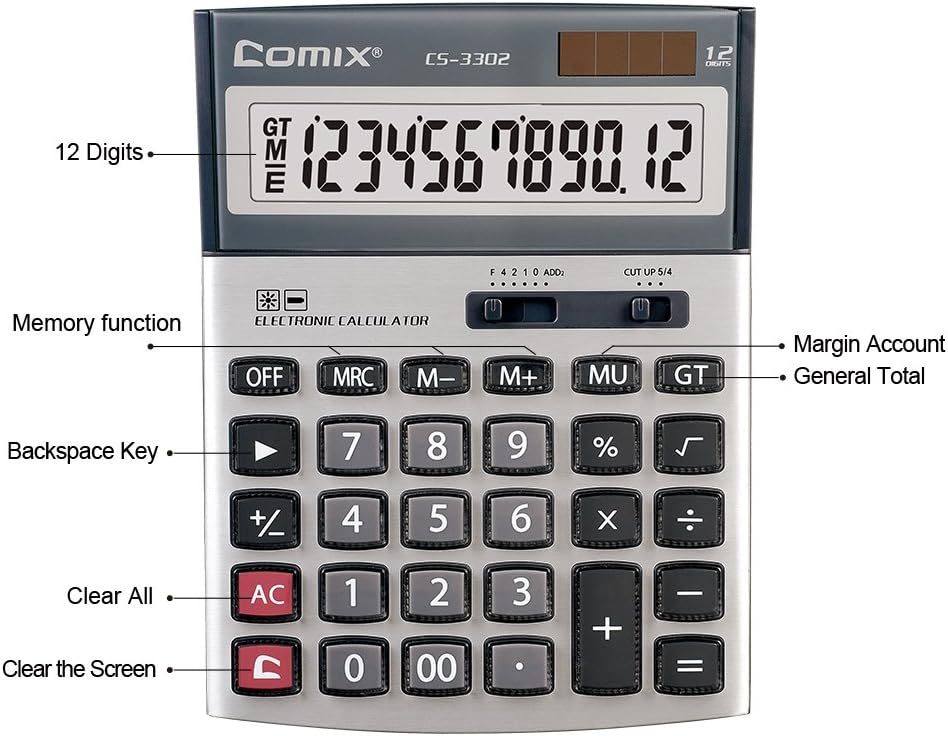
Figure 3.2: Key functions and display features of the Comix CS-3302 Calculator, including 12 digits display, memory functions, and clear keys.

Figure 3.3: Dimensions of the Comix CS-3302 Calculator, showing its compact and ergonomic design.

Figure 3.4: Angled view of the Comix CS-3302 Calculator, highlighting its sleek profile and key layout.

Figure 3.5: Side profile of the Comix CS-3302 Calculator, showing its slim design.

Figure 3.6: Retail packaging of the Comix CS-3302 Calculator, highlighting key features like 12 digits, dual power, and acrylic keys.
4. Setup
4.1 Power Source
The Comix CS-3302 calculator operates on a dual power system: solar and battery. The solar panel provides power in well-lit environments, while a single AA battery (not included) serves as an auxiliary power source for low-light conditions or when solar power is insufficient.
- Battery Installation: Locate the battery compartment on the back of the calculator. Open the cover and insert one AA battery, ensuring correct polarity (+/-). Close the battery compartment cover securely.
- Initial Power On: The calculator should power on automatically when sufficient light is available or with the battery installed. If not, press the ON/AC button.
5. Operating Instructions
5.1 Basic Operations
- Addition (+): Enter the first number, press +, enter the second number, then press =.
- Subtraction (-): Enter the first number, press -, enter the second number, then press =.
- Multiplication (×): Enter the first number, press ×, enter the second number, then press =.
- Division (÷): Enter the first number, press ÷, enter the second number, then press =.
- Percentage (%): Enter the number, press × (or ÷), enter the percentage value, then press %. For example, to calculate 10% of 200, enter 200 × 10 %.
- Square Root (√): Enter the number, then press √.
5.2 Special Functions
- OFF: Powers off the calculator.
- AC (All Clear): Clears all entries and memory, resetting the calculator to its initial state.
- C (Clear Entry): Clears the last entered number or the current display value without affecting previous calculations or memory.
- Backspace (►): Deletes the last digit entered.
- M+ (Memory Plus): Adds the displayed value to the memory.
- M- (Memory Minus): Subtracts the displayed value from the memory.
- MRC (Memory Recall/Clear): Press once to recall the memory value. Press twice to clear the memory.
- MU (Mark Up / Margin Account): Used for profit margin calculations. Enter cost, press MU, enter selling price, then press = to get the profit margin.
- GT (Grand Total): Accumulates the results of all calculations. Pressing GT displays the grand total.
- +/- (Sign Change): Changes the sign of the displayed number (positive to negative, or negative to positive).
5.3 Decimal and Rounding Settings
The calculator features two slide switches at the top for controlling decimal places and rounding:
- Decimal Selector (F 4 2 1 0 ADD2):
- F (Floating Decimal): Displays all available decimal places.
- 4, 2, 1, 0: Sets the number of decimal places to 4, 2, 1, or 0 respectively.
- ADD2 (Add Mode): Automatically adds two decimal places to all results, useful for currency calculations.
- Rounding Selector (CUT UP 5/4):
- CUT (Cut Off): Truncates the number, discarding all digits beyond the set decimal places.
- UP (Round Up): Rounds up the last digit if there are any non-zero digits beyond the set decimal places.
- 5/4 (Round Half Up): Rounds up if the first discarded digit is 5 or greater, otherwise rounds down.
6. Maintenance
- Cleaning: Wipe the calculator surface with a soft, dry cloth. For stubborn dirt, slightly dampen the cloth with water, but ensure no liquid enters the calculator. Do not use chemical cleaners.
- Storage: When not in use for extended periods, store the calculator in a cool, dry place away from direct sunlight and extreme temperatures.
- Battery Replacement: If the display becomes dim or unresponsive in low light, replace the AA battery. Ensure the calculator is off before replacing the battery.
7. Troubleshooting
| Problem | Possible Cause | Solution |
|---|---|---|
| Display is blank or dim. | Insufficient light for solar power, or low battery. | Move to a brighter area or replace the AA battery. |
| Incorrect calculation results. | Incorrect input, incorrect decimal/rounding settings, or memory interference. | Press AC to clear all and restart. Check decimal and rounding switch positions. Ensure correct key presses. |
| Keys are unresponsive. | Calculator frozen or physical damage. | Try pressing OFF then ON/AC. If problem persists, remove and reinsert battery. If still unresponsive, contact support. |
8. Specifications
| Brand | Comix |
| Model Number | CS-3302 (P/N: 11821063) |
| Display | 12-Digit LCD |
| Power Source | Dual Power (Solar & 1x AA Battery - not included) |
| Material | Acrylic, Metal |
| Dimensions (L x W x H) | Approximately 23.6 x 15.7 x 4.3 cm (9.3 x 6.2 x 1.7 inches) |
| Weight | Approximately 322 g (0.71 lbs) |
| Operating Temperature | -25 ℃ to +60 ℃ (-13 ℉ to +140 ℉) |
| UPC | 842064102524 |
9. Warranty and Support
Comix products are designed for quality and durability. This product comes with a 3-year warranty from the date of purchase, covering defects in materials and workmanship under normal use.
For warranty claims, technical support, or any inquiries regarding your Comix CS-3302 calculator, please contact Comix customer service through their official website or the retailer where the product was purchased. Please have your proof of purchase and the product model number ready when contacting support.
For more information, visit the official Comix website: www.comix.com
Ask a question about this manual
Ask about setup, troubleshooting, compatibility, parts, safety, or missing instructions. Manuals+ will review the question and use this page’s manual context to help answer it.