
Escape BT-S15
Escape Platinum BT-S15 Bluetooth Headset User Manual
Model: BT-S15
Product Overview
The Escape Platinum BT-S15 is a versatile Bluetooth headset designed for wireless audio enjoyment and communication. It features Bluetooth connectivity for pairing with smartphones and tablets, an integrated MP3 player via Micro-SD card, and an FM radio. The headset also includes a built-in microphone for hands-free calling and can be used with a 3.5mm audio cable for wired operation.
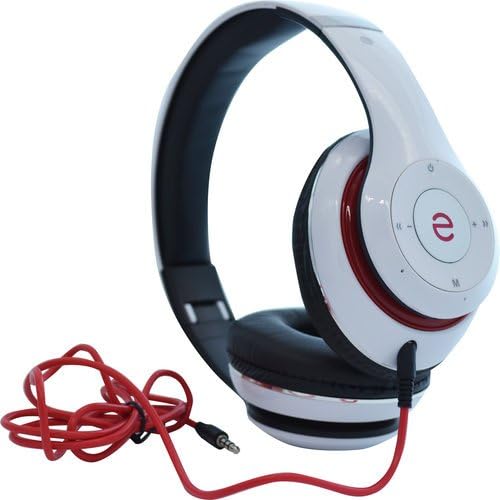
Image: The Escape Platinum BT-S15 Bluetooth Headset, showcasing its white and red design, along with the included red 3.5mm audio cable.
Setup Guide
1. Charging the Headset
Before first use, fully charge the headset. Use the included USB charging cable. Connect the micro-USB end to the headset's charging port and the standard USB end to a USB power source (e.g., computer USB port, USB wall adapter 5V/1A). The charging time is approximately 3 hours. The indicator light will change to show charging status (e.g., red for charging, off or blue for fully charged).
2. Powering On/Off
- To Power On: Press and hold the Power button (often indicated by a circle with a vertical line) for a few seconds until an indicator light illuminates and you hear an audible prompt.
- To Power Off: Press and hold the Power button again for a few seconds until the indicator light turns off and you hear an audible prompt.
3. Bluetooth Pairing
The headset automatically connects to the last paired device upon powering on. For first-time pairing or pairing with a new device:
- Ensure the headset is powered on and in pairing mode (often indicated by a rapidly flashing blue/red light). If not, you may need to press and hold the Bluetooth button or power button until it enters pairing mode.
- On your Bluetooth-enabled device (smartphone, tablet, laptop), go to the Bluetooth settings.
- Search for available devices. The headset should appear as "BT-S15" or similar.
- Select "BT-S15" to connect. Once paired, the indicator light will typically turn solid blue or flash slowly, and you will hear a confirmation sound.
4. Wired Connection (3.5mm Audio Cable)
To use the headset in wired mode:
- Insert one end of the included 3.5mm audio cable into the headset's audio input jack.
- Insert the other end into the 3.5mm audio output jack of your audio source (e.g., phone, computer, MP3 player).
- The headset will function as a standard wired headphone. Bluetooth functionality is typically disabled when the audio cable is connected.
5. Micro-SD Card Usage (MP3 Player)
The headset supports MP3 playback directly from a Micro-SD card (card not included).
- Insert a Micro-SD card with MP3 audio files into the designated Micro-SD card slot on the headset.
- The headset should automatically switch to MP3 playback mode or require a mode button press (often labeled 'M' or 'Mode').
- Use the playback controls (Play/Pause, Next/Previous Track) to manage your music.
Operating Instructions
1. Music Playback
- Play/Pause: Press the Play/Pause button (often the multi-function button or a dedicated button).
- Next Track: Press the 'Next' button (often '+').
- Previous Track: Press the 'Previous' button (often '-').
2. Call Management
- Answer/End Call: Press the multi-function button (often the Play/Pause button) once.
- Reject Call: Press and hold the multi-function button for approximately 2 seconds.
- Redial Last Number: Double-press the multi-function button.
3. FM Radio Operation
- Switch to FM Mode: Press the 'Mode' button (often 'M') until you hear the FM radio.
- Auto Scan: In FM mode, press and hold the Play/Pause button to automatically scan and save available radio stations.
- Tune Stations: Use the 'Next' and 'Previous' buttons to navigate through saved stations.
4. Volume Control
- Increase Volume: Press the '+' button.
- Decrease Volume: Press the '-' button.
Maintenance
1. Cleaning
- Wipe the headset with a soft, dry, lint-free cloth.
- Do not use abrasive cleaners, alcohol, or chemical solvents.
- Avoid getting moisture into any openings.
2. Storage
- Store the headset in a cool, dry place away from direct sunlight and extreme temperatures.
- Avoid placing heavy objects on the headset.
3. Battery Care
- To prolong battery life, avoid fully discharging the battery frequently.
- Charge the headset regularly, even if not in use for extended periods.
Troubleshooting
| Problem | Possible Solution |
|---|---|
| Headset does not power on. | Ensure the battery is charged. Connect the headset to a power source using the USB charging cable. |
| Cannot pair with Bluetooth device. |
|
| No sound or low volume. |
|
| FM radio reception is poor. |
|
| Microphone not working. |
|
Specifications
| Model Name: | BT-S15 |
| Connectivity Technology: | Bluetooth v2.1 + EDR / A2DP / AVRCP, Wired (3.5mm Jack) |
| Headphones Jack: | 3.5 mm Jack |
| Microphone: | Built-In |
| MP3 Player: | Micro-SD card reader (MP3 format, card not included) |
| FM Radio Frequency: | 87.5 MHz to 108 MHz |
| Sensitivity: | 105 dB |
| Impedance: | 32 ohms |
| Frequency Response: | 20-20000Hz |
| Battery Type: | Lithium 3.7v 400 mAh |
| Battery Power Input: | USB 5V / 1A |
| Operating Time: | Up to 4 hours |
| Recharge Time: | 3 Hours |
| Material: | Plastic |
| Form Factor: | Over Ear |
Warranty and Support
For specific warranty information, please refer to the documentation provided at the time of purchase or contact the retailer where the product was acquired. Warranty terms and conditions may vary.
For technical support or further assistance, please contact the manufacturer, Escape, or your product retailer. Keep your purchase receipt as proof of purchase.
Related documentsBT-S15


Ask a question about this manual
Ask about setup, troubleshooting, compatibility, parts, safety, or missing instructions. Manuals+ will review the question and use this page’s manual context to help answer it.