
Introduction
This manual provides comprehensive instructions for the installation, operation, and maintenance of your Orbit B-Hyve 12-Station Smart Wi-Fi Sprinkler Controller. This device allows for automated and intelligent control of your irrigation system via Wi-Fi, accessible through a dedicated smartphone application or directly from the controller. It is designed for both indoor and outdoor use, featuring a weather-resistant enclosure.
Safety Information
Please read all safety warnings and instructions before installing and operating this product. Failure to follow these instructions may result in electric shock, fire, or other serious injury or damage.
- Electrical Safety: Always disconnect power before working with electrical wiring. Ensure all wiring connections are secure and comply with local electrical codes.
- Water Exposure: While the controller is weather-resistant, avoid submerging it in water. Ensure the enclosure is properly closed to protect internal components from moisture.
- Mounting: Mount the controller in a location that is protected from direct sunlight and extreme temperatures to ensure optimal performance and longevity.
Package Contents
Verify that all items are present in the package:
- Orbit B-Hyve 12-Station Smart Wi-Fi Sprinkler Controller
- Power Adapter
- Mounting Hardware (screws, anchors)
- User Manual (this document)

The retail packaging box for the Orbit B-Hyve Smart Wi-Fi Sprinkler Timer, highlighting key features and the product itself.
Product Overview
The Orbit B-Hyve controller features an LCD display and intuitive buttons for direct programming and control. The unit is housed in a durable, weather-resistant plastic casing, suitable for both indoor and outdoor installation.

Close-up view of the Orbit B-Hyve controller's front panel, showing the LCD display, navigation buttons (BACK, CLEAR, PROG A B C, RAIN DELAY), and the central control dial. This details the physical interface for direct control.

The Orbit B-Hyve controller, with its protective cover closed, mounted on a brick wall. This shows the weather-resistant enclosure suitable for outdoor installation.
Setup
1. Mounting the Controller
The controller can be mounted indoors or outdoors. Choose a location near an electrical outlet and away from direct sunlight. Use the provided mounting hardware to secure the unit to a wall. The weather-resistant case allows for outdoor installation without risk of weather damage.
2. Wiring the Controller
Open the controller's front panel to access the angled wiring terminals. Connect your sprinkler valve wires to the corresponding zone terminals (1-12). If you have a master valve or pump start relay, connect it to the designated terminal. Connect the common wire from your valves to the 'COMMON' terminal. The controller includes a plug-and-go power cord; for wired applications, this cord can be cut and hardwired by a qualified electrician.
3. App Installation and Wi-Fi Connection
- Download the B-Hyve app from your device's app store (Android or iOS).
- Create an account and follow the in-app instructions to add your new controller.
- The app will guide you through connecting the controller to your home Wi-Fi network. Ensure your Wi-Fi signal is strong at the controller's location.

Image of the Orbit B-Hyve controller mounted on a brick wall, with a smartphone displaying the B-Hyve app interface in the foreground. This illustrates the remote control capability of the device.
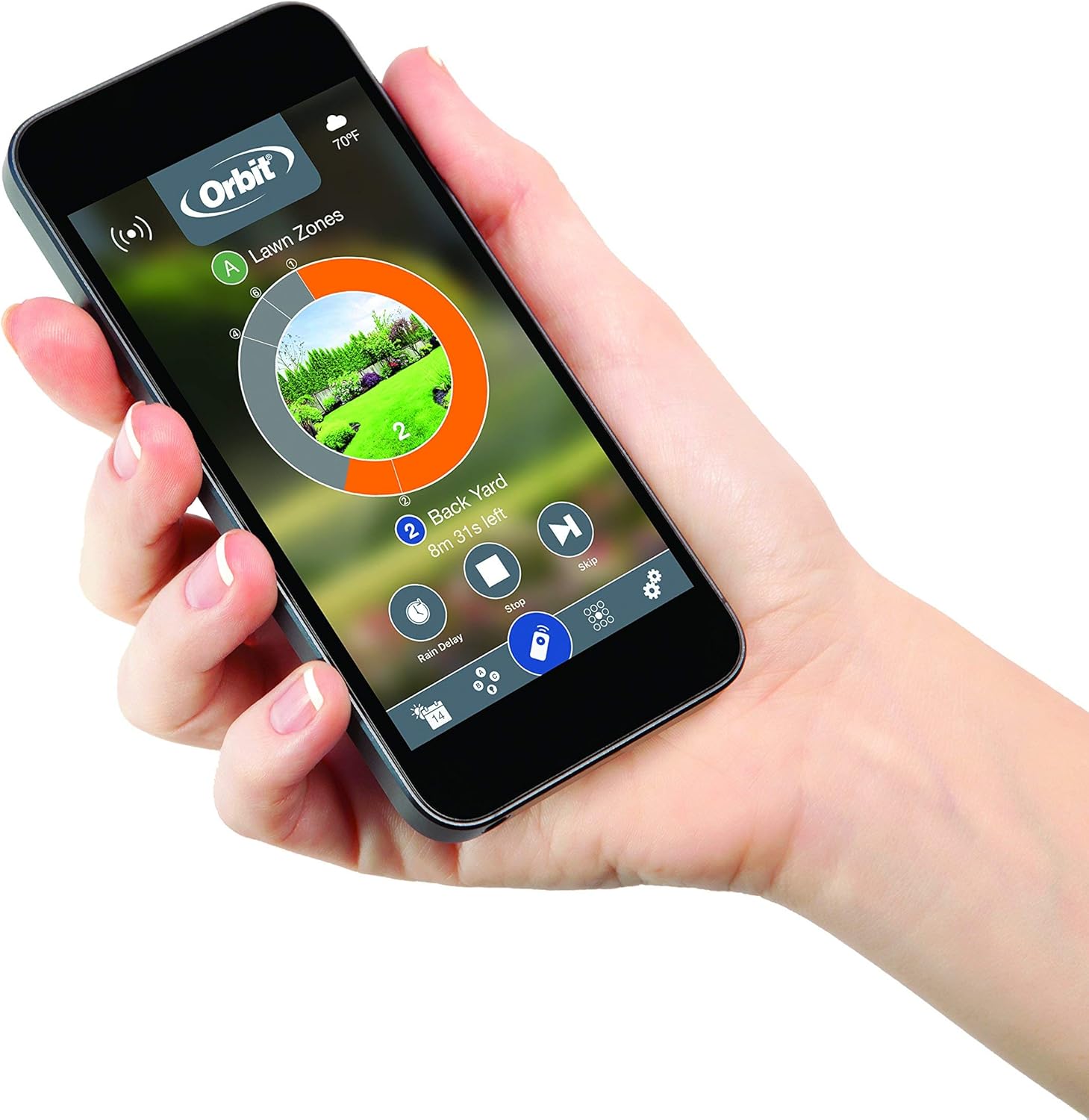
A hand holding a smartphone displaying the Orbit B-Hyve app, providing a real-world context for app interaction.
Operating the Controller
1. Manual Watering
You can initiate manual watering directly from the controller using the navigation buttons or through the B-Hyve app. Select the desired zone(s) and set the watering duration.
2. Programming Schedules
Schedules can be created and managed either via the B-Hyve app or directly on the controller. The app offers a more detailed interface for setting start times, run times, and watering days for each zone. The controller's interface allows for basic program setup (A, B, C).
3. Smart Watering (Weather Sense)
The B-Hyve controller features Weather Sense technology, which adjusts watering schedules based on real-time weather conditions and site-specific factors such as slope, soil type, and sun/shade exposure. This feature aims to provide the optimal amount of water to your plants and lawn, conserving water by preventing unnecessary watering.

Screenshot of the B-Hyve smartphone application interface, showing a circular representation of watering zones and current watering status. This demonstrates the visual layout for managing irrigation schedules.
4. Rain Delay
The Rain Delay function allows you to pause your watering schedule for a specified period (e.g., 24, 48, 72 hours) in anticipation of or after rainfall. This can be activated from the controller or the app. Smart Watering will automatically implement rain delays based on weather forecasts.

Diagram illustrating a typical irrigation zone layout for a property, showing different zones (ZONA 1-6) and the main point of connection (P.O.C.). This helps in understanding zone configuration.
Maintenance
- Cleaning: Wipe the controller's exterior with a damp cloth. Do not use abrasive cleaners or solvents.
- Battery Replacement: The controller requires one C battery for backup power, which helps retain settings during power outages. Replace the battery annually or as needed.
- Winterization: In regions with freezing temperatures, it is recommended to disconnect the controller from power and drain your irrigation system to prevent freeze damage. Store the controller indoors during winter months if possible.
Troubleshooting
- No Power: Check the power adapter connection and the electrical outlet. Ensure the power cord is not damaged.
- Wi-Fi Connection Issues: Verify your Wi-Fi network is active and the signal strength is adequate. Try restarting your router and the controller. Re-run the Wi-Fi setup process in the B-Hyve app.
- Zones Not Watering: Check wiring connections to the valves. Ensure the master valve (if used) is functioning. Verify that the schedule is active and not on rain delay. Check for any fault indicators on the controller display or in the app.
- App Not Responding: Ensure your smartphone has an active internet connection. Close and reopen the B-Hyve app. Check for app updates.
Specifications
| Model Number | 94550 |
| Number of Stations | 12 |
| Power Input | AC Adapter (details on adapter) |
| Backup Battery | 1 x C Battery (not included) |
| Dimensions (L x W x H) | 9.21 x 21.59 x 23.34 cm (3.63 x 8.5 x 9.19 inches) |
| Weight | 360 grams (0.79 lbs) |
| Material | Plastic |
| Display Type | LED |
| Operating Temperature | Up to 20°C (68°F) |
| Connectivity | Wi-Fi |
| Indoor/Outdoor Rated | Yes (Weather-resistant enclosure) |
Warranty Information
Orbit products are manufactured to high quality standards. This product is covered by the manufacturer's limited warranty. Please refer to the official Orbit website or your purchase documentation for specific warranty terms and conditions.
Support
For further assistance, technical support, or to access additional resources, please visit the official Orbit B-Hyve website or contact Orbit customer service. The B-Hyve app also contains helpful guides and FAQs.
- Online Resources: www.orbitonline.com
- B-Hyve App: Access FAQs and troubleshooting directly within the application.


