
1. Product Overview
The Zelotes F18 is a versatile gaming mouse designed for both wired and 2.4G wireless operation. It features an ergonomic design, adjustable DPI settings, customizable LED lighting, and multiple programmable buttons to enhance your computing and gaming experience.
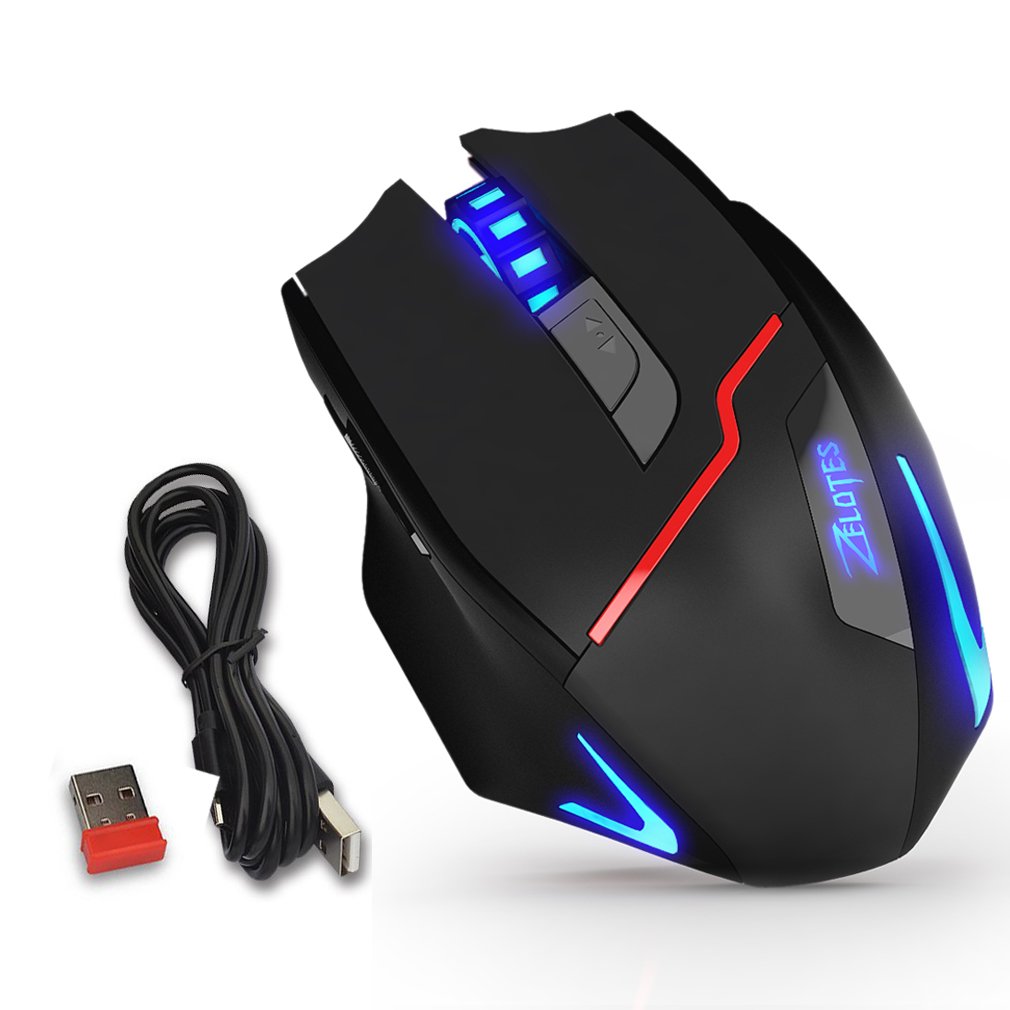
Figure 1: Zelotes F18 Gaming Mouse showcasing different LED lighting options and DPI levels.
The mouse is constructed with durable ABS material and features a braided USB cable for enhanced longevity. Its ergonomic shape is designed for comfortable long-term use.
2. Package Contents
- 1 x Zelotes F18 Gaming Mouse
- 1 x USB Charging/Data Cable (1.8m braided fabric)
- 1 x USB Wireless Receiver (stored in the mouse)
- 1 x Instruction Manual
3. Setup
3.1 Wireless Connection (2.4G)
- Locate the USB wireless receiver, typically stored in a compartment on the underside of the mouse.
- Plug the USB wireless receiver into an available USB port on your computer.
- Turn on the mouse using the power switch located on the underside.
- Your computer should automatically detect and install the necessary drivers. The mouse is ready for use.
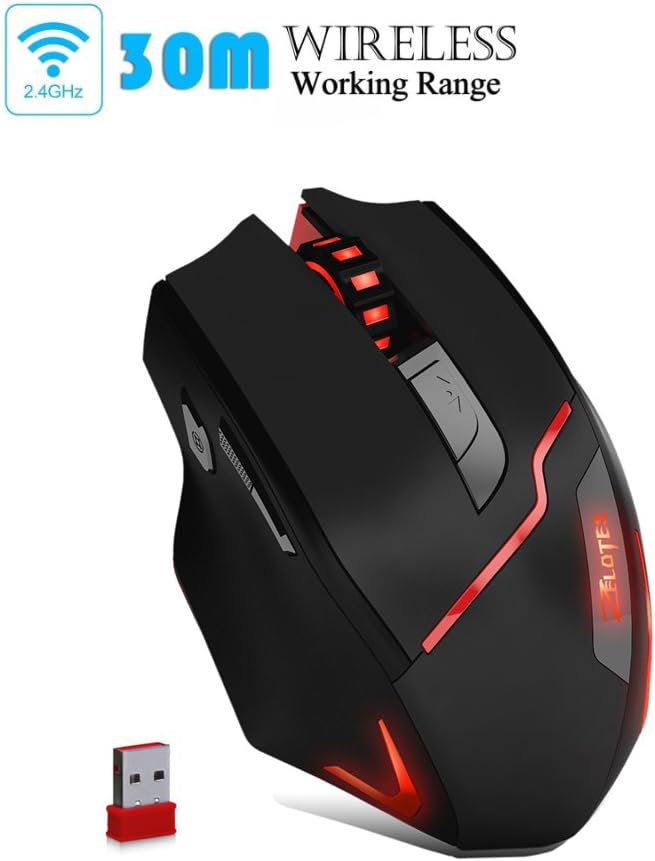
Figure 2: The Zelotes F18 mouse operating wirelessly with its USB receiver.
3.2 Wired Connection
- Connect the USB charging/data cable to the mouse's charging port.
- Plug the other end of the USB cable into an available USB port on your computer.
- The mouse will function as a wired mouse and will also charge its internal battery.

Figure 3: The Zelotes F18 mouse connected via its USB cable, also illustrating comfortable grip.
4. Operating Instructions
The Zelotes F18 mouse features 8 buttons, each with specific functions to enhance usability and gaming performance.

Figure 4: Labeled diagram of the Zelotes F18 mouse buttons.
- Right Key
- Left Key
- Scroll Wheel
- DPI Cycle Button: Press to cycle through DPI settings.
- Fire Key:
- Short Press: Performs a double-click.
- Long Press (more than 2 seconds): Switches to a triple-click function. The light will flash 3 times to indicate successful switching.
- Forward/Previous Page Button (Thumb Function): Navigates forward in web browsers or folder windows.
- Backward/Next Page Button (Thumb Function): Navigates backward in web browsers or folder windows.
- Light Mode Switch (Not explicitly numbered in image, but described in features):
- Short Press: Cycles through 13 different light modes (color cycle breathing, 6 single-color breathing, 6 single-color constant light).
- Long Press (more than 2 seconds): Turns off the LED lights.
4.1 DPI Adjustment
The mouse offers 6 adjustable DPI settings for precision control. Press the DPI Cycle Button (Button 4) to switch between the following sensitivities:
- 1000 DPI (Red Light flashes orange 3 times)
- 1600 DPI (Green Light)
- 2400 DPI (Green Light)
- 3200 DPI (Light Blue Light)
- 5500 DPI (Blue Light)
- 9200 DPI (Purple Light)
The LED indicator color changes to reflect the current DPI setting.
5. Charging and Battery
The Zelotes F18 mouse features a built-in rechargeable battery. To charge the mouse, connect it to your computer using the provided USB cable. The mouse can be used normally while charging in wired mode.
When the battery is low, the mouse's performance or lighting may be affected. Connect the USB cable to recharge promptly.
6. Maintenance
- Cleaning: Use a soft, dry cloth to clean the mouse. For stubborn dirt, a slightly damp cloth can be used, but ensure no liquid enters the mouse.
- Storage: Store the mouse in a dry environment, away from extreme temperatures and direct sunlight.
- Protective Film: Before initial use, ensure you remove any protective film from the mouse's foot pads to ensure smooth gliding.
7. Troubleshooting
- Mouse not responding:
- Ensure the mouse is powered on (if in wireless mode).
- Check the USB receiver connection or the wired USB cable connection. Try a different USB port.
- Ensure the battery is charged. Connect the mouse via USB cable to charge.
- Cursor movement is erratic or slow:
- Clean the optical sensor on the underside of the mouse.
- Ensure you are using the mouse on a suitable surface (e.g., a mouse pad).
- Adjust the DPI setting using the DPI Cycle Button.
- LED lights are off:
- Short press the Light Mode Switch to cycle through modes.
- Ensure the lights haven't been turned off by a long press of the Light Mode Switch.
- Factory Reset: If you experience persistent issues, you can restore the mouse to factory settings by pressing the Left and Right buttons simultaneously for more than 2 seconds.
8. Specifications
| Feature | Detail |
|---|---|
| Model Number | F18 |
| Connectivity | Wired (USB) / Wireless (2.4G) |
| Tracking System | Optical (Red Wave Type) |
| DPI Settings | 1000/1600/2400/3200/5500/9200 |
| Number of Buttons | 8 |
| Cable Length | 1.8 meters (braided fabric) |
| Working Voltage/Current | 5V / 100mA |
| Dimensions (L x W x H) | 130 x 81 x 40 mm (approx. 5.1 x 3.2 x 1.6 inches) |
| Weight | 160g +/- 5g |
| Counterweight | 8 x 2.5 Gram tuning weights (internal) |
| Special Feature | LED Light, Ergonomic Design |

Figure 5: Physical dimensions of the Zelotes F18 Gaming Mouse.

Figure 6: The ergonomic design of the Zelotes F18 mouse, crafted for comfort during extended use.
9. Compatibility
The Zelotes F18 Gaming Mouse is compatible with a wide range of operating systems, including:
- Windows 98/2000/ME/NT/XP/Vista/7/8/10
- Mac OS
- Linux
Simply connect the mouse to an available USB port for plug-and-play functionality.
10. Warranty and Support
For warranty information and technical support, please refer to the documentation included with your purchase or contact Zelotes customer service. Keep your purchase receipt as proof of purchase for warranty claims.


