
Donner EC974
Donner Wireless Page Turner Pedal User Manual
Model: EC974
Introduction
The Donner Wireless Page Turner Pedal is designed to provide musicians, presenters, and readers with a hands-free solution for navigating digital content. This versatile foot pedal offers seamless control across various platforms, enhancing your performance and productivity by eliminating the need to manually turn pages or scroll.
Key Features
- Multi-Platform Compatibility: Adaptable to various devices including phones, tablets (Android, iOS), Mac, and PC.
- Hands-Free Operation: Frees your hands for playing instruments, presenting, or reading.
- Multiple Functions: Controls music reading, music score turning, scrolling lyrics, media control, and more.
- Extended Battery Life: Offers 50+ hours of continuous use on a single charge with its built-in rechargeable battery.
- Long Connection Distance: Provides a wireless connection range of up to 30 feet.
- Durable Design: Features a robust construction with rubber anti-skid pads for stability and a magnetic touch mute switch.
What's in the Box
- 1 x Donner Wireless Page Turner Pedal (Black)
- 1 x USB Charging Cable
Setup Guide
1. Charging the Pedal
Before first use, ensure the pedal is fully charged using the included USB cable. Connect the USB cable to the pedal's charging port and a compatible USB power source. The LED indicator will show charging status.
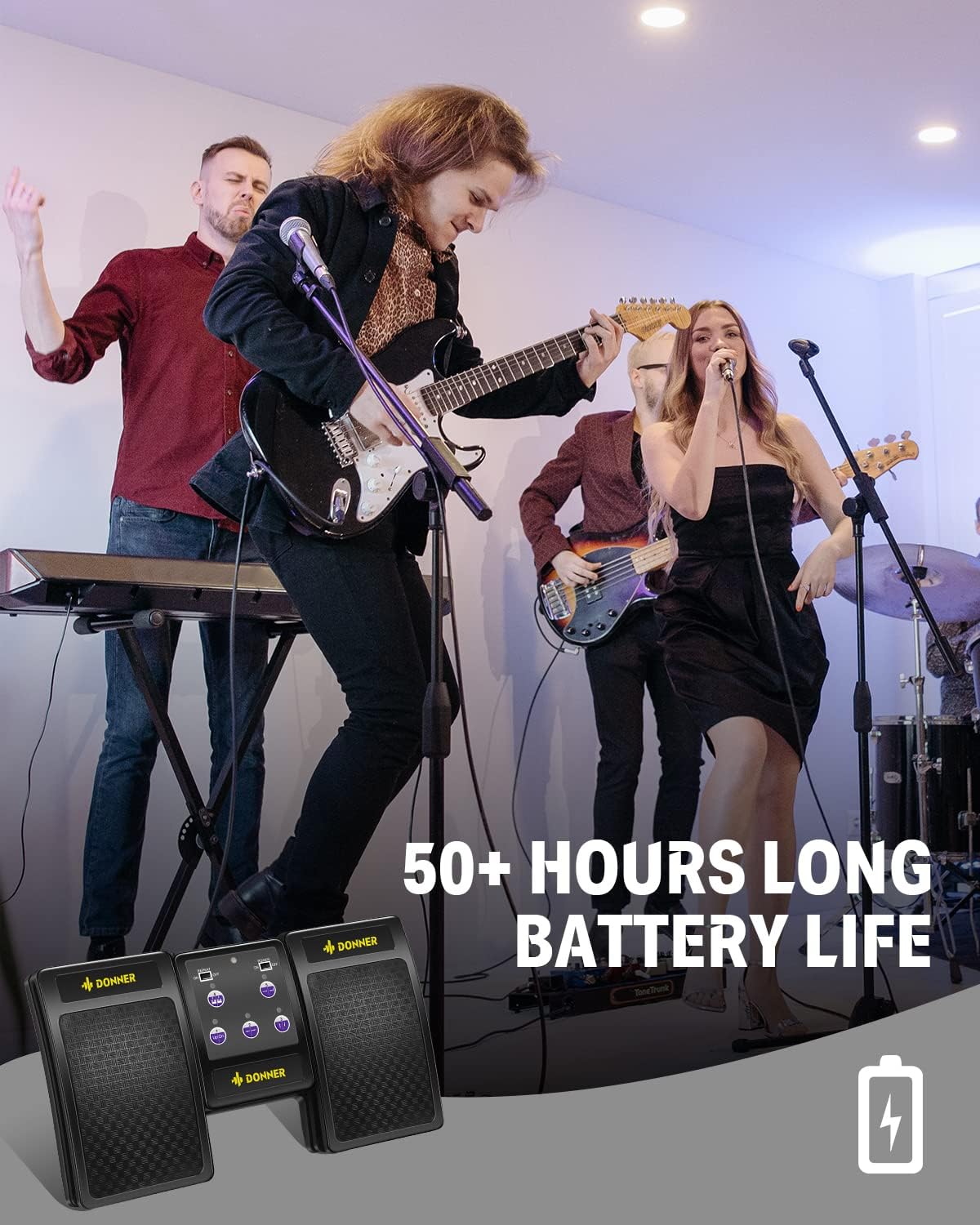
Figure 1: The Donner Wireless Page Turner Pedal highlighting its long battery life, indicating 50+ hours of use on a single charge.
2. Bluetooth Connection
- Turn on the Donner Wireless Page Turner Pedal using the power switch located on the central panel.
- On your device (tablet, phone, PC, Mac), navigate to the Bluetooth settings.
- Enable Bluetooth if it's not already on.
- Search for available devices. The pedal should appear as "Bluetooth Music Pedal" or similar.
- Select the pedal to pair. Once connected, the device's Bluetooth settings will indicate "Connected".

Figure 2: Step-by-step guide for connecting the pedal via Bluetooth on a tablet device.
Operating Instructions
1. Basic Page Turning
Once connected, the pedal is ready for basic page turning. Typically, the left pedal will move to the previous page (Page Up), and the right pedal will move to the next page (Page Down). This functionality is standard for most music reading applications and document viewers.

Figure 3: The Donner Wireless Page Turner Pedal, showcasing its three-pedal design for hands-free control.
2. Understanding the 5 Modes
The pedal features 5 distinct modes, each mapping the left and right pedals to different commands. A small yellow LED indicator on the central panel shows which mode is currently selected. You can switch between modes using the mode selection buttons.

Figure 4: Detailed table outlining the functions of the left and right pedals for each of the 5 available modes.
| Mode | Pedal Left | Pedal Right |
|---|---|---|
| 1 (Pg Up/Dn) | Pg Up | Pg Dn |
| 2 (Left/Right Arrow) | Left Arrow | Right Arrow |
| 3 (Up/Down Arrow) | Up Arrow | Dn Arrow |
| 4 (Mouse Click) | Left Mouse Click | Right Mouse Click |
| 5 (Space/Enter) | Space | Enter |
Compatibility
The Donner Wireless Page Turner Pedal is designed for broad compatibility with various operating systems and applications. It works seamlessly with:
- Operating Systems: iOS, Android, Mac, Windows PC.
- Devices: Tablets, Smartphones, Laptops, Desktop Computers.
- Applications: Compatible with most music reading apps (e.g., ForScore, MobileSheets), PDF readers (e.g., Adobe Acrobat Reader), and presentation software.

Figure 5: Visual representation of the pedal's versatility and compatibility with multiple platforms and reading applications.
Maintenance
- Cleaning: Use a soft, dry cloth to clean the pedal. Avoid using harsh chemicals or abrasive materials.
- Storage: Store the pedal in a cool, dry place away from direct sunlight and extreme temperatures.
- Battery Care: To prolong battery life, avoid fully discharging the pedal frequently. Charge it regularly, even if not in constant use.
Troubleshooting
| Problem | Possible Cause | Solution |
|---|---|---|
| Pedal not connecting via Bluetooth | Bluetooth off on device, pedal not in pairing mode, interference. | Ensure Bluetooth is enabled on your device. Turn the pedal off and on again to re-enter pairing mode. Move closer to the device. |
| Pages not turning in app | Incorrect mode selected, app not compatible, app settings. | Verify the correct mode is selected on the pedal (e.g., Mode 1 for Page Up/Down). Check your app's settings for pedal or keyboard input options. Ensure the app supports external page turners. |
| Pedal unresponsive | Low battery, connection lost. | Charge the pedal. Re-establish Bluetooth connection. |
| Pedal slides on floor | Slippery surface. | Ensure the pedal is placed on a non-slip surface. The rubber anti-skid pads are designed for stability. |
Specifications
| Attribute | Detail |
|---|---|
| Brand | Donner |
| Model Number | EC974 |
| Color | Black |
| Material | Acrylonitrile Butadiene Styrene |
| Item Weight | 14.4 ounces |
| Product Dimensions | 7.09"L x 5.51"W x 0.87"H (18 x 14 x 2.2 cm) |
| Connectivity Technology | Bluetooth, Wireless |
| Power Source | Battery Powered (Rechargeable) |
| Battery Life | 50+ hours on a single charge |
| Wireless Range | Up to 30 feet |
| Number of Keys/Pedals | 3 |
| Compatible Devices | Tablets, Phones, PC |
| Operating System | Android, iOS, Mac, Windows |

Figure 6: Product dimensions of the Donner Wireless Page Turner Pedal.
Official Product Video
Video 1: Official product video from DonnerDirect showcasing the Wireless Page Turner Pedal in Silver and Gold, demonstrating its features and design.
Warranty and Support
Donner provides a standard warranty for its products. For detailed warranty information, product registration, or technical support, please visit the official Donner website or contact their customer service. Keep your purchase receipt for warranty claims.
Related documentsEC974


Ask a question about this manual
Ask about setup, troubleshooting, compatibility, parts, safety, or missing instructions. Manuals+ will review the question and use this page’s manual context to help answer it.