
Introduction
The City Theatrical DMXcat is a comprehensive multifunction DMX test tool designed for professionals in the entertainment lighting industry. This device integrates various essential functions into a compact, handheld unit, allowing for efficient control, analysis, and testing of DMX and RDM systems. It connects wirelessly to a smartphone application, providing a user-friendly interface for its diverse capabilities.
Package Contents
Upon opening the DMXcat package, please ensure all the following items are present:
- DMXcat Multifunction DMX Test Tool
- USB to Micro USB Cable
- XLR5M to XLR5M Turnaround
- Belt Clip with Screw and Splint Ring Safety Point
- Batteries (pre-installed or included)

Figure 1: Contents of the DMXcat package, showing the main unit, USB charging cable, XLR5M to XLR5M turnaround adapter, and a belt clip with its attachment screw and safety ring.
Setup
1. Device Overview and Charging
Familiarize yourself with the DMXcat's physical features. The device includes a Micro USB charging port, an LED Status Indicator, a Power Control button, and a Flashlight Control button with an integrated Flashlight LED.
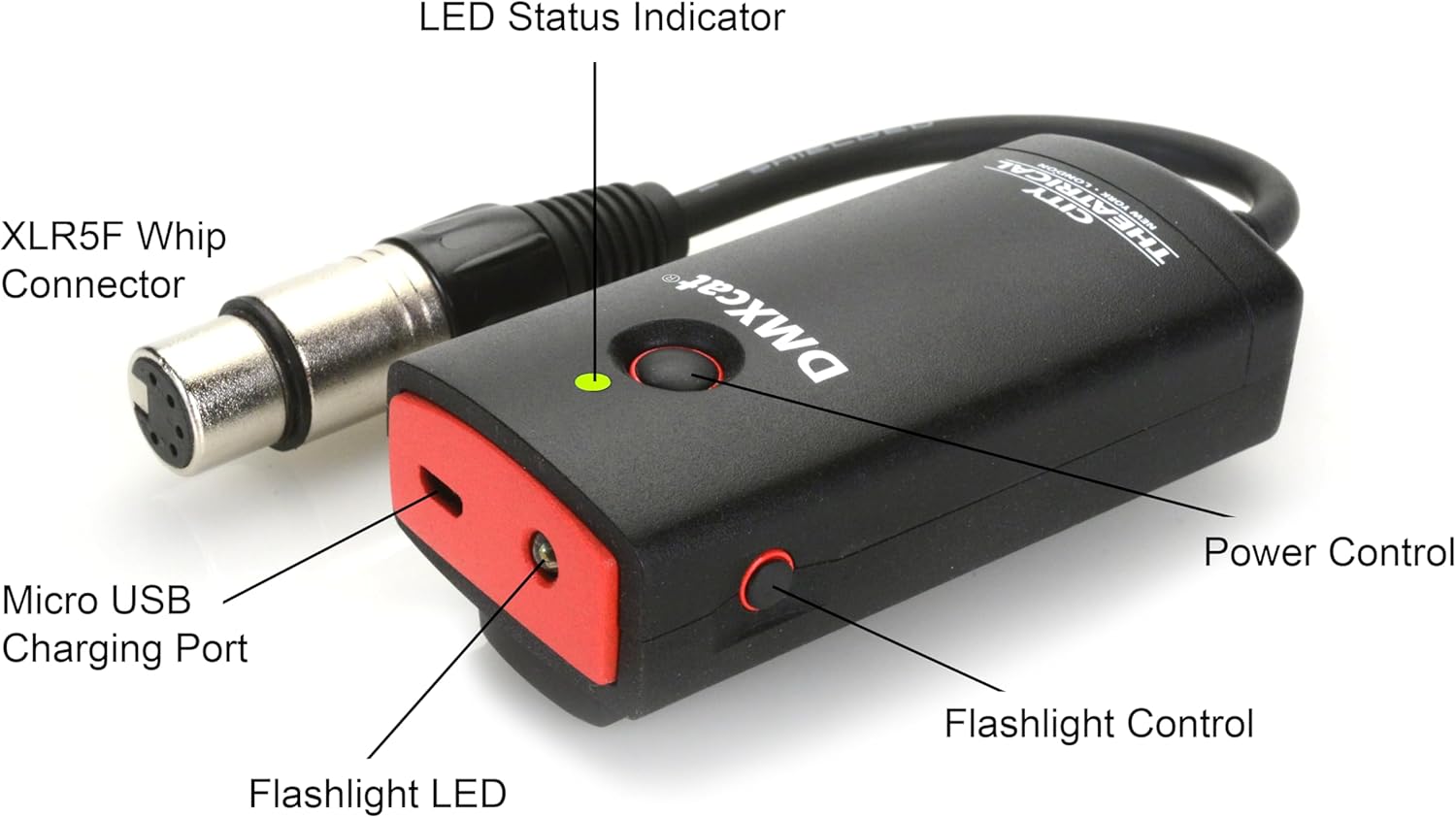
Figure 2: Detailed view of the DMXcat unit with key components labeled for easy identification.
Before first use, ensure the DMXcat is fully charged using the provided USB to Micro USB cable. Connect the Micro USB end to the DMXcat's charging port and the USB-A end to a compatible USB power source.
2. App Installation and Connection
The DMXcat operates in conjunction with a dedicated smartphone application. Download the "DMXcat" app from your device's respective app store (e.g., Apple App Store for iOS, Google Play Store for Android).
Once installed, open the app and follow the on-screen instructions to pair your DMXcat device via Bluetooth. Ensure Bluetooth is enabled on your smartphone. The DMXcat unit will appear as a discoverable device in the app's pairing menu.
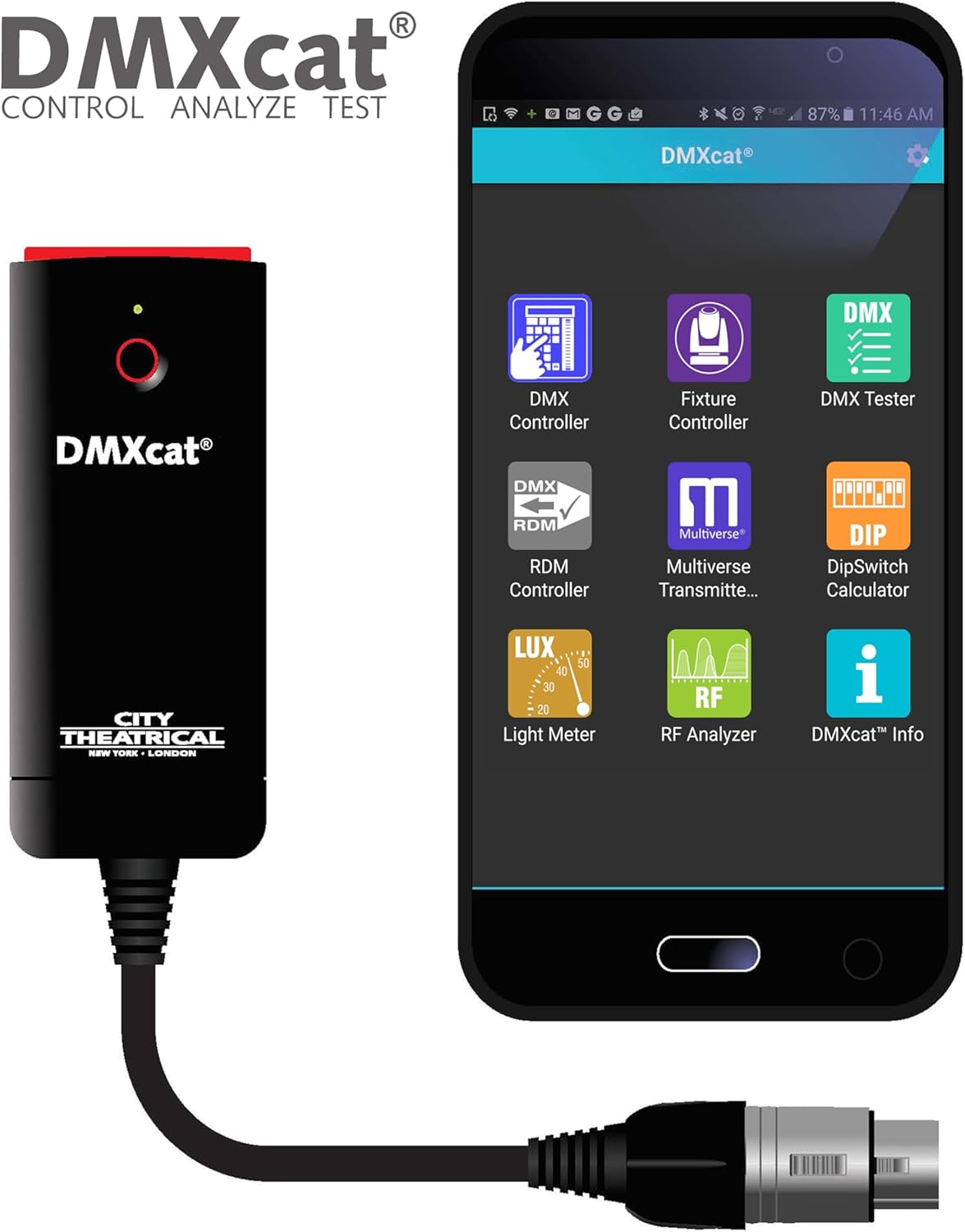
Figure 3: The DMXcat connected to a smartphone, illustrating the wireless control interface.
Operating Instructions
The DMXcat offers a variety of functions accessible through its companion app:
- DMX Controller: Control DMX channels directly from your smartphone.
- Fixture Controller: Manage specific lighting fixtures with pre-defined profiles.
- RF Spectrum Analyzer: Analyze the radio frequency spectrum to identify potential interference (useful for wireless DMX systems).
- DIP Switch Calculator: A utility to quickly calculate DIP switch settings for DMX addresses.
- Light Meter: Measure light intensity (functionality available on Android devices only).
Using the Flashlight
The DMXcat includes a built-in flashlight for convenience in dark environments. To activate or deactivate the flashlight, press the Flashlight Control button located on the side of the unit (refer to Figure 2).

Figure 4: The DMXcat's integrated flashlight in operation, providing illumination for working in low-light conditions.
Maintenance
Proper maintenance ensures the longevity and optimal performance of your DMXcat.
- Cleaning: Use a soft, dry cloth to clean the exterior of the DMXcat. Avoid using abrasive cleaners or solvents that could damage the finish or internal components.
- Storage: Store the DMXcat in a cool, dry place away from direct sunlight and extreme temperatures. When not in use for extended periods, ensure the battery is charged to approximately 50% to prolong its lifespan.
- Battery Care: The DMXcat contains a rechargeable battery. Avoid fully discharging the battery frequently. Recharge the device regularly, even if not in active use, to maintain battery health.
Troubleshooting
If you encounter issues with your DMXcat, refer to the following common troubleshooting steps:
| Problem | Possible Cause | Solution |
|---|---|---|
| DMXcat not powering on. | Low or depleted battery. | Connect the DMXcat to a USB power source using the provided cable and allow it to charge. |
| Unable to connect to the DMXcat app. | Bluetooth is off on the smartphone; DMXcat is out of range; App issue. | Ensure Bluetooth is enabled on your smartphone. Move closer to the DMXcat. Restart the app or your smartphone. |
| No DMX signal output. | Incorrect DMX cabling; Incorrect app settings; Fixture addressing issue. | Verify DMX cable connections. Check DMX output settings in the app. Confirm fixture DMX addresses. |
| Inaccurate Light Meter readings (Android only). | Environmental factors; Sensor obstruction. | Ensure the DMXcat's light sensor is clean and unobstructed. Use in consistent lighting conditions. |
Specifications
- Item Weight: 4.8 ounces
- Product Dimensions: 1.63 x 0.94 x 3.75 inches
- Material Type: Plastic
- Hardware Interface: USB
Warranty and Support
For detailed warranty information and technical support, please refer to the official City Theatrical website or the product's dedicated page on the retailer's website. Contact information for customer service is typically available in these resources.


