1. Introduction
This manual provides essential information for the proper setup, operation, and maintenance of your Alcatel-Lucent 8039 Deskphone. The 8039 Deskphone is designed to enhance communication efficiency and productivity with its advanced features and user-friendly interface. Please read this manual thoroughly before using your device.
2. Product Overview
2.1 Key Features
- Adjustable stand for ergonomic viewing.
- Alphanumeric keyboard for efficient text input.
- Backlit display for clear visibility in various lighting conditions.
- Dedicated function buttons for quick access to common features.
- User-friendly navigator for intuitive menu browsing.
- Exceptional voice quality for clear communication.
- Innovative design compatible with digital phones of the 9 series (40x9).
- Plug & Play installation for quick deployment.
- Interactive soft keys for dynamic feature access.
- Full range of telephone services supported by Alcatel-Lucent communication servers (OmniPCX Office RCE and OmniPCX Enterprise).
2.2 Deskphone Components
The Alcatel-Lucent 8039 Deskphone includes the main unit, handset, and an alphanumeric keyboard. It features a backlit display and various function keys for operation.
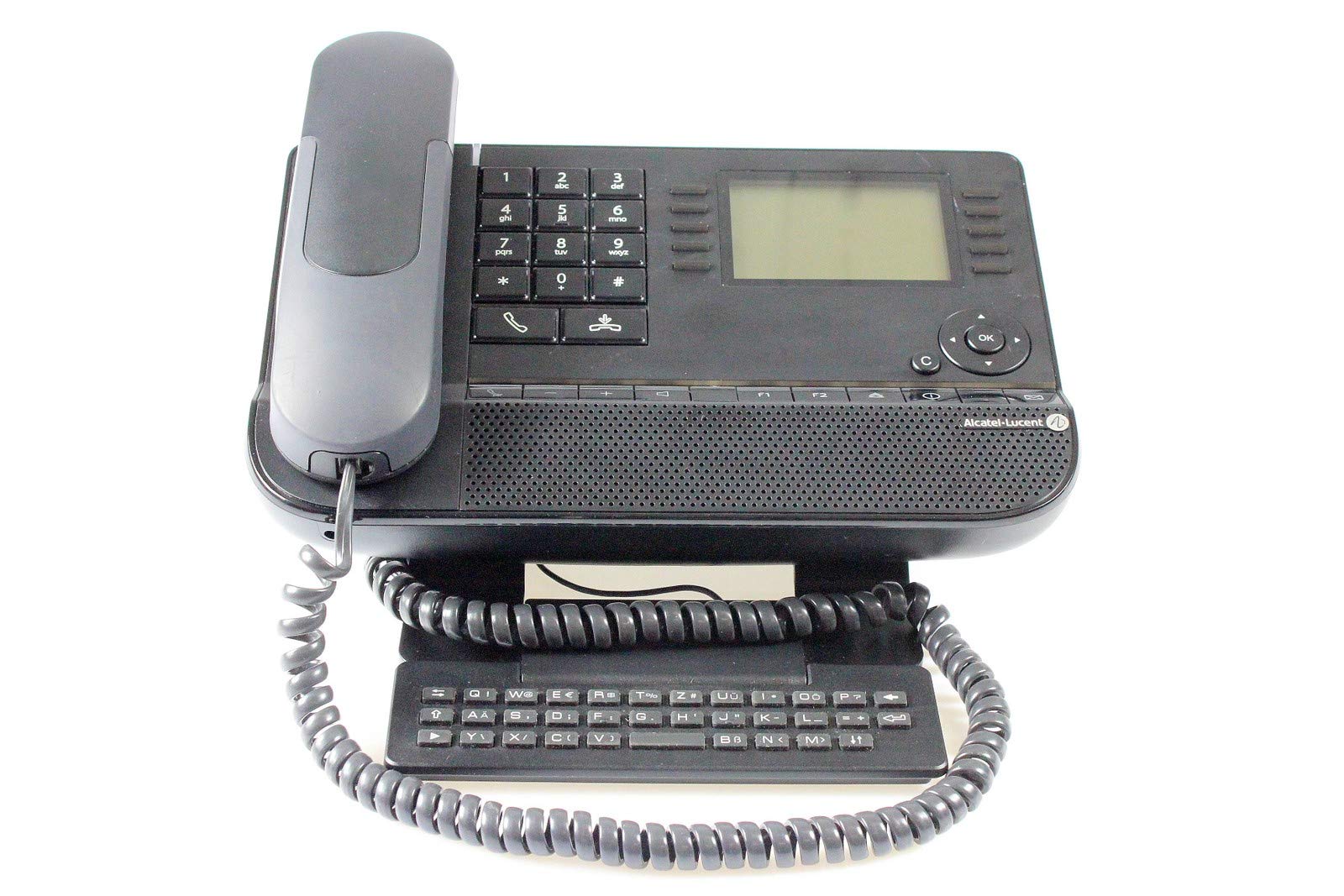
Figure 1: Front view of the Alcatel-Lucent 8039 Deskphone, showing the handset, alphanumeric keyboard, and backlit display.
3. Setup Instructions
- Unpacking: Carefully remove all components from the packaging. Ensure the deskphone unit, handset, and any necessary cables are present.
- Connect the Handset: Plug the coiled cord from the handset into the designated port on the side or back of the deskphone unit.
- Connect to Network/Power: Connect an Ethernet cable from your network wall jack to the LAN port on the back of the deskphone. If your network does not provide Power over Ethernet (PoE), connect the appropriate power adapter (sold separately) to the power port and a wall outlet.
- Adjust Stand: Adjust the integrated stand to your preferred viewing angle for optimal comfort.
- Initial Boot-up: The phone will power on automatically and begin its boot-up sequence. This may take a few moments as it connects to the network and registers with your communication server.
- Configuration: Follow any on-screen prompts for initial configuration, which may include language selection or network settings if not automatically provisioned.
The Alcatel-Lucent 8039 Deskphone features Plug & Play installation, simplifying the setup process.
4. Operating Instructions
4.1 Making a Call
- Lift the handset or press the Speaker button.
- Dial the desired number using the alphanumeric keyboard.
- Press the Call or Send soft key, or wait for the call to connect automatically.
4.2 Answering a Call
- When the phone rings, lift the handset or press the Speaker button.
- Alternatively, press the Answer soft key.
4.3 Using Function Keys
The 8039 Deskphone is equipped with dedicated function keys and interactive soft keys. These keys provide quick access to features such as:
- Hold: Puts an active call on hold.
- Transfer: Transfers an active call to another extension or external number.
- Conference: Initiates a multi-party conference call.
- Mute: Mutes your microphone during a call.
- Voicemail: Accesses your voicemail messages.
- Directory: Accesses your phone's contact directory.
Refer to the on-screen prompts and the user-friendly navigator for specific feature activation and menu navigation.
5. Maintenance
To ensure the longevity and optimal performance of your Alcatel-Lucent 8039 Deskphone, follow these maintenance guidelines:
- Cleaning: Use a soft, dry, lint-free cloth to clean the phone's casing and display. For stubborn marks, slightly dampen the cloth with water or a mild, non-abrasive cleaner. Avoid using harsh chemicals, solvents, or abrasive materials.
- Handset Care: Regularly clean the handset and mouthpiece to maintain hygiene and clear audio.
- Environmental Conditions: Keep the phone away from direct sunlight, excessive heat, humidity, and dust. Ensure proper ventilation around the device.
- Cable Management: Ensure all cables are securely connected and not under strain. Avoid bending or kinking cables sharply.
The device is designed for durability, but proper care will help maintain its appearance and functionality.
6. Troubleshooting
This section addresses common issues you might encounter with your Alcatel-Lucent 8039 Deskphone. If the problem persists after trying these solutions, contact your system administrator or technical support.
| Problem | Possible Cause | Solution |
|---|---|---|
| No dial tone / Phone not powering on | Loose network/power cable, network issue, power outage. |
|
| Display is blank or unreadable | Power issue, display settings, phone frozen. |
|
| Poor call quality (static, echo) | Network congestion, faulty cable, handset issue. |
|
| Cannot make or receive calls | Phone not registered, network issue, incorrect dialing. |
|
7. Specifications
| Feature | Detail |
|---|---|
| Brand | Alcatel |
| Model Number | AL8039 |
| Color | Black |
| Dimensions (L x W x H) | 252 x 200 x 204 mm |
| Special Features | Suitable for seniors, Low radiation, IP Phone compatible |
| Material | Plastic |
| Phone Type | Wired |
| Dialer Type | Single Keypad (Alphanumeric) |
| Answering System Type | Digital |
| Multi-line Operation | Yes |
| Caller Identification | Yes |
8. Warranty and Support
For information regarding warranty coverage, please refer to the documentation provided at the time of purchase or contact your vendor. Specific details on spare parts availability and guaranteed software updates are not available in the product specifications.
For technical support or service inquiries, please contact your IT department or the authorized Alcatel-Lucent service provider.


