
WALI GSWM001
WALI Single Monitor Wall Mount
Model: GSWM001
Introduction
This user manual provides comprehensive instructions for the safe and efficient installation, operation, and maintenance of your WALI Single Monitor Wall Mount (Model GSWM001). Please read this manual thoroughly before installation and retain it for future reference. This gas spring monitor arm is designed to provide an ergonomic and space-saving solution for mounting a single monitor on a wall.
Safety Information
WARNING: Failure to read and follow all instructions may result in personal injury, property damage, or voiding of warranty. If you have any questions, please contact customer support.
- Do not exceed the maximum weight capacity of 22 lbs (10 kg).
- Ensure the mounting surface (wall) can safely support the combined weight of the mount and the monitor.
- Do not mount on drywall alone. This mount requires installation into a wood stud, concrete wall, or brick wall.
- Use appropriate safety gear during installation, including eye protection.
- Keep small parts away from children.
- Check all connections periodically to ensure they remain secure.
Package Contents
Verify that all components are present and undamaged before beginning installation. If any parts are missing or defective, contact WALI customer support.
- 1 x WALI Gas Spring Single Monitor Wall Mount (Black)
- 1 x Mounting Hardware Kit (various screws, anchors, washers)
- 1 x User Manual
- Necessary adjustment tools (e.g., Allen wrenches)
Specifications
| Feature | Detail |
|---|---|
| Model Number | GSWM001 |
| Compatibility (Monitor Size) | 13 to 32 inches |
| Weight Capacity | Up to 22 lbs (10 kg) |
| VESA Compatibility | 75x75mm, 100x100mm |
| Material | Aluminum |
| Color | Black |
| Max Extension | 19.3 inches |
| Tilt Angle | +70° / -45° |
| Swivel Angle | +90° / -90° |
| Rotation | 360° (Landscape to Portrait) |
| Height Adjustment Range | 12.2 inches |
Compatibility Check
Before installation, ensure your monitor and wall meet the following requirements:
- Monitor Size: Fits most monitors from 13 to 32 inches.
- Monitor Weight: Supports monitors weighing up to 22 lbs (10 kg).
- VESA Pattern: Compatible with VESA mounting patterns 75x75mm and 100x100mm. If your monitor has a different VESA pattern, an adapter may be required (sold separately).
- Wall Type: Designed for installation on wood studs, concrete walls, or brick walls. Do NOT mount on drywall alone.

Figure 1: Monitor Compatibility Overview. This image illustrates the maximum weight capacity of 22 lbs, VESA compatibility for 75x75mm and 100x100mm, and supported monitor sizes from 17 to 32 inches.

Figure 2: Supported Wall Types for Installation. This image clarifies that the mount can be installed on wood studs, concrete walls, or brick walls, and explicitly warns against mounting on drywall without a stud.
Setup and Installation
Step 1: Wall Preparation and Mounting the Wall Plate
Locate a suitable mounting spot on a wood stud, concrete wall, or brick wall. Use a stud finder for wood studs. Mark the drilling locations accurately. Drill pilot holes as required for your wall type and secure the wall plate using the provided lag bolts or anchors.

Figure 3: Installed Monitor Wall Mount. This image displays the monitor arm securely mounted to a wall, holding a monitor, with a blue cable neatly routed along the arm for cable management.
Step 2: Attaching the Monitor to the VESA Plate
Carefully attach the VESA plate to the back of your monitor using the appropriate screws from the hardware kit. Ensure the screws are tightened securely but do not overtighten.
Step 3: Connecting the Monitor Arm to the Wall Plate
Slide the monitor arm assembly onto the wall plate. Ensure it is securely seated and locked into place. Follow the specific instructions in the included paper manual for detailed steps on securing the arm.
Step 4: Cable Management
Route your monitor's power and video cables along the integrated cable management channels on the arm. This helps maintain a clean and organized workspace.
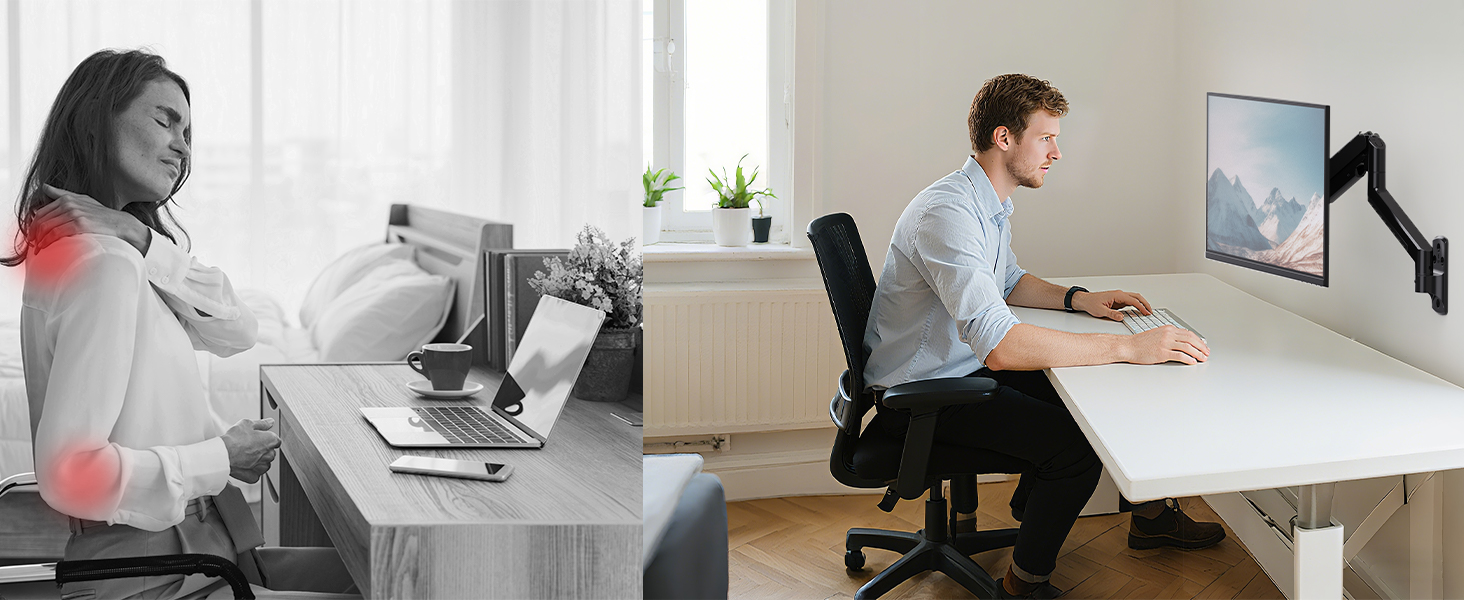
Figure 4: Integrated Cable Management. This image highlights the design of the monitor arm that allows for cables to be neatly routed through its structure, as demonstrated by a blue cable.
Operating Instructions and Adjustments
The WALI GSWM001 monitor arm offers a wide range of adjustments for optimal viewing comfort and ergonomic positioning.
Height Adjustment
The gas spring arm allows for smooth vertical height adjustments. Gently push or pull the monitor to your desired height. The arm has a 12.2-inch adjustable height range.

Figure 5: Maximum Extension and Height Adjustment. This image illustrates the arm's ability to extend up to 19.3 inches from the wall and its vertical adjustment range of 12.2 inches.
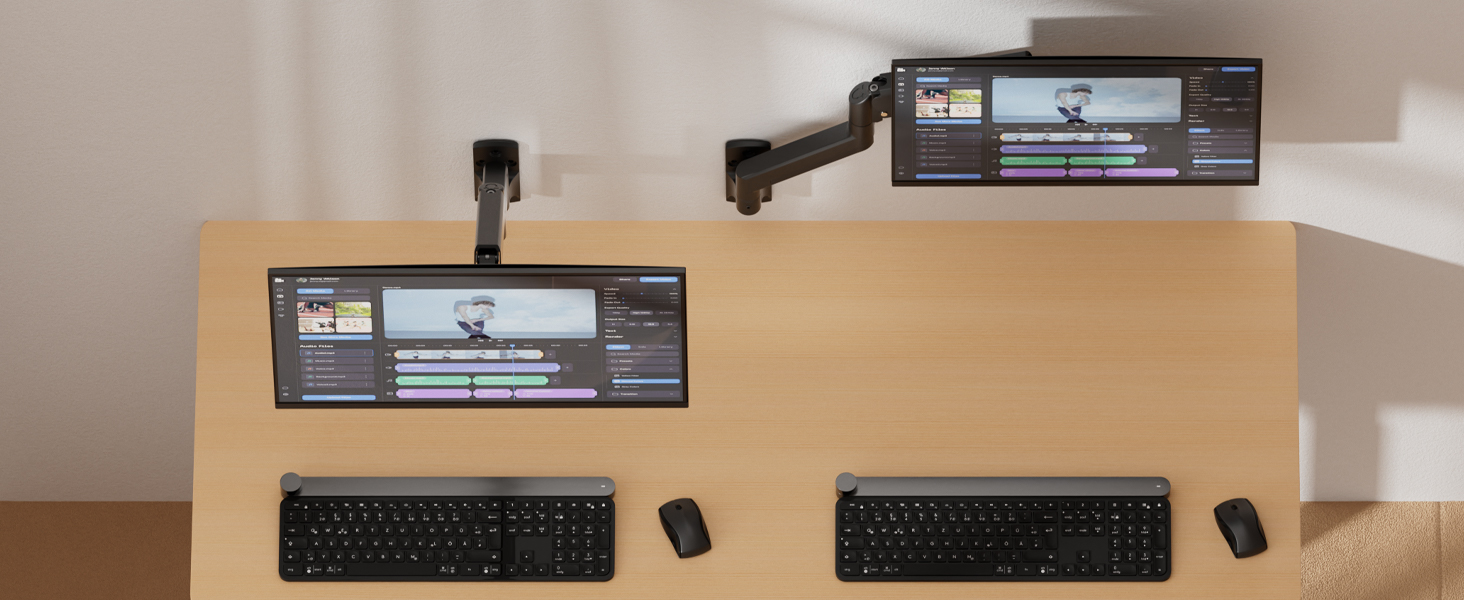
Figure 6: Height Adjustment Range. This diagram visually represents the 12.2-inch height adjustment capability, showing the arm in lowered, horizontal, and raised positions.
Tilt Adjustment
The monitor can be tilted +70°/-45° to reduce glare and optimize viewing angles. Loosen the tilting bolt, adjust to your desired angle, and then retighten the bolt.

Figure 7: Gas Spring Tension and Tilt Adjustment. This image provides instructions for adjusting the gas spring tension (clockwise for lighter, counter-clockwise for heavier monitors) and the tilt angle by loosening and retightening a bolt.
Swivel Adjustment
Swivel the monitor +90°/-90° horizontally to share your screen or adjust for different viewing positions within your workspace.
Rotation Adjustment
Rotate the monitor 360° to switch between landscape and portrait modes without removing the monitor from the mount.

Figure 8: Full Adjustability of the Monitor Arm. This image showcases the range of motion, including tilt, swivel, and 360-degree rotation, allowing for versatile monitor positioning.

Figure 9: Customizing Viewing Angle. This image demonstrates how users can easily adjust the monitor's angle for collaborative viewing or personal preference, utilizing the arm's swivel and tilt functions.
Gas Spring Tension Adjustment
If the monitor arm does not hold its position or is too stiff, adjust the gas spring tension. Use the provided Allen wrench to turn the adjustment screw. Turn clockwise for lighter monitors (to reduce tension) and counter-clockwise for heavier monitors (to increase tension). Ensure the arm is in a horizontal position during adjustment.

Figure 10: Detailed Dimensions and Adjustment Ranges. This diagram provides precise measurements for the arm's extension (19.3"), height (12.2"), and angular adjustments (tilt, swivel, rotation).
Maintenance
- Periodically check all screws and bolts to ensure they are tight and secure.
- Clean the mount with a soft, damp cloth. Avoid abrasive cleaners or solvents.
- Do not lubricate the gas spring mechanism.
Troubleshooting
| Problem | Possible Cause | Solution |
|---|---|---|
| Monitor arm falls down or cannot hold position. | Gas spring tension is too low for the monitor's weight. | Increase gas spring tension by turning the adjustment screw counter-clockwise (for heavier monitors). Refer to "Gas Spring Tension Adjustment" section. |
| Monitor arm is too stiff to move. | Gas spring tension is too high. | Decrease gas spring tension by turning the adjustment screw clockwise (for lighter monitors). Refer to "Gas Spring Tension Adjustment" section. |
| Monitor tilts forward or backward unexpectedly. | Tilting bolt is loose. | Tighten the tilting bolt. Refer to "Tilt Adjustment" section. |
| Mount feels unstable on the wall. | Improper installation or loose wall plate screws. | Ensure the mount is installed into a wood stud, concrete, or brick wall. Re-tighten all wall plate screws. If issues persist, consult a professional. |
Warranty and Support
WALI products come with a limited warranty. Please refer to the warranty card included in your package or visit the official WALI website for detailed warranty terms and conditions.
For technical assistance, missing parts, or any other inquiries, please contact WALI customer support. Experienced and friendly US-based customer support is available to assist 7 days a week.
WALI Customer Support:
- Email: [Refer to product packaging or official website for email address]
- Phone: [Refer to product packaging or official website for phone number]
- Website: www.walielectric.com
Related documentsGSWM001


Ask a question about this manual
Ask about setup, troubleshooting, compatibility, parts, safety, or missing instructions. Manuals+ will review the question and use this page’s manual context to help answer it.