
Introduction
The Brookstone Pure-Ion Pro Air Purifier is designed to help improve indoor air quality by removing common airborne irritants. This unit effectively filters pollen, mold, pet dander, dust mites, bacteria, and smoke from the air that passes through its system. It features a user-friendly design with multiple cleaning speeds and a built-in timer for convenient operation.
The Pure-Ion Pro also incorporates an Ion Boost feature, which generates negative ions to mimic natural environments rich in these ions. This feature is intended to enhance the user experience. Please note, this product is not a medical device and meets voluntary UL867 guidelines for ozone emission, maintaining levels below 50 ppb.
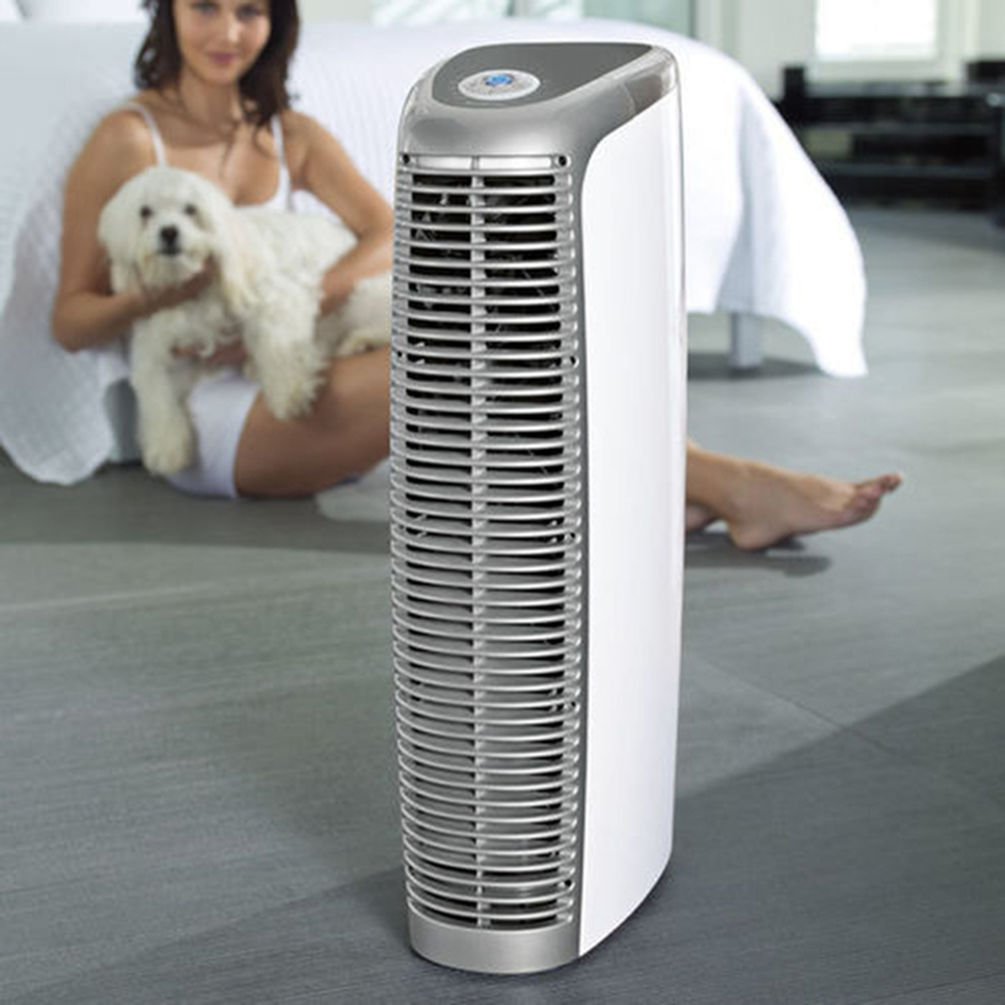
Image: The Brookstone Pure-Ion Pro Air Purifier, a tall, sleek white and silver unit designed for air purification.
Important Safety Instructions
To reduce the risk of fire, electric shock, or injury, always follow these basic safety precautions:
- Read all instructions thoroughly before operating the appliance.
- Do not operate any appliance with a damaged cord or plug. If the cord or plug is damaged, contact customer service immediately.
- Do not use the air purifier near water or in damp environments, such as bathrooms or laundry areas.
- Keep the appliance away from heat sources, direct sunlight, and flammable materials.
- Always unplug the air purifier from the electrical outlet before cleaning, performing any maintenance, or when not in use for extended periods.
- Ensure that air vents are not blocked. Maintain adequate clearance around the unit for proper airflow.
- Use this appliance only for its intended purpose as described in this manual.
- This product is not a medical device. Consult a healthcare professional for any medical conditions.
- Do not insert objects into any openings.
- Supervise children when the appliance is in use.
Product Overview
Familiarize yourself with the components and controls of your Pure-Ion Pro Air Purifier.
Control Panel

Image: A detailed view of the control panel, showing the central power button, fan speed settings (Whisper, Low, Med, High, Turbo), timer settings (2, 4, 6, 8, 12 hours), and the ION button.
- Power Button: Located at the center, turns the unit on or off.
- Fan Speed Settings: Select from Whisper, Low, Med, High, or Turbo for varying levels of air purification and noise.
- Timer Settings: Set the unit to operate for 2, 4, 6, 8, or 12 hours before automatically shutting off.
- ION Button: Activates or deactivates the Ion Boost feature.
Internal Components

Image: An internal diagram illustrating the airflow path through the air purifier, highlighting the multiple fans and the filter system.
- Washable Aluminum Filter: The primary filtration component that captures airborne particles. This filter is designed for repeated cleaning and does not require replacement.
- Fans: Four powerful, quiet fans draw air into the unit and circulate purified air back into the room.
Setup
- Unpack the Unit: Carefully remove the air purifier and all packaging materials from the box. Retain packaging for future storage or transport.
- Choose a Location: Place the air purifier on a firm, level surface. Ensure there is at least 6 inches (15 cm) of clearance around all sides of the unit to allow for proper air intake and output. Avoid placing it directly against walls or furniture that could obstruct airflow.
- Plug In: Insert the power cord into a standard 120V AC electrical outlet.

Image: The Brookstone Pure-Ion Pro Air Purifier positioned upright, ready for use in a room.
Operating Instructions
- Power On/Off: Press the central Power Button on the control panel to turn the unit on. Press it again to turn the unit off.
- Select Fan Speed: Once powered on, use the fan speed buttons (Whisper, Low, Med, High, Turbo) to adjust the airflow and purification intensity. The Whisper setting provides the quietest operation, while Turbo offers maximum air circulation.
- Set Timer (Optional): To set an automatic shut-off time, press the Timer button repeatedly to cycle through the available options: 2, 4, 6, 8, or 12 hours. The corresponding indicator light will illuminate. The unit will operate for the selected duration and then power off automatically.
- Activate Ion Boost (Optional): Press the ION button to activate the Ion Boost feature. An indicator light will confirm activation. Press the button again to deactivate it.

Image: A visual representation of the air purification process, with arrows showing dirty air entering the unit and clean air being expelled.
Maintenance
Regular cleaning of your Pure-Ion Pro Air Purifier ensures optimal performance and extends the life of the unit. Always unplug the unit before performing any maintenance.
Filter Cleaning
The Pure-Ion Pro features a washable aluminum filter that never needs replacement. A crackling sound from the unit or an illuminated indicator light on the control panel will signal when the filter requires cleaning.
- Remove the Filter: Gently open the filter access panel and carefully pull out the aluminum filter assembly.
- Clean the Filter: The aluminum filter can be cleaned manually or in a dishwasher.
- Manual Cleaning: Rinse the filter under warm running water until clean. For stubborn dirt, use a soft brush and mild detergent.
- Dishwasher Cleaning: Place the filter in the dishwasher on a gentle cycle.
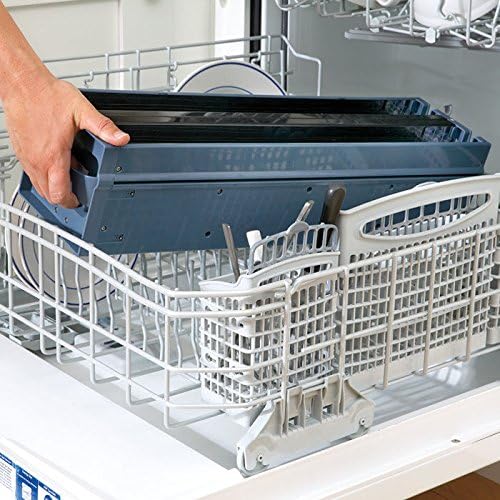
Image: The washable aluminum filter assembly placed inside a dishwasher rack for cleaning.
- Dry the Filter: Allow the filter to air dry completely before reinserting it into the unit. Ensure no moisture remains.
- Reinstall the Filter: Carefully slide the dry filter assembly back into its compartment until it clicks securely into place. Close the access panel.

Image: A hand demonstrating the removal of the filter assembly from the top of the air purifier unit.
Exterior Cleaning
Wipe the exterior of the air purifier with a soft, damp cloth. Do not use abrasive cleaners or solvents, as these may damage the finish.
Troubleshooting
Refer to this section for common issues and their solutions.
| Problem | Possible Cause | Solution |
|---|---|---|
| Unit does not turn on. | No power supply; unit unplugged. | Ensure the power cord is securely plugged into a working electrical outlet. Check the power button. |
| Crackling sound from the unit. | Filter needs cleaning. | Unplug the unit and clean the washable aluminum filter as described in the Maintenance section. |
| Reduced airflow or purification effectiveness. | Blocked air vents; dirty filter. | Check that air intake and output vents are not obstructed. Clean the aluminum filter. |
| Unusual noises (e.g., sparking, loud buzzing) or burning smell. | Internal malfunction; electrical issue. | Immediately unplug the unit. Do not attempt to operate or repair. Contact Brookstone customer service for assistance. |
Specifications
- Brand: Brookstone
- Model: PUREIONPRO
- UPC: 883594054440
- CADR (Clean Air Delivery Rate):
- Pollen: 153.7 (average)
- Smoke: 179.5 (average)
- Dust: 144.2 (average)
- Power Consumption: As little as 10 watts per hour
- Ozone Emission: Meets UL867 guidelines (less than 50 ppb)
- Color: Multicolor

Image: The AHAM Certified Clean Air Delivery Rate badge, indicating independent performance testing.
Warranty and Support
For warranty information, please refer to the documentation included with your product at the time of purchase or visit the official Brookstone website. If you require technical support or have questions not covered in this manual, please contact Brookstone customer service.
Contact Information: Please refer to the Brookstone official website or your purchase receipt for the most current customer service contact details.


