
1. Introduction
This manual provides comprehensive instructions for the proper use and maintenance of your FOXWELL NT201 OBD2 Scanner. The NT201 is a powerful diagnostic tool designed to help both entry-level users and experienced technicians quickly and efficiently identify and resolve OBDII/EOBD related issues in modern vehicles. Please read this manual thoroughly before operating the device to ensure safe and effective use.
2. Product Overview
The FOXWELL NT201 OBD2 Scanner is a versatile tool compatible with all OBDII/EOBD compliant cars, light trucks, SUVs, and minivans worldwide. It offers a range of diagnostic functions to help you understand and address vehicle issues.
Key Features:
- Broad Vehicle Compatibility: Works with most 1996 and newer vehicles (OBDII/EOBD/JOBD and CAN compliant).
- Check Engine Light Diagnosis: Determines the cause of the 'Check Engine Light' (MIL) illumination.
- DTC Management: Reads and clears Diagnostic Trouble Codes (DTCs), turns off MIL, and resets monitors.
- Live Data Stream: Displays complete live vehicle sensor data in both text and graph formats.
- Freeze Frame Data: Retrieves freeze frame data, showing engine conditions at the time a fault code was set.
- I/M Readiness: One-click I/M readiness shortcut keys provide quick access to emissions readiness status.
- Vehicle Information: Retrieves Vehicle Identification Number (VIN), Calibration ID (CID), and Calibration Verification Number (CVN).
- Multi-language Support: Menu options and code definitions available in multiple languages including English, Spanish, French, and Portuguese.
- Lifetime Free Updates: Exclusive one-click updates and automatic reminders ensure the device stays current with the latest technology via USB.

Figure 1: Front view of the FOXWELL NT201 OBD2 Scanner, showing its display and control buttons.
3. Package Contents
Upon opening your FOXWELL NT201 package, please ensure all the following items are present and in good condition:
- FOXWELL NT201 CAN OBDII Code Reader
- User Guide
- USB Cable

Figure 2: The FOXWELL NT201 scanner, USB cable, and user guide as typically included in the package.
4. Getting Started
Connecting the Scanner to Your Vehicle:
- Locate the vehicle's 16-pin Data Link Connector (DLC). This is usually located under the dashboard on the driver's side.
- Ensure the vehicle's ignition is turned OFF.
- Firmly plug the scanner's OBDII connector into the vehicle's DLC.
- Turn the vehicle's ignition to the ON position (engine off). The scanner will automatically power on and initiate communication with the vehicle's onboard computer.
5. Operating Instructions
5.1. Reading Diagnostic Trouble Codes (DTCs)
DTCs are codes stored by the vehicle's onboard computer system to identify a malfunction. The NT201 can read these codes to help diagnose issues.
- Connect the scanner to the vehicle.
- From the main menu, select 'Read Codes'.
- The scanner will display any stored DTCs along with their definitions.

Figure 3: The scanner displaying a P0231 code, indicating a potential issue with the fuel pump secondary circuit.
5.2. Clearing Diagnostic Trouble Codes (DTCs)
Clearing DTCs will turn off the Check Engine Light (MIL) and reset all monitor statuses. This should only be done after the underlying issue has been resolved.
- Connect the scanner to the vehicle.
- From the main menu, select 'Erase Codes'.
- Confirm your selection when prompted. The MIL will turn off, and monitors will reset.
5.3. I/M Readiness Test
The I/M Readiness function checks the status of the emission-related monitoring systems on the vehicle. This is crucial for passing emissions tests.
- Connect the scanner to the vehicle.
- Press the dedicated I/M Readiness button or select it from the menu.
- The scanner will display the status of various monitors (e.g., MIL, Misfire, Fuel System, O2 Sensor). Green indicates 'OK', yellow indicates 'Pending', and red indicates 'Not OK'.

Figure 4: The I/M Readiness screen showing the status of emission monitors, helping to determine if the vehicle is ready for an emissions test.
5.4. Viewing Live Data
Live Data displays real-time sensor information from the vehicle's engine control unit (ECU), which can be viewed in text or graphical format.
- Connect the scanner to the vehicle.
- From the main menu, select 'Live Data'.
- Choose to view data in text or graph mode. Scroll through the parameters to monitor various engine sensors.

Figure 5: Live data displayed graphically, illustrating O2 sensor readings which can help identify performance issues.
5.5. Viewing Freeze Frame Data
When an emission-related fault occurs, the ECU stores certain vehicle operating conditions at that moment. This 'freeze frame' data can be invaluable for diagnosis.
- Connect the scanner to the vehicle.
- From the main menu, select 'View Freeze Frame'.
- The scanner will display parameters such as engine RPM, vehicle speed, coolant temperature, and fuel system status at the time the DTC was set.
5.6. Retrieving Vehicle Information (VIN, CID, CVN)
The scanner can retrieve important vehicle identification information.
- Connect the scanner to the vehicle.
- From the main menu, select 'Vehicle Info'.
- The scanner will display the Vehicle Identification Number (VIN), Calibration ID (CID), and Calibration Verification Number (CVN).
5.7. Menu Navigation
The NT201 features a user-friendly interface with a 2.8-inch TFT color screen and intuitive buttons for navigation.
- Use the UP/DOWN arrow buttons to scroll through menu options.
- Press the ENTER button to confirm a selection.
- Press the BACK button to return to the previous screen or menu.
- The HELP button provides on-screen assistance for selected functions.

Figure 6: The main diagnostic menu of the NT201, showing various functions available to the user.
6. Maintenance
6.1. Cleaning the Device
To keep your scanner in optimal condition:
- Use a soft, damp cloth to clean the exterior of the device.
- Do not use abrasive cleaners or solvents.
- Avoid getting moisture into the connectors or display.
6.2. Storage
When not in use, store the scanner in a clean, dry environment, away from extreme temperatures and direct sunlight.
7. Software Updates
The FOXWELL NT201 offers lifetime free software and firmware updates to ensure compatibility with new vehicle models and to incorporate the latest diagnostic protocols. This process is performed via a USB connection to a computer.
Update Procedure:
- Visit the official FOXWELL website and download the update client software for your computer.
- Install the update client software on your PC.
- Connect the NT201 scanner to your computer using the provided USB cable.
- Launch the update client software. The software will detect your device and check for available updates.
- Follow the on-screen instructions to download and install the latest software and firmware onto your scanner.
Figure 7: The NT201 connected to a computer for software updates and the option to print diagnostic data.
8. Troubleshooting
This section addresses common issues you might encounter while using your FOXWELL NT201 scanner.
| Problem | Possible Cause | Solution |
|---|---|---|
| Scanner does not power on. | Loose connection to DLC; vehicle ignition off; vehicle not OBDII compliant. | Ensure secure connection; turn ignition to ON; verify vehicle compatibility. |
| Communication error with vehicle. | Faulty connection; incorrect protocol; vehicle's ECU is not responding. | Check cable connection; ensure ignition is ON; try on another vehicle if possible. |
| DTCs cannot be cleared. | Underlying fault still present; ignition not ON. | Repair the fault first; ensure ignition is ON (engine off). |
| Screen freezes or device is unresponsive. | Software glitch; power interruption. | Disconnect and reconnect the scanner; perform a software update. |
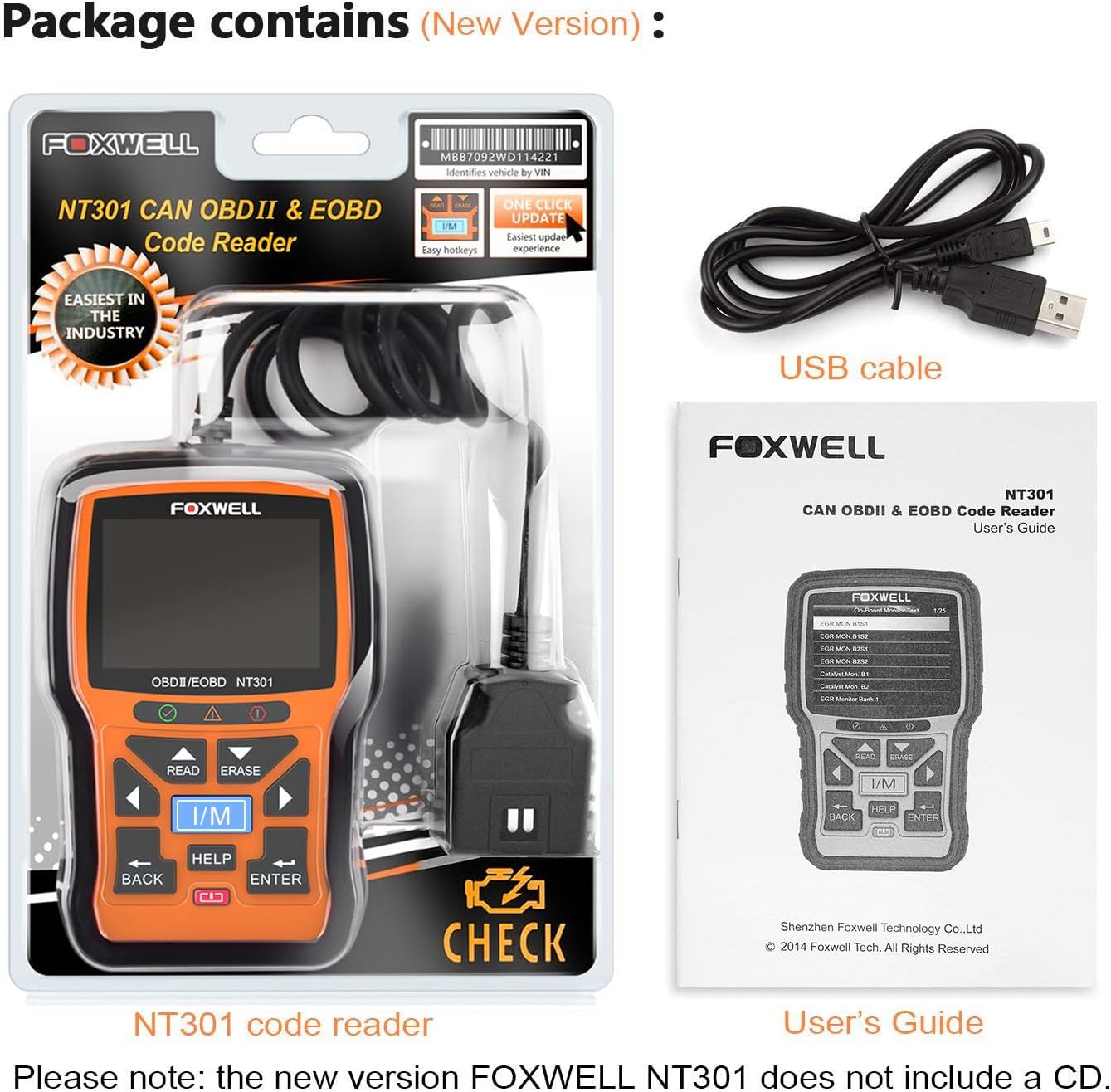
Figure 8: The scanner identifying a P0304 code, which points to a misfire in Cylinder 4, aiding in targeted troubleshooting.
9. Technical Specifications
| Feature | Detail |
|---|---|
| Brand | FOXWELL |
| Model Number | FOX-NT201-Black |
| Screen Size | 2.8 Inches |
| UPC | 752058767045, 712321437754 |
| Number of Items | 1 |
| Included Components | 1 USB cable, 1 FOXWELL NT201 Obd2 scanner |
10. Customer Support
For technical assistance, product inquiries, or warranty claims, please visit the official FOXWELL website or contact their customer support team. Refer to the product packaging or the FOXWELL website for the most current contact information.
11. Warranty Information
FOXWELL products are manufactured to high-quality standards and are backed by a limited warranty. The specific terms and duration of the warranty may vary by region and product. Please retain your proof of purchase. For detailed warranty information, including coverage and claims procedures, refer to the warranty card included with your product or visit the official FOXWELL website.


