
Plantronics Pro 2
Plantronics BackBeat PRO 2 Headphones User Manual
Model: Pro 2
Brand: Plantronics
Introduction
The Plantronics BackBeat PRO 2 wireless headphones are designed to enhance your audio experience with rich, immersive sound and on-demand active noise cancelling. These headphones offer extended listening time and a significant wireless range, providing freedom and flexibility for various environments.
What's in the Box
- BackBeat PRO 2 headphones
- Micro-USB charge cable
- 3.5mm audio cable
- Travel sleeve

Image: The BackBeat PRO 2 headphones displayed with their included micro-USB charging cable, 3.5mm audio cable, and a grey travel sleeve.
Setup
Charging Your Headphones
Before first use, fully charge your BackBeat PRO 2 headphones. Connect the micro-USB charge cable to the charging port on the headphones and the other end to a USB power source. A full charge typically takes approximately 3 hours.

Image: The BackBeat PRO 2 headphones resting on a wooden surface next to a smartphone and glasses, with a charging cable connected, indicating charging or readiness for use.
Initial Pairing
- With the headphones powered off, press and hold the Power button until the LED indicator flashes red and blue, indicating pairing mode.
- On your device (smartphone, tablet, etc.), enable Bluetooth and search for new devices.
- Select "Plantronics BackBeat PRO 2" from the list of available devices.
- Once paired, the LED indicator will stop flashing and remain solid blue.
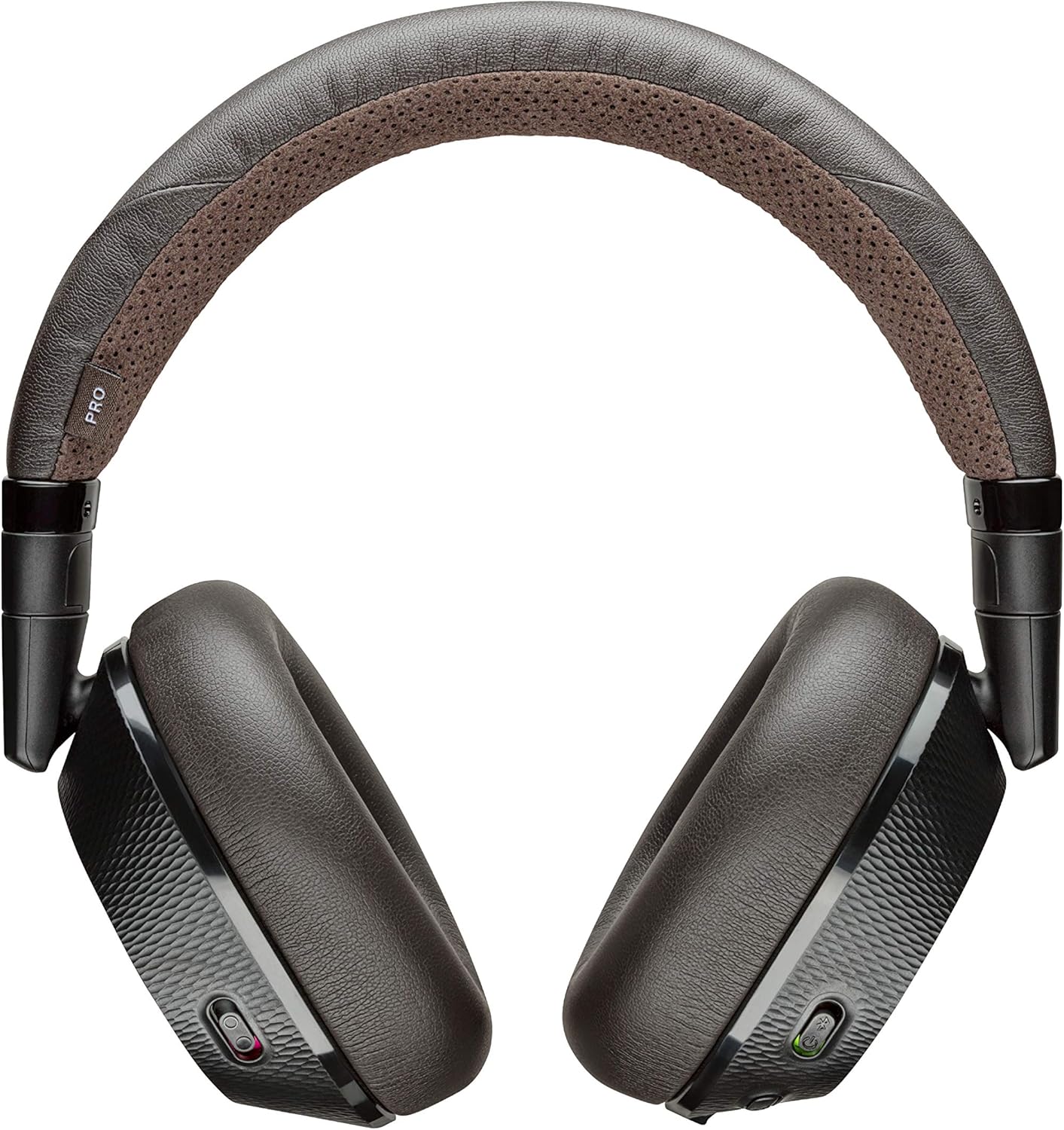
Image: A top-down view of the Plantronics BackBeat PRO 2 headphones, showcasing their black and tan design, ready for connection.
Operating Instructions
Controls Overview
The BackBeat PRO 2 headphones feature intuitive controls for managing audio playback, calls, and noise cancellation. Controls include call control buttons and touch-sensitive areas for various functions.

Image: A detailed view of the right earcup of the BackBeat PRO 2 headphones, highlighting the control buttons for playback and calls.
Audio Playback
- Play/Pause: Press the center button on the right earcup.
- Next Track: Press the forward arrow button.
- Previous Track: Press the backward arrow button.
- Volume Control: Rotate the outer ring on the right earcup to adjust volume.

Image: A close-up of the earcup showing the central play/pause button and surrounding track navigation controls.
Call Management
- Answer/End Call: Press the Call button.
- Reject Call: Press and hold the Call button.
- The headphones feature a boomless dual microphone with DSP for clear call quality.
Active Noise Cancelling (ANC)
Activate or deactivate the Active Noise Cancelling feature by sliding the dedicated switch on the left earcup. This feature helps minimize ambient noise, creating a more focused listening environment.

Image: A close-up of the earcup showing the physical switch for activating or deactivating the Active Noise Cancelling function.
Smart Sensors
The headphones are equipped with smart sensors that can automatically pause music when you remove the headphones and resume playback when you put them back on. This feature also works for pausing video playback.
Connectivity
The BackBeat PRO 2 utilizes Bluetooth v4.0 with Class 1 BT Radio, providing an impressive wireless range of up to 100 meters (30 feet) from your compatible Bluetooth device. This allows for significant freedom of movement while maintaining a stable audio connection.
You can connect the headphones to two devices simultaneously and easily switch between them as needed, for example, from listening to music on a tablet to taking a call on your smartphone.

Image: The BackBeat PRO 2 headphones with overlaid text highlighting their wireless range of up to 10 meters / 30 feet.
Battery Life
Enjoy extended usage with up to 24 hours of talk and listen time on a single charge. The headphones also offer a standby time of up to 6 months, ensuring they are ready when you need them.
Maintenance
Cleaning
To clean your headphones, gently wipe the earcups and headband with a soft, damp cloth. Avoid using harsh chemicals or abrasive materials. Ensure the charging port is free of dust and debris.
Storage
When not in use, store your BackBeat PRO 2 headphones in the provided travel sleeve to protect them from scratches and minor impacts. Store in a cool, dry place away from extreme temperatures.
Troubleshooting
- Headphones not pairing: Ensure the headphones are in pairing mode (LED flashing red and blue). Check that Bluetooth is enabled on your device and that the headphones are within range. Try restarting both the headphones and your device.
- No sound or poor audio quality: Check the volume levels on both the headphones and your connected device. Ensure the headphones are properly paired. If connected to a PC or Mac, note that Plantronics Bluetooth headsets are primarily designed for smartphones/tablets. While they may work with computers, optimal audio quality and full functionality are not guaranteed without a dedicated Bluetooth dongle designed for PC/Mac use.
- Active Noise Cancelling not working: Ensure the ANC switch on the left earcup is in the 'On' position.
- Battery not charging: Verify that the micro-USB cable is securely connected to both the headphones and the power source. Try a different USB port or charging cable.
Technical Specifications
| Feature | Detail |
|---|---|
| Model Name | Plantronics |
| Connectivity Technology | Bluetooth |
| Wireless Communication Technology | Bluetooth |
| Included Components | ^BackBeat PRO 2 headphones^micro-USB charge cable^3.5mm cable^travel sleeve |
| Material | nylon |
| Specific Uses For Product | Travel |
| Charging Time | 3 Hour |
| Compatible Devices | Cellphones |
| Control Type | Call Control |
| Item Weight | 10 Ounces |
| Frequency Range | 20Hz - 20kHz |
| Control Method | Touch |
| Battery Life | 24 Hour |
| Audio Driver Type | Dynamic Driver |
| Bluetooth Range | 100 Meters |
| Bluetooth Version | 4.0 |
| Carrying Case Material | nylon |
| Earpiece Shape | Rounded or angled, encircling the ear |
| Manufacturer | Plantronics |
| Item model number | Pro 2 |
| Form Factor | Over Ear |
| Noise Control | Active Noise Cancellation |
Warranty and Support
For information regarding warranty coverage, please refer to the warranty card included with your product or visit the official Plantronics website.
A detailed User Manual in PDF format is available for download: Download User Manual (PDF)
Related documentsPro 2


Ask a question about this manual
Ask about setup, troubleshooting, compatibility, parts, safety, or missing instructions. Manuals+ will review the question and use this page’s manual context to help answer it.