
Rollo X1038
Rollo USB Shipping Label Printer User Manual
Model: X1038
Brand: Rollo
1. Introduction
The Rollo USB Shipping Label Printer is a commercial-grade thermal label printer designed for efficient and high-speed printing of shipping labels, warehouse labels, barcode labels, and custom stickers. It utilizes advanced direct thermal technology, eliminating the need for ink or toner, and boasts a high-resolution 203 DPI print head for clear and visible labels. Compatible with both Windows (XP and newer) and Mac (10.9 and newer) operating systems, this printer offers versatile compatibility with major shipping platforms and marketplaces, making it an ideal solution for small businesses and individuals.

Image: The Rollo USB Shipping Label Printer, a compact and efficient thermal label printer.
2. Package Contents
Please ensure all items are present in the package:
- Thermal Printer
- USB Cable
- Power Adapter
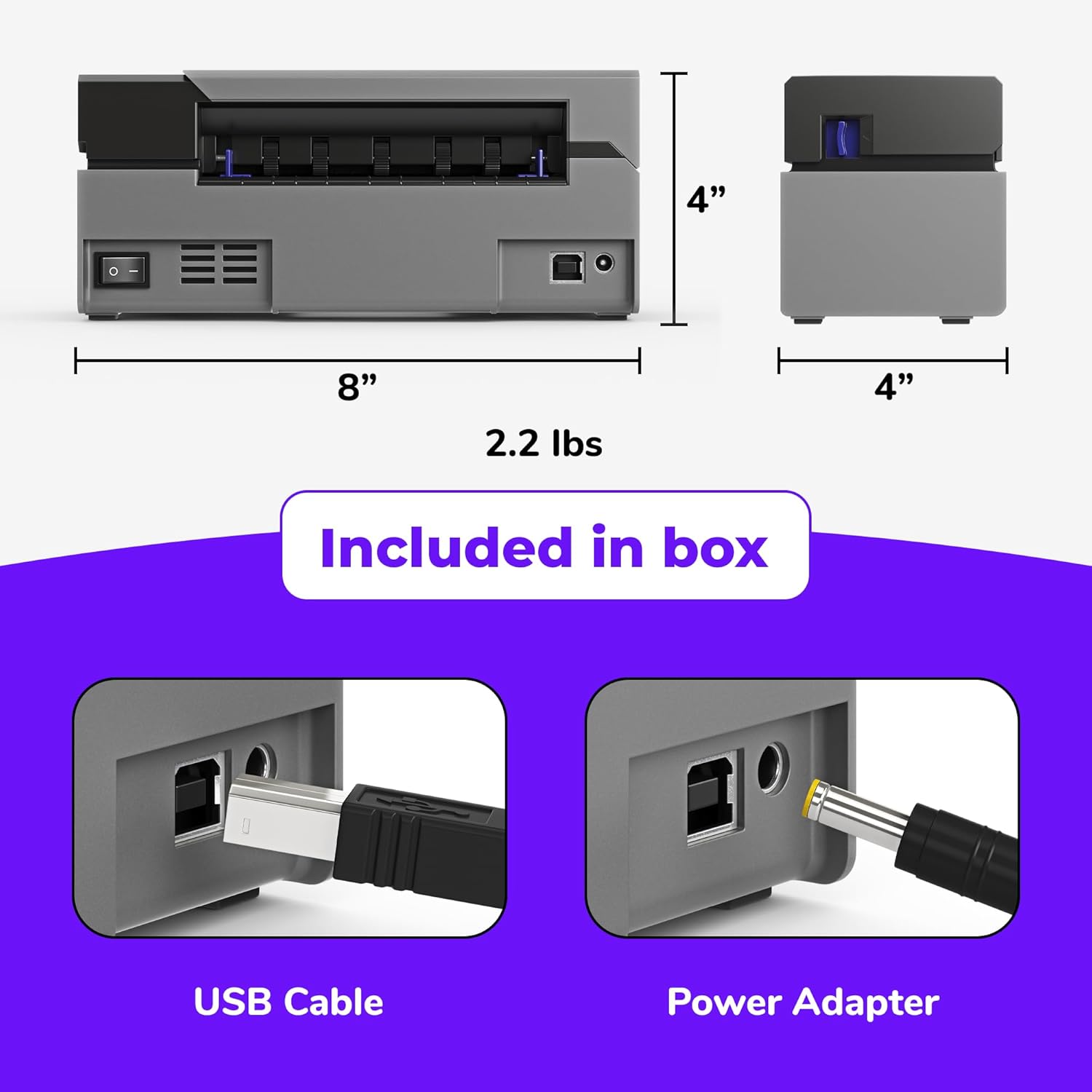
Image: The essential components included with your Rollo printer: the USB cable and power adapter.
3. Setup
3.1 System Requirements
The Rollo USB Shipping Label Printer is compatible with the following operating systems:
- Windows (XP and newer)
- Mac (10.9 and newer)

Image: The Rollo printer offers broad compatibility with both Mac (10.9 and newer) and Windows (XP and newer) operating systems, connecting via USB cable.
3.2 Connecting the Printer
- Connect the power adapter to the printer and plug it into a power outlet.
- Connect the USB cable from the printer to an available USB port on your computer (laptop or desktop PC).
- Download and install the latest Rollo drivers from the official Rollo website.
- Follow the on-screen instructions to complete the driver installation.

Image: Highlighting the printer's USB connectivity and its compatibility with both Mac and Windows operating systems, along with its ability to print from Rollo Ship and other major shipping platforms.
3.3 Loading Labels
The Rollo printer supports direct thermal labels with widths ranging from 1.57" to 4.1". It automatically detects the label gap for various label sizes.
- Ensure the printer is powered on.
- Adjust the label guides to match the width of your labels.
- Feed the labels into the rear slot of the printer, print-side up, until the printer automatically pulls them in and calibrates.
- If using a roll of labels, ensure it is properly placed on the external label holder (if applicable).

Image: The Rollo printer's versatility in handling direct shipping labels of various widths (1.57" - 4.1"), with automatic label gap detection for seamless printing.
4. Operating Instructions
4.1 Printing Shipping Labels
The Rollo printer offers high-speed printing, capable of producing one 4x6 label per second.
- Open your shipping platform (e.g., Fedex, UPS, USPS, ShipStation, Shopify, Amazon, eBay, etc.).
- Generate your shipping label.
- Select the Rollo printer from your printer options.
- Ensure the correct label size (e.g., 4x6 inches) is selected in your print settings.
- Click 'Print'. The label will be quickly printed by your Rollo printer.

Image: Demonstrating the Rollo printer's high-speed thermal printing, capable of producing one 4x6 label per second with a high-resolution 203 DPI, ensuring carrier-approved quality.

Image: A user applying a shipping label, freshly printed by the Rollo printer, to a package.
4.2 Using the Rollo Label Design App
Beyond shipping labels, the Rollo printer can create custom labels using the Rollo Label Design App. This app allows you to design barcodes, product labels, thank you stickers, QR code stickers, business or name stickers, and more.
- Access the Rollo Label Design App (available on web and mobile).
- Utilize free customizable templates.
- Browse a library of graphics and fonts.
- Upload your own custom images for personalized labels.

Image: The user interface of the Rollo Label Design App, showcasing its features for creating custom labels with templates, graphics, fonts, and custom image uploads.
5. Maintenance
The Rollo USB Shipping Label Printer is designed for low maintenance due to its direct thermal technology, which means no ink or toner cartridges are required.
- Cleaning: Periodically wipe the exterior of the printer with a soft, dry cloth. For the print head, refer to the detailed cleaning instructions available on the official Rollo support website to ensure optimal print quality.
- Label Handling: Always use high-quality thermal labels to prevent dust and debris buildup, which can affect print head longevity.
- Storage: When not in use for extended periods, store the printer in a clean, dry environment away from direct sunlight and extreme temperatures.
6. Troubleshooting
If you encounter issues with your Rollo printer, please refer to the following common troubleshooting tips:
- Printer Not Responding: Ensure the printer is powered on and the USB cable is securely connected to both the printer and your computer. Try restarting both the printer and your computer.
- Poor Print Quality: Check if the labels are loaded correctly and are of good quality. Clean the print head as per maintenance instructions. Adjust print density settings in your printer preferences if labels are too light or have white spots.
- Labels Not Feeding Correctly: Verify that the label guides are properly adjusted to the label width. Ensure there are no obstructions in the label path. Recalibrate the printer by pressing and holding the feed button until the printer emits a beep.
- Driver Issues: Reinstall the printer drivers from the official Rollo website if you suspect driver corruption or incompatibility.
For more detailed troubleshooting guides and solutions, please visit the official Rollo support website or consult the comprehensive PDF user guides.
7. Technical Specifications
| Feature | Specification |
|---|---|
| Model Number | X1038 |
| Product Dimensions | 4"D x 8"W x 4"H |
| Item Weight | 2.2 pounds |
| Connectivity Technology | Wired (USB) |
| Printing Technology | Direct Thermal |
| Maximum Media Size | 4.1 Inch Width |
| Maximum Black and White Print Resolution | 203 Dots Per Inch (DPI) |
| Max Print Speed | 150mm/s (one 4x6 label per second) |
| Power Consumption | 50 Watts |
| Compatible Devices | Laptops, PCs, Windows, Mac |
| Special Feature | Auto Label Detection, Inkless Printer |
| Printer Output | Monochrome |
| Life Span | Approx. 650,000 labels |
8. Warranty and Support
Your Rollo USB Shipping Label Printer comes with a Limited 1 Year Warranty from the date of purchase. This warranty covers defects in materials and workmanship under normal use.
For warranty claims, technical support, or to access the latest drivers and user guides, please visit the official Rollo support website:
You can also refer to the detailed PDF user guides available:
Related documentsX1038


Ask a question about this manual
Ask about setup, troubleshooting, compatibility, parts, safety, or missing instructions. Manuals+ will review the question and use this page’s manual context to help answer it.