
1. Introduction
The Vivitek Qumi Q8-BK is a compact and portable DLP projector designed for both business and personal use. It offers Full HD 1080p resolution, 1000 lumens brightness, and versatile connectivity options including HDMI, USB, and wireless mirroring for Android and iOS devices. This manual provides essential information for setting up, operating, maintaining, and troubleshooting your projector to ensure optimal performance.
2. Safety Information
Please read all safety instructions before using the projector. Keep this manual for future reference.
- Do not block ventilation openings. Ensure adequate airflow around the projector.
- Do not look directly into the projector lens when the lamp is on. The bright light can cause eye damage.
- Avoid placing the projector in direct sunlight, near heat sources, or in environments with extreme temperatures or humidity.
- Use only the power adapter supplied with the projector.
- Do not attempt to disassemble or repair the projector yourself. Refer all servicing to qualified personnel.
- Keep the projector away from water or other liquids.
3. Package Contents
Verify that all items are present in your package:
- Vivitek Qumi Q8-BK Projector
- Power Adapter
- Remote Control
- HDMI Cable
- Quick Start Guide
- Carrying Case
4. Product Overview
Familiarize yourself with the projector's components and connection ports.
4.1 Top Panel and Controls
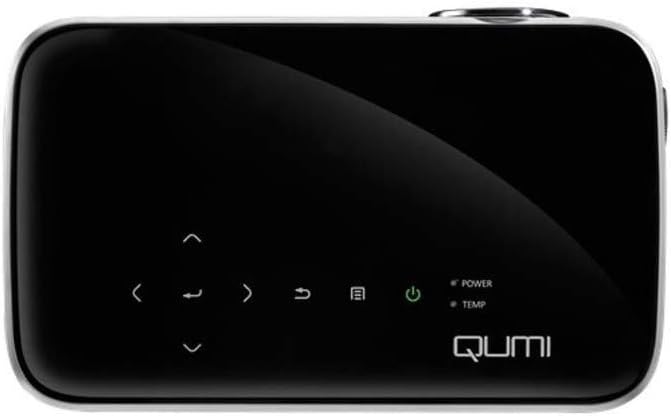
Figure 1: Top view of the Vivitek Qumi Q8-BK projector, highlighting the touch-sensitive control panel. This panel includes navigation arrows, menu access, source selection, and power buttons, along with LED indicators for power and temperature.
The top panel features touch-sensitive controls for navigating menus, adjusting settings, and power management. LED indicators show the power status and temperature warnings.
4.2 Side Panel and Ports
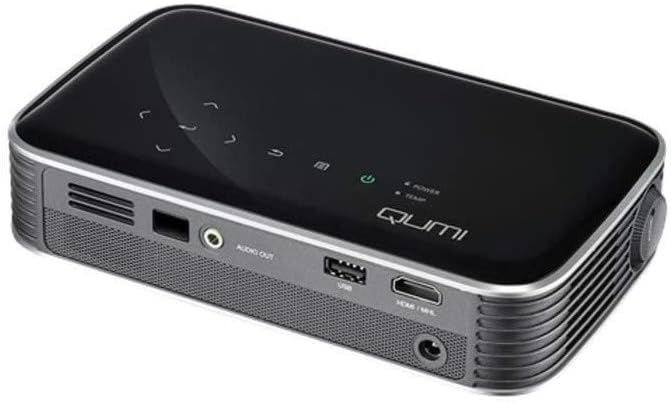
Figure 2: Side view of the Vivitek Qumi Q8-BK projector, displaying its connectivity ports. These include an audio out jack, a USB port, and an HDMI/MHL input, along with ventilation grilles.
The side panel provides essential connectivity options:
- Audio Out: Connect external speakers or headphones.
- USB: For connecting USB storage devices to play media files or for firmware updates.
- HDMI/MHL: Connect to HDMI-enabled devices such as laptops, Blu-ray players, or MHL-compatible smartphones/tablets.
- Power Input: Connect the supplied power adapter.
5. Setup
Follow these steps to set up your Vivitek Qumi Q8-BK projector.
5.1 Powering On
- Connect the power adapter to the projector's power input port and then to an electrical outlet.
- Press the power button on the projector's top panel or on the remote control. The power LED indicator will illuminate.
- Allow a few moments for the projector to warm up and display the initial screen.
5.2 Adjusting Focus and Keystone
- Focus: Rotate the focus ring located near the lens until the projected image is sharp and clear.
- Keystone Correction: If the image appears trapezoidal (wider at the top or bottom), use the keystone correction function in the projector's menu to adjust it. This corrects the image geometry to a rectangular shape.
5.3 Connecting Input Sources
The Qumi Q8-BK supports multiple input sources:
- HDMI/MHL: Connect an HDMI cable from your source device (laptop, game console, Blu-ray player) to the HDMI/MHL port on the projector. For MHL-compatible mobile devices, use an MHL cable.
- USB: Insert a USB flash drive into the USB port to access media files stored on it.
- Wireless (Miracast/AirPlay): The projector features built-in Wi-Fi for wireless content sharing from Android and iOS devices. Refer to the "Operating" section for detailed instructions on wireless setup.
6. Operating
This section covers the basic operation of your projector.
6.1 Navigating the Menu
Use the navigation buttons on the top panel or the remote control to browse the projector's on-screen menu. Press the "Menu" button to access settings such as image adjustments, source selection, and system configurations.
6.2 Source Selection
Press the "Source" button on the remote or the projector to cycle through available input sources (HDMI, USB, Wireless). Select the desired source from the on-screen menu.
6.3 Wireless Content Sharing (Miracast/AirPlay)
The Qumi Q8-BK supports wireless mirroring for compatible devices:
- Ensure the projector's Wi-Fi is enabled and connected to your network (if required for your device's mirroring function).
- Select the "Wireless" input source on the projector.
- On your Android device, enable "Screen Mirroring," "Smart View," or a similar function. On iOS devices, use "AirPlay Mirroring."
- Select the Qumi Q8-BK from the list of available devices on your mobile device.
- Your device's screen should now be mirrored on the projector.
Note: Performance may vary depending on network conditions and device compatibility. Some streaming services may restrict mirrored content.
6.4 Media Playback from USB
Insert a USB flash drive into the USB port. The projector's media player interface will typically launch automatically, allowing you to browse and play supported video, audio, and image files.
6.5 3D Functionality
The Qumi Q8-BK supports 3D content. To view 3D content, you will need compatible 3D glasses (sold separately) and a 3D-enabled source device playing 3D content. Refer to the projector's on-screen menu for 3D settings and modes.
7. Maintenance
Proper maintenance ensures the longevity and optimal performance of your projector.
- Lens Cleaning: Gently wipe the projector lens with a soft, lint-free cloth specifically designed for optical surfaces. Do not use abrasive cleaners or excessive force.
- Ventilation: Regularly check and clean the ventilation grilles to prevent dust buildup, which can lead to overheating. Use a soft brush or compressed air.
- Storage: When not in use for extended periods, store the projector in its carrying case in a cool, dry, and dust-free environment.
- LED Lamp: The projector uses an energy-efficient LED lamp with an estimated operational life of up to 30,000 hours, requiring no replacement under normal usage.
8. Troubleshooting
If you encounter issues with your projector, refer to the following common problems and solutions.
| Problem | Possible Solution |
|---|---|
| No image displayed |
|
| No sound |
|
| Wireless mirroring issues |
|
| Projector overheats or shuts down |
|
If the problem persists after trying these solutions, please contact Vivitek customer support.
9. Specifications
Key technical specifications for the Vivitek Qumi Q8-BK projector:
| Feature | Detail |
|---|---|
| Brand | Vivitek |
| Model Number | Qumi Q8-BK |
| Display Resolution | 1920 x 1080 (Full HD) |
| Brightness | Up to 1000 Lumens |
| Contrast Ratio | 30,000:1 |
| Lamp Type | LED |
| Lamp Life | Estimated 30,000 hours |
| Connectivity Technology | HDMI, USB, Wi-Fi (Miracast/AirPlay) |
| Special Features | HDMI Connectivity, Portable, USB Connectivity, Wireless, Miracast |
| Product Dimensions | 1.7 x 4.4 x 7.4 inches |
| Item Weight | 1.4 pounds |
10. Warranty and Support
Vivitek products are designed for reliability and performance. For warranty information, please refer to the warranty card included in your product package or visit the official Vivitek website. For technical support, troubleshooting assistance beyond this manual, or service inquiries, please contact Vivitek customer support through their official channels.
Please have your product model number (Qumi Q8-BK) and serial number ready when contacting support.


