
1. Product Overview
The Switchcraft 318BT is a compact, in-line wireless audio receiver designed to stream audio from any Bluetooth-enabled device. It integrates seamlessly into audio setups, converting mixer consoles or powered speakers to be Bluetooth enabled, providing a cable-free audio solution.
Key Features:
- Powered by 48V Phantom Power
- No cable, battery, or software needed for basic operation
- Enhanced Wireless Range: 50’ – 100’ (approximately 15m – 30m)
- Durable anodized aluminum housing
- L-R audio summing for mono output
- Balanced XLR Connector for professional audio integration
- Front LED status indicator for operational feedback
2. Package Contents
- 1x Switchcraft 318BT Bluetooth AudioStix
Note: A micro USB cable for external power is not included.
3. Setup Instructions
Powering the Device:
- Using 48V Phantom Power:
a. Ensure the 48V phantom power on your mixer or audio input is turned OFF.
b. Connect the Switchcraft 318BT directly to a balanced XLR input on your mixer or powered speaker.
c. Turn ON the 48V phantom power for the connected input. The front LED on the 318BT will illuminate, indicating it is powered on. - Using External 5V Micro USB Power:
a. If 48V phantom power is not available, connect a standard micro USB cable (not included) to the micro USB port on the 318BT.
b. Connect the other end of the micro USB cable to a 5V USB power source (e.g., USB wall adapter, power bank). The front LED on the 318BT will illuminate, indicating it is powered on.

Image: The Switchcraft 318BT Bluetooth AudioStix, a compact black device with an XLR connector on one end and a micro USB port and LED indicator on the side. It is shown connected to an audio mixer, illustrating its direct integration into professional audio equipment.
4. Bluetooth Pairing
- Ensure your Switchcraft 318BT is powered on. The front LED indicator will typically blink, signifying it is in Bluetooth pairing mode.
- On your Bluetooth-enabled source device (e.g., smartphone, tablet, laptop), enable Bluetooth and search for available devices.
- Select "Switchcraft 318BT" from the list of detected devices.
- Once successfully paired, the LED indicator on the 318BT will change from blinking to a solid blue light.
- You can now play audio from your source device, and it will be transmitted wirelessly through the 318BT to your connected audio system.
5. Operating the Device
- Audio Streaming: After successful pairing, audio from your Bluetooth source device will stream wirelessly to the mixer or powered speaker connected to the 318BT.
- Volume Control: Adjust the audio volume directly from your Bluetooth-enabled source device. Further fine-tuning can be done using the input gain and master volume controls on your connected mixer or powered speaker.
- L-R Audio Summing: The 318BT automatically sums the left and right stereo audio channels from your source device into a single mono output. This is ideal for connecting to a single XLR input on a mixer or powered speaker.
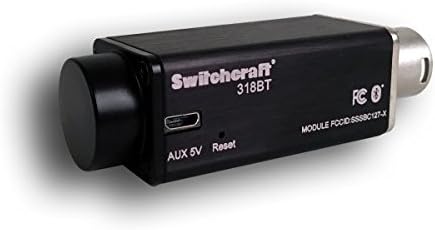
Image: A side view of the Switchcraft 318BT Bluetooth AudioStix, highlighting the micro USB port for external 5V power and a small recessed reset button. The device features a durable anodized aluminum casing.
6. Maintenance
- Cleaning: To clean the device, gently wipe its surface with a soft, dry, lint-free cloth. Avoid using liquid cleaners, solvents, or abrasive materials, as these can damage the finish or internal components.
- Storage: When not in use, store the Switchcraft 318BT in a cool, dry environment away from direct sunlight, extreme temperatures, and high humidity.
- Handling: The device features a durable anodized aluminum housing. However, to ensure longevity, avoid dropping the unit or subjecting it to excessive physical impact.
7. Troubleshooting
- No Power/LED Not On:
a. If using phantom power, confirm that 48V phantom power is activated on the connected mixer or audio input. Ensure the device was connected before activating phantom power.
b. If using external power, verify that the micro USB cable is securely connected to both the 318BT and a functional 5V USB power source. - Cannot Pair/LED Blinking Continuously:
a. Ensure Bluetooth is enabled on your source device and it is within the 50-100 ft range of the 318BT.
b. Check if the 318BT is already paired with another device. If so, disconnect it from the previous device or turn off Bluetooth on that device.
c. Locate the small recessed RESET button on the side of the 318BT (near the micro USB port). Use a small, pointed object (like a paperclip) to gently press and hold the RESET button for a few seconds to restart the device and clear previous pairings. - Audio Buzzing/Interference:
a. Ensure all audio equipment is properly grounded.
b. If experiencing buzzing with phantom power, try using an external 5V micro USB power source instead, as some phantom power supplies can introduce noise.
c. Reduce the distance between your Bluetooth source device and the 318BT to minimize potential interference.
8. Specifications
| Feature | Detail |
|---|---|
| Brand | Switchcraft |
| Model | 318BT |
| Connectivity | Bluetooth 4.0 |
| Power Options | 48V Phantom Power or Micro USB (5V) |
| Wireless Range | 50’ – 100’ (approx. 15m – 30m) |
| Housing Material | Anodized Aluminum |
| Dimensions (LxWxH) | 6.8 x 2.4 x 2.3 inches |
| Item Weight | 2.69 ounces (0.08 kg) |
| Connector Type | XLR |
9. Warranty and Support
For detailed warranty information, technical support, or service inquiries regarding your Switchcraft 318BT, please refer to the official Switchcraft website or contact their customer service department directly. Keep your purchase receipt for any warranty claims.


