
1. Introduction
The Apple Lightning to 3.5 mm Headphone Jack Adapter allows you to connect devices that use a standard 3.5 mm audio plug to your Apple devices equipped with a Lightning connector. This adapter ensures compatibility with a wide range of audio accessories, including headphones, earphones, and microphones, on compatible Apple products.
This adapter is designed to work with all devices that have a Lightning connector and support iOS 10 or later, including various models of iPod touch, iPad, and iPhone.
2. What's in the Box
- Apple Lightning to 3.5 mm Headphone Jack Adapter (1 Pack)

Image: The Apple Lightning to 3.5 mm Headphone Jack Adapter, a small white cable with a Lightning connector on one end and a 3.5 mm jack on the other.
3. Setup
Setting up your Apple Lightning to 3.5 mm Headphone Jack Adapter is a straightforward process. Follow these steps to connect your audio device:
- Connect Audio Device: Plug your 3.5 mm headphones, earphones, or microphone into the 3.5 mm jack end of the adapter. Ensure the connection is secure.
- Connect to Apple Device: Insert the Lightning connector end of the adapter into the Lightning port of your compatible Apple device (iPhone, iPad, or iPod touch).
- Device Recognition: Your Apple device should automatically recognize the adapter and the connected audio accessory. If prompted, select "Headphones" or "Other Device" as appropriate for the connected accessory.
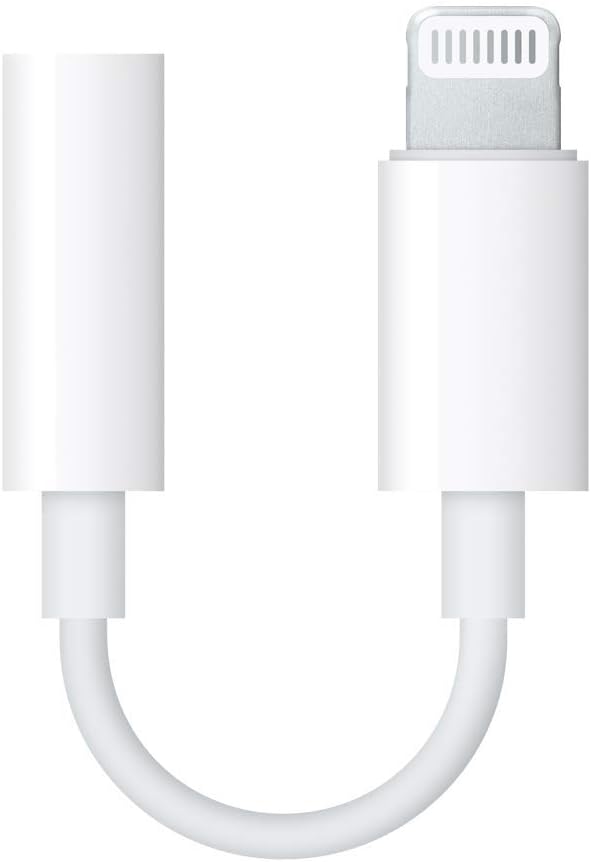
Image: A close-up of the Apple Lightning to 3.5 mm Headphone Jack Adapter connected to a pair of white wired earphones, ready to be plugged into an Apple device.
4. Operating Instructions
Once connected, the adapter functions as a direct pass-through for audio signals. No additional software or drivers are typically required for basic audio playback or recording.
- Audio Playback: Play music, podcasts, or any audio content from your Apple device. Sound will be routed through the connected 3.5 mm audio device.
- Microphone Use: If your connected 3.5 mm device includes a microphone, it will function for calls, voice recordings, or video conferencing, provided your Apple device's software supports external microphone input.
- Volume Control: Adjust the volume directly on your Apple device or through any inline controls on your 3.5 mm audio accessory.
5. Maintenance
To ensure the longevity and optimal performance of your adapter, follow these maintenance guidelines:
- Handle with Care: Avoid excessive bending, twisting, or pulling on the cable, especially near the connectors, as this can cause internal damage.
- Keep Clean: Periodically clean the connectors with a soft, dry, lint-free cloth to remove dust or debris that might interfere with the connection.
- Storage: Store the adapter in a clean, dry place when not in use. Avoid extreme temperatures or direct sunlight.
- Avoid Liquids: Do not expose the adapter to water or other liquids.
6. Troubleshooting
If you encounter issues with your adapter, try the following troubleshooting steps:
- No Sound/Intermittent Audio:
- Ensure both the 3.5 mm audio device and the Lightning adapter are fully and securely plugged into their respective ports.
- Check the volume settings on your Apple device and the connected audio accessory.
- Test the adapter with a different 3.5 mm audio device to rule out issues with your headphones/microphone.
- Test the adapter with a different Apple device to rule out issues with your phone/tablet.
- Restart your Apple device.
- Adapter Not Recognized:
- Ensure your Apple device is running iOS 10 or later.
- Clean the Lightning port on your Apple device and the Lightning connector on the adapter for any debris.
- Try disconnecting and reconnecting the adapter.
7. Specifications
| Model Number | MMX62AM/A |
| Brand | Apple |
| Connector Type | Lightning (Male) to 3.5 mm Audio Jack (Female) |
| Color | White |
| Compatible Devices | All Apple devices with a Lightning connector running iOS 10 or later, including various models of iPhone, iPad, and iPod touch. |
| Product Dimensions | 2.7 x 0.7 x 3.5 inches |
| Item Weight | 0.32 ounces |
| Specific Uses | Cell Phone, Headphones, PC |
8. Warranty & Support
For warranty information and technical support, please refer to the official Apple support website or contact Apple customer service directly. Keep your proof of purchase for warranty claims.
Online Support: support.apple.com


