1. Introduction
The Hama Uzzano 3.0 Wireless Keyboard is designed for convenient navigation and control of various devices, including Smart TVs, PCs, and notebooks. This manual provides detailed instructions for the proper setup, operation, and maintenance of your keyboard to ensure optimal performance and longevity.

Image: The Hama Uzzano 3.0 Wireless Keyboard being used to control a Smart TV, demonstrating its application in a home entertainment setup.
2. Package Contents
Please verify that all items are present in the package:
- 1 x Hama Uzzano 3.0 Wireless Keyboard
- 1 x USB Receiver
- 2 x AAA Batteries
- 1 x User Manual (this document)

Image: The retail packaging for the Hama Uzzano 3.0 Wireless Keyboard, indicating the product and its branding.
3. Setup
3.1 Battery Installation
The Hama Uzzano 3.0 Wireless Keyboard requires two AAA batteries for operation. These are included in your package.
- Locate the battery compartment on the underside of the keyboard.
- Open the battery compartment cover.
- Insert the two AAA batteries, ensuring that the positive (+) and negative (-) terminals align correctly with the markings inside the compartment.
- Close the battery compartment cover securely.
3.2 Connecting to Your Device
The keyboard connects wirelessly to your device via a USB receiver.
- Locate the mini USB receiver. It may be stored within the battery compartment or a dedicated slot on the keyboard for transport.
- Plug the USB receiver into an available USB port on your Smart TV, PC, or notebook.
- Turn on the keyboard using the ON/OFF switch located on the underside.
- The keyboard should automatically establish a connection with your device. No additional driver installation is typically required for most compatible operating systems.

Image: The underside of the Hama Uzzano 3.0 keyboard, highlighting the battery compartment and the ON/OFF power switch.
4. Operating Instructions
4.1 Basic Keyboard Functions
The Hama Uzzano 3.0 features a standard QWERTY layout for typing. All standard alphanumeric keys, function keys, and modifier keys operate as expected on compatible systems.
4.2 Touchpad Functions
An integrated high-precision multi-touchpad is located on the right side of the keyboard. It supports various gesture controls for intuitive navigation:
- Gliding: Move your finger across the touchpad to control the cursor on the screen.
- Scrolling: Use two fingers to scroll vertically or horizontally within documents or web pages.
- Clicking: Tap the touchpad once for a left-click. The dedicated left and right click buttons below the touchpad also provide standard mouse click functionality.
4.3 Special Keys and Multimedia Controls
The keyboard includes dedicated keys for enhanced functionality, particularly with Smart TVs:
- Samsung Smart TV Specific Keys: Color-coded buttons provide direct access to various functions and the Smart Hub on compatible Samsung Smart TVs. Refer to your Samsung TV's manual for specific functions of these keys.
- Multimedia Controls: Dedicated keys for volume control, play/pause, and track navigation are integrated for convenient media management.
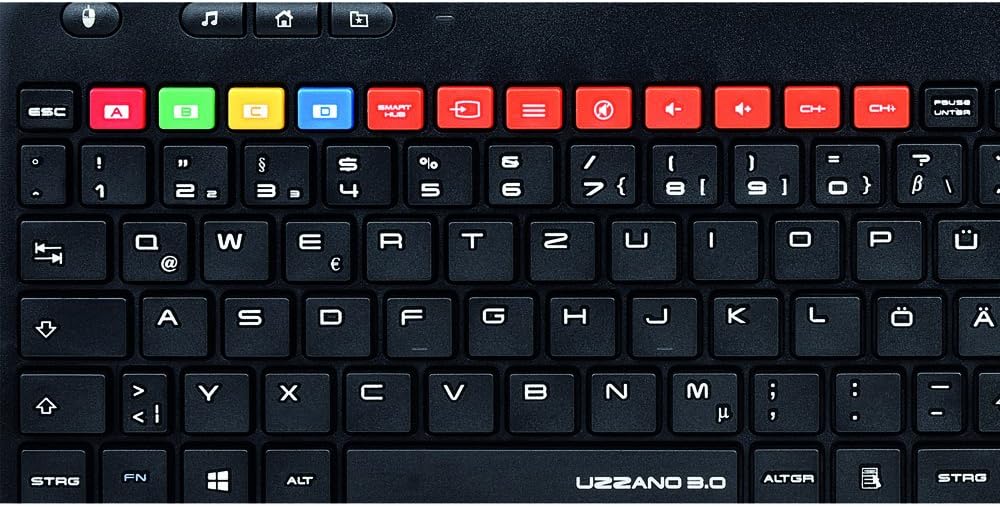
Image: A detailed view of the Hama Uzzano 3.0 keyboard's upper section, showing the color-coded special function keys and multimedia controls.
4.4 Power Management
To conserve battery life, an independent ON/OFF switch is located on the underside of the keyboard. Always switch the keyboard to the 'OFF' position when not in use for extended periods.

Image: An overhead view of the Hama Uzzano 3.0 Wireless Keyboard, displaying its full QWERTY layout and integrated touchpad.
5. Compatibility
The Hama Uzzano 3.0 Wireless Keyboard is compatible with a range of devices and operating systems:
- PCs and Notebooks: Windows 10, Windows 8.1, Windows 8, Windows 7.
- Smart TVs: Compatible with Smart TVs that support keyboard and mouse input.
- Samsung Smart TVs: Features specific functions for enhanced control.
- Gaming Consoles: PlayStation 3 (PS3).
6. Maintenance
To ensure the longevity and proper functioning of your keyboard, follow these maintenance guidelines:
- Cleaning: Use a soft, dry, lint-free cloth to clean the keyboard surface. Avoid using liquid cleaners, solvents, or abrasive materials, as these can damage the finish or internal components.
- Battery Replacement: Replace the AAA batteries when the keyboard's performance degrades or it stops responding. Always use new batteries and dispose of old ones responsibly.
- Storage: Store the keyboard in a cool, dry place away from direct sunlight, extreme temperatures, and high humidity.
- Protection: Avoid dropping the keyboard or exposing it to strong impacts. Do not spill liquids on the keyboard.
7. Troubleshooting
If you encounter issues with your Hama Uzzano 3.0 Wireless Keyboard, please refer to the following troubleshooting steps:
- Keyboard not responding:
- Ensure the batteries are correctly installed and fully charged. Replace them if necessary.
- Verify that the ON/OFF switch on the underside of the keyboard is in the 'ON' position.
- Check that the USB receiver is securely plugged into an active USB port on your device. Try a different USB port if available.
- Confirm that your device's operating system is compatible with the keyboard.
- Limited wireless range or intermittent connection:
- Reduce the distance between the keyboard and the USB receiver.
- Ensure there are no large metal objects or other electronic devices causing interference between the keyboard and the receiver.
- Touchpad not working:
- Ensure the keyboard is powered on and connected to your device.
- Check your device's settings for any options that might disable or configure touchpad functionality.
8. Specifications
| Brand | Hama |
| Model Number | 69173090 |
| Series | Uzzano 3.0 |
| Connectivity Technology | Wireless (USB receiver) |
| Power Source | 2 x AAA Batteries (included) |
| Dimensions (L x W x H) | 39.6 x 14 x 3.2 cm |
| Item Weight | 356 g |
| Color | Black |
| Material | Plastic |
| Compatible Devices | Smart TV, PC, Notebook, PS3 |
| Special Features | Ergonomic, Integrated Multi-Touchpad, Samsung Smart TV specific keys |
9. Warranty and Support
For detailed warranty information, technical support, or service inquiries regarding your Hama Uzzano 3.0 Wireless Keyboard, please refer to the official Hama website or contact your local Hama distributor. Please retain your proof of purchase for any warranty claims.


