
Introduction
This manual provides detailed instructions for the installation, operation, and maintenance of your Motorola MG7315 DOCSIS 3.0 Cable Modem and N450 WiFi Router Combo. This device integrates a high-speed cable modem with a single-band N450 Wi-Fi router, offering a streamlined solution for internet connectivity. It features DOCSIS 3.0 technology for fast internet speeds up to 343 Mbps and includes four Gigabit Ethernet ports for reliable wired connections. The MG7315 is designed to provide a stable and efficient internet experience for various online activities, including streaming, gaming, and general browsing.
Package Contents
Verify that all items listed below are included in your product package:
- Motorola MG7315 Cable Modem/Router Combo
- Ethernet Cable
- Power Adapter
- Coax Wrench
- Quick Start Guide

Image: The package contents for the Motorola MG7315, showing the main unit, an Ethernet cable, a power adapter, a coax wrench, and a quick start guide.
Product Overview
The Motorola MG7315 features a sleek vertical design with indicator lights on the front panel and all connection ports on the rear panel.
Front Panel Indicators
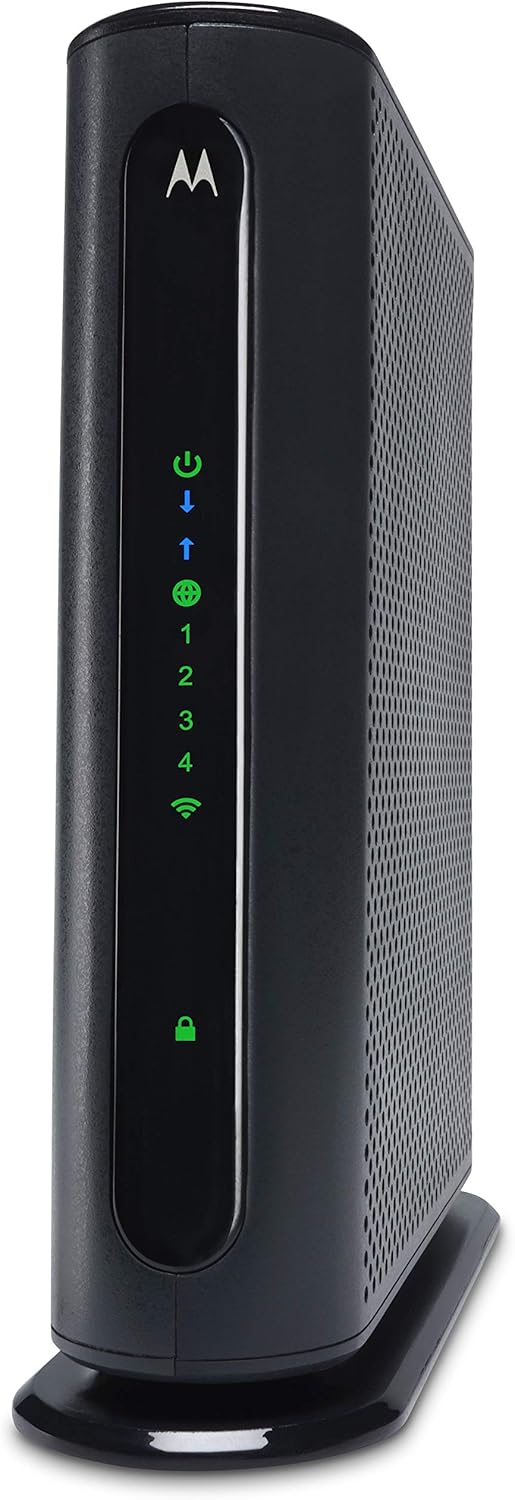
Image: Front view of the Motorola MG7315, displaying LED indicators for power, upstream/downstream activity, internet connection, Ethernet ports 1-4, Wi-Fi status, and WPS/security.
- Power: Indicates the device is powered on.
- Upstream/Downstream Arrows: Show data flow activity through the cable modem.
- Internet Globe: Indicates a successful internet connection.
- Ethernet 1-4: Lights up when a device is connected to the corresponding Gigabit Ethernet port.
- Wi-Fi: Indicates the wireless network is active.
- Lock: Indicates WPS (Wi-Fi Protected Setup) activity or security status.
Rear Panel Ports

Image: Rear view of the Motorola MG7315, highlighting the power input, On/Off button, Reset button, WLAN/WPS button, four Gigabit Ethernet ports (LAN1-LAN4), and the coaxial cable connector.
- Power On/Off Button: Controls the power supply to the device.
- Power Input: Connects to the provided power adapter.
- Reset Button: Used to restart the device or restore factory default settings (requires a paperclip or similar pointed object).
- WLAN/WPS Button: Activates Wi-Fi Protected Setup for easy wireless device connection.
- Ethernet Ports (LAN1-LAN4): Four Gigabit Ethernet ports for wired connections to computers, gaming consoles, or other network devices.
- Coax Connector: Connects to your cable service line.
Setup Instructions
Follow these steps to set up your Motorola MG7315 modem router combo.

Image: A diagram illustrating the simple setup process: connect the coaxial cable from the wall outlet to the modem, then connect the power adapter to the modem and a power outlet.
Step 1: Connect the Coaxial Cable
- Locate a coaxial cable outlet in your home.
- Connect one end of the coaxial cable (not included) to the wall outlet.
- Connect the other end of the coaxial cable to the COAX connector on the rear panel of your MG7315. Ensure the connection is finger-tight. You may use the included coax wrench for a secure fit.
Step 2: Connect the Power Adapter
- Connect the provided power adapter to the Power Input on the rear panel of the MG7315.
- Plug the other end of the power adapter into an electrical outlet.
- Press the Power On/Off button on the rear panel. The Power indicator light on the front panel should illuminate.
- Allow a few minutes for the modem to establish a connection. The Upstream/Downstream arrows and the Internet Globe indicator should eventually turn solid green, indicating a successful connection.
Step 3: Activate with Your Internet Service Provider (ISP)
Your Motorola MG7315 is compatible with major cable internet service providers. You will need to contact your ISP to activate the device.

Image: The Motorola MG7315 is shown with logos indicating certification for use with Comcast Xfinity, Spectrum, and Cox internet services.
- Have your ISP account information ready.
- Contact your ISP's customer support or visit their activation portal. You will need to provide the MAC address (CM MAC) and Serial Number (S/N) located on the label on the bottom of your MG7315.
- Follow your ISP's instructions to complete the activation process.
Operating Instructions
Connecting Devices via Wi-Fi
The MG7315 provides a single-band N450 Wi-Fi network (2.4 GHz).
- Locate the Wi-Fi Network Name (SSID) and Password (Wi-Fi Key) on the label on the bottom of your MG7315.
- On your wireless device (smartphone, tablet, laptop), search for available Wi-Fi networks.
- Select the SSID matching your MG7315 and enter the Wi-Fi Key when prompted.
- Alternatively, you can use the WPS (Wi-Fi Protected Setup) button on the rear of the MG7315 to connect WPS-compatible devices. Press the WPS button on the modem, then activate WPS on your device within two minutes.
Connecting Devices via Ethernet
For wired connections, use the Gigabit Ethernet ports.
- Connect one end of an Ethernet cable to an Ethernet port (LAN1-LAN4) on the rear of the MG7315.
- Connect the other end of the Ethernet cable to the Ethernet port on your computer, gaming console, or other network device.
- The corresponding Ethernet indicator light on the front panel of the MG7315 will illuminate, indicating an active wired connection.
Accessing the Configuration Manager
To manage advanced settings, you can access the device's web-based configuration manager.
- Open a web browser on a device connected to the MG7315 (either via Wi-Fi or Ethernet).
- Enter the default IP address (usually found on the bottom label, often starting with 192.168.x.x or 10.0.0.1) into the browser's address bar and press Enter.
- Enter the default username and password (also found on the bottom label, commonly 'admin' and 'motorola' or similar).
- It is highly recommended to change the default login credentials for security purposes.
Maintenance
Proper maintenance ensures optimal performance and longevity of your device.
- Placement: Place the MG7315 in a central location, away from obstructions, large metal objects, and other electronic devices that may cause interference. Ensure good ventilation around the unit.
- Cleaning: Keep the device clean and free of dust. Use a soft, dry cloth for cleaning. Do not use liquid cleaners.
- Restarting: Occasionally restarting your modem router combo can resolve minor connectivity issues and improve performance. To restart, simply unplug the power adapter for 10-15 seconds, then plug it back in.
- Firmware Updates: Firmware updates are typically managed by your ISP. Do not attempt to manually update firmware unless instructed by your ISP or Motorola support.
Troubleshooting
This section addresses common issues you might encounter.
- No Internet Connection:
- Check all cable connections (coaxial, Ethernet, power) to ensure they are secure.
- Verify that the Power, Upstream/Downstream, and Internet Globe indicator lights are solid green. If not, contact your ISP to confirm service activation and status.
- Restart the MG7315 by unplugging it for 10-15 seconds and then plugging it back in.
- Ensure your ISP service is active and there are no local outages.
- Slow Wi-Fi Speeds or Poor Signal:
- Ensure the MG7315 is placed in a central location, free from interference.
- The MG7315 operates on a single 2.4 GHz band. Performance can be affected by congestion or distance.
- Reduce the number of active devices on the Wi-Fi network or use wired connections for high-bandwidth activities like gaming or 4K streaming.
- Consider if your internet plan supports the speeds you expect.
- Cannot Access Configuration Manager:
- Ensure your device is connected to the MG7315 network.
- Double-check the IP address entered in the browser.
- Verify the username and password. If you changed them and forgot, you may need to perform a factory reset (see below).
- Factory Reset:
- If you experience persistent issues or forget your custom Wi-Fi/login credentials, you can perform a factory reset.
- With the device powered on, use a paperclip or similar pointed object to press and hold the Reset button on the rear panel for about 10-15 seconds until the lights on the front panel flash.
- The device will restart with factory default settings, including the original Wi-Fi name and password found on the bottom label.
Technical Specifications
Detailed specifications for the Motorola MG7315.

Image: A graphic summarizing key features such as DOCSIS 3.0 8x4 cable modem, N450 WiFi Gigabit Router, fast internet for all devices, and user-friendly network management.
| Feature | Detail |
|---|---|
| Brand | Motorola |
| Model Name | MG7315 |
| Wireless Type | 2.4 GHz Radio Frequency |
| Frequency Band Class | Single-Band |
| Connectivity Technology | Ethernet, Wi-Fi |
| Cable Modem Standard | DOCSIS 3.0 (8x4 channels) |
| Max Download Speed | Up to 343 Mbps |
| Max Upload Speed | Up to 123 Mbps |
| Ethernet Ports | 4 Gigabit Ethernet (LAN) |
| Wireless Standard | N450 (802.11n) |
| Dimensions (LxWxH) | 9.1 x 2.6 x 8.6 inches |
| Item Weight | 1.35 pounds |
| Voltage | 120 Volts (AC) |
| Compatible Devices | Smartphone, Tablet, PC, Gaming Consoles |
| ISP Compatibility | Certified for Comcast Xfinity, Spectrum, Cox (check with ISP for specific plans) |
| Special Feature | WPS |

Image: A guide explaining that the MG7315 is certified for speeds up to 200 Mbps with Comcast and 150 Mbps with Cox/Charter Spectrum. It also notes the single 2.4 GHz Wi-Fi and 4 Gigabit Ethernet ports, and clarifies that it does not support telephone service.
Warranty and Support
Motorola Network products typically come with a manufacturer's warranty. For specific warranty details, please refer to the warranty card included with your product or visit the official Motorola Network support website. For technical assistance, troubleshooting, or to inquire about warranty claims, please contact Motorola Network customer support. Contact information can usually be found on the Motorola Network website or in your product's quick start guide.


