
1. Introduction to the AmpliFi HD WiFi System
The AmpliFi HD (High-Density) Home Wi-Fi System provides comprehensive Wi-Fi coverage throughout your home. Designed by Ubiquiti Labs, this system includes a central Mesh Router and two MeshPoints to ensure maximum throughput and lag-free performance for demanding applications like 4K streaming and gaming. Its intuitive touchscreen display on the router allows for easy monitoring of network status and performance, while the MeshPoints extend coverage to eliminate dead spots.
The system utilizes turbocharged 802.11ac Wi-Fi with multiple self-configuring radios and Wi-Fi super antenna technology for ubiquitous and secure home network coverage. It is compatible with major Internet Service Providers (ISPs) and offers enterprise-strength network capabilities with at-home simplicity.

Figure 1: AmpliFi HD WiFi System components in their retail packaging.
2. Package Contents
The AmpliFi HD WiFi System package includes the following items:
- 1x AmpliFi HD Mesh Router (AFI-HD)
- 2x AmpliFi HD MeshPoints
- 1x Power Adapter for the Router
- 1x Ethernet Cable

Figure 2: The AmpliFi HD Mesh Router and two MeshPoints.
3. Setup Guide
Setting up your AmpliFi HD WiFi System is designed to be quick and intuitive. Follow these steps for a seamless installation:
- Download the AmpliFi App: Download the AmpliFi app from the iOS App Store or Google Play Store onto your smartphone. The app will guide you through the setup process.
- Connect the Router:
- Connect the provided Ethernet cable from your existing modem or gateway to the WAN port (blue port) on the back of the AmpliFi HD Mesh Router.
- Plug the router's power adapter into a power outlet and connect it to the router. The router's touchscreen display will illuminate.
- Configure via App: Open the AmpliFi app. It will detect your router via Bluetooth. Follow the on-screen prompts to create your network name (SSID) and password.
- Install MeshPoints: Plug the two AmpliFi HD MeshPoints into standard power outlets in areas of your home where you need extended Wi-Fi coverage. The MeshPoints will automatically connect to the router. Signal strength LEDs on the MeshPoints provide visual feedback for optimal placement.
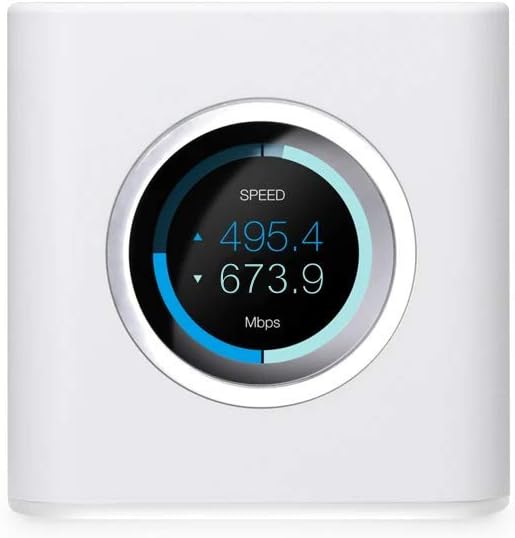
Figure 3: The AmpliFi HD Mesh Router's intuitive touchscreen display.
Video 1: An overview of the AmpliFi HD Home Wi-Fi System, demonstrating its components and basic functionality. This video provides a visual introduction to the system's design and how its parts work together to create a seamless home network.
4. Operating the AmpliFi HD System
The AmpliFi HD system is designed for ease of use and powerful control through its mobile app and router touchscreen.
4.1 Mobile App Control
The AmpliFi app (iOS and Android) provides comprehensive control over your network:
- Network Monitoring: Easily monitor the status of your network, including connected devices and data usage.
- Device Prioritization: See and prioritize connected devices to ensure critical devices receive optimal bandwidth for gaming or streaming.
- Parental Controls: Create family profiles, set schedules for internet access, or pause access to the internet for specific devices or users.
- Guest Access: Grant temporary access to guests without sharing your main network password.
- Remote Access: Control your AmpliFi system from anywhere using the app.
4.2 Router Touchscreen Display
The Mesh Router features a smart LCD touchscreen display that provides real-time information about your network status, including current speeds and network activity. This allows for quick checks without needing to open the mobile app.
4.3 MeshPoint Placement and Signal
AmpliFi MeshPoints are designed with adjustable super antennas for optimal placement. Integrated signal strength LEDs provide immediate and continuous feedback, helping you position them for the best possible performance and coverage throughout your home.
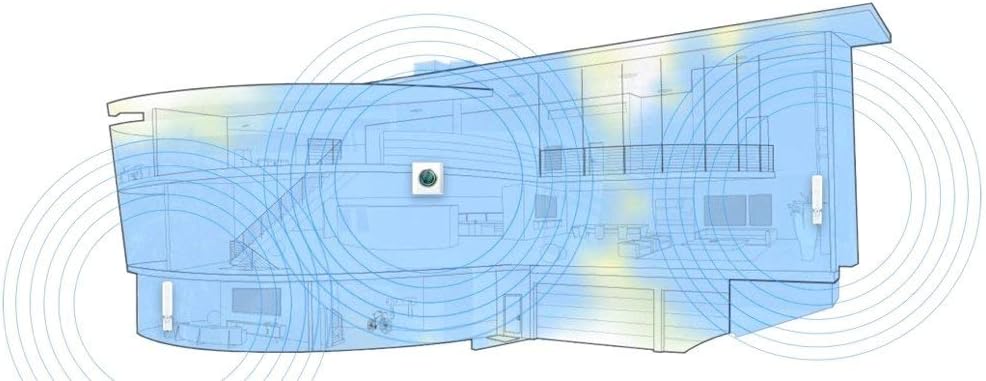
Figure 4: Diagram illustrating the extended Wi-Fi coverage provided by the AmpliFi HD Mesh System in a multi-level home.
5. Maintenance
To ensure optimal performance and longevity of your AmpliFi HD WiFi System, consider the following maintenance tips:
- Firmware Updates: The system supports automatic firmware updates to improve security and add new features. Ensure your devices are connected to the internet to receive these updates.
- Cleaning: Periodically wipe the router and MeshPoints with a soft, dry cloth to remove dust. Ensure ventilation openings are clear.
- Placement: Avoid placing devices in direct sunlight or near heat sources to prevent overheating.
6. Troubleshooting
If you encounter issues with your AmpliFi HD WiFi System, try the following troubleshooting steps:
- No Internet Connection:
- Check if your modem or gateway is working correctly.
- Ensure the Ethernet cable is securely connected between your modem and the router's WAN port.
- Reboot your modem, then the AmpliFi router.
- Weak Wi-Fi Signal:
- Adjust the position of your MeshPoints using the signal strength LEDs as a guide.
- Ensure there are no major obstructions (thick walls, large metal objects) between your devices and the MeshPoints/Router.
- Device Not Connecting:
- Ensure your device is within the Wi-Fi range.
- Verify you are using the correct Wi-Fi network name and password.
- Try restarting the device you are trying to connect.
- Factory Reset: If all else fails, you may need to perform a factory reset. This will revert the router to its default settings. Refer to the official AmpliFi support documentation or the video below for instructions.
Video 2: This video demonstrates the process of performing a factory reset on the AmpliFi WiFi Router. It shows how to locate the reset button and the steps involved in restoring the device to its default settings.
7. Specifications
| Feature | Detail |
|---|---|
| Brand | AmpliFi |
| Model Name | AFI-HD |
| Wireless Type | 802.11a/g/n/ac, 802.11ac |
| Frequency Band Class | Dual-Band |
| Connectivity Technology | WiFi, Wired |
| Ethernet Ports | 4 Gigabit Ethernet, 1 WAN Port |
| USB Ports | 1 USB 2.0 Port |
| Coverage Area | Up to 10,000 sq. ft. |
| Item Weight | 14.5 ounces |
| Product Dimensions | 3.85 x 3.92 x 3.91 inches |
| Color | White |
| Manufacturer | Ubiquiti Networks (Personal Computer) |
8. Warranty and Support
The AmpliFi HD WiFi System is designed by Ubiquiti Labs, a division of Ubiquiti Networks, a global leader in networking solutions. While specific warranty details are not provided in this manual, AmpliFi offers robust support through its intuitive mobile app.
- App Support: The AmpliFi app provides instant setup, easy management, and access to configuration options and powerful reporting metrics.
- Online Resources: For detailed warranty information, additional support, and community forums, please visit the official AmpliFi website or contact AmpliFi customer service.


