
Introduction
The iRobot Roomba 960 is an advanced robot vacuum cleaner designed to provide efficient and thorough cleaning of your home. Equipped with a camera sensor and various other sensors, it intelligently navigates your living space, mapping its environment to ensure comprehensive coverage. This model features Wi-Fi connectivity, allowing for remote operation and scheduling via the iRobot HOME app, and is compatible with voice assistants like Amazon Alexa and Google Home. Its powerful AeroForce cleaning system is engineered to lift and remove dirt, dust, and pet hair from various floor types, including carpets and tatami mats. The Roomba 960 also includes automatic charging and resume functions, ensuring it completes its cleaning tasks even in larger areas.

Figure 1: Top view of the iRobot Roomba 960 robot vacuum cleaner.
Setup
1. Unboxing and Initial Charge
Carefully remove all components from the packaging. Place the Home Base charging station against a wall in an open, uncluttered area, ensuring at least 0.5 meters of clear space on either side and 1.2 meters in front. Plug the power cord into the Home Base and then into a wall outlet. Place your Roomba onto the Home Base, ensuring the metal charging contacts align. The battery indicator will pulse to show it is charging. Allow the Roomba to charge for at least 3 hours before its first use.

Figure 2: The Roomba 960 automatically returns to its Home Base for charging.
2. Connecting to the iRobot HOME App
- Download the iRobot HOME app from your device's app store.
- Open the app and follow the on-screen instructions to create an account or log in.
- Select your Roomba model (Roomba 960) and follow the guided steps to connect it to your home Wi-Fi network. This typically involves pressing and holding specific buttons on the robot to activate pairing mode.
- Once connected, you can name your robot and access various features, including scheduling, cleaning preferences, and cleaning history.

Figure 3: Controlling the Roomba 960 using the iRobot HOME smartphone application.
Operating Instructions
1. Starting a Cleaning Cycle
To start a cleaning cycle, press the CLEAN button on the top of your Roomba or tap the CLEAN button in the iRobot HOME app. The robot will begin cleaning and automatically return to its Home Base when the cleaning is complete or when its battery is low.
2. Pausing and Resuming
To pause a cleaning cycle, press the CLEAN button on the robot. Press it again to resume. To end a cleaning cycle and send the robot back to its Home Base, press and hold the CLEAN button for a few seconds until the light ring turns blue and the robot begins to return.
3. Using Virtual Wall Barriers
The Roomba 960 comes with a Dual Mode Virtual Wall Barrier. This accessory creates an invisible barrier that the robot will not cross. It can be set to two modes:
- Virtual Wall Mode: Creates a linear barrier up to 3 meters (10 feet) long. Ideal for blocking doorways or open areas.
- Halo Mode: Creates a circular barrier of approximately 1.2 meters (4 feet) in diameter. Ideal for protecting pet bowls, fragile items, or specific areas.
Ensure the Virtual Wall is placed on a flat surface and has fresh batteries for optimal performance.

Figure 4: The Roomba 960 navigating around a Virtual Wall barrier.
Maintenance
Regular maintenance ensures your Roomba 960 operates at peak performance. Perform the following tasks regularly:
1. Emptying the Dust Bin
Empty the dust bin after each cleaning cycle. Press the bin release button, pull out the bin, and open the bin door to discard debris. Tap the bin against a trash can to remove excess dirt.
2. Cleaning the Filter
The filter should be cleaned weekly (more often if you have pets). Remove the filter from the dust bin and tap it against a trash can to dislodge dirt. Do not wash the filter with water. Replace the filter every 2-3 months for best results.
3. Cleaning the Brushes
The multi-surface rubber brushes and edge-sweeping brush should be cleaned weekly. Remove the brush frame by lifting the tabs. Remove any hair or debris wrapped around the brushes. Use the cleaning tool provided to remove hair from the brush bearings. Clean the edge-sweeping brush by unscrewing it and removing any tangled hair.

Figure 5: Side view of the Roomba 960, illustrating the location of the brushes for maintenance.
4. Cleaning Sensors and Charging Contacts
Wipe the charging contacts on the robot and Home Base with a clean, dry cloth monthly. Also, wipe the cliff sensors and other sensors on the robot's underside to ensure proper navigation.
Troubleshooting
Common Issues and Solutions
- Roomba not charging: Ensure the Home Base is plugged in and the charging contacts on both the robot and base are clean and free of debris.
- Roomba not connecting to Wi-Fi: Verify your Wi-Fi network is 2.4 GHz. Restart your router, then restart the Roomba and attempt to reconnect via the iRobot HOME app.
- Roomba getting stuck frequently: Clear the cleaning area of loose cables, small rugs, or other obstacles. Use Virtual Wall barriers to block off problematic areas. Clean the robot's wheels and brushes for any tangled debris.
- Poor cleaning performance: Empty the dust bin, clean or replace the filter, and clean the main brushes and edge-sweeping brush. Ensure the robot's sensors are clean.
- Error messages: Consult the iRobot HOME app for specific error codes and troubleshooting steps. Often, restarting the robot (by holding the CLEAN button for 10 seconds) can resolve minor errors.
Specifications
| Brand | iRobot |
| Model Name | R960060 |
| Recommended Use | Carpet, Tatami |
| Special Features | Virtual Boundary Line, Overcoming Steps, Collision Prevention |
| Color | Matte Silver |
| Controller Type | Amazon Alexa, Google Home, Application |
| Battery Life | 75 minutes |
| Cleaning Path Width | 35.3 cm |
| Battery Composition | Lithium Ion |
| Voltage | 33 Volts |
| Item Dimensions (L x W x H) | 35.3 x 35.3 x 9.2 cm |
| Item Weight | 3.9 kg |
| Included Accessories | Dual Virtual Wall x1, Docking Station, Battery, Filter, Replacement Edge Cleaning Brush x1, Main Unit, Power Cord |
Warranty and Support
Manufacturer Support
Manufacturer support for the iRobot Roomba 960 is applicable only to products sold and shipped directly by Amazon.co.jp. For identical products purchased from other sellers, support may fall outside the scope of the manufacturer's warranty. Please verify the seller information at the time of purchase.
Contact Information
For manufacturer support inquiries, please contact: 0120-046-669.
For additional resources, visit the official iRobot website or refer to the iRobot HOME app for digital manuals and FAQs.
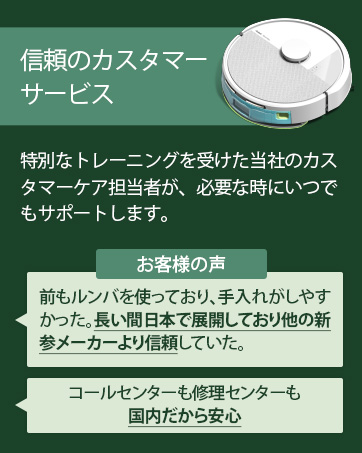
Figure 6: iRobot customer service information (text in Japanese).


