
1. Product Overview
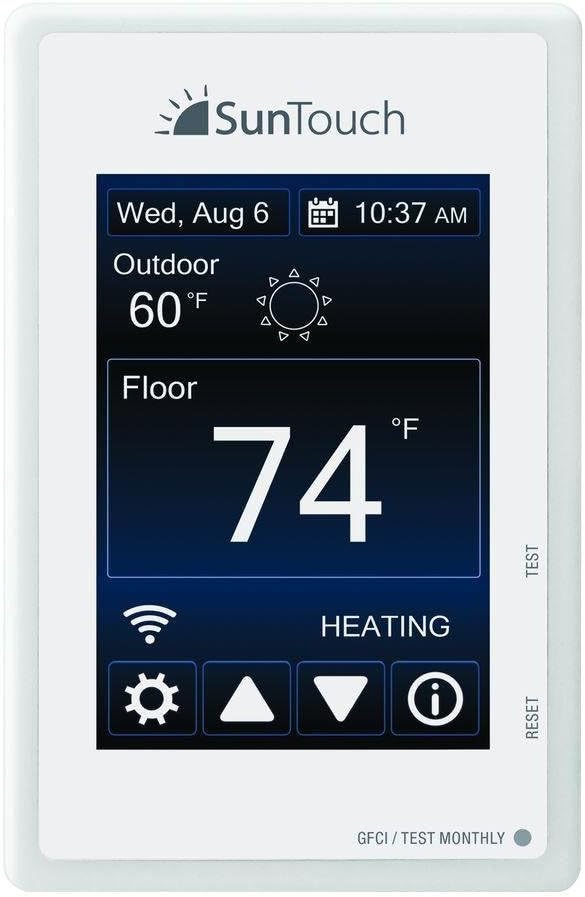
The SunTouch Connect WiFi Enabled Touchscreen Programmable Thermostat Model 500875 is designed to provide precise control over electric radiant floor heating systems. This thermostat offers advanced features for comfort and energy efficiency, including Wi-Fi connectivity for remote operation and a user-friendly touchscreen interface.
Key Features:
- Wi-Fi enabled for remote control via the Watts Home app (iOS and Android compatible).
- Intuitive 7-day programmable schedule.
- Dual-voltage compatibility (120/240 VAC) with built-in GFCI for safety.
- SmartStart technology for optimal heating times.
- Floor and air sensing modes.
- Energy use monitor to track operation hours.
- 3.5-inch digital touchscreen display with five preset color themes.
2. Setup and Installation
Proper installation is crucial for the safe and efficient operation of your SunTouch Connect thermostat. It is recommended that installation be performed by a qualified electrician in accordance with local electrical codes.
2.1 Electrical Requirements
- The thermostat supports both 120V and 240V electrical systems.
- It includes a built-in 15-amp relay, controlling up to 150 sq. ft. (1800 watts) at 120V, or 300 sq. ft. (3600 watts) at 240V.
- A dedicated circuit is often required. Consult your electrician.
2.2 Physical Installation
The thermostat is designed for wall mounting. Ensure the mounting location is free from direct sunlight, drafts, or other heat sources that could affect temperature readings.

2.3 Wi-Fi Connectivity and App Setup
- Download the Watts Home App: Search for "Watts Home" in the Apple App Store (for iOS devices) or Google Play Store (for Android devices).
- Create an Account: Follow the in-app instructions to create a new user account.
- Connect Thermostat to Wi-Fi: Use the setup wizard on the thermostat's touchscreen to connect it to your home Wi-Fi network. This typically involves selecting your network and entering the password.
- Register Device in App: Generate a registration code on the thermostat (usually found in the Wi-Fi menu) and enter it into the Watts Home app to link your device.
Note: Ensure your Wi-Fi network is 2.4 GHz compatible, as some smart devices may not support 5 GHz networks.
3. Operating Instructions
The SunTouch Connect thermostat features an intuitive touchscreen for easy operation and programming.
3.1 Basic Operation
- Temperature Adjustment: Use the up and down arrows on the touchscreen to set your desired floor or air temperature.
- Mode Selection: Access the settings menu (gear icon) to switch between floor sensing, air sensing, or ambient temperature control modes.
- Display Themes: Customize the look of your thermostat by choosing from five preset display color themes in the settings menu.
3.2 Programming Schedule
The 7-day programmable schedule allows you to set different temperatures for various times of the day and days of the week, optimizing comfort and energy savings.
- Navigate to the schedule menu on the thermostat or through the Watts Home app.
- Select the day(s) and time periods you wish to program.
- Set the desired temperature for each period.
- Utilize the SmartStart technology, which automatically adjusts the start time of the floor warming system to ensure it reaches the set temperature at your scheduled times.
3.3 Remote Control via Watts Home App
Once connected to Wi-Fi, you can control your thermostat from anywhere using the Watts Home app on your iOS or Android device.
- Adjust temperatures, change modes, and modify schedules remotely.
- Monitor energy usage to track system operation hours.
- Receive email notifications for system alerts or status changes.
4. Maintenance
Regular maintenance ensures the longevity and optimal performance of your SunTouch Connect thermostat.
4.1 GFCI Testing
The built-in Ground Fault Circuit Interrupter (GFCI) is a critical safety feature. It must be tested monthly to ensure proper function.
- Locate the "TEST" button on the side of the thermostat.
- Press the "TEST" button. The GFCI should trip, interrupting power to the heating system.
- Press the "RESET" button to restore power. If the GFCI does not trip or reset, contact a qualified electrician immediately.
4.2 Cleaning
To clean the touchscreen and exterior of the thermostat, use a soft, damp cloth. Avoid abrasive cleaners, solvents, or harsh chemicals, as these can damage the display or casing.
5. Troubleshooting
If you encounter issues with your SunTouch Connect thermostat, refer to the following common troubleshooting steps.
5.1 No Heat Output
- Check GFCI: Ensure the GFCI has not tripped. Press the "RESET" button if necessary.
- Verify Settings: Confirm the thermostat is in heating mode and the set temperature is above the current floor/air temperature.
- Power Supply: Check the circuit breaker for the heating system.
5.2 Wi-Fi Connectivity Issues
- Router Check: Ensure your Wi-Fi router is powered on and functioning correctly.
- Signal Strength: Verify the thermostat is within range of your Wi-Fi router.
- Reboot Thermostat: Sometimes, a simple reboot of the thermostat can resolve connection issues. This can often be done through the thermostat's menu or by temporarily cutting power at the breaker.
- App Login: If using the Watts Home app, ensure you are logged in. Some users report needing to log in each time.
5.3 Screen Unresponsive
- Power Cycle: Turn off the power to the thermostat at the circuit breaker for a few minutes, then restore power.
- Contact Support: If the screen remains unresponsive after a power cycle, contact SunTouch customer support.
6. Specifications
Detailed technical specifications for the SunTouch Connect WiFi Enabled Touchscreen Programmable Thermostat Model 500875.

| Specification | Detail |
|---|---|
| Brand | SunTouch |
| Model Name | Wi-Fi-Enabled Touchscreen Programmable |
| Controller Type | Android, Vera, iOS |
| Special Feature | Programmable |
| Color | White |
| Specific Uses For Product | Electric Baseboard Heater (Note: Primarily for electric radiant floor heating) |
| Temperature Control Type | Heating |
| Connectivity Technology | Wi-Fi |
| Included Components | Thermostat |
| Power Source | Electric |
| Item Weight | 0.5 Pounds (8 ounces) |
| Voltage | 120/240 Volts |
| Shape | Rectangular |
| Display Type | Touchscreen |
| Screen Size | 3.5 Inches |
| Control Type | Touch |
| Control Method | App |
| Connectivity Protocol | Wi-Fi |
| Mounting Type | Wall Mount |
| Style | Digital, Wi-Fi |
| Backlight | Yes |
| Product Dimensions | 4 x 3 x 1 inches (4.63 x 2.95 x 1.65 inches) |
| Item model number | SunStat Connect |
| Manufacturer | Watts |
7. Warranty Information
SunTouch and Watts Radiant (the companies) warrant their respective electric floor heating mats and cables (the products) to be free from defects in materials and workmanship for twenty-five (25) years from the date of manufacture. Thermostats and controls sold by the companies are warranted, parts and materials, for two (2) years from the date of purchase. The sole remedy for controls is product replacement. This warranty is only provided to customers who purchase the products from authorized resellers, and is transferable to subsequent owners of properties where the products are initially installed.
8. Support
For further assistance, technical support, or customer service, please refer to the following resources:
- Watts Home App: For remote control and basic troubleshooting.
- SunTouch Website: Visit the official SunTouch website for FAQs, detailed product information, and contact options.
- Technical Support: SunTouch provides industry-leading technical and customer support. Contact information can be found on their website.


