
1. Introduction
The Unitek Y-3026 is a versatile USB 3.0 Dual SATA HDD/SSD Docking Station designed for efficient data management. It supports both 2.5-inch and 3.5-inch SATA I, II, and III hard disk drives (HDDs) and solid-state drives (SSDs) of various capacities. This docking station features a SuperSpeed USB 3.0 interface for fast data transfer and an integrated offline clone function, allowing direct disk-to-disk duplication without requiring a computer connection.
Key Features:
- Offline Clone Function: Duplicate hard drives without a computer.
- SuperSpeed USB 3.0: Data transfer rates up to 5Gbps.
- Dual Bay Design: Simultaneously work with two hard drives.
- Wide Compatibility: Supports 2.5" and 3.5" SATA I/II/III HDDs and SSDs.
- Automatic Sleep Mode: Energy-saving feature after 30 minutes of inactivity.
- Plug and Play: No drivers required for standard operation.
2. Package Contents
- Unitek Y-3026 Dual SATA HDD Docking Station
- USB 3.0 Data Cable
- Power Adapter
- User Manual (this document)
3. Product Overview
Familiarize yourself with the components of your Unitek Y-3026 docking station.
Front/Top View:

Figure 3.1: Front view of the Unitek Y-3026 docking station, showing the two drive bays labeled A and B, and LED indicators.

Figure 3.2: Top view highlighting the two SATA drive slots (A and B) and the status LED panel.
Rear View:

Figure 3.3: Rear view showing the USB 3.0 port, DC 12V power input, and On/Off switch.
Components:
- Drive Bay A: Upper slot for 2.5" or 3.5" SATA HDD/SSD.
- Drive Bay B: Lower slot for 2.5" or 3.5" SATA HDD/SSD.
- Power Button: Located on the rear panel, controls power to the unit.
- USB 3.0 Port: Located on the rear panel, connects to your computer.
- DC 12V Power Input: Located on the rear panel, connects to the power adapter.
- Clone Button: Located on the front panel, initiates the offline cloning process.
- LED Indicators: Display power status, drive activity, and clone progress.
- Anti-slip Pads: Located on the bottom for stability.

Figure 3.4: Detail showing the anti-slip pads for stabilization and the On/Off switch.
4. Setup and Installation
- Insert Hard Drives:
- Gently slide your 2.5" or 3.5" SATA HDD/SSD into the drive bays (A and/or B) until they are securely seated. Ensure the SATA connectors align correctly.
- For data transfer mode, you can insert one or two drives.
- For offline cloning, insert the source drive into Bay A and the target drive into Bay B.
- Connect Power:
- Connect the provided power adapter to the DC 12V input port on the rear of the docking station.
- Plug the power adapter into a wall outlet.
- Connect to Computer (for data transfer):
- Connect one end of the USB 3.0 cable to the USB 3.0 port on the rear of the docking station.
- Connect the other end of the USB 3.0 cable to an available USB 3.0 port on your computer.
- Power On:
- Press the On/Off switch on the rear panel to power on the docking station. The power LED indicator will illuminate.
5. Operating Instructions
5.1. Data Transfer Mode (Connected to Computer)
When connected to a computer via USB, the docking station functions as an external drive enclosure, allowing you to access data on the inserted HDDs/SSDs.
- Ensure the docking station is powered on and connected to your computer via the USB 3.0 cable.
- The operating system will automatically detect the drives. New drives may require initialization and formatting before use.
- Access the drives through your computer's file explorer (Windows) or Finder (macOS).

Figure 5.1: Illustration comparing data transfer speeds when connected to a PC versus using the offline clone function.

Figure 5.2: The docking station supports SATA III at 5Gbps with UASP, enabling quick access to large files.
5.2. Offline Clone Function (Stand-alone Duplication)
The offline clone function allows you to duplicate a source drive (Disk A) to a target drive (Disk B) without connecting to a computer. The target drive must have a capacity equal to or greater than the source drive.

Figure 5.3: Visual guide for the one-click HDD duplication or capacity update process, showing source disk (A) and target disk (B).
- Prepare Drives:
- Ensure the docking station is powered off and disconnected from any computer.
- Insert the Source Disk (the drive you want to copy from) into Bay A.
- Insert the Target Disk (the drive you want to copy to) into Bay B.
- Important: All data on the target disk (Bay B) will be erased during the cloning process. Back up any important data from the target disk before proceeding.
- The target disk's capacity must be equal to or larger than the source disk's capacity.
- Start Cloning:
- Power on the docking station using the On/Off switch.
- Press and hold the "Clone" button (located on the front panel) for approximately 3-5 seconds until the clone progress LEDs start flashing.
- Release the button.
- Monitor Progress:
- The LED indicators (25%, 50%, 75%, 100%) will illuminate sequentially to show the cloning progress.
- When all four LEDs are solid, the cloning process is complete.
- Finish:
- Power off the docking station.
- Carefully remove the drives.
Note: Do not disconnect the power or remove drives during the cloning process, as this may lead to data corruption.
6. LED Indicators
The LED indicators provide visual feedback on the docking station's status and cloning progress.
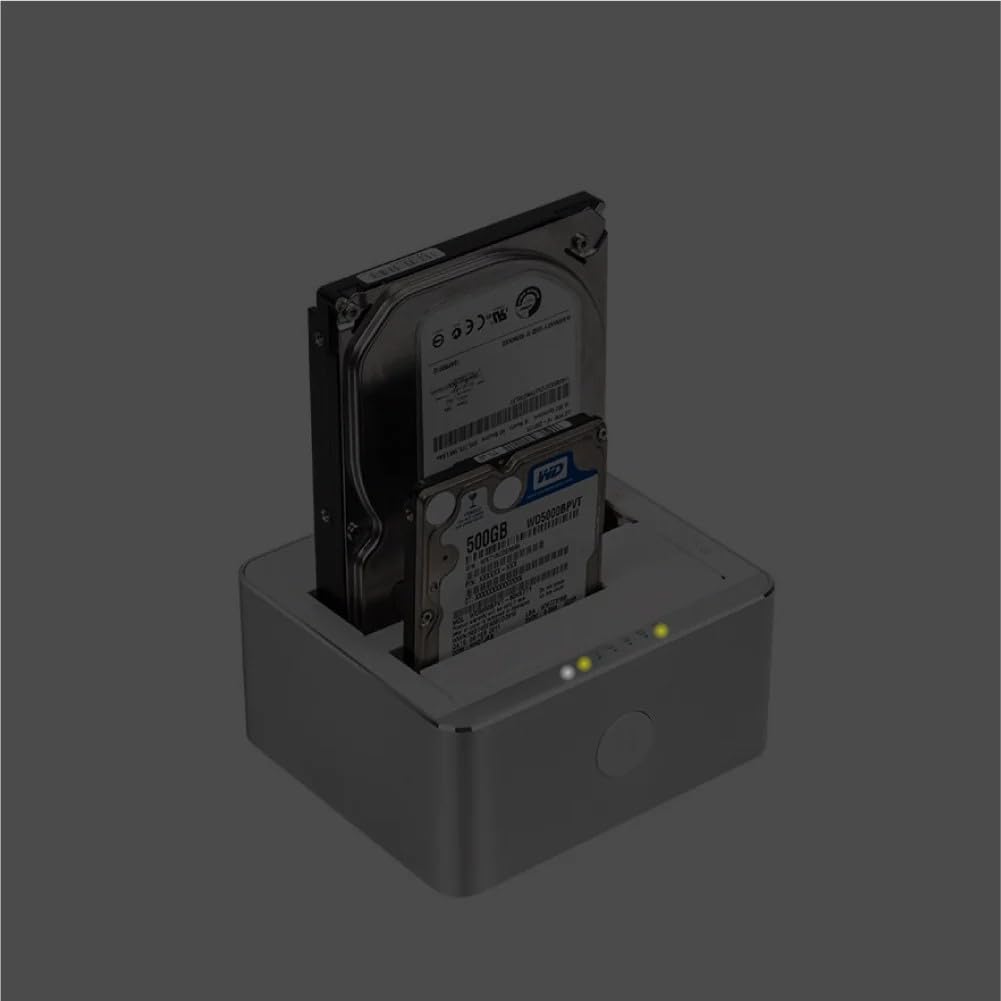
Figure 6.1: Docking station with drives inserted, showing illuminated power and activity LEDs.
- Power LED: Illuminates when the docking station is powered on.
- Drive A/B Activity LEDs: Flash when data is being accessed or written to the respective drive.
- Clone Progress LEDs (25%, 50%, 75%, 100%):
- Flash sequentially during an active cloning process.
- Remain solid when the cloning process is complete.
7. Troubleshooting
| Problem | Possible Cause | Solution |
|---|---|---|
| Docking station does not power on. | No power connection or faulty power adapter. | Ensure the power adapter is securely connected to the docking station and a working power outlet. Check the On/Off switch. |
| Drive not detected by computer. | Loose drive connection, faulty USB cable, uninitialized/unformatted drive, or incompatible drive. |
|
| Offline clone fails or does not start. | Target drive capacity too small, drives not properly seated, or clone button not held long enough. |
|
| Slow data transfer speeds. | Connected to a USB 2.0 port, or drive performance limitations. |
|
8. Specifications
| Feature | Detail |
|---|---|
| Model | Y-3026 |
| Brand | Unitek |
| Interface | USB 3.0 (backward compatible with USB 2.0) |
| Drive Compatibility | 2.5" / 3.5" SATA I/II/III HDD & SSD |
| Max Number of Supported Devices | 2 |
| Data Transfer Rate | Up to 5 Gbps (USB 3.0) |
| Material | Aluminium |
| Product Dimensions | 11.5 x 13 x 6.1 cm |
| Item Weight | 699 Grams |
| Power Input | DC 12V (via included power adapter) |
| Special Features | Offline Clone Function, Automatic Sleep Mode |
9. Care and Maintenance
- Keep the docking station in a dry environment, away from direct sunlight and extreme temperatures.
- Avoid dropping or subjecting the device to strong impacts.
- Clean the exterior with a soft, dry cloth. Do not use liquid cleaners or solvents.
- Ensure proper ventilation around the device during operation.
- When not in use, disconnect the power adapter.
10. Warranty and Support
Unitek products are designed for reliability and performance. For warranty information and technical support, please refer to the warranty card included with your product or visit the official Unitek website.
For further assistance, please contact Unitek customer support through their official channels.


