
Introduction
This manual provides essential information for setting up, operating, and maintaining your LaCie Porsche Design 1TB USB-C Mobile Hard Drive. Please read these instructions carefully to ensure optimal performance and longevity of your device.
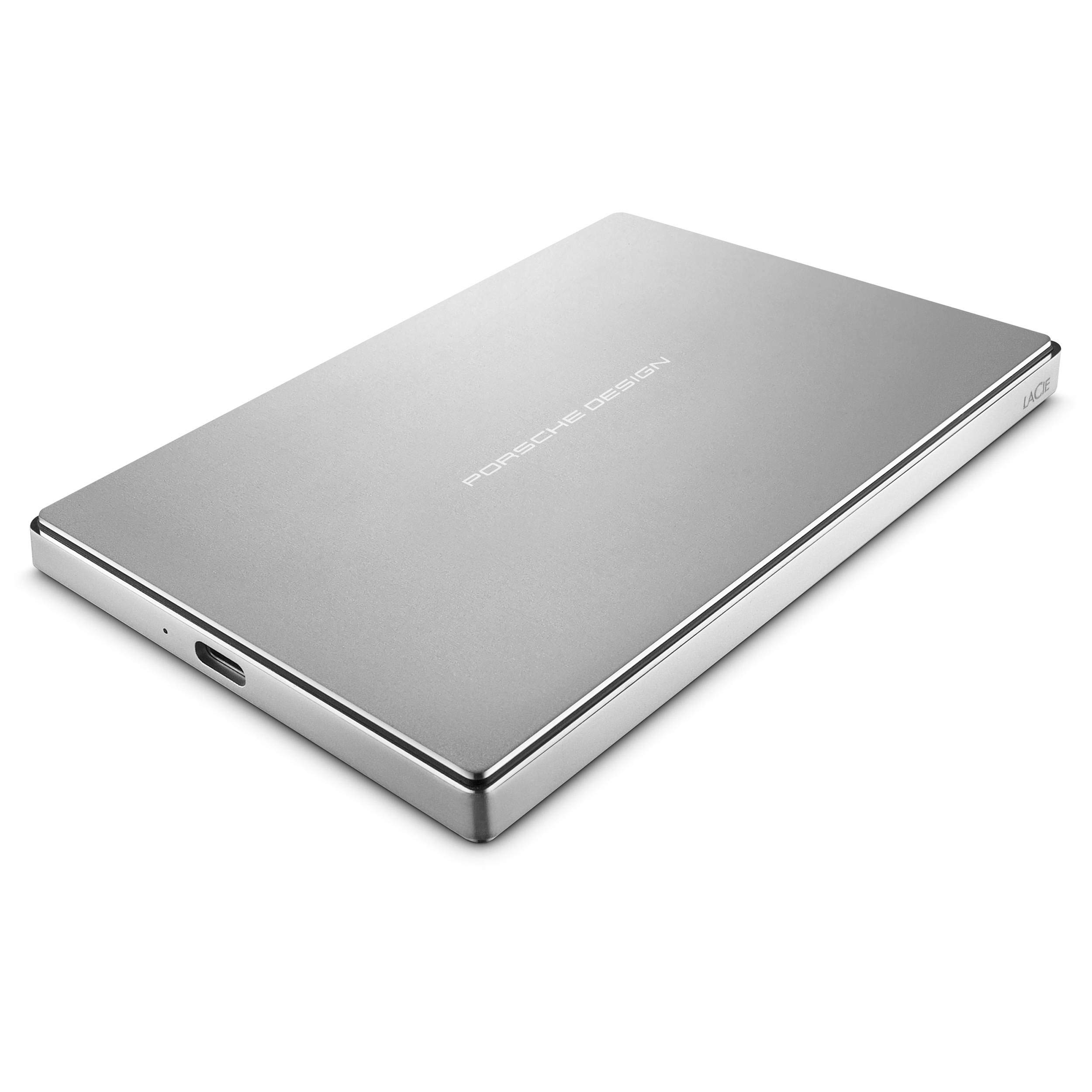
Image: Top view of the LaCie Porsche Design Mobile Hard Drive, showcasing its sleek silver aluminum casing with "PORSCHE DESIGN" branding.
What's in the Box
Verify that all items are present in your product packaging:
- LaCie Porsche Design Mobile Drive
- USB-C cable
- USB-C to USB-A cable
- Quick Start Guide
Setup
Connecting to Your Computer
The LaCie Porsche Design Mobile Drive features a versatile USB-C port for connectivity. It includes two cables to ensure compatibility with various computer types.
- For USB-C Compatible Computers (e.g., newer MacBooks):
Use the included USB-C to USB-C cable. Connect one end to the USB-C port on your LaCie drive and the other end to a USB-C port on your computer.

Image: Close-up view of the LaCie Porsche Design Mobile Drive's side, showing the USB-C port and an indicator light.
- For USB-A Compatible Computers (e.g., older Macs or PCs with USB 3.0):
Use the included USB-C to USB-A cable. Connect the USB-C end to your LaCie drive and the USB-A end to a USB 3.0 port on your computer.
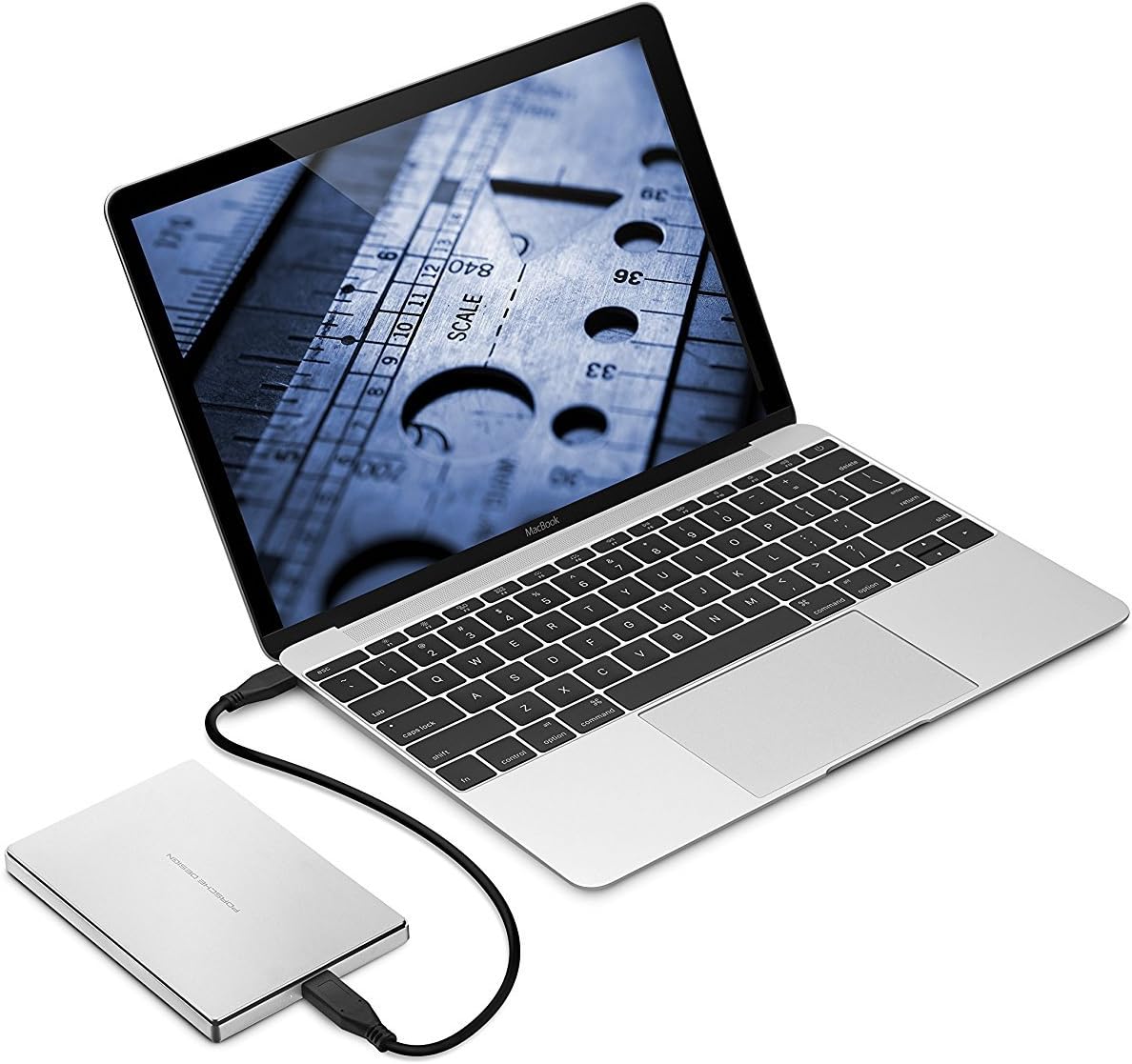
Image: The LaCie Porsche Design Mobile Drive connected to a silver laptop via a USB-A cable, demonstrating connectivity with older ports.
Once connected, the drive should be recognized by your operating system. For initial setup, you may need to format the drive according to your operating system's requirements (e.g., HFS+ for Mac, NTFS for Windows).
Operating the Drive
Data Transfer
The LaCie Porsche Design Mobile Drive supports USB 3.1 (Gen 1) speeds, offering data transfer rates of up to 5 GB/s. This allows for quick drag-and-drop file transfers and efficient backups.
- Drag and Drop: Simply drag files or folders from your computer to the LaCie drive icon in your file explorer (Windows) or Finder (Mac) to copy them.
- Backups: Utilize your operating system's built-in backup features (e.g., Time Machine for macOS, File History for Windows) or third-party backup software to create regular backups of your important data.
Power Management
The drive is bus-powered, meaning it draws power directly from the USB connection to your computer. No external power adapter is required.
Video: Official LaCie product overview demonstrating the design and connectivity options of the Porsche Design Desktop and Mobile Drives, including USB-C for next-generation computers and USB 3.0 adapter compatibility. This video highlights the sleek form and refined function of the drives.
Maintenance
General Care
- Cleaning: Use a soft, dry cloth to clean the aluminum enclosure. Avoid abrasive cleaners or solvents.
- Handling: While the all-aluminum enclosure is sturdy, avoid dropping the drive or subjecting it to excessive physical shock, as this can damage internal components.
- Temperature: Operate and store the drive within recommended temperature ranges to prevent damage. Avoid extreme heat or cold.
- Eject Safely: Always safely eject the drive from your operating system before disconnecting the cable to prevent data corruption.
Troubleshooting
Drive Not Recognized or Not Mounting
- Check Connections: Ensure the USB cable is securely connected to both the drive and your computer. Try a different USB port or cable if available.
- Power: Verify that your computer's USB port is providing sufficient power. If using a USB hub, try connecting the drive directly to the computer.
- Restart Computer: Sometimes a simple restart can resolve connectivity issues.
- Disk Management (Windows) / Disk Utility (Mac):
- Windows: Open Disk Management (right-click Start, select Disk Management). Check if the drive appears there. If it does, it might need to be initialized or assigned a drive letter.
- Mac: Open Disk Utility (Applications > Utilities > Disk Utility). Check if the drive appears. If it does, you may need to format it or run First Aid to repair it. Note that some users have reported needing to use Terminal commands for specific formatting on Mac for full compatibility and encryption.
- Driver Updates: Ensure your computer's USB drivers are up to date.
Slow Performance
- USB 3.0/3.1 Port: Ensure the drive is connected to a USB 3.0 or USB-C port on your computer for optimal speeds. Connecting to a USB 2.0 port will result in significantly slower transfer rates.
- Cable Quality: Use the provided LaCie cables. Damaged or low-quality cables can affect performance.
- Background Processes: Close any unnecessary applications or background processes that might be consuming system resources during data transfer.
Specifications
| Model Number | STFD1000400 |
| Capacity | 1 TB |
| Interface | USB-C (USB 3.1 Gen 1 compatible) |
| Max Transfer Speed | Up to 5 GB/s |
| Dimensions (LxWxH) | 0.39 x 3.31 x 5.04 inches |
| Weight | 6.7 ounces |
| Color | Silver |
| Hardware Platform | Mac, PC |
| Operating System Compatibility | Mac OS X 10.5 and later / Windows 7 and later |
| Minimum Free Disk Space | 600 MB recommended |
Warranty and Support
Warranty Information
For detailed warranty information, please refer to the warranty card included with your product or visit the official LaCie website. Keep your proof of purchase for warranty claims.
Technical Support
If you encounter issues not covered in this manual or require further assistance, please contact LaCie customer support. You can find contact information and additional resources on the official LaCie website: www.lacie.com.


