
1. Introduction
Thank you for choosing the sainlogic Wireless Weather Station. This device provides comprehensive weather data, including indoor and outdoor temperature, humidity, and weather forecasts, all displayed on a vibrant color screen. With its Wi-Fi connectivity, you can access and analyze your weather data through the Wunderground app from anywhere. Please read this manual carefully to ensure proper setup and operation.
2. Package Contents
Please check the package contents to ensure all items are present:
- 1 x sainlogic Weather Station Main Unit
- 3 x Wireless Outdoor Sensors
- 1 x Power Adapter (for main unit)
- 1 x User Manual (this document)
Note: 2 x AAA 1.5V batteries for the main unit and batteries for the outdoor sensors are not included and must be purchased separately.
3. Product Features

Figure 3.1: sainlogic Wireless Weather Station Main Unit.
- Color LCD Display: Provides clear and vibrant visibility of all weather data.
- Wi-Fi Connectivity: Connects to the global weather network (Wunderground) for data retrieval and evaluation via smartphone or computer.
- Three Wireless Outdoor Sensors: Delivers accurate temperature and humidity measurements from up to three different outdoor locations, with a maximum range of 60 meters.
- Automatic Synchronization: Ensures the current date and time are always displayed accurately.
- Integrated Alarm Function: Includes an alarm with snooze capability.
- Comprehensive Data Display: Shows indoor/outdoor temperature (°C/°F) and humidity.
- Weather Trend Forecast: Provides a forecast for the next four days, indicated by intuitive icons.
- Max/Min Logging: Records maximum and minimum temperature and humidity values.
- Versatile Placement: Designed for both tabletop placement and wall-mounting.
4. Setup
4.1 Main Unit Setup
1. Insert 2 x AAA 1.5V batteries (not included) into the main unit's battery compartment, observing polarity. Alternatively, connect the provided power adapter to the DC 5.0V port on the back of the unit. The display will light up.
2. Place the main unit on a stable, flat surface or mount it on a wall using the integrated hanging holes on the back.
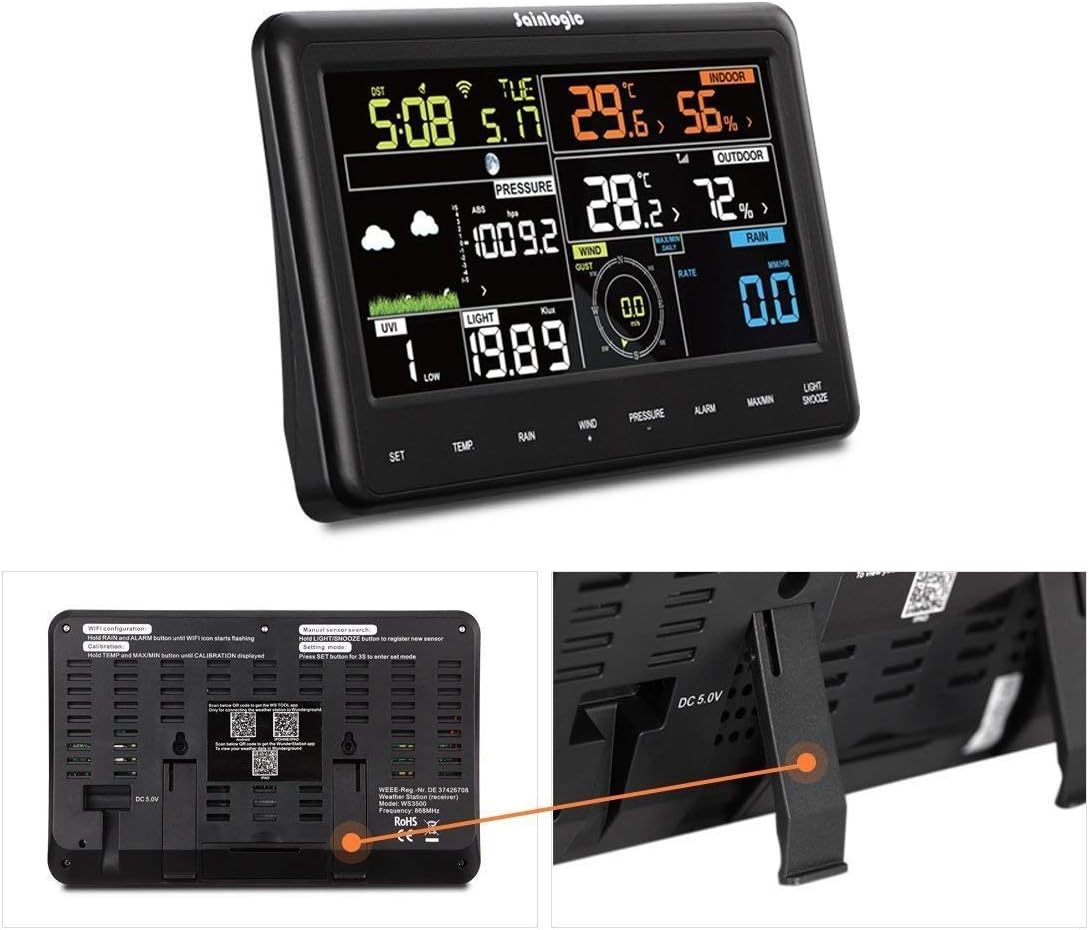
Figure 4.1: Back view of the main unit with power input and mounting options.
4.2 Sensor Installation
1. Insert batteries into each of the three wireless outdoor sensors, ensuring correct polarity.
2. Place the sensors in desired outdoor locations within a 60-meter range of the main unit. For accurate readings, ensure sensors are protected from direct sunlight, heavy rain, and extreme temperatures.
3. The main unit will automatically detect and display data from the sensors. Allow a few minutes for the sensors to transmit data to the main unit.

Figure 4.2: Three wireless outdoor sensors.
4.3 Wi-Fi and App Connection (Wunderground)
1. Download the Wunderground app from Google Play (for Android) or the App Store (for iOS) on your smartphone or tablet.
2. Follow the on-screen instructions within the Wunderground app to create an account and connect your weather station to your home Wi-Fi network.
3. Once connected, you can view and analyze your weather data remotely through the app.

Figure 4.3: Data transfer and access via Weather Underground.
5. Operating Instructions
5.1 Display Overview
The color display provides a comprehensive overview of current weather conditions and settings. It typically shows indoor and outdoor temperature, humidity, time, date, and weather forecast icons. Refer to the specific icons and layout on your device.

Figure 5.1: Detailed view of the color display.
5.2 Time and Date Settings
The station features automatic synchronization for time and date. If manual adjustment is needed, use the 'SET' button (usually located on the side or back) to enter the settings mode. Follow the on-screen prompts to adjust time, date, and 12/24-hour format.
5.3 Temperature and Humidity Display
The display shows current indoor and outdoor temperature and humidity levels. Use the '°C/°F' button to toggle between Celsius and Fahrenheit temperature units.
5.4 Weather Forecast
The station provides a weather trend forecast for the next four days, represented by graphical icons (e.g., sunny, cloudy, rainy). This forecast is based on atmospheric pressure changes.
5.5 Alarm Function
To set an alarm, press the 'ALARM' button. Use the 'SET' or arrow buttons to adjust the alarm time. Press 'ALARM' again to activate or deactivate the alarm. A snooze function is also available.

Figure 5.2: Display showing the alarm function and control buttons.
6. Maintenance
- Cleaning: Clean the main unit and sensors with a soft, dry cloth. Avoid using abrasive cleaners, solvents, or harsh chemicals, as these can damage the surfaces.
- Battery Replacement: Replace batteries in the main unit and sensors when the low battery indicator appears on the display to ensure continuous and accurate operation.
- Sensor Placement: Periodically check outdoor sensors to ensure they are free from debris, dust, and excessive moisture buildup. Ensure they remain in locations protected from direct weather elements.
7. Troubleshooting
| Problem | Possible Cause | Solution |
|---|---|---|
| No display on main unit | Low or no batteries; power adapter not connected. | Check battery installation and replace with fresh batteries. Ensure power adapter is securely connected. |
| No outdoor sensor data | Sensor batteries low/dead; sensor out of range; interference. | Replace sensor batteries. Move sensor closer to the main unit (within 60m). Ensure no major obstructions (thick walls, metal) between sensor and main unit. Re-pair sensors if necessary (refer to full manual for pairing steps). |
| Inaccurate temperature/humidity readings | Sensor exposed to direct sunlight, heat sources, or excessive moisture. | Relocate sensors to a shaded, well-ventilated area protected from direct weather elements. |
| Wi-Fi connection issues | Incorrect Wi-Fi password; station out of router range; network issues. | Verify Wi-Fi password. Ensure the station is within range of your Wi-Fi router. Restart your router. Re-enter Wi-Fi credentials via the Wunderground app. |
8. Specifications
| Feature | Specification |
|---|---|
| Brand | sainlogic |
| Model | FT0850 |
| Power Source (Main Unit) | 2 x AAA 1.5V batteries (not included) or DC 5.0V Power Adapter |
| Material | Plastic |
| Connectivity | Wi-Fi (for main unit), Wireless (433.9MHz for sensors) |
| Temperature Accuracy | ±2 °C |
| Indoor Temperature Range | 0 - 50 °C (32 - 122 °F) |
| Humidity Range | 20% to 99% RH |
| Outdoor Sensor Range | Up to 60 meters (197 feet) in open air |
| Display Type | Color LED |
| Dimensions (Main Unit) | Approx. 140 x 80 x 20 mm (5.5 x 3.1 x 0.8 inches) |
| Item Weight (Main Unit) | 100 Grams (0.22 lbs) |
| UPC | 603338622595 |
9. Warranty and Support
For detailed warranty information, technical support, or service inquiries, please refer to the documentation included with your purchase or visit the official sainlogic website. It is recommended to keep your purchase receipt as proof of purchase for warranty claims.


