
1. Introduction
The Excelvan K380 is a 2-channel wireless Bluetooth karaoke set designed for home entertainment. This system allows you to connect your smart devices via Bluetooth to play music and sing along using the two included wireless microphones. This manual provides essential information for the proper setup, operation, and maintenance of your karaoke set.
2. Package Contents
Please check the package contents to ensure all items are present:
- 1 x Excelvan K380 Receiver Unit
- 2 x Wireless Microphones
- 2 x Audio Cables (RCA to 3.5mm, 3.5mm to 3.5mm)
- 1 x USB Power Cable
- 2 x Simple Microphone Stands
- 1 x User Manual

3. Product Overview
Familiarize yourself with the components and controls of your Excelvan K380 karaoke set.
3.1 Receiver Unit

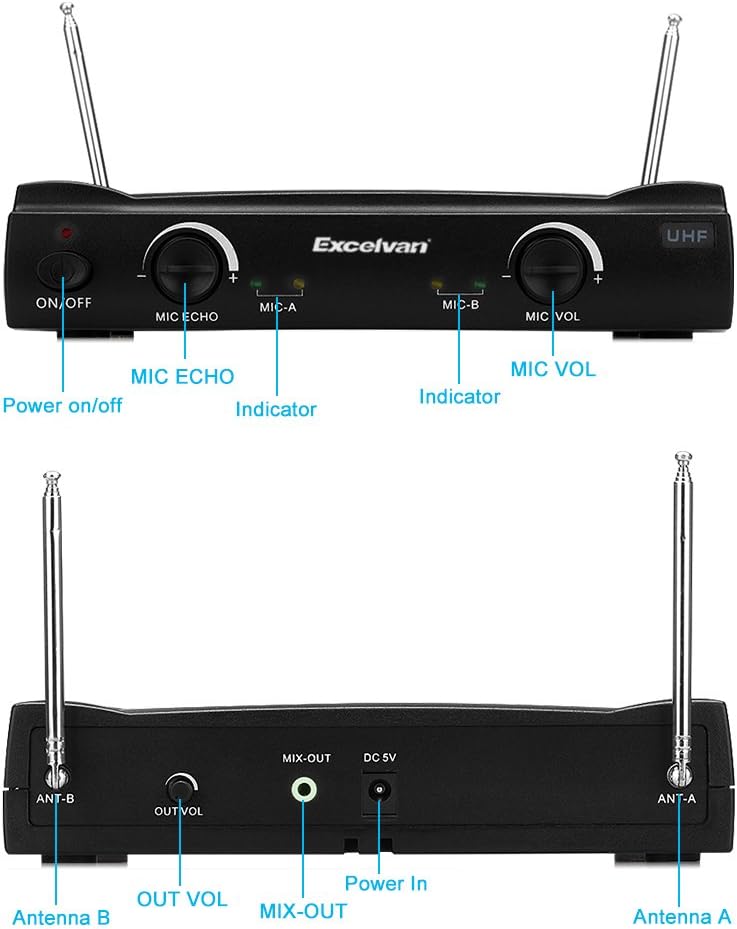
Front Panel Controls:
- ON/OFF Switch: Powers the receiver unit on or off.
- MIC ECHO Knob: Adjusts the echo effect for the microphones.
- MIC-A Indicator: Lights up when Microphone A is active.
- MIC-B Indicator: Lights up when Microphone B is active.
- MIC VOL Knob: Adjusts the overall volume of the microphones.
- UHF Indicator: Indicates UHF wireless signal status.
Rear Panel Ports:
- Antenna B: Antenna for Microphone B.
- OUT VOL Knob: Adjusts the overall output volume of the receiver.
- MIX-OUT Port: Audio output to connect to external speakers or amplifiers.
- DC 5V Power In: Power input for the receiver unit.
- Antenna A: Antenna for Microphone A.
3.2 Wireless Microphones
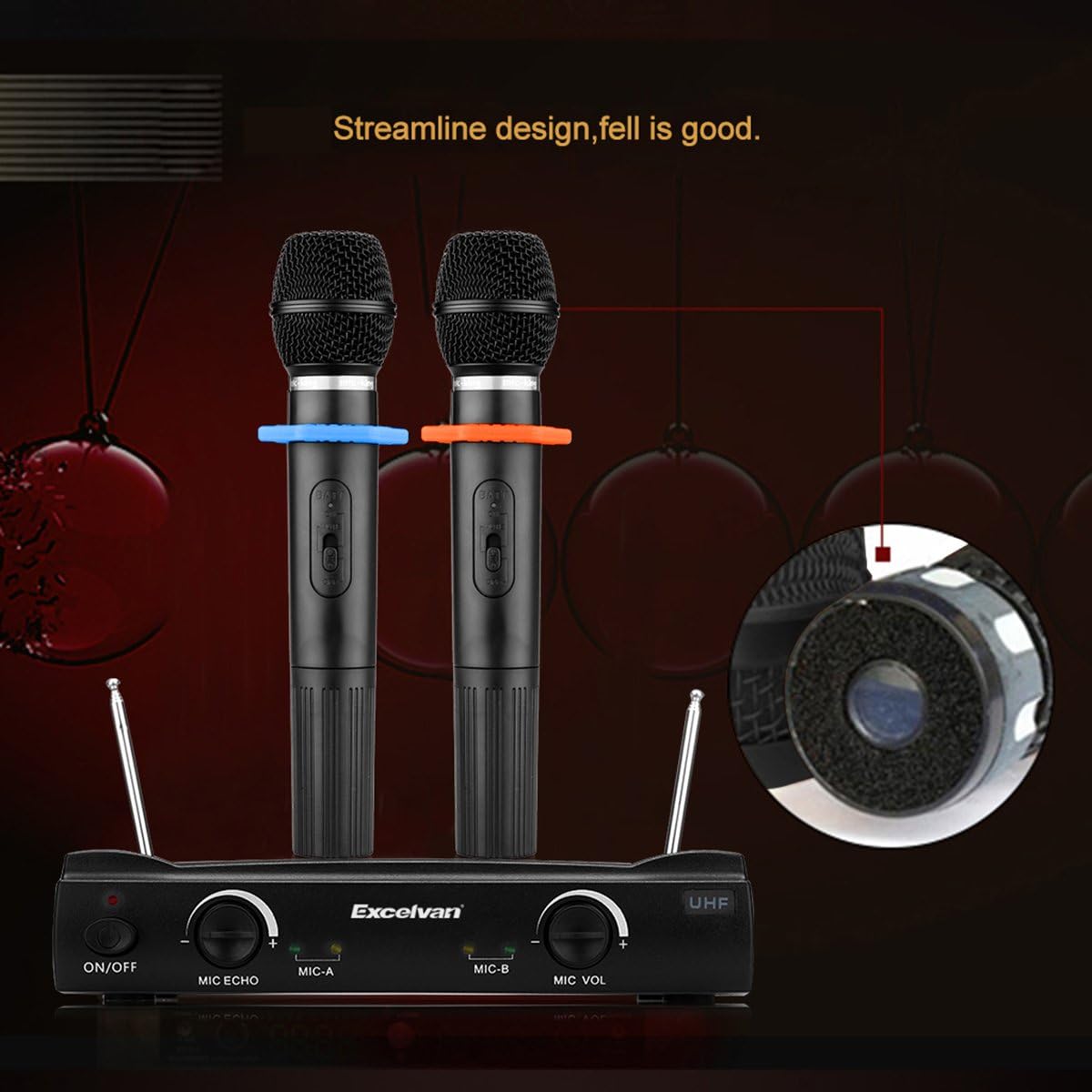
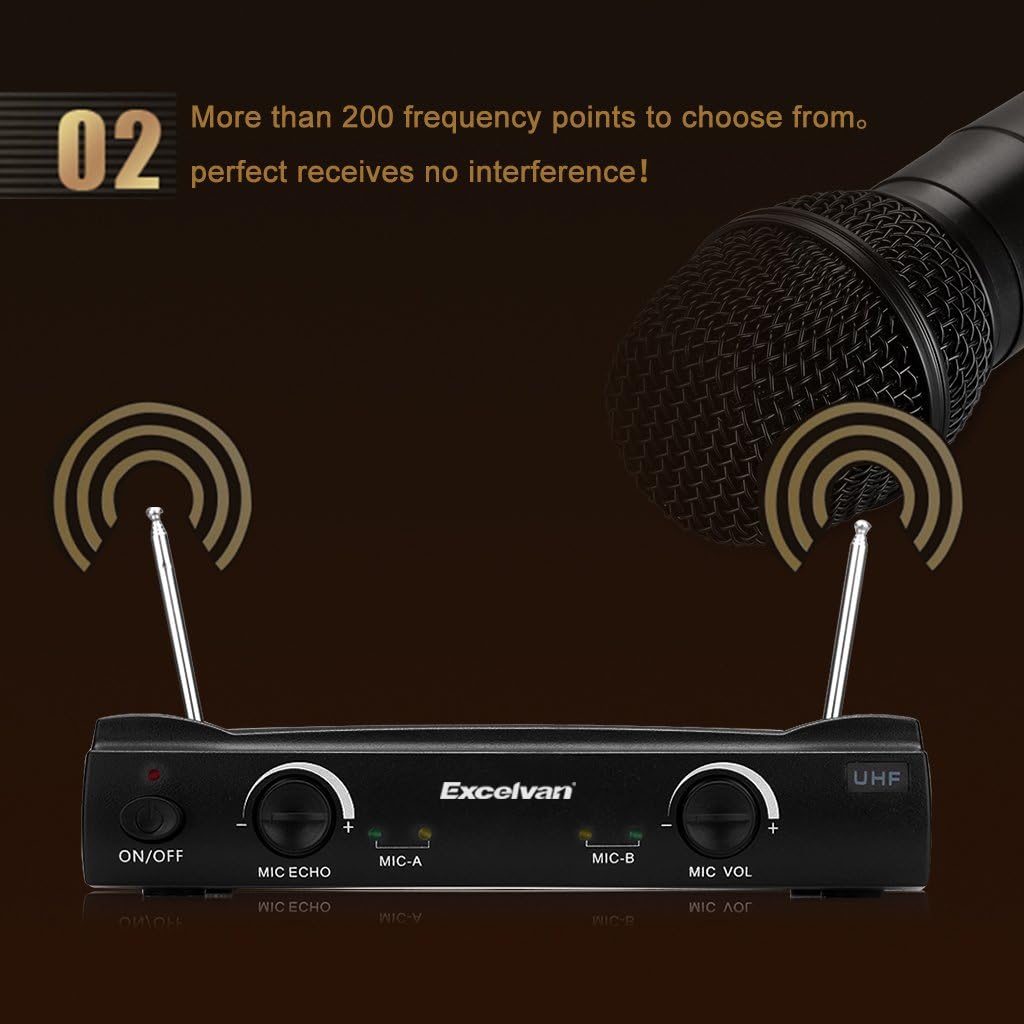
Each wireless microphone features an ON/OFF switch and internal battery compartment. The microphones operate on UHF frequencies, offering over 200 frequency points for clear signal reception.
4. Setup
Follow these steps to set up your Excelvan K380 karaoke system:
- Power Connection: Connect the provided USB power cable to the DC 5V Power In port on the rear of the receiver unit. Plug the other end into a compatible USB power adapter (not included) or a mobile battery.
- Audio Output: Use one of the provided audio cables to connect the MIX-OUT port on the receiver to the audio input of your external speaker system or amplifier. Ensure the connection is secure.
- Microphone Batteries: Open the battery compartment of each wireless microphone and insert 2 AAA batteries (not included) into each microphone, observing correct polarity.
- Antenna Setup: Extend both Antenna A and Antenna B on the rear of the receiver unit for optimal wireless signal reception.
- Receiver Power On: Flip the ON/OFF switch on the front panel of the receiver unit to the 'ON' position. The power indicator will light up.
- Bluetooth Pairing: On your smartphone, tablet, or other Bluetooth-enabled device, search for available Bluetooth devices and select 'Excelvan K380' to pair. Once paired, the Bluetooth indicator on the receiver may light up or change color (refer to specific model behavior if different).
5. Operating Instructions
Once setup is complete, you can begin using your karaoke set:
- Microphone Power On: Slide the ON/OFF switch on each wireless microphone to the 'ON' position. The corresponding MIC-A or MIC-B indicator on the receiver will light up.
- Adjust Microphone Volume: Use the MIC VOL knob on the receiver's front panel to adjust the volume of the microphones to your desired level.
- Apply Echo Effect: Turn the MIC ECHO knob to add or reduce the echo effect on your vocals.
- Play Music: Start playing music from your paired Bluetooth device. Adjust the music volume directly on your device.
- Adjust Overall Output Volume: Use the OUT VOL knob on the rear panel of the receiver to control the combined volume of music and microphones output to your external speakers.
The system utilizes UHF wireless technology with over 200 selectable frequency points to minimize interference and ensure clear audio transmission.
6. Maintenance
Proper maintenance ensures the longevity and optimal performance of your karaoke set:
- Cleaning: Wipe the receiver unit and microphones with a soft, dry cloth. Do not use liquid cleaners or abrasive materials.
- Storage: When not in use, store the unit in a cool, dry place away from direct sunlight and extreme temperatures.
- Battery Replacement: Replace the AAA batteries in the wireless microphones when the sound quality degrades or the microphone indicator on the receiver unit shows low power.
- Cable Care: Avoid bending or crimping the audio and power cables excessively to prevent damage.
7. Troubleshooting
If you encounter issues, refer to the following troubleshooting guide:
| Problem | Possible Cause | Solution |
|---|---|---|
| No sound output | Receiver not powered on Cables not connected properly Volume levels too low External speaker off or muted | Ensure receiver is ON Check all cable connections (MIX-OUT to speaker) Increase OUT VOL, MIC VOL, and music volume on device Turn on/unmute external speaker |
| Microphone not working | Microphone off Low or dead batteries Microphone out of range | Turn microphone ON Replace batteries Move microphone closer to the receiver |
| Bluetooth connection failure | Receiver not in pairing mode Device too far from receiver Interference from other devices | Ensure receiver is powered on and ready to pair Move device closer to receiver Turn off other Bluetooth devices nearby; try re-pairing |
| Static or interference noise | Environmental interference Microphone too close to speakers High volume settings | Ensure antennas are extended; try repositioning receiver Maintain distance between microphones and speakers Reduce overall volume (OUT VOL) and microphone volume (MIC VOL) |
8. Specifications
Key technical specifications for the Excelvan K380 Karaoke Set:
- Model Number: K380
- Brand: Excelvan
- Connectivity Technology: Bluetooth
- Special Feature: Volume Control
- Power Source: Corded Electric (via USB power cable)
- Hardware Platform: Karaoke Machine, Desktop PC
- Number of Channels: 2
- UPC: 708624218138
9. Warranty and Support
Specific warranty information and customer support contact details are not provided in the product data. Please refer to the retailer or manufacturer's website for warranty terms and support options.