
awei A920BL
Awei A920BL Wireless Bluetooth Earphone User Manual
Model: A920BL
Introduction
This user manual provides comprehensive instructions for the Awei A920BL Wireless Bluetooth 4.0 Sports Stereo Earphone. Please read this manual carefully before using the product to ensure proper operation and to maximize its lifespan. This earphone features Bluetooth 4.0 connectivity, noise reduction, and an integrated microphone for hands-free communication.
Product Overview
The Awei A920BL earphone consists of two in-ear earpieces connected by a cable, featuring an inline control unit and a built-in microphone. The design is optimized for sports and active use.
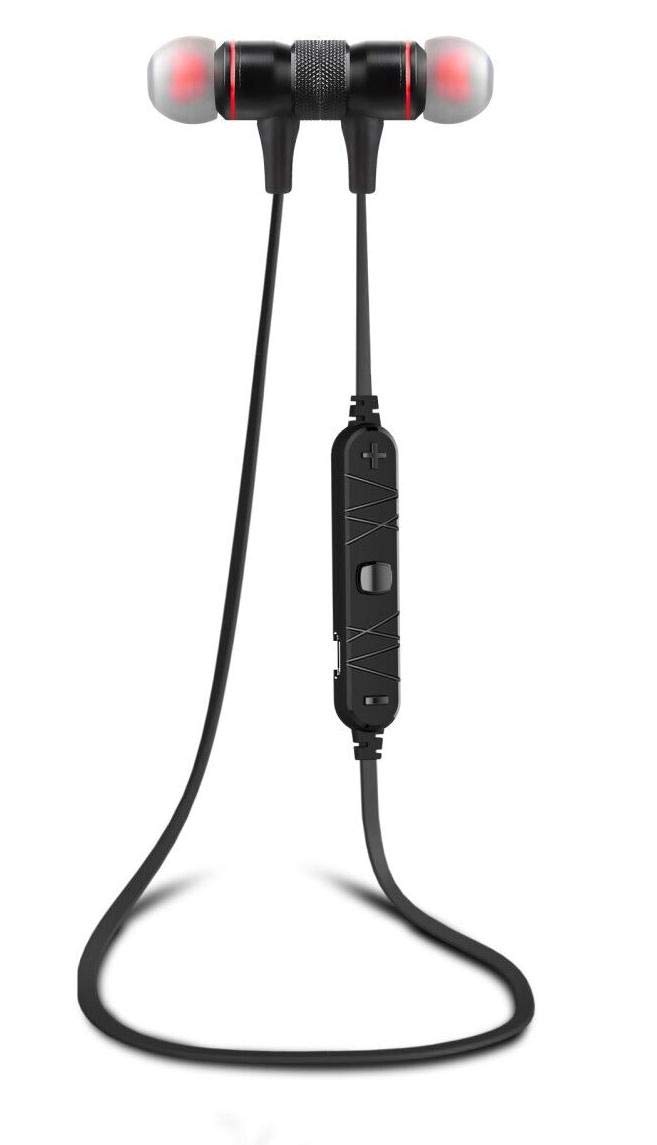
Figure 1: Awei A920BL Wireless Bluetooth Earphone. The image displays the black in-ear earphones with red accents, connected by a black cable. An inline control unit with buttons is visible on the cable, positioned below the right earpiece. The earpieces have translucent tips, and the overall design is sleek and compact.
Setup
1. Charging the Earphone
Before first use, fully charge the earphone. Connect the charging cable to the charging port on the inline control unit and the other end to a USB power source. The indicator light will typically turn red during charging and blue or off when fully charged. A full charge takes approximately 1 hour.
2. Bluetooth Pairing
- Ensure the earphone is turned off.
- Press and hold the multi-function button (usually the center button on the inline control) for approximately 5-7 seconds until the indicator light flashes red and blue alternately. This indicates pairing mode.
- On your mobile device (smartphone, tablet, etc.), enable Bluetooth and search for available devices.
- Select "Awei A920BL" from the list of found devices.
- Once connected, the indicator light on the earphone will typically flash blue slowly or turn off, and you will hear an audible confirmation.
- If prompted for a password, enter "0000" (four zeros).
The earphone will automatically attempt to reconnect to the last paired device when powered on.
Operating Instructions
Power On/Off
- Power On: Press and hold the multi-function button for about 3 seconds until the blue indicator light flashes and you hear a power-on prompt.
- Power Off: Press and hold the multi-function button for about 3-5 seconds until the red indicator light flashes and you hear a power-off prompt.
Volume Control and Track Navigation
- Volume Up: Short press the "+" button.
- Volume Down: Short press the "-" button.
- Next Track: Long press the "+" button.
- Previous Track: Long press the "-" button.
Call Management
- Answer/End Call: Short press the multi-function button.
- Reject Call: Long press the multi-function button for about 2 seconds.
- Redial Last Number: Double-press the multi-function button.
Music Playback
- Play/Pause: Short press the multi-function button.
Maintenance
- Cleaning: Use a soft, dry cloth to clean the earphones. Do not use harsh chemicals or abrasive materials. Gently remove earwax buildup from the ear tips.
- Storage: When not in use, store the earphones in a cool, dry place, away from direct sunlight and extreme temperatures. Avoid tangling the cable.
- Battery Care: To prolong battery life, avoid fully discharging the battery frequently. Charge the earphones regularly, even if not used for extended periods.
- Water Resistance: While designed for sports, avoid submerging the earphones in water. They are generally sweat-resistant but not waterproof.
Troubleshooting
| Problem | Possible Cause | Solution |
|---|---|---|
| Cannot power on | Low battery | Charge the earphone fully. |
| Cannot pair with device | Earphone not in pairing mode; Bluetooth off on device; Device too far | Ensure earphone is in pairing mode (flashing red/blue). Turn on Bluetooth on your device. Move earphone closer to device (within 10 meters). |
| No sound or low volume | Volume too low; Earphone not connected; Incorrect audio output selected | Increase volume on both earphone and connected device. Re-pair the earphone. Check audio output settings on your device. |
| Microphone not working | Microphone blocked; Software issue | Ensure microphone is not covered. Restart the earphone and your device. |
| Intermittent connection | Interference; Device too far; Low battery | Move away from sources of interference (Wi-Fi routers, other Bluetooth devices). Keep earphone within range. Charge the earphone. |
Specifications
- Model: A920BL
- Brand: Awei
- Connectivity: Wireless Bluetooth 4.0
- Ear Placement: In Ear
- Form Factor: In Ear
- Noise Control: Active Noise Cancellation
- Microphone: Built-in
- Battery: 1 Lithium Ion battery required
- Charge Time: Approximately 1 hour
- Product Dimensions: 65 x 2.4 x 1.2 cm
- Product Weight: 90.71 g
- Included Components: Ear Cushions
Note: Specifications are subject to change without prior notice.
Warranty and Support
Awei products are designed and manufactured to the highest quality standards. For information regarding warranty coverage, please refer to the warranty card included with your purchase or visit the official Awei website. For technical support, troubleshooting assistance, or service inquiries, please contact Awei customer support through their official channels.
Please retain your proof of purchase for warranty claims.
Related documentsA920BL


Ask a question about this manual
Ask about setup, troubleshooting, compatibility, parts, safety, or missing instructions. Manuals+ will review the question and use this page’s manual context to help answer it.