
Verbatim 99155
Verbatim 64GB Store 'n' Go Dual OTG USB 3.2 Gen 1 Flash Drive User Manual
Model: 99155
Introduction
This manual provides instructions for the Verbatim 64GB Store 'n' Go Dual OTG USB 3.2 Gen 1 Flash Drive. This device is designed for convenient file transfer and storage between various devices, including those with USB-C and traditional USB-A ports.
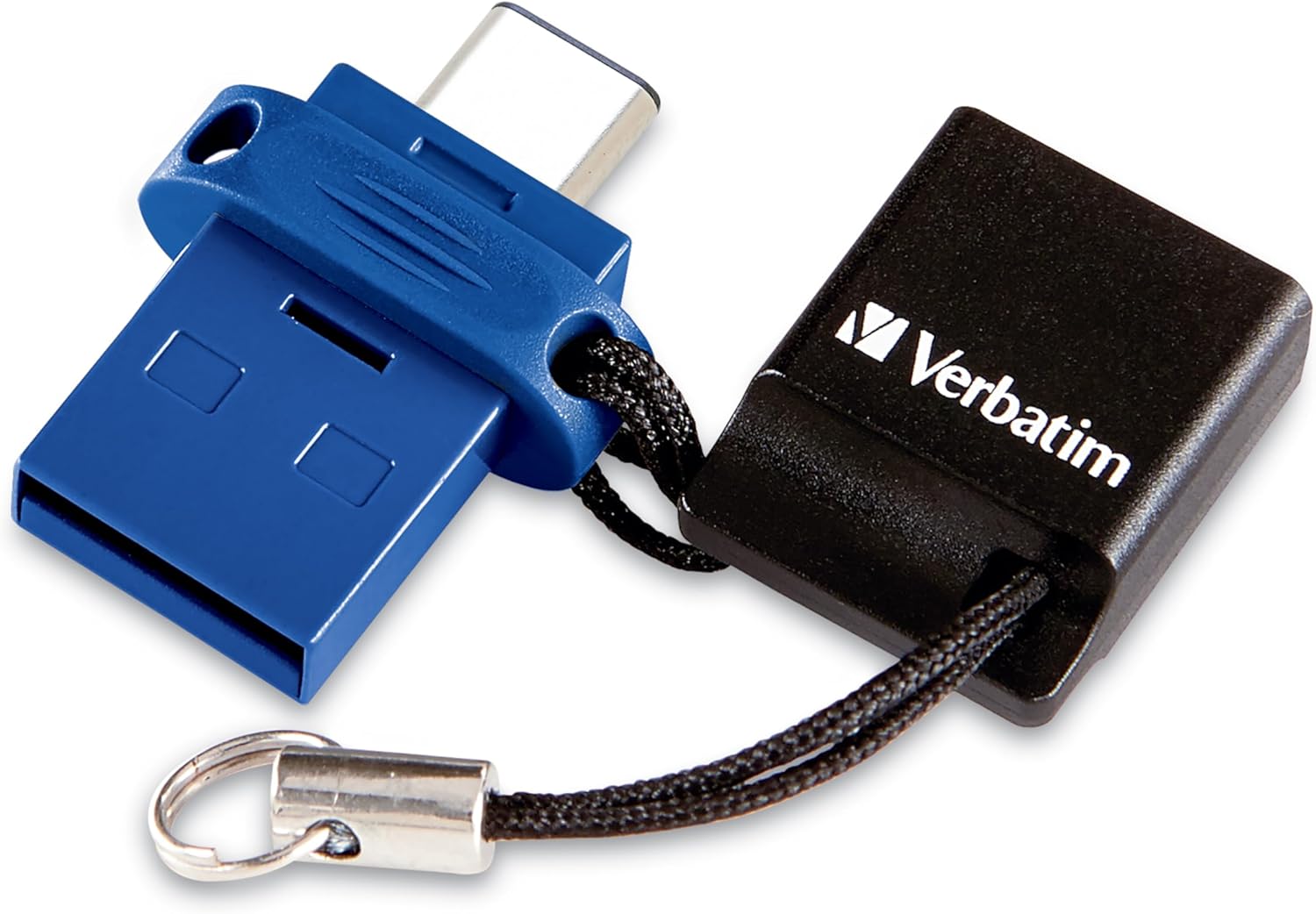
Image: The Verbatim Store 'n' Go Dual USB Flash Drive, showing both USB-C and USB-A connectors with a protective cap and lanyard.
Key Features
- Dual Connectivity: Features both USB-C and USB-A connectors for broad compatibility.
- High-Speed Transfer: Utilizes USB 3.2 Gen 1 for fast data transfer, backward compatible with USB 2.0.
- On-The-Go (OTG) Functionality: Directly access files from USB-C equipped mobile devices or laptops without needing a wireless connection or data plan.
- Compact Design: Small and portable, with a convenient lanyard to keep the cap tethered.
- Storage Capacity: 64GB of storage for photos, videos, documents, and more.
- Broad Compatibility: Compatible with Mac and Windows platforms.
Setup and Initial Use
- Identify Connectors: The drive has two connectors: a USB-C connector (smaller, reversible) and a USB-A connector (larger, rectangular). A protective cap covers one of the connectors.
- Connect to Device:
- For USB-C devices (e.g., newer smartphones, tablets, laptops): Remove the cap from the USB-C end and insert it into your device's USB-C port.
- For USB-A devices (e.g., older computers, laptops): Remove the cap from the USB-A end and insert it into your device's USB-A port.
- Device Recognition: Your device should automatically detect the flash drive. On most operating systems, it will appear as a removable storage device.
- Mobile Device Settings (if applicable): For some mobile devices, you may need to enable OTG (On-The-Go) or USB storage access in your device's settings to view or transfer files. Refer to your mobile device's manual for specific instructions.

Image: The Verbatim Dual USB Flash Drive connected to a smartphone, demonstrating its use with mobile devices.
Operating Instructions
- Accessing Files: Once connected, navigate to the flash drive through your device's file manager (e.g., File Explorer on Windows, Finder on Mac, Files app on Android).
- Transferring Files:
- To copy files to the flash drive: Drag and drop files from your device's storage to the flash drive's folder.
- To copy files from the flash drive: Drag and drop files from the flash drive's folder to your device's storage.
- Direct Saving (Mobile Devices): Some mobile devices allow you to configure applications (e.g., camera, music player) to save content directly to the connected USB drive. Check your app settings for this functionality.
- Ejecting Safely: Always safely eject the flash drive from your computer or mobile device before physically removing it to prevent data corruption.
- On Windows: Right-click the drive icon in File Explorer and select "Eject."
- On Mac: Drag the drive icon to the Trash or click the Eject button next to the drive in Finder.
- On Android: Go to Storage settings and tap "Eject" or "Unmount" next to the USB drive.

Image: The Verbatim Dual USB Flash Drive connected to a laptop, illustrating its use with computers.
Maintenance and Care
- Protection: Always use the provided cap to protect the unused connector from dust, dirt, and physical damage.
- Storage: Store the drive in a cool, dry place away from extreme temperatures and direct sunlight.
- Cleaning: If necessary, gently wipe the exterior of the drive with a soft, dry cloth. Do not use liquid cleaners or solvents.
- Physical Damage: Avoid dropping the drive or subjecting it to excessive force, as this can damage internal components.
Troubleshooting
| Problem | Possible Solution |
|---|---|
| Drive not recognized by device. |
|
| Slow data transfer speeds. |
|
| Cannot write files to the drive. |
|
Specifications
| Feature | Detail |
|---|---|
| Brand | Verbatim |
| Model Name | Store 'n' Go Dual |
| Item Model Number | 99155 |
| Flash Memory Size | 64 GB |
| Hardware Interface | USB 3.2 Gen 1 |
| Hardware Connectivity | USB Type A, USB Type C |
| Compatible Platforms | Mac, PC |
| Item Weight | 0.32 ounces |
| Item Dimensions (LxWxH) | 1.34 x 0.71 x 0.32 inches |
Product Videos
Video: An overview of the Verbatim Store 'n' Go Dual USB Flash Drive, highlighting its features and dual connectivity. This video is provided by the seller.
Warranty and Support
Verbatim offers a limited lifetime warranty for this product. For technical support or warranty claims, please refer to the official Verbatim website or contact their customer service directly. Verbatim has been a leader in data storage technology since 1969, ensuring reliable products and support.
For additional information, visit the Verbatim Store.
Safety Information
- Do not expose the device to water or excessive moisture.
- Avoid extreme temperatures (hot or cold).
- Keep out of reach of children.
- Do not attempt to disassemble or repair the device yourself.
- Dispose of electronic waste responsibly according to local regulations.
Related documents99155


Ask a question about this manual
Ask about setup, troubleshooting, compatibility, parts, safety, or missing instructions. Manuals+ will review the question and use this page’s manual context to help answer it.