
Logitech G G810 Orion Spectrum (920-007739)
Logitech G810 Orion Spectrum RGB Mechanical Gaming Keyboard User Manual
Model: G810 Orion Spectrum (920-007739)
Introduction
The Logitech G810 Orion Spectrum RGB Mechanical Gaming Keyboard is engineered to deliver a pure gaming experience. It features Logitech's exclusive Romer-G mechanical switches, which provide near-instant responsiveness and durability. This manual provides comprehensive instructions for setting up, operating, maintaining, and troubleshooting your keyboard, ensuring optimal performance and longevity.
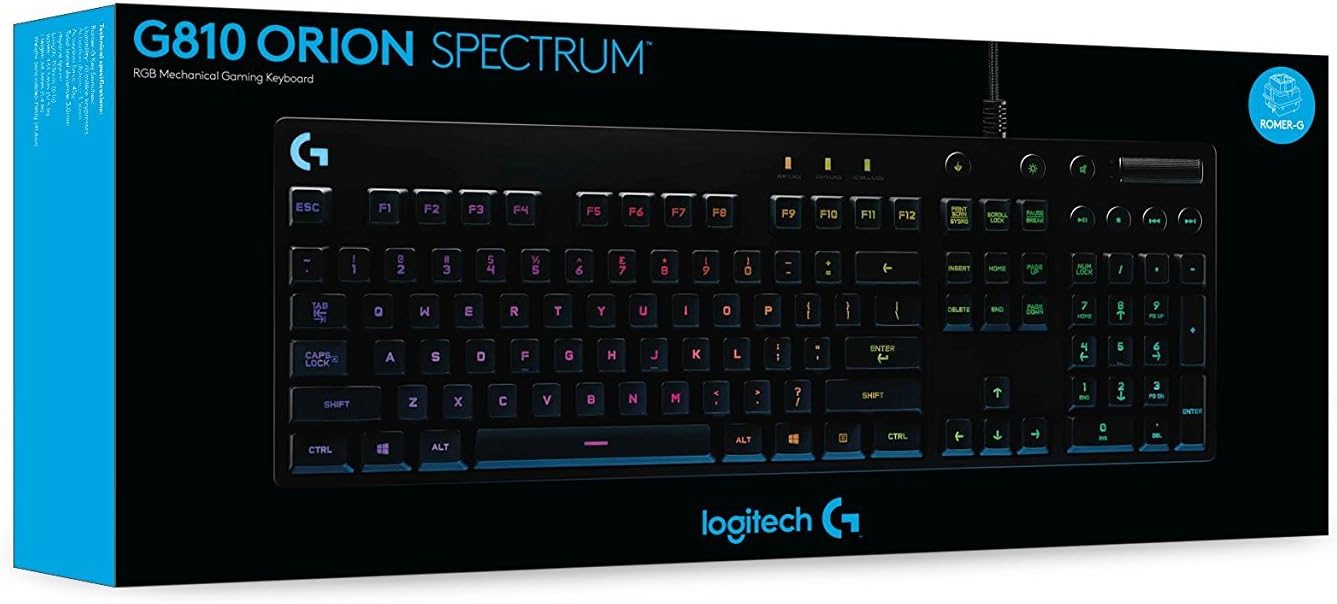
Figure 1: Logitech G810 Orion Spectrum Keyboard in Retail Packaging. This image displays the keyboard within its black and blue retail box, highlighting the product's design and branding.
Package Contents
- Logitech G810 Orion Spectrum RGB Mechanical Gaming Keyboard
- Quick Start Guide
Setup
Follow these steps to set up your Logitech G810 keyboard:
- Unpack the Keyboard: Carefully remove the keyboard and any included documentation from its packaging.
- Connect to PC: Locate the USB cable attached to the keyboard. Insert the USB connector into an available USB 2.0 port on your computer. The keyboard is powered via USB.
- Adjust Keyboard Height: The keyboard features adjustable feet on the underside. You can choose from three different height settings (0, 4, or 8 degrees) to find a comfortable typing angle. Gently pull out the feet to extend them.
- Install Logitech Gaming Software (LGS): For full customization of RGB lighting, macro programming, and game-specific profiles, download and install the Logitech Gaming Software from the official Logitech G website (www.logitechg.com/downloads). This software is compatible with Windows 7, Windows 8, Windows 8.1, and Windows 10.

Figure 2: Side Profile of the G810 Keyboard. This image illustrates the keyboard's side profile, highlighting the adjustable feet that allow for ergonomic tilt customization.
Operating Instructions
The Logitech G810 Orion Spectrum keyboard offers several features to enhance your gaming and typing experience.
Romer-G Mechanical Switches
The keyboard is equipped with Logitech's proprietary Romer-G mechanical switches. These switches are designed for fast actuation and durability, providing a tactile feel with quiet operation. They offer up to 25% faster key actuation compared to standard mechanical switches.
RGB Lighting Customization
The G810 features full RGB backlighting, allowing you to customize the lighting of each individual key from a spectrum of 16.8 million colors. This customization is performed using the Logitech Gaming Software (LGS). You can:
- Select preset lighting effects (e.g., breathing, wave, star effect).
- Create custom lighting profiles for specific games or applications.
- Synchronize lighting with other Logitech G devices.
- Utilize game-driven lighting, where the keyboard's lighting reacts to in-game events (requires LGS and supported games).

Figure 3: Top View of the G810 Keyboard. This image provides a clear overhead view of the keyboard, showcasing its full layout and the potential for vibrant RGB backlighting.
Easy-Access Media Controls
Dedicated media controls are located on the upper right side of the keyboard for convenient access:
- Volume Roller: A smooth, precise roller allows for quick volume adjustments.
- Mute Button: Instantly mute or unmute audio.
- Play/Pause Button: Control media playback.
- Stop Button: Stop current media playback.
- Previous/Next Track Buttons: Skip to the previous or next song/video.
Customizable Function Keys (F1-F12)
The F1-F12 keys can be programmed with custom macros and commands using the Logitech Gaming Software. This allows you to execute complex actions with a single key press, providing a significant advantage in gaming or streamlining workflow in productivity applications.
Maintenance
Proper maintenance ensures the longevity and performance of your keyboard:
- Cleaning the Keyboard:
- Disconnect the keyboard from your computer before cleaning.
- Use a soft, lint-free cloth slightly dampened with water or a mild cleaning solution to wipe down the keycaps and chassis.
- Avoid using harsh chemicals, abrasive cleaners, or solvents, as these can damage the surface.
- For dust and debris between keys, use compressed air.
- Cable Management: Avoid sharp bends or excessive pulling on the USB cable to prevent internal damage.
- Storage: When not in use for extended periods, store the keyboard in a clean, dry environment away from extreme temperatures.
Troubleshooting
If you encounter issues with your Logitech G810 keyboard, refer to the following common solutions:
| Problem | Possible Solution |
|---|---|
| Keyboard is not responding. |
|
| RGB lighting is not working or is incorrect. |
|
| Custom macros or function keys are not working. |
|
Specifications
| Feature | Detail |
|---|---|
| Model Number | 920-007739 |
| Keyboard Description | Gaming Mechanical Keyboard |
| Switch Type | Romer-G Mechanical Switches |
| Backlighting | RGB (16.8 million colors) |
| Connectivity | Wired (Micro USB) |
| Keyboard Layout | Full-size |
| Dedicated Media Controls | Yes (Volume roller, Play/Pause, Stop, Skip) |
| Programmable Keys | F1-F12 (via Logitech Gaming Software) |
| Operating System Compatibility | Windows 7, Windows 8, Windows 8.1, Windows 10 |
| Dimensions (LxWxH) | 17.5 x 6 x 1.4 inches (44.45 x 15.24 x 3.56 cm) |
| Weight | 2.6 pounds (1.18 kg) |
| Power Source | USB Power |

Figure 4: Underside of the G810 Keyboard. This image displays the bottom of the keyboard, showing the product label with model information and the anti-slip rubber feet.
Warranty and Support
Logitech products are manufactured to the highest quality standards. For detailed warranty information, please refer to the warranty card included with your product or visit the official Logitech G support website.
- Online Support: For frequently asked questions, troubleshooting guides, and driver downloads, visit support.logitech.com.
- Product Registration: Register your product online to receive updates and support.
Related documentsG810 Orion Spectrum (920-007739)


Ask a question about this manual
Ask about setup, troubleshooting, compatibility, parts, safety, or missing instructions. Manuals+ will review the question and use this page’s manual context to help answer it.