
Redragon K551
Redragon K551 Rainbow LED Backlit Mechanical Wired Gaming Keyboard User Manual
Model: K551
Introduction
Thank you for choosing the Redragon K551 Rainbow LED Backlit Mechanical Wired Gaming Keyboard. This manual provides detailed instructions for setting up, operating, maintaining, and troubleshooting your new keyboard to ensure optimal performance and longevity.
The Redragon K551 is designed for gaming enthusiasts, featuring durable mechanical switches, vibrant rainbow LED backlighting, and a robust construction for an enhanced gaming and typing experience.
Setup Guide
Package Contents:
- Redragon K551 Mechanical Gaming Keyboard
- User Manual
- Keycap Puller
System Requirements:
- Operating System: Windows 10, Windows 8, Windows 7, Windows Vista, or Windows XP. Limited Mac OS keyboard support.
- Available USB Port
Installation:
- Unpack the keyboard and all accessories from the packaging.
- Connect the USB connector of the keyboard to an available USB port on your computer. The keyboard is plug-and-play, and your operating system should automatically detect and install the necessary drivers.
- The keyboard's LED backlighting should illuminate upon successful connection.
- Test the keyboard by typing in a text editor to ensure all keys are functioning correctly.

Image: The Redragon K551 mechanical gaming keyboard with its rainbow LED backlighting illuminated.
Operating Instructions
Key Features:
- Mechanical Switches: Equipped with Redragon mechanical switches (Cherry MX Red equivalent) for linear, quiet operation with minimal resistance.
- Rainbow LED Backlighting: Features 9 different lighting effects and game modes, 2 user-defined modes, and 6 colors with multiple brightness levels and breathing speeds.
- Anti-Ghosting: All 104 keys are conflict-free with N-key rollover for precise input during intense gaming sessions.
- Durable Construction: High-quality metal-ABS construction with plate-mounted mechanical keys designed for longevity.
- Multimedia Keys: 12 dedicated multimedia keys for quick access to audio and system controls.
- Full Numeric Keypad: Integrated numeric keypad for efficient data entry and calculations.
Backlighting Control:
The Redragon K551 offers extensive backlighting customization. Use the following key combinations to adjust lighting:
- Fn + Ins: Cycle through different lighting effects.
- Fn + Home: Activate user-defined lighting modes.
- Fn + PgUp/PgDn: Adjust brightness levels.
- Fn + Del: Change lighting colors (for certain modes).
- Fn + End: Adjust breathing speed.

Image: Close-up view of the Redragon K551's precision-engineered keycaps, designed for clear, uniform backlighting and durability.
Multimedia Functions:
Access multimedia controls by pressing the Fn key in combination with the F-keys (F1-F12):
| Key Combination | Function |
|---|---|
| Fn + F1 | Media Player |
| Fn + F2 | Volume Down |
| Fn + F3 | Volume Up |
| Fn + F4 | Mute |
| Fn + F5 | Stop |
| Fn + F6 | Previous Track |
| Fn + F7 | Play/Pause |
| Fn + F8 | Next Track |
| Fn + F9 | |
| Fn + F10 | Web Browser |
| Fn + F11 | My Computer |
| Fn + F12 | Calculator |

Image: The Redragon K551 keyboard highlighting its full numeric keypad for efficient data entry.
Maintenance
Proper maintenance will extend the life of your Redragon K551 keyboard.
- Cleaning: Use a soft, dry cloth to wipe down the keyboard surface. For deeper cleaning, you can use the included keycap puller to remove keycaps and clean dust and debris from underneath. Use compressed air to remove dust from between keys.
- Avoid Liquids: While the keyboard has a splash-proof design, avoid direct exposure to liquids. If spills occur, disconnect the keyboard immediately and allow it to dry completely before reconnecting.
- Storage: Store the keyboard in a cool, dry place away from direct sunlight and extreme temperatures when not in use for extended periods.
- Cable Care: Do not bend or crimp the USB cable excessively.
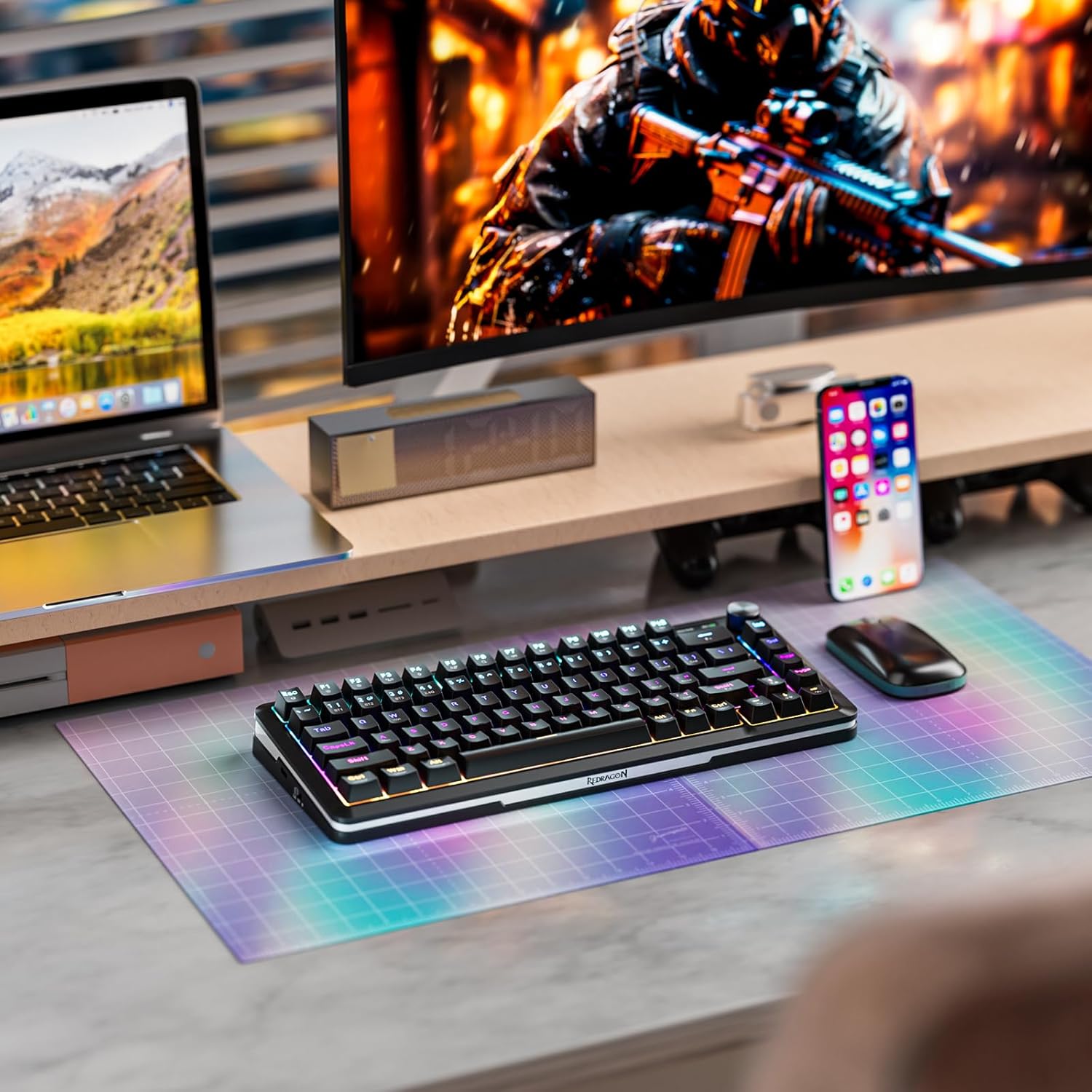
Image: The Redragon K551 keyboard integrated into a typical gaming setup, demonstrating its compact design.
Troubleshooting
If you encounter issues with your Redragon K551 keyboard, refer to the following common solutions:
- Keyboard Not Responding:
- Ensure the USB cable is securely connected to both the keyboard and the computer's USB port.
- Try connecting the keyboard to a different USB port on your computer.
- Restart your computer.
- Test the keyboard on another computer to determine if the issue is with the keyboard or your system.
- Backlighting Not Working or Incorrect:
- Ensure the backlighting is not turned off (check brightness settings using Fn + PgUp/PgDn).
- Cycle through lighting effects using Fn + Ins to see if it responds.
- If specific keys are not lighting up, they might be faulty. Contact customer support if the issue persists.
- Keys Not Registering or Double-Typing:
- Clean the affected key(s) to ensure no debris is obstructing the switch. Use the keycap puller to remove the keycap and clean around the switch.
- Ensure the keyboard drivers are up to date (usually handled automatically by Windows).
- If the issue persists for multiple keys, it might indicate a hardware fault.
- Anti-Ghosting Not Working:
- The K551 features N-key rollover, meaning all keys should register simultaneously. If you experience ghosting, ensure your operating system and any gaming software are not interfering.
- Test with a simple text editor to confirm the issue is not application-specific.
If these steps do not resolve your issue, please contact Redragon customer support for further assistance.
Specifications
| Feature | Detail |
|---|---|
| Brand | Redragon |
| Model | MITRA K551 |
| Connectivity Technology | Wired (USB) |
| Keyboard Description | Mechanical Gaming Keyboard |
| Switch Type | Dust Proof Mechanical Switches (Cherry MX Red equivalent Linear switches) |
| Key Rollover | N-Key Rollover (All 104 keys conflict-free) |
| Backlighting | Rainbow LED Backlit (9 effects, 2 user-defined modes, 6 colors) |
| Multimedia Keys | 12 dedicated multimedia keys |
| Construction Material | Metal + ABS |
| Operating System Compatibility | Windows 10, 8, 7, Vista, XP (Limited Mac OS support) |
| Product Dimensions (LxWxH) | 42 x 11 x 35 cm |
| Item Weight | 1.08 kg (1 kg 80 g) |
| Color | Rainbow |
Warranty and Support
Warranty Information:
The Redragon K551 keyboard comes with a 1-year warranty from the date of purchase. To ensure your warranty is valid and for easier claims, it is highly recommended to register your product on the official Redragon website: www.redragon.in.
This warranty covers manufacturing defects and issues arising from normal use. It does not cover damage caused by misuse, accidents, unauthorized modifications, or natural disasters.
Customer Support:
For technical assistance, warranty claims, or any other inquiries, please contact Redragon customer support through their official website or the contact information provided with your purchase documentation.
Manufacturer: Redragon, EASTERN TIMES TECHNOLOGY CO.,LTD. Building D,Nan An Industrial Area,Youganpu Village,Fenggang Town, Dongguan City,Guangdong,China
Importer (India): Origin Marketing Pvt. Ltd., 121 Raj Ratna Industrial Estate, Liberty Garden, Malad West, Mumbai
Related documentsK551


Ask a question about this manual
Ask about setup, troubleshooting, compatibility, parts, safety, or missing instructions. Manuals+ will review the question and use this page’s manual context to help answer it.