
Introduction
This manual provides detailed instructions for the setup, operation, maintenance, and troubleshooting of your RM-Series 076R0SC011 replacement remote control. This remote is designed to function as a direct replacement for original Sanyo remote model 076R0SC011, compatible with various Sanyo TV/DVD models including DP26670, DP32670, DP32671, and DP26671.
Setup
Battery Installation
The remote control requires two AAA batteries (not included). Follow these steps to install them:
- Locate the battery compartment cover on the back of the remote control.
- Press down on the tab and slide the cover off.
- Insert two AAA batteries, ensuring the positive (+) and negative (-) terminals align correctly with the markings inside the compartment.
- Slide the battery compartment cover back into place until it clicks securely.
Initial Use
Once batteries are installed, the remote control is ready for immediate use. No programming or syncing is typically required for this replacement remote. Point the remote directly at your Sanyo television or TV/DVD combo unit and press the desired function button.
Operating Instructions
This section details the functions of the various buttons on your RM-Series remote control.
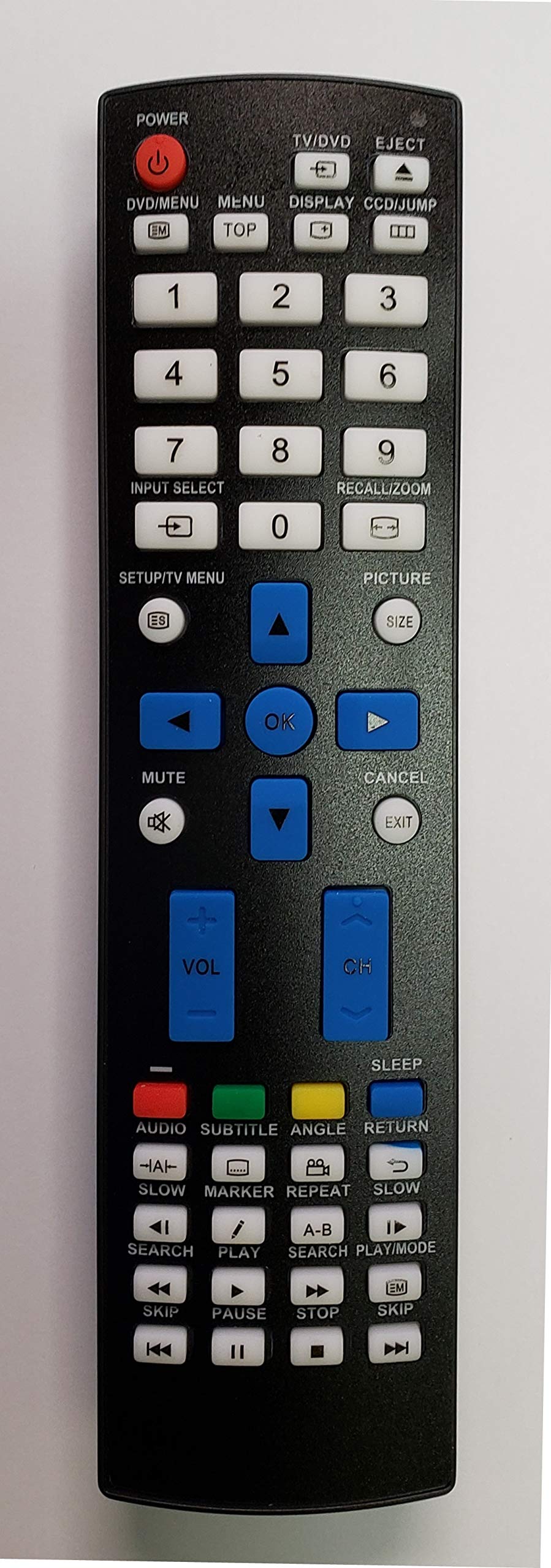
An angled view of the black RM-Series replacement remote control, showing its ergonomic design and various buttons including power, number pad, navigation, volume, channel, and media controls.
Button Functions Overview
- POWER (POW): Turns the television or TV/DVD combo unit on or off.
- Number Pad (0-9): Used to directly enter channel numbers or menu selections.
- VOL +/-: Adjusts the volume level up or down.
- CH +/- (P +/-): Changes the channel up or down.
- MUTE: Silences or restores the audio.
- INPUT (AV): Selects the input source (e.g., HDMI, AV, Component).
- MENU (SETTING): Accesses the main menu of the television.
- OK: Confirms selections in menus.
- Navigation Buttons (Up, Down, Left, Right): Navigates through menus and options.
- EXIT: Exits the current menu or on-screen display.
- RETURN: Returns to the previous menu or screen.
- MEDIA Controls (PLAY, PAUSE, STOP, REC, REW, FWD): Controls playback for integrated DVD players or connected media devices.
- GUIDE: Displays the electronic program guide (if supported by the TV).
- MODE: Switches between TV and DVD modes (for TV/DVD combo units).
- SUBTITLE (SUBT): Toggles subtitles on or off.
- INFO: Displays information about the current program or input.
- Colored Buttons (Red, Green, Yellow, Blue): Often used for specific functions within menus or interactive services.
Maintenance
Cleaning the Remote Control
To maintain the remote control's appearance and functionality, clean it regularly:
- Use a soft, dry cloth to wipe the surface of the remote.
- For stubborn dirt, slightly dampen the cloth with water or a mild, non-abrasive cleaner. Avoid excessive moisture.
- Do not use harsh chemicals, solvents, or abrasive cleaning pads, as these can damage the remote's finish or internal components.
Battery Replacement
Replace batteries when the remote control's response becomes sluggish or stops working. Always replace both batteries at the same time with new AAA batteries. Do not mix old and new batteries, or different types of batteries, as this can lead to leakage or malfunction.
Troubleshooting
If you encounter issues with your remote control, refer to the following table for common problems and solutions:
| Problem | Solution |
|---|---|
| Remote is not responding. |
|
| Some buttons do not work. |
|
| Remote works intermittently. |
|
Specifications
- Brand: RM-Series
- Model Number: 076R0SC011
- Connectivity Technology: Infrared
- Compatible Devices: Television (Sanyo models: DP26670, DP32670, DP32671, DP26671)
- Max Number of Supported Devices: 1
- Maximum Range: 10 Meters (approximately 33 feet)
- Item Weight: 3.36 ounces
- Special Feature: Ergonomic design
- Controller Type: Button Control
Warranty and Support
This RM-Series remote control is designed for reliable performance. For specific warranty information, please refer to the documentation provided at the time of purchase or contact your retailer. For technical support or further assistance, please reach out to the customer service department of your product supplier.