
1. Introduction
The ArtSound RI60 is a versatile internet radio adapter designed to provide access to over 10,000 radio stations worldwide, alongside traditional FM radio. Featuring Wi-Fi connectivity and an integrated alarm clock, the RI60 offers a comprehensive audio experience. This manual provides essential information for the safe and efficient use of your device, covering setup, operation, maintenance, and troubleshooting.
2. Safety Instructions
- Read all instructions carefully before operating the device.
- Keep the device away from water, moisture, and direct heat sources.
- Do not attempt to open or repair the unit yourself. Refer all servicing to qualified personnel.
- Use only the power adapter supplied with the unit.
- Ensure proper ventilation around the device to prevent overheating.
- Clean the device only with a dry, soft cloth.
3. Package Contents
Please check that all items are present in the package:
- ArtSound RI60 Internet Radio Unit
- Power Adapter
- Remote Control
- User Manual (this document)
4. Product Overview
The ArtSound RI60 features a compact design with an intuitive display and controls. Below are images illustrating the device's appearance and dimensions.
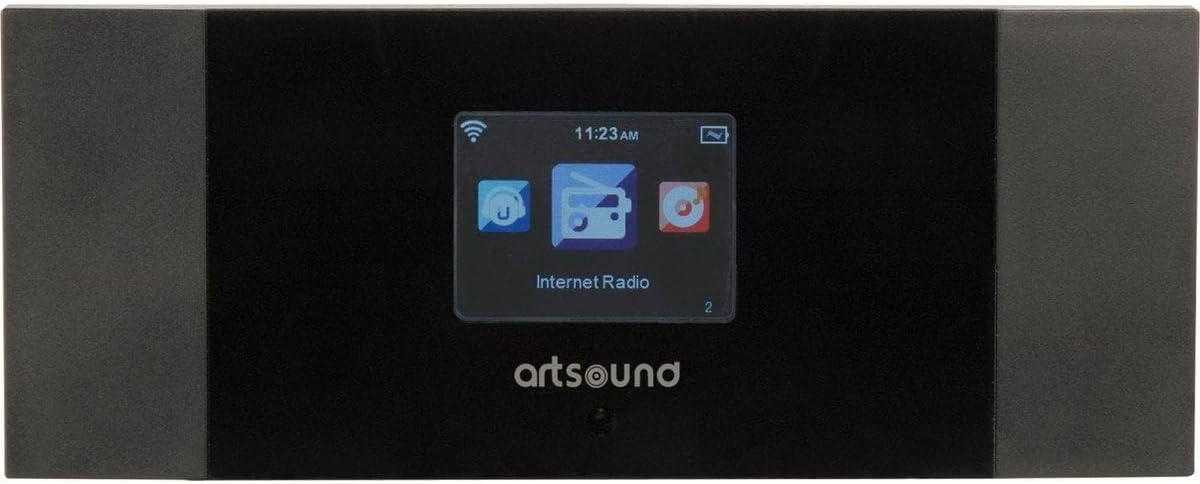
Figure 4.1: Front View of ArtSound RI60
This image displays the front panel of the ArtSound RI60 Internet Radio. It features a central display screen showing 'Internet Radio' and icons for Wi-Fi signal, time, and battery. The 'artsound' logo is visible below the screen. The unit has a sleek black finish with dark grey side panels.

Figure 4.2: ArtSound RI60 Dimensions
This image illustrates the physical dimensions of the ArtSound RI60 Internet Radio. The width is indicated as 190 mm and the height as 75 mm, providing a clear understanding of the device's compact size.
5. Setup
5.1. Power Connection
- Connect the supplied power adapter to the DC IN port on the rear of the RI60 unit.
- Plug the power adapter into a standard wall outlet.
- The unit will power on automatically or enter standby mode.
5.2. Initial Setup and Network Configuration
Upon first power-on, the RI60 will guide you through the initial setup process.
- Language Selection: Use the navigation buttons to select your preferred language on the display and confirm.
- Network Connection: The device will prompt you to connect to a Wi-Fi network.
- Scan for Networks: Select 'Scan' to find available Wi-Fi networks.
- Select Network: Choose your home Wi-Fi network from the list.
- Enter Password: Use the on-screen keyboard and navigation buttons to enter your Wi-Fi password (WPA/WPA2). Confirm your entry.
- Connection Confirmation: Once connected, the device will display a confirmation message and the Wi-Fi icon will appear on the screen.
6. Operating
6.1. Basic Controls
- Power Button: Press to turn the unit on or off (standby).
- Volume Knob: Rotate to adjust the volume level. Press to mute/unmute.
- Navigation Buttons: Use these buttons (Up, Down, Left, Right, OK) to navigate menus and select options on the display.
- Back Button: Returns to the previous menu or screen.
6.2. Internet Radio
The RI60 provides access to over 10,000 internet radio stations.
- From the main menu, select 'Internet Radio'.
- You can browse stations by location, genre, or search for specific stations.
- To save a station as a preset, tune into the desired station, then press and hold the 'Preset' button (or equivalent on remote/app) until the display confirms it's saved. The RI60 supports 5 programmable presets.
- To recall a preset, press the 'Preset' button and select the desired number.
6.3. FM Radio
To listen to traditional FM broadcasts:
- From the main menu, select 'FM Radio'.
- Use the navigation buttons to manually tune to a frequency or initiate an auto-scan for available stations.
- Save preferred FM stations as presets using the same method as Internet Radio.
6.4. Alarm Clock Function
The RI60 includes an alarm clock feature.
- Access the 'Alarm' settings from the main menu.
- Set the alarm time, duration, and desired alarm source (e.g., buzzer, internet radio station, FM station).
- Enable or disable the alarm as needed.
6.5. Remote Control and AirMusic Control App
The RI60 can be controlled using the included remote control or the free AirMusic Control app available for smartphones and tablets.
- Remote Control: Use the remote for convenient access to functions like power, volume, navigation, and presets.
- AirMusic Control App: Download the app from your device's app store. Ensure your smartphone/tablet is connected to the same Wi-Fi network as the RI60. The app allows for station browsing, selection, and device control from your mobile device.
7. Maintenance
7.1. Cleaning
To maintain the appearance and functionality of your RI60:
- Ensure the device is powered off and unplugged before cleaning.
- Use a soft, dry, lint-free cloth to wipe the exterior surfaces.
- Do not use liquid cleaners, aerosols, or abrasive materials, as these can damage the finish or internal components.
7.2. Software Updates
Periodically check for software updates through the device's system settings menu. Updates can improve performance and add new features. Follow the on-screen instructions carefully during any update process.
8. Troubleshooting
If you encounter issues with your ArtSound RI60, refer to the following common problems and solutions:
| Problem | Possible Cause | Solution |
|---|---|---|
| No power | Power adapter not connected or faulty outlet. | Ensure the power adapter is securely connected to the unit and a working power outlet. Try a different outlet. |
| No Wi-Fi connection | Incorrect Wi-Fi password, router issues, or device too far from router. | Verify the Wi-Fi password. Restart your Wi-Fi router. Move the RI60 closer to the router. Check router settings for MAC address filtering. |
| Cannot find internet radio stations | No active internet connection, or station server is down. | Ensure Wi-Fi is connected and has internet access. Try accessing other internet services on your network. Some stations may be temporarily unavailable. |
| Poor FM reception | Weak signal, interference. | Adjust the position of the unit. Ensure the FM antenna (if external) is properly connected and extended. Move away from other electronic devices that may cause interference. |
| Remote control not working | Dead batteries, obstruction, or remote not pointed correctly. | Replace the batteries in the remote control. Ensure there are no obstructions between the remote and the RI60. Point the remote directly at the unit's sensor. |
9. Specifications
| Feature | Detail |
|---|---|
| Brand | ArtSound |
| Model Number | RI.60 |
| Color | Black |
| Connectivity Technology | Wi-Fi |
| Special Features | Wi-Fi, Alarm Clock |
| Supported Radio Bands | FM, Internet Radio |
| Tuning Technology | Digital |
| Power Source | Powered by mains (via adapter) |
| Components Included | Remote Control, AirMusic Control application |
| Compatible Devices | Smartphone, Tablet (for app control), Remote Control |
| Recommended Uses | Listening to music, staying informed with news, listening to radio shows |
10. Warranty and Support
ArtSound is committed to providing FREE & PROFESSIONAL assistance to its customers. Our dedicated support team is available to help with any questions or issues you may encounter, whether large or small. You can reach our support team via telephone or email.
For specific warranty details, please refer to the warranty card included with your product or visit the official ArtSound website. Keep your proof of purchase for warranty claims.


