
1. Introduction
This manual provides essential information for the proper installation, operation, and maintenance of your HPE NVIDIA Tesla M60 Dual GPU Module. Please read this manual thoroughly before attempting to install or use the product. Retain this manual for future reference.
2. Safety Information
Always observe the following safety precautions to prevent injury and damage to the product or other components:
- Electrostatic Discharge (ESD) Precautions: Always wear an anti-static wrist strap and work on an anti-static mat when handling the GPU module. ESD can severely damage electronic components.
- Power Disconnection: Ensure the system is completely powered off and disconnected from the power source before installing or removing the GPU module.
- Proper Handling: Hold the GPU module by its edges. Avoid touching the gold connector pins or any surface-mounted components.
- Ventilation: Ensure adequate airflow within the system chassis to prevent overheating.
- Professional Installation: If you are unsure about any installation steps, consult a qualified technician.
3. Package Contents
Verify that all items are present in your package:
- HPE NVIDIA Tesla M60 Dual GPU Module
- Documentation (this manual, if provided in print)

Figure 3.1: The HPE NVIDIA Tesla M60 GPU module as typically packaged in an anti-static bag within a protective box.
4. Product Overview
The HPE NVIDIA Tesla M60 is a dual-GPU accelerator designed for server environments, providing high-performance computing and virtual desktop infrastructure capabilities. It features two NVIDIA Tesla M60 GPUs with 16 GB of GDDR5 memory.

Figure 4.1: Front view of the HPE NVIDIA Tesla M60 Dual GPU Module, showcasing its cooling shroud and the PCI Express connector.
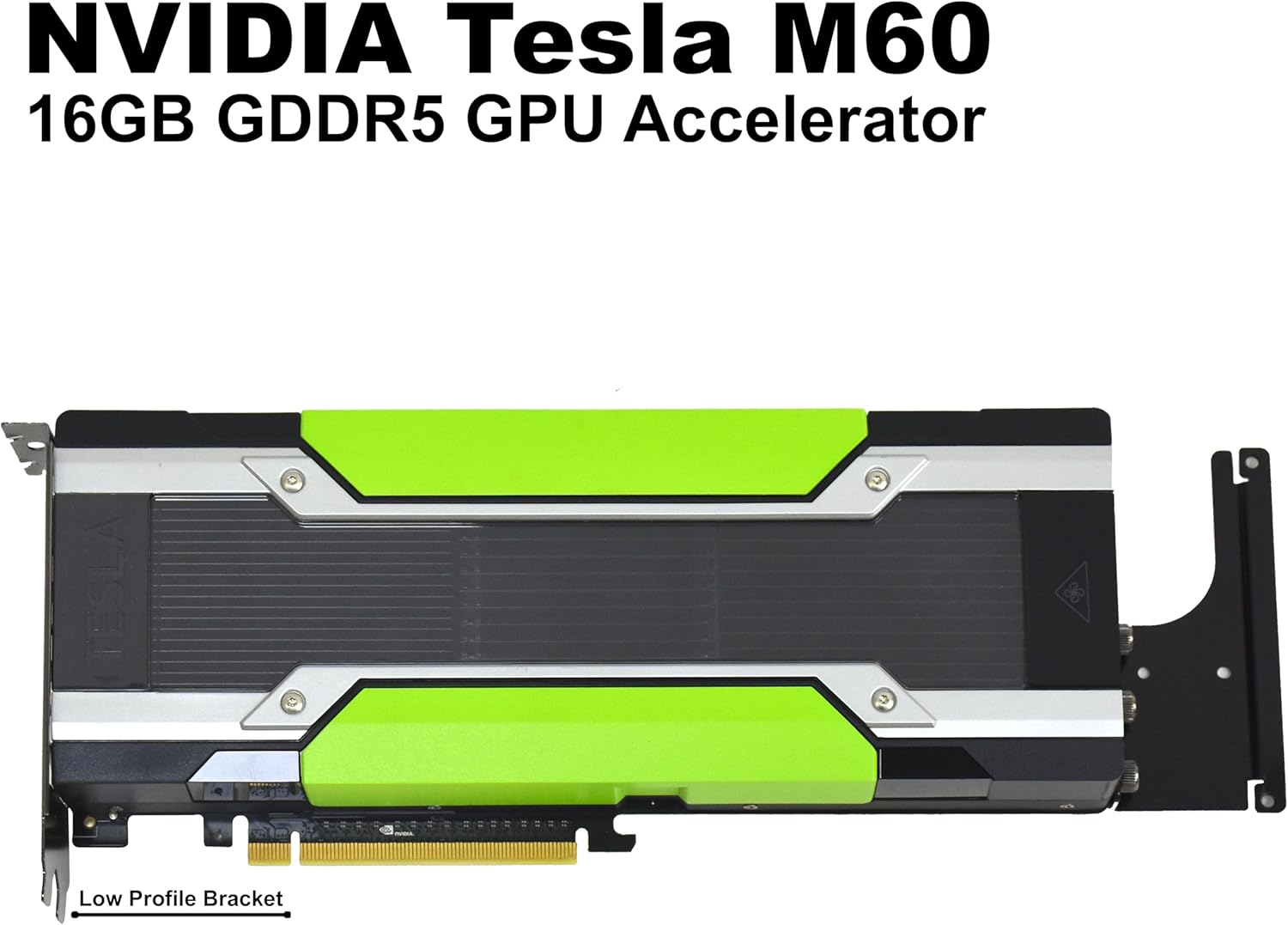
Figure 4.2: Another front view of the module, highlighting its model and memory specifications.

Figure 4.3: Rear view of the GPU module's printed circuit board (PCB), displaying the memory modules and other electronic components.

Figure 4.4: End view of the GPU module, illustrating the required power input connectors for operation.
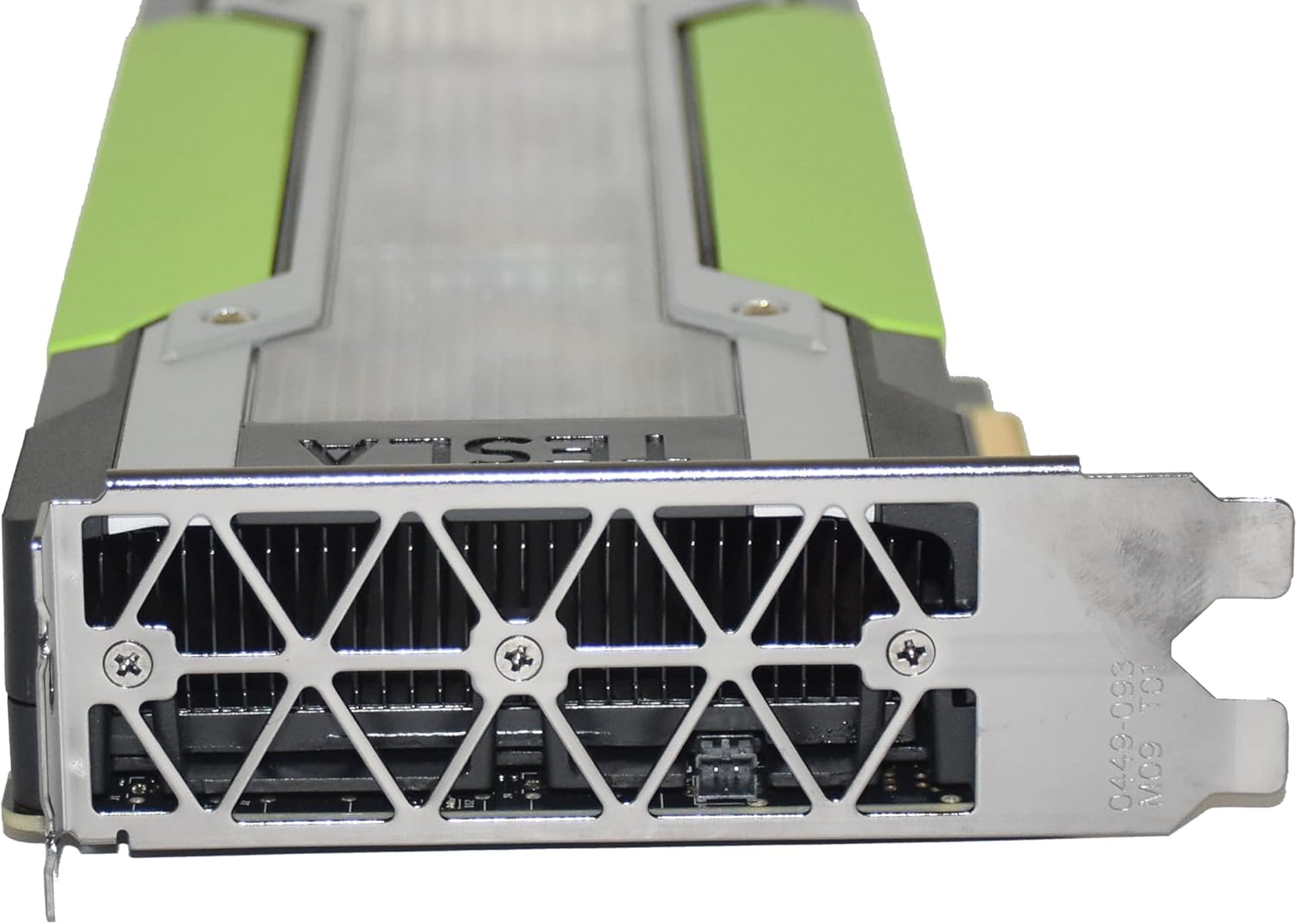
Figure 4.5: End view of the GPU module, showing the standard mounting bracket for securing it within a server chassis.
5. Setup and Installation
Follow these steps carefully to install your HPE NVIDIA Tesla M60 GPU module:
5.1 Pre-installation Checks
- System Compatibility: Ensure your server system has available PCI Express x16 slots and sufficient physical space for the dual-slot GPU module.
- Power Supply: Verify that your server's power supply unit (PSU) has adequate wattage and the necessary 6-pin and/or 8-pin PCIe power connectors to support the Tesla M60. Refer to your server's documentation for PSU specifications.
- Cooling: Confirm your server's cooling system can handle the additional heat generated by the GPU module.
5.2 Physical Installation
- Power Down: Shut down your server completely and disconnect all power cables.
- Open Chassis: Open the server chassis according to the manufacturer's instructions.
- Locate PCIe Slot: Identify an available PCI Express x16 slot. Remove any slot covers.
- Install GPU Module: Carefully align the GPU module with the PCIe slot. Apply even pressure to both ends of the module until it is fully seated in the slot. Ensure the retention clip or locking mechanism engages.
- Secure Module: Secure the GPU module to the server chassis using the provided screws or retention clips on the mounting bracket.
- Connect Power: Connect the appropriate PCIe power cables from your server's PSU to the power connectors on the GPU module (refer to Figure 4.4). Ensure a secure connection.
- Close Chassis: Close the server chassis and reconnect all power cables.
5.3 Driver Installation
- Power On: Power on your server.
- Operating System: Boot into your operating system (e.g., Windows Server, Linux).
- Download Drivers: Download the latest NVIDIA drivers for the Tesla M60 from the official NVIDIA website. Ensure you select the correct operating system and architecture.
- Install Drivers: Follow the on-screen instructions to install the drivers. A system reboot may be required.
- Verification: After rebooting, verify that the GPU module is recognized by the system and the drivers are correctly installed using the NVIDIA control panel or system device manager.
6. Operating Instructions
Once installed and drivers are configured, the HPE NVIDIA Tesla M60 module operates as a dedicated GPU accelerator. Its primary functions include:
- Virtual Desktop Infrastructure (VDI): Enabling multiple virtual desktops with GPU acceleration for enhanced user experience.
- High-Performance Computing (HPC): Accelerating scientific, engineering, and data analytics workloads.
- Deep Learning/AI: Providing computational power for training and inference of neural networks.
Specific software configurations and usage will depend on your application and server environment. Refer to NVIDIA's documentation for detailed guidance on utilizing the Tesla M60 with various software platforms and APIs (e.g., CUDA, NVIDIA GRID).
7. Maintenance
Proper maintenance ensures the longevity and optimal performance of your GPU module.
- Dust Removal: Periodically inspect the GPU module and server chassis for dust accumulation. Use compressed air to gently clean dust from the heatsinks and fans. Ensure the system is powered off and unplugged before cleaning.
- Environmental Control: Operate the server in a clean, temperature-controlled environment with proper humidity levels. Avoid extreme temperatures and direct sunlight.
- Driver Updates: Keep your NVIDIA drivers updated to benefit from performance improvements, bug fixes, and new features.
8. Troubleshooting
If you encounter issues with your HPE NVIDIA Tesla M60 GPU module, consider the following troubleshooting steps:
- No Display/System Not Recognizing Card:
- Ensure the GPU module is fully seated in the PCIe slot.
- Verify all power cables are securely connected to the GPU module.
- Check if the PCIe slot is enabled in the server's BIOS/UEFI settings.
- Try installing the GPU module in a different PCIe slot, if available.
- Ensure your server's PSU meets the power requirements.
- Performance Issues:
- Ensure the latest NVIDIA drivers are installed.
- Monitor GPU temperatures to rule out thermal throttling. Improve airflow if necessary.
- Check for background processes consuming GPU resources.
- Verify that your application is configured to utilize the NVIDIA GPU.
- System Instability/Crashes:
- Ensure system memory (RAM) is stable and sufficient.
- Check for conflicts with other installed hardware or drivers.
- Run diagnostic tools provided by NVIDIA or your server manufacturer.
If problems persist, contact HPE or NVIDIA technical support for further assistance.
9. Specifications
| Feature | Specification |
|---|---|
| Model Name | J0X21A |
| Graphics Coprocessor | NVIDIA Tesla M60 (Dual GPU) |
| Graphics RAM Size | 16 GB GDDR5 (8 GB per GPU) |
| Graphics Processor Manufacturer | NVIDIA |
| Graphics Card Interface | PCI Express |
| Video Output Interface | DisplayPort (for management/diagnostics, not primary display output for server GPUs) |
| Compatible Devices | Desktop (Server-class systems) |
| Maximum Display Resolution | 3840x2160 |
| Item Weight | 2000 Grams |
| UPC | 888793010839 |
10. Warranty and Support
The HPE NVIDIA Tesla M60 Dual GPU Module comes with a Limited Warranty. Please refer to the warranty documentation provided with your purchase or visit the official HPE website for detailed terms and conditions.
For technical support, driver downloads, and additional resources, please visit the official NVIDIA and HPE support websites. When contacting support, have your product model (J0X21A) and serial number ready.


