
1. Introduction
The ORICO M3H4-SV is a 4-port USB 3.0 hub designed to expand your device's connectivity. It features high-speed data transfer, a durable aluminum alloy construction, and broad compatibility with various operating systems. Its ergonomic design ensures convenient use for both home and office environments.

Image: The ORICO USB Hub connected to a laptop, demonstrating its use in an office setting.
2. Features
- 4-Port Expansion: Easily expands one USB port into four, allowing connection of multiple peripherals simultaneously. Designed for durability, resisting wear from repeated plugging and unplugging. Utilizes USB PHY technology to prevent signal interference between individual ports.
- 5Gbps High-Speed Data Transfer: Achieves a maximum data transfer speed of 5Gbps via the USB 3.0 communication protocol, significantly reducing synchronization time. It is backward compatible with USB 2.0 (480Mbps) and USB 1.1. Note: This product does not include a power adapter, and charging devices through it is not recommended.
- Ergonomic and Durable Design: Features a 32° inclined design for enhanced convenience during use. Constructed from high-quality aluminum alloy, ensuring robustness, efficient heat dissipation, and long-lasting durability.
- Simple Plug and Play: Driver-free operation. Hot-swap functionality allows immediate use upon plugging in. Compatible with various operating systems including Mac, Windows, and Linux.
- Multiple Protection System: Incorporates various safety features including short circuit protection, overvoltage protection, overcurrent protection, and leakage protection to safeguard connected devices.

Image: The ORICO USB Hub highlighting its high-speed USB 3.0 ports, capable of 5Gbps data transfer, compared to USB 2.0's 480Mbps.

Image: A close-up of the ORICO USB Hub, illustrating its 32° inclined design for easier access to ports.

Image: The ORICO USB Hub displaying icons for its multiple protection systems: short circuit, overvoltage, overcurrent, and leakage protection.
3. Package Contents
Please verify that all items are present in the package:
- 1x ORICO USB 3.0 Hub
- 1x USB 3.0 Cable (Black, 1m)
- 1x User Manual
- 1x Service Card

Image: A visual representation of the package contents, including the ORICO USB 3.0 Hub, USB 3.0 cable, user manual, and service card.
4. Setup
- Unpack the ORICO M3H4-SV USB C Hub and its accessories from the packaging.
- Connect one end of the provided USB 3.0 cable to the USB C input port on the ORICO hub.
- Connect the other end of the USB 3.0 cable to an available USB port on your computer (Mac, Windows, or Linux).
- The hub is plug-and-play and does not require any driver installation. It should be recognized automatically by your operating system.
5. Operating Instructions
- Once the ORICO M3H4-SV hub is connected to your computer, you can begin connecting your USB devices to its four available USB 3.0 ports.
- Insert USB devices such as keyboards, mice, USB memory sticks, webcams, printers, or external hard drives into any of the four ports.
- The hub supports hot-swapping, meaning you can connect or disconnect devices without needing to restart your computer or the hub.
- For optimal performance, especially with high-bandwidth devices, ensure your computer's USB port supports USB 3.0.
- While the hub is designed for data transfer, it does not provide power for charging devices. For devices requiring external power, connect them directly to a power source or a powered hub.

Image: The ORICO USB Hub demonstrating compatibility with a range of devices including keyboards, webcams, cameras, mice, USB memory, iPads, mobile phones, and PC printers, across Windows, macOS, and Linux operating systems.
6. Maintenance
- Keep the hub clean by wiping it with a soft, dry cloth. Avoid using liquid cleaners or solvents.
- Do not expose the hub to extreme temperatures, humidity, or direct sunlight.
- Avoid dropping or subjecting the hub to strong impacts.
- Ensure proper ventilation around the hub to prevent overheating, although its aluminum design aids in heat dissipation.
7. Troubleshooting
- Device not recognized:
- Ensure the hub is securely connected to your computer's USB port.
- Try connecting the hub to a different USB port on your computer.
- Test the USB device by connecting it directly to your computer to rule out device issues.
- Restart your computer.
- Slow data transfer speed:
- Ensure both the hub and your connected device support USB 3.0 for 5Gbps speeds. If either is USB 2.0, speeds will be limited to 480Mbps.
- Avoid connecting too many high-bandwidth devices simultaneously, as this can share the available bandwidth.
- Ensure your computer's USB port is a USB 3.0 port (often blue inside).
- Hub feels warm:
- It is normal for the aluminum casing to feel warm during operation, especially during heavy data transfer, as it is designed for heat dissipation.
- If it feels excessively hot, disconnect it and ensure it has adequate ventilation.
8. Specifications
| Brand | ORICO |
| Model | M3H4-SV |
| Color | Silver |
| Hardware Interface | USB 3.0 |
| Data Transfer Rate | 5 Gigabits per second (5Gbps) |
| Number of Ports | 4 |
| Operating System Compatibility | Mac, Windows, Linux |
| Material | Aluminum Alloy |
| Cable Length | 1 meter |
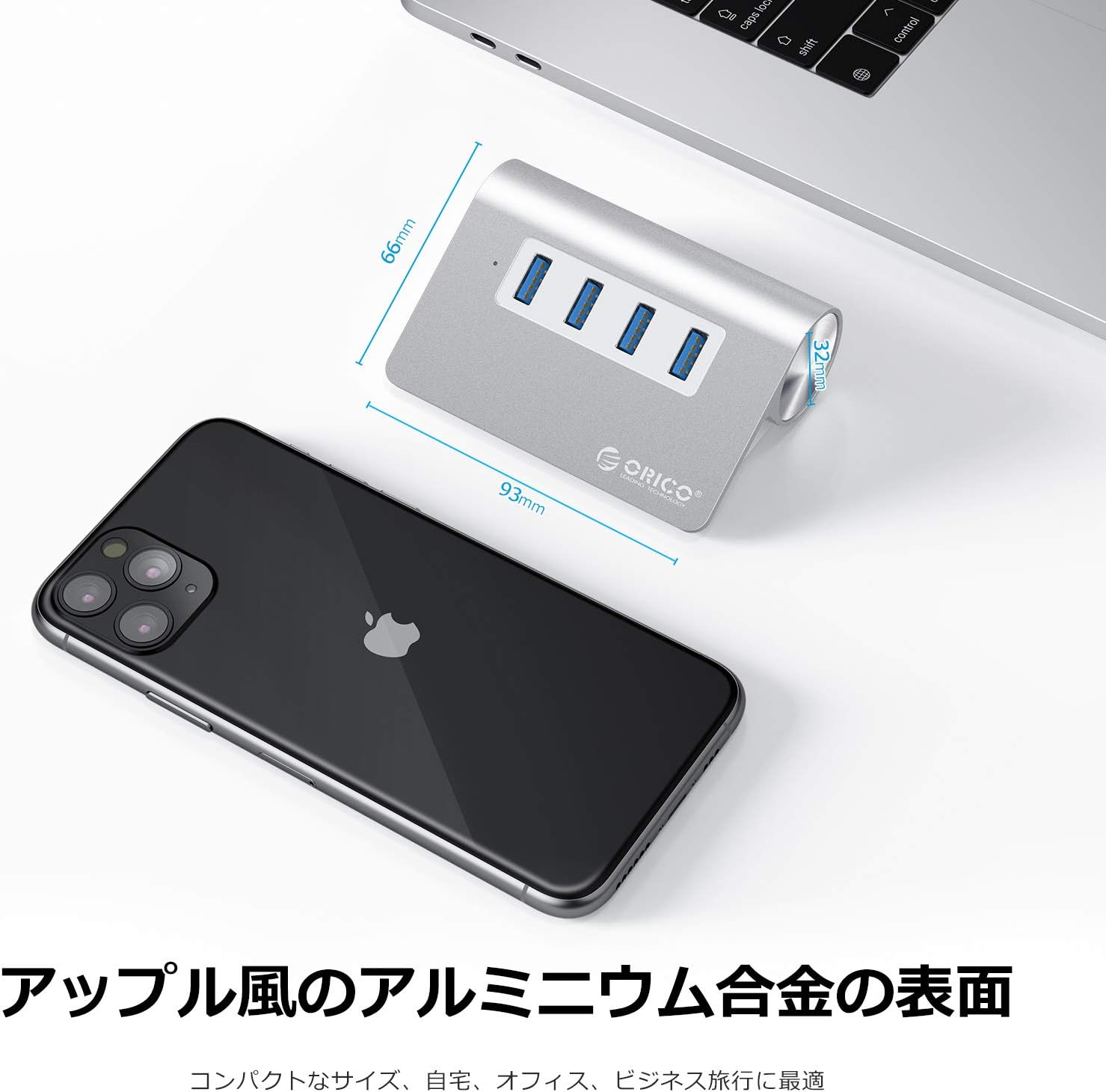
Image: The ORICO USB Hub with its dimensions (93mm length, 66mm width) and highlighting its aluminum alloy surface, suitable for various environments.
9. Warranty and Support
ORICO provides a 12-month warranty period for this product from the date of purchase. Additionally, lifetime technical support is available to assist you with any product-related inquiries or issues.
For technical support or warranty claims, please refer to the service card included in your package or visit the official ORICO websites:
Please retain your proof of purchase for warranty purposes.


