
Plantronics 205250-01
Plantronics BT600 Network Adapter User Manual
Model: 205250-01
Introduction
The Plantronics BT600 Network Adapter is a compact USB device designed to provide instant wireless connectivity to your computer. This external adapter simplifies the process of adding Bluetooth capabilities, eliminating the need for internal installation. It is compatible with both desktop and notebook computers, offering a seamless solution for connecting your Plantronics Bluetooth headsets and other compatible devices.
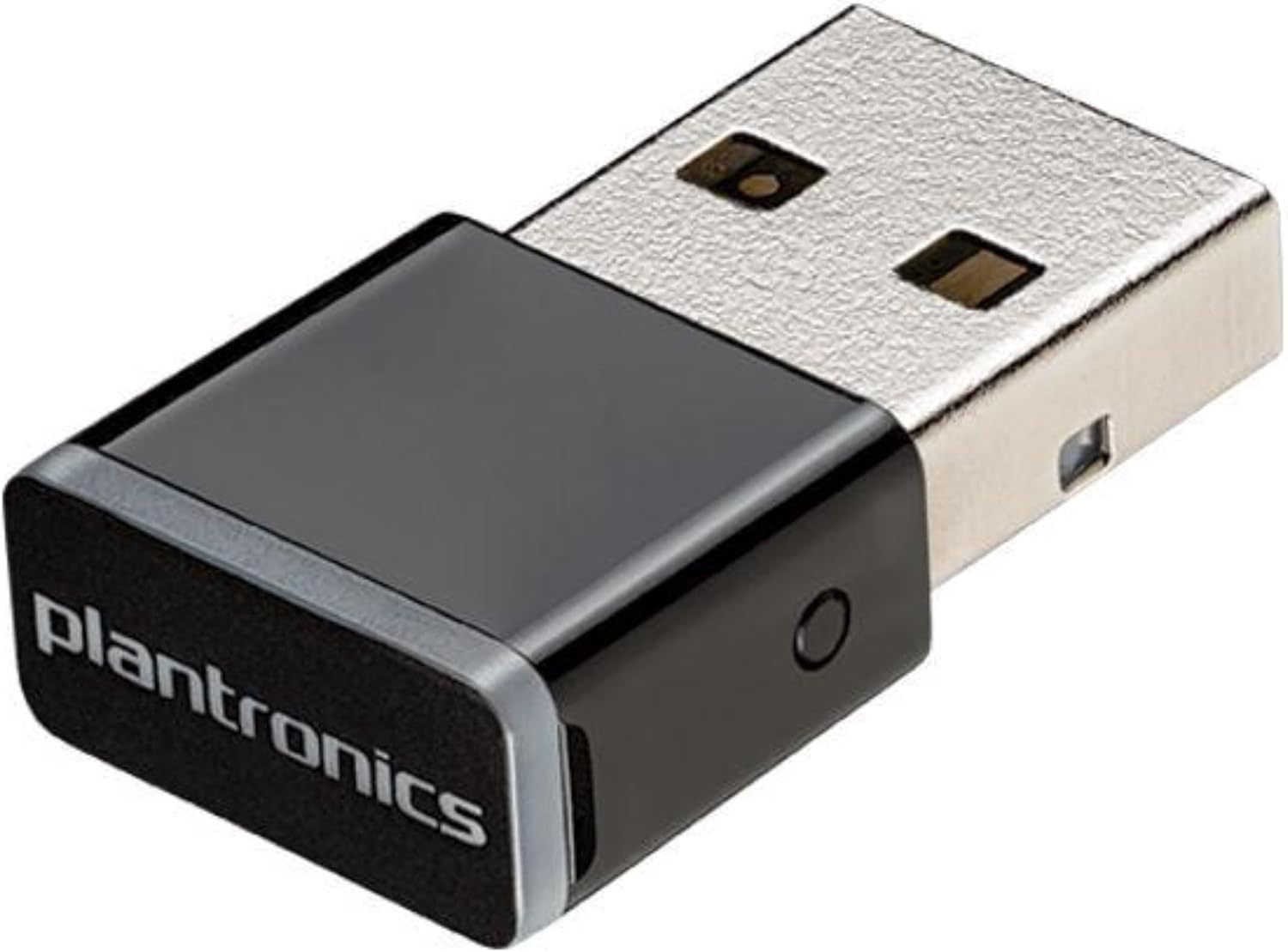
Figure 1: The Plantronics BT600 Network Adapter. This small, black USB dongle features the Plantronics logo on its textured surface and a small pairing button on its side. It plugs into a standard USB port to enable Bluetooth connectivity.
What's in the Box
- Plantronics BT600 Network Adapter
The package contains the Plantronics BT600 USB adapter. Additional accessories or documentation may be included depending on the specific product bundle.
Setup Instructions
- Insert the Adapter: Locate an available USB port on your desktop or notebook computer. Carefully insert the Plantronics BT600 Network Adapter into the USB port. The adapter is designed for a snug fit.
- Driver Installation: In most modern operating systems (Windows, macOS, Linux), the necessary drivers for the BT600 adapter will install automatically upon insertion. Wait for your operating system to confirm that the device is ready for use.
- Pairing with a Device:
- Ensure your Plantronics Bluetooth headset or other compatible device is in pairing mode. Refer to your device's manual for specific instructions on how to activate pairing mode.
- Locate the small pairing button on the side of the BT600 adapter. Press and hold this button for a few seconds until the LED indicator on the adapter begins to flash, indicating it is in pairing mode.
- Your computer's Bluetooth settings or the Plantronics Hub application (if installed) should detect the device. Select your device from the list to complete the pairing process.
- Confirmation: Once successfully paired, the LED indicator on the BT600 adapter will typically show a solid blue light. Your audio should now route through the connected Bluetooth device.
Operating Instructions
The Plantronics BT600 Network Adapter operates primarily as a dedicated Bluetooth interface for your Plantronics devices, optimizing performance and connectivity. Once paired, the adapter manages the wireless connection automatically.
- LED Indicators: The BT600 features an LED light that provides status information:
- Solid Blue: Indicates a successful connection and active use.
- Flashing Blue/Red: Indicates pairing mode.
- Solid Red: For compatible Plantronics headsets, a solid red light indicates that your microphone is muted. This visual cue is helpful during calls.
- Range: The adapter provides an extended Bluetooth range compared to standard computer Bluetooth modules, typically up to 30 meters (100 feet) depending on environmental factors and the connected device.
- Unified Communications (UC) Integration: The BT600 is optimized for UC applications like Skype, Microsoft Teams, and WebEx, ensuring seamless audio and call control functionality with compatible Plantronics headsets.
Maintenance
The Plantronics BT600 Network Adapter requires minimal maintenance to ensure optimal performance and longevity.
- Cleaning: Gently wipe the adapter with a dry, soft cloth to remove dust or smudges. Avoid using liquid cleaners or abrasive materials.
- Storage: When not in use, store the adapter in a cool, dry place. If your Plantronics headset comes with a charging case, it may have a dedicated slot for the BT600, providing convenient and safe storage.
- Firmware Updates: Periodically check for firmware updates for your BT600 adapter using the Plantronics Hub software (available for download from the official Plantronics website). Keeping the firmware updated ensures compatibility, performance improvements, and access to new features.
Troubleshooting
If you encounter issues with your Plantronics BT600 Network Adapter, refer to the following common troubleshooting steps:
| Problem | Possible Cause / Solution |
|---|---|
| Adapter not recognized by computer. |
|
| Cannot pair with headset/device. |
|
| Poor audio quality or intermittent connection. |
|
| Mute function not working or LED not indicating mute. |
|
Specifications
| Feature | Detail |
|---|---|
| Brand | Plantronics |
| Model Number | 205250-01 |
| Wireless Type | Bluetooth (802.11abg) |
| Host Interface | USB 1.1 (compatible with USB 2.0/3.0 ports) |
| Form Factor | External USB Dongle |
| Compatible Devices | Desktop Computers, Notebooks |
| Data Link Protocol | Bluetooth, USB |
| Data Transfer Rate | Up to 43 Megabytes Per Second |
| Color | Black |
| Item Weight | 0.64 ounces (approx. 0.04 pounds) |
| Product Dimensions (LxWxH) | 4.2 x 3 x 1.9 inches |
Warranty and Support
For information regarding warranty coverage, technical support, or service for your Plantronics BT600 Network Adapter, please refer to the official Plantronics (now Poly) website or contact their customer support directly. Warranty terms and conditions may vary by region and purchase date.
It is recommended to register your product on the manufacturer's website to receive updates and support notifications.
Online Resources:
Ask a question about this manual
Ask about setup, troubleshooting, compatibility, parts, safety, or missing instructions. Manuals+ will review the question and use this page’s manual context to help answer it.