
1. Product Overview
This document provides essential instructions for the LCDOLED 13.3-inch LED replacement screen, model LTN133AT25. This screen is designed to be compatible with specific Toshiba laptop models, including Z935, Z830, and Z835. It features a 13.3-inch display with a resolution of 1366x768 pixels, available in either a glossy or matte finish depending on stock.
Key Features:
- 13.3-inch LED display.
- Resolution: 1366x768.
- Compatible with Toshiba Z935, Z830, Z835.
- Factory-direct replacement part.
2. Safety Information
Always prioritize safety when handling electronic components. Improper installation can lead to damage to the screen or the laptop. It is highly recommended that installation be performed by a qualified technician.
- Disconnect the laptop's power adapter and remove the battery before beginning any installation.
- Wear anti-static gloves to prevent electrostatic discharge (ESD) damage.
- Handle the screen by its edges; avoid touching the display surface or the circuit board.
- Keep small parts away from children.
3. Unboxing and Initial Inspection
Upon receiving your LCDOLED replacement screen, carefully inspect the packaging and the screen itself for any signs of damage during transit. If any damage is observed, contact customer support immediately before proceeding with installation.
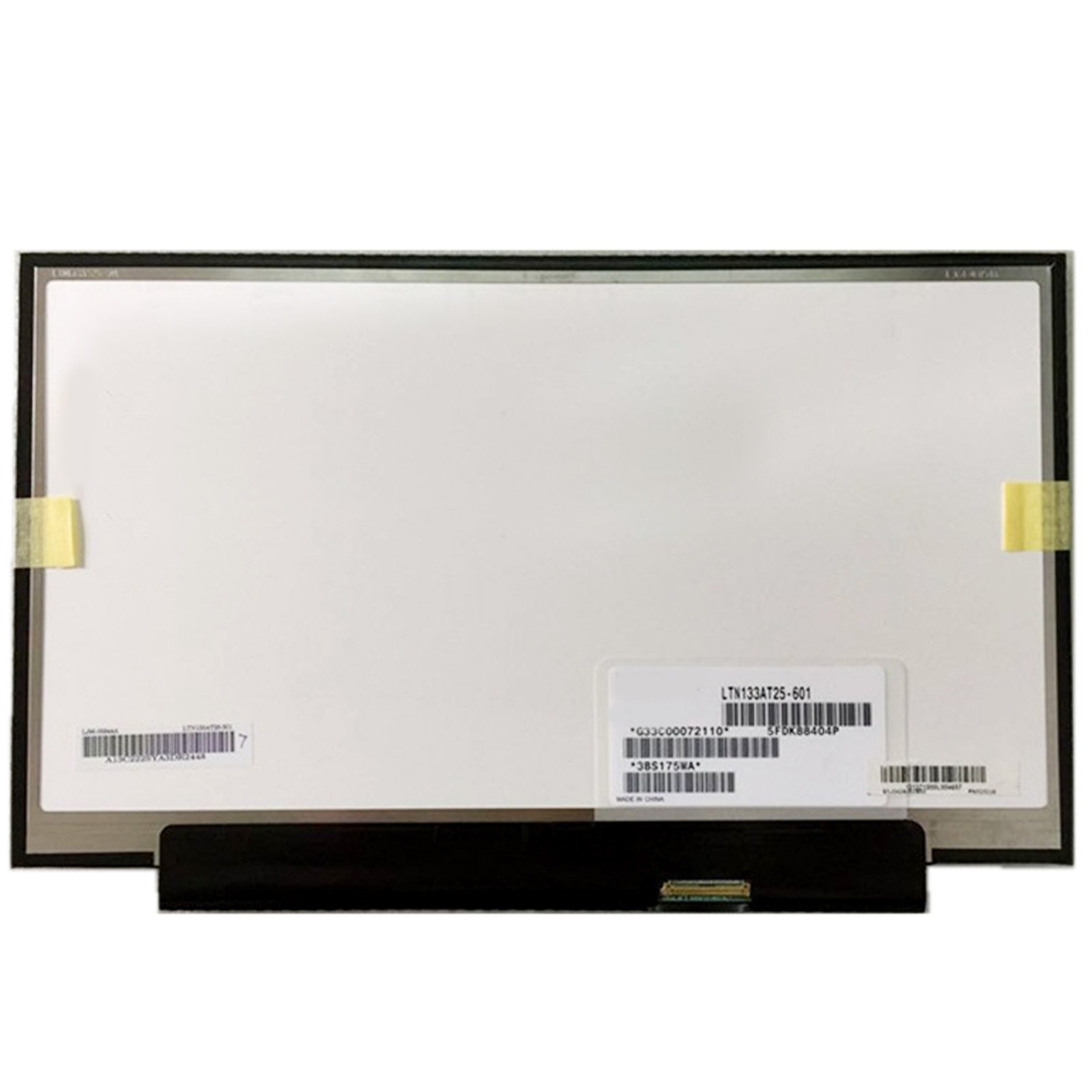
Image: The LCD screen is securely packaged in a cardboard box with bubble wrap for protection during shipping. This image illustrates the careful packaging process.
Ensure all components are present and match your order. The screen will be protected by a film; do not remove this film until installation is complete and the screen is confirmed to be working correctly.
4. Installation Guide
Replacing a laptop screen requires careful handling and specific tools. The following is a general guide; refer to your specific laptop model's service manual for detailed, model-specific instructions.
- Preparation: Power off your laptop, disconnect the AC adapter, and remove the battery.
- Disassembly: Carefully remove the bezel (frame) around the screen. This usually involves removing small screws hidden under rubber pads and gently prying the bezel off.
- Old Screen Removal: Unscrew the old screen from its mounting brackets. Lay the screen face down on the keyboard.
- Disconnect Cables: Carefully disconnect the video cable (e.g., LVDS or eDP) from the back of the old screen. There may also be an inverter cable for CCFL screens (not applicable for LED screens like this model).
- New Screen Connection: Connect the video cable to the new LCDOLED screen. Ensure the connection is firm and secure.
- Test: Before fully reassembling, temporarily connect the battery and AC adapter to power on the laptop and test the new screen. Check for display, brightness, and any anomalies.
- Reassembly: If the screen functions correctly, disconnect power, mount the new screen into the brackets, and reattach the bezel. Reinstall the battery.
Note: If you are unsure about any step, seek professional assistance to avoid damaging your laptop or the new screen.
5. Operation
Once installed, the LCDOLED screen operates as a standard laptop display. Power on your laptop as usual. The screen should display the operating system's interface. Adjust brightness and other display settings through your laptop's operating system or function keys.
- Initial Power-On: After installation, power on the laptop. The screen should illuminate and display content.
- Display Settings: Use your laptop's display settings (e.g., Windows Display Settings, macOS System Preferences) to adjust resolution, brightness, and color profiles as needed.
6. Maintenance and Care
Proper care extends the life of your LCD screen and maintains optimal display quality.
- Cleaning: Use a soft, lint-free microfiber cloth specifically designed for electronics. Lightly dampen the cloth with water or a screen-cleaning solution (avoid harsh chemicals like ammonia or alcohol). Gently wipe the screen in one direction.
- Handling: Avoid applying pressure to the screen surface, as this can cause damage to the LCD panel.
- Environment: Keep the laptop in a clean, dust-free environment. Avoid extreme temperatures or humidity.
7. Troubleshooting
If you encounter issues with your new screen, consider the following troubleshooting steps:
- No Display/Black Screen:
- Ensure the video cable is securely connected to both the screen and the laptop's motherboard.
- Verify the laptop is powering on correctly (check power lights, fan noise).
- Try connecting an external monitor to confirm if the laptop's graphics card is functioning.
- Flickering/Distorted Image:
- Check the video cable connection for looseness or damage.
- Ensure the screen is fully seated in its frame and not under undue pressure.
- Update or reinstall your laptop's graphics drivers.
- Incorrect Colors/Brightness:
- Adjust display settings within your operating system.
- Ensure the screen's protective film has been completely removed.
If these steps do not resolve the issue, contact LCDOLED customer support for further assistance.
8. Specifications
| Feature | Detail |
|---|---|
| Screen Size | 13.3 Inches |
| Model Number | LTN133AT25 (or compatible model) |
| Resolution | 1366x768 |
| Finish | Glossy or Matte (depending on stock) |
| Compatibility | Toshiba Z935, Z830, Z835 |
| Item Weight | Approximately 2 pounds |
9. Warranty and Support
LCDOLED is committed to providing professional and considerate customer service. Any inquiries or questions will be answered within 24 hours. Any dissatisfaction or problem will be addressed promptly with a satisfactory solution.

Image: The LCDOLED product box displaying the brand logo and official website for support.
- Customer Service: For support, inquiries, or special requests, please contact LCDOLED directly.
- Official Website: Visit www.lcdoled.com for more information and support resources.
- Return Policy: This product is subject to a 30-day return policy for refund or replacement.