Introduction
This manual provides essential information for setting up, operating, maintaining, and troubleshooting your Dell Inspiron 15 7000 Series (model 7559) gaming laptop. This premium notebook is designed for optimized performance in both productivity and gaming environments.
Setup
1. Unpacking and Initial Power-On
Carefully remove your Dell Inspiron 15 7000 Series laptop from its packaging. Ensure all components, including the laptop and power adapter, are present. Connect the power adapter to the laptop and a power outlet. Open the laptop lid and press the power button to initiate the first boot sequence.
2. Operating System Configuration
Upon first boot, you will be guided through the Windows 10 Home setup process. Follow the on-screen instructions to configure your language, region, network settings, and user account. The 256 GB Solid-State Drive (SSD) ensures a fast and responsive operating system experience.
3. Connecting Peripherals
Your laptop is equipped with various ports for connecting external devices:
- USB Ports: 1x USB 2.0 port and 3x USB 3.0 ports for connecting external storage, mice, keyboards, and other USB devices.
- HDMI Port: Connect to external displays or projectors for extended viewing.
- Ethernet Port: For wired network connectivity.
- SD Card Reader: For transferring data from SD cards.

Image: Left side view of the Dell Inspiron 15 7000 Series laptop, highlighting the power input, USB 3.0 port, HDMI port, Ethernet port, and SD card slot.
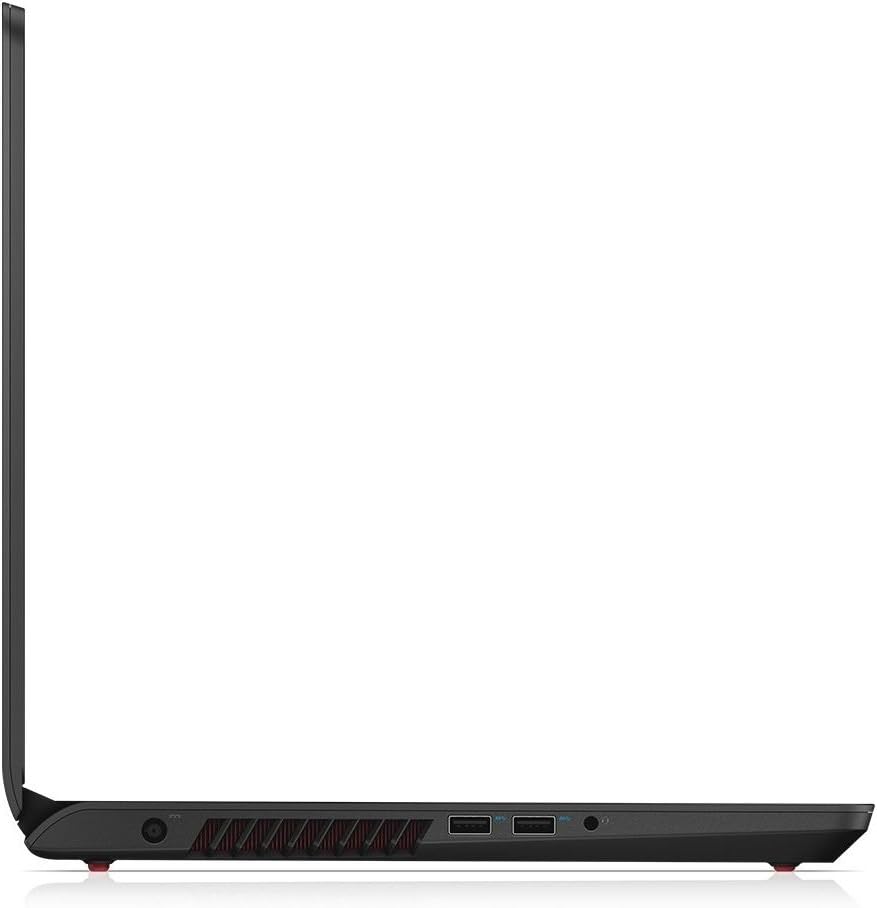
Image: Right side view of the Dell Inspiron 15 7000 Series laptop, showing additional USB ports and the headphone jack.
Operating Your Laptop
1. Display and Visuals
The laptop features a 15.6-inch Full HD (1920x1080) IPS, wide-angle, anti-glare screen. This display technology provides clear visuals and reduced reflections, enhancing your viewing experience for both work and entertainment.
2. Keyboard and Touchpad
The integrated keyboard and touchpad provide input functionality. The touchpad is responsive and supports multi-touch gestures. For optimal gaming, an external mouse is recommended.

Image: Top-down view of the open Dell Inspiron 15 7000 Series laptop, showcasing the full keyboard with numeric keypad and the touchpad.

Image: Close-up view of the Dell Inspiron 15 7000 Series keyboard and touchpad, highlighting the red accents around the touchpad.
3. Audio
Experience enhanced audio with Waves MaxxAudio Pro technology, providing clear and immersive sound for gaming, movies, and music.
4. Performance
Powered by a 6th Gen Intel Quad-Core i5-6300HQ Processor and NVIDIA GeForce GTX 960M 4GB GDDR5 graphics, this laptop delivers robust performance for demanding applications and modern games. The dual-fan thermal cooling system is designed to maintain optimal temperatures during intensive use, preventing overheating and ensuring consistent performance.

Image: The Dell Inspiron 15 7000 Series laptop with its back panel partially removed, revealing the internal dual-fan cooling system designed for efficient heat dissipation.
5. Battery Life
The laptop offers an average battery life of approximately 4.5 hours, suitable for on-the-go productivity and entertainment.
Video: An official Dell video showcasing the Inspiron 15 7000 Series Gaming Laptop, highlighting its design, performance, and features.
Maintenance
1. Driver Updates
Keeping your system drivers updated is crucial for optimal performance and compatibility. Windows typically handles automatic updates, but for Dell-specific drivers, it is recommended to visit the official Dell Support website. You can use the Dell system detect tool to identify and install necessary driver updates.
Video: An official Dell video demonstrating how to find and update drivers for your Dell computer, including using the Dell Support website.
2. System Cleaning
Regularly clean the laptop's exterior, screen, and keyboard with appropriate cleaning solutions and cloths. Ensure ventilation grilles are free from dust to maintain efficient cooling.
3. Upgrading RAM and Storage
The Dell Inspiron 15 7000 Series (7559) allows for upgrades. There is a second hard drive slot available for adding additional storage (e.g., another SSD or an HDD). The RAM can also be upgraded beyond the standard 8 GB DDR3L SDRAM.
Troubleshooting
1. Keyboard and Touchpad Issues
If you experience unresponsive or erratic keyboard/touchpad behavior, ensure drivers are updated. In some cases, a system restart can resolve temporary glitches.
2. Slow Performance
If your system is running slowly, check for high CPU usage in Task Manager. This could indicate a virus or background processes consuming resources. Ensure your hard drive is not excessively full and consider running a disk defragmentation if using an HDD (not applicable for SSDs).
3. Unwanted Ads or System Changes
Unexpected pop-up ads, changes to your browser homepage, or icons directing to incorrect applications are strong indicators of malware. It is crucial to run a comprehensive antivirus scan immediately.
Video: An official Dell video detailing five common signs of a computer virus and how to identify them, along with recommendations for antivirus scans.
4. Inaccessible Tools or Programs
If you are unable to open system tools like Task Manager or specific applications, your PC may be infected. Perform an antivirus scan and ensure your operating system is up to date.
Specifications
| Feature | Detail |
|---|---|
| Model Name | Inspiron 15 7000 series, 7559 |
| Processor | Intel i5-6300HQ 2.3 GHz Quad-Core (Turbo up to 3.2 GHz) |
| RAM | 8 GB DDR3L SDRAM (1600 MHz) |
| Storage | 256 GB Solid State Drive |
| Graphics Coprocessor | NVIDIA GeForce GTX 960M 4GB GDDR5 |
| Screen Size | 15.6 Inches |
| Screen Resolution | 1920 x 1080 pixels (FHD IPS, Wide-Angle, Anti Glare) |
| Operating System | Windows 10 Home |
| Wireless Type | 802.11ac |
| USB 2.0 Ports | 1 |
| USB 3.0 Ports | 3 |
| Average Battery Life | 4.5 Hours |
| Item Weight | 6 pounds |
| Product Dimensions | 15.08 x 15.08 x 10.43 inches |
| Color | Black |
| Optical Drive Type | Not included |
Warranty & Support
Legal Disclaimer
Third-Party repairs are not authorized.
Dell Support
For further assistance, technical support, or warranty information, please visit the official Dell Support website at www.dell.com/support. You can also reach out through Dell's official social media channels for support.


