
1. Introduction
This manual provides essential information for the installation, operation, and maintenance of the Cisco Aironet 1852I-B-K9 Wi-Fi Access Point. The Aironet 1850 Series offers 802.11ac Wave 2 support, featuring 4x4 Multiple-Input Multiple-Output (MIMO) technology, designed for high-performance wireless connectivity in small to medium-sized network environments.
2. Product Overview
2.1 Key Features
- MU-MIMO Technology: Supports 802.11ac Wave 2 with 4x4 MIMO, providing up to 1.7 Gbps data rates for enhanced capacity and reliability.
- Application Visibility and Control (AVC): Utilizes Network-Based Application Recognition (NBAR) for deep-packet inspection, enabling application-aware control and improved network manageability.
- Radio Resource Management (RRM): Automatically analyzes and adjusts RF environments, optimizing power and channel configurations to mitigate interference and coverage issues.
- Integrated Security: Features include Cisco Umbrella (OpenDNS), Identity PSK (iPSK), IP and DNS ACLs, Spectrum Intelligence, Wireless Intrusion Detection (WIDS), and 802.1x network security.
- Internal Antennas: Equipped with internal antennas for a streamlined design.
2.2 Components
The Cisco Aironet 1852I-B-K9 package typically includes the following items:
- Cisco Aironet 1852I-B-K9 Access Point
- Pointer Card (documentation)
- Brackets (optional, for mounting)
- Ceiling Grid Clips (optional, for mounting)

Figure 1: Front view of the Cisco Aironet 1852I-B-K9 Wi-Fi Access Point. This image displays the sleek, white, square-shaped access point with the Cisco logo and a small indicator light on the front surface.

Figure 2: Rear view of the Cisco Aironet 1852I-B-K9 Wi-Fi Access Point, detailing the available ports. From left to right, these include a MODE button, CONSOLE port (RJ-45), USB-A port, AUX port, POE (Power over Ethernet) ports, and a 48VDC power input.
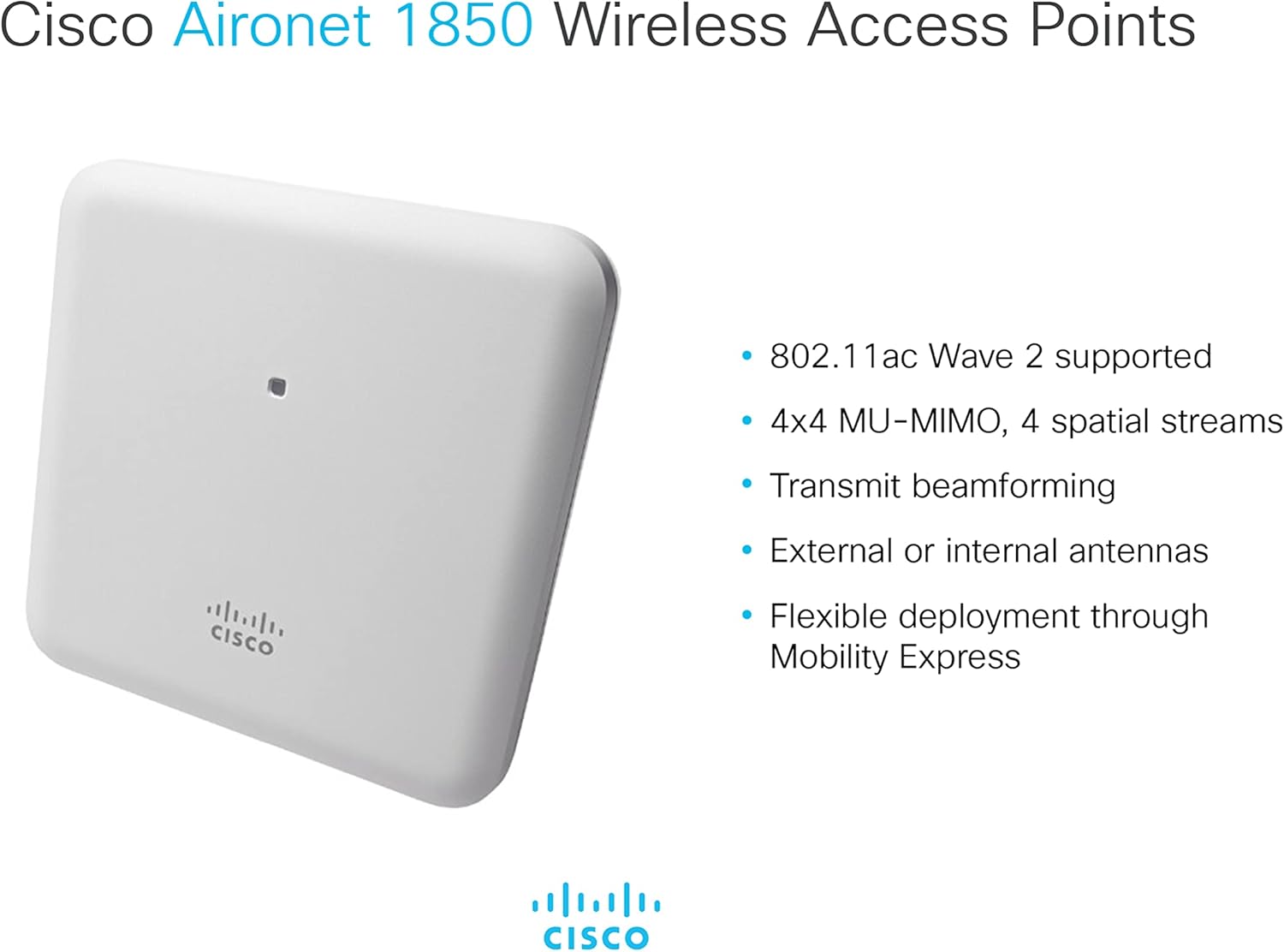
Figure 3: A visual summary of the Cisco Aironet 1850 Wireless Access Point's capabilities, highlighting 802.11ac Wave 2 support, 4x4 MU-MIMO with 4 spatial streams, transmit beamforming, internal antennas, and flexible deployment options via Mobility Express.
3. Setup and Installation
The Cisco Aironet 1852I-B-K9 is an enterprise-grade access point that requires specific configuration for proper operation. It is not a consumer-level plug-and-play device.
3.1 Initial Configuration Requirements
- Wireless LAN Controller (WLC): This access point is designed to operate in conjunction with a Cisco Wireless LAN Controller.
- Mobility Express (ME): Alternatively, it can be configured to run in Mobility Express mode, where one access point acts as a virtual controller for other APs. Note that the ME image may require a Cisco Smartnet contract to obtain and install.
- Console Access: Initial setup and conversion to CAPWAP (Control and Provisioning of Wireless Access Points) or Mobility Express often requires a console cable (RJ-45) for direct command-line interface (CLI) access.
- Network Connectivity: Ensure the access point is connected to a network switch, preferably with Power over Ethernet (PoE) capability for power delivery.
3.2 Mounting Options
The access point can be mounted on various surfaces using optional brackets or ceiling grid clips. Refer to the included pointer card or Cisco documentation for detailed mounting instructions.

Figure 4: An illustration depicting an enterprise-class network environment, emphasizing seamless connectivity provided by Cisco Aironet 1800 Wireless Access Points. The image shows individuals in a meeting room utilizing a large screen for video conferencing, connected wirelessly.
4. Operating Instructions
Once the Cisco Aironet 1852I-B-K9 Access Point is properly installed and configured with a WLC or in Mobility Express mode, it will provide wireless network access.
4.1 Wireless Connectivity
- The access point operates on dual-band frequencies (2.4 GHz and 5 GHz) supporting 802.11ac Wave 2 standards.
- Client devices (laptops, smartphones, tablets) can connect to the wireless network broadcast by the access point using the configured Service Set Identifier (SSID) and security credentials.
- MU-MIMO technology allows the access point to communicate with multiple client devices simultaneously, improving overall network efficiency and performance.
4.2 Network Management
Management of the access point, including monitoring, configuration changes, and firmware updates, is typically performed through the associated Wireless LAN Controller or the Mobility Express interface.

Figure 5: A graphic illustrating ubiquitous Wi-Fi access, emphasizing that Multi-user MIMO technology enables devices to connect and disconnect from the network faster, allowing more devices to access Wi-Fi efficiently.
5. Maintenance
Regular maintenance ensures optimal performance and longevity of your access point.
- Firmware Updates: Periodically check for and apply firmware updates provided by Cisco. These updates often include security patches, bug fixes, and performance enhancements.
- Environmental Conditions: Ensure the access point operates within its specified temperature and humidity ranges. Avoid placing it in direct sunlight or near heat sources.
- Physical Cleaning: Gently clean the exterior of the access point with a soft, dry cloth. Do not use liquid cleaners or aerosols.
- Network Monitoring: Monitor network performance and access point status through your WLC or network management system to identify and address potential issues proactively.
6. Troubleshooting
This section addresses common issues that may arise during the setup or operation of the Cisco Aironet 1852I-B-K9 Access Point.
6.1 Common Setup Challenges
- Not a Standalone AP: This model is not designed for standalone operation without a Wireless LAN Controller or Mobility Express configuration. Attempts to use it as a simple standalone access point will likely fail.
- Mobility Express Image: If attempting to use Mobility Express, ensure the correct ME image is installed. Obtaining this image may require a valid Cisco Smartnet contract.
- Console Configuration: Many initial configurations, especially converting from a CAPWAP image to Mobility Express, require direct console access using an RJ-45 console cable and CLI commands. The CiscoAirProvision feature may not work out-of-the-box without prior ME installation.
- Switch Port Configuration: When connecting to a switch, ensure that trunk ports are configured with
nonegotiateas the access point does not support Dynamic Trunking Protocol (DTP).
6.2 General Troubleshooting Steps
- Power Check: Verify that the access point is receiving power, either via PoE or the 48VDC power input. Check indicator lights for status.
- Network Connectivity: Confirm that the Ethernet cable is securely connected and the network port on the switch is active and correctly configured.
- WLC Status: If using a WLC, ensure it is operational and properly configured to manage the access point.
- Firmware Mismatch: Incompatibility between the access point firmware and the WLC firmware can cause issues. Ensure both are compatible and up-to-date.
7. Technical Specifications
| Specification | Value |
|---|---|
| Wireless Type | 802.11ac |
| Wireless Communication Standard | 802.11ac |
| Frequency Band Class | Dual-Band |
| Antenna Type | Internal |
| Number of USB 2.0 Ports | 1 |
| Number of USB 3.0 Ports | 1 |
| Connectivity Technology | USB |
| Brand | Cisco |
| Series | AIR-AP1852I-B-K9 |
| Item Model Number | AIR-AP1852I-B-K9 |
| Hardware Platform | PC |
| Operating System | Cisco IOS |
| Item Weight | 3.08 pounds (1.4 Kilograms) |
| Product Dimensions (LxWxH) | 9.5 x 8.9 x 3.8 inches |
| Number of Processors | 1 |
| Voltage | 57 Volts |
| Manufacturer | CISCO |
| Date First Available | October 20, 2020 |
| Compatible Devices | Personal Computer |
8. Warranty and Support
8.1 Warranty Information
The Cisco Aironet 1852I-B-K9 Wi-Fi Access Point comes with a Limited Lifetime Hardware Warranty. For specific terms and conditions, please refer to the official Cisco warranty documentation.
8.2 Technical Support
For technical assistance, advanced configuration guidance, or issues requiring in-depth troubleshooting, it is recommended to contact Cisco Technical Support. Access to certain software images and support resources may require a valid Cisco Smartnet contract or a Cisco account.

Figure 6: An icon symbolizing customer support, showing two figures with headsets and communication elements like a phone, laptop, and email, indicating channels for assistance.


