
Supersonic IQ3710DJBT
Supersonic IQ Sound IQ-3710DJBT Portable DJ Speaker User Manual
Model: IQ-3710DJBT
Important Safety Instructions
Please read all instructions carefully before operating this device. Keep this manual for future reference.
- Do not expose this appliance to rain or moisture.
- Do not block any ventilation openings.
- Do not install near any heat sources such as radiators, heat registers, stoves, or other apparatus (including amplifiers) that produce heat.
- Protect the power cord from being walked on or pinched, particularly at plugs, convenience receptacles, and the point where they exit from the appliance.
- Only use attachments/accessories specified by the manufacturer.
- Unplug this appliance during lightning storms or when unused for long periods of time.
- Refer all servicing to qualified service personnel. Servicing is required when the apparatus has been damaged in any way.
Product Overview
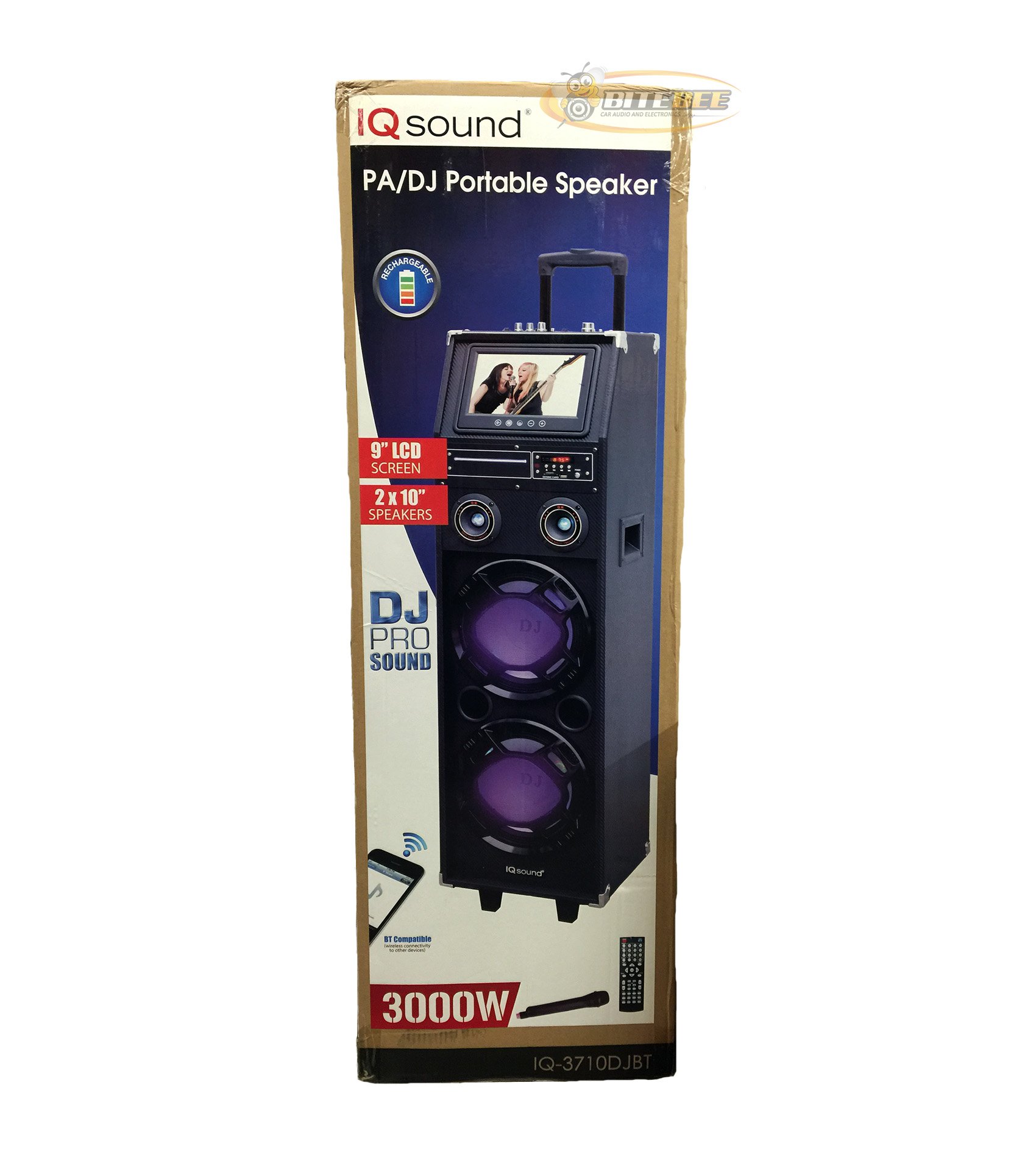
Image: Front view of the Supersonic IQ Sound IQ-3710DJBT Portable DJ Speaker, showcasing its dual speakers, 9-inch LCD screen, and control panel.
Features
- Dual 10-inch Full Range Speakers
- Built-in Bluetooth for wireless audio streaming
- FM Radio tuner
- 5-Band Equalizer for audio customization
- 9-inch LCD Display for video and menu navigation
- Built-in Rechargeable Battery for portability
- Integrated LED Lights for visual effects
- Multimedia Compatible (supports various video and music formats)
- USB Input for external audio devices
- SD Card Slot for media playback
- 1 Guitar Input
- 1 Microphone Jack (includes 1 microphone)
- Remote Control included
- Built-in Handle and Wheels for easy transport
Package Contents
- IQ-3710DJBT Portable DJ Speaker
- Power Adapter
- Microphone
- Remote Control
- User Manual (this document)
Controls and Connections (General)
The main control panel is located on the top or rear of the speaker, featuring buttons for power, mode selection, playback controls (play/pause, skip), volume adjustment, EQ settings, and light controls. Input ports for USB, SD card, microphone, and guitar are also present. The 9-inch LCD display provides visual feedback for media playback, FM radio tuning, and menu navigation.
Setup
1. Charging the Battery
- Connect the included power adapter to the speaker's DC input port.
- Plug the power adapter into a standard wall outlet (AC 100-240V, 50/60Hz).
- The charging indicator light (if present) will illuminate. Allow approximately 6-8 hours for a full charge before first use.
- The speaker can be used while charging.
2. Initial Power On
- Ensure the speaker is fully charged or connected to a power source.
- Locate the Power button (usually on the control panel) and press it to turn on the speaker.
- The LCD display will illuminate, and the speaker will enter the default mode.
3. Connecting Peripherals
Microphone: Insert the included microphone's cable into the Microphone Jack.
Guitar: Insert your guitar's cable into the Guitar Input.
Operating Instructions
Mode Selection
Press the MODE button on the control panel or remote control to switch between available modes: Bluetooth, FM Radio, USB, SD, and AUX (if applicable). The current mode will be displayed on the LCD screen.
Bluetooth Operation
- Turn on the speaker and switch to Bluetooth Mode using the MODE button. The LCD will display "Bluetooth" or a similar indicator.
- On your Bluetooth-enabled device (e.g., smartphone, tablet), enable Bluetooth and search for available devices.
- Select "IQ-3710DJBT" from the list of devices.
- Once paired, the speaker will emit a confirmation sound, and you can now play audio wirelessly from your device.
- Use your device or the speaker's controls for playback (play/pause, skip tracks, volume).
FM Radio Operation
- Switch to FM Radio Mode using the MODE button.
- Press the PLAY/PAUSE button (or a dedicated scan button) to automatically scan and save available FM stations.
- Use the PREVIOUS/NEXT buttons to navigate through the saved stations.
- Adjust the volume using the main volume knob or remote control.
USB/SD Card Playback
- Insert a USB flash drive into the USB port or an SD card into the SD card slot.
- The speaker should automatically switch to USB or SD mode and begin playing media. If not, press the MODE button to select the correct input.
- Use the playback controls (play/pause, previous/next) on the speaker or remote to manage your media.
- The 9-inch LCD display will show file information and video playback (if applicable).
Equalizer (EQ) Adjustment
The 5-band EQ allows you to fine-tune the audio output. Locate the EQ controls on the speaker's panel. Adjust the sliders or knobs for different frequency bands (e.g., bass, mid-range, treble) to achieve your desired sound profile.
Microphone and Guitar Use
Once connected, adjust the individual volume controls for the microphone and guitar (if available) on the speaker's control panel. The main volume knob controls the overall output.
LED Lights Control
Press the LIGHTS button (or similar) on the control panel or remote to cycle through different light modes or to turn the lights on/off.
LCD Display
The 9-inch LCD display shows current mode, track information, FM frequency, and can play video files from USB or SD card. Navigate menus using the dedicated navigation buttons or remote control.
Maintenance
- Cleaning: Use a soft, dry cloth to clean the exterior of the speaker. Do not use abrasive cleaners or solvents. For the LCD screen, use a screen-specific cleaning solution and a microfiber cloth.
- Battery Care: To prolong battery life, fully charge the speaker before first use and recharge it regularly, even if not in frequent use. Avoid completely draining the battery. Store in a cool, dry place.
- Storage: When not in use for extended periods, store the speaker in a cool, dry environment, away from direct sunlight and extreme temperatures.
- Transport: Utilize the built-in handle and wheels for easy and safe transport of the speaker.
Troubleshooting
| Problem | Possible Cause | Solution |
|---|---|---|
| Speaker does not power on. | Battery is drained or power adapter is not connected. | Connect the power adapter and charge the speaker. Ensure the power outlet is functional. |
| No sound output. | Volume is too low, incorrect mode selected, or device not properly connected. | Increase volume. Verify correct mode (Bluetooth, USB, FM). Reconnect Bluetooth device or reinsert USB/SD card. Check microphone/guitar connections. |
| Bluetooth pairing fails. | Speaker not in Bluetooth mode, device too far, or interference. | Ensure speaker is in Bluetooth mode. Move device closer to speaker. Turn off and on Bluetooth on your device. Try pairing again. |
| FM radio reception is poor. | Weak signal or interference. | Relocate the speaker to an area with better reception. Perform an auto-scan again. |
| USB/SD media not playing. | Unsupported file format, corrupted media, or improper insertion. | Ensure media is inserted correctly. Check file formats (refer to specifications for supported types). Try a different USB drive or SD card. |
Specifications
- Model: IQ-3710DJBT
- Brand: Supersonic
- Speaker Type: Portable DJ Speaker
- Speakers: 2 x 10-inch Full Range
- Display: 9-inch LCD
- Connectivity: Bluetooth, USB
- Inputs: USB, SD Card, Microphone (1), Guitar (1)
- Radio: FM Tuner
- Equalizer: 5-Band EQ
- Power Source: Built-in Rechargeable Battery, AC Power Adapter
- Dimensions (L x W x H): 15 x 14 x 45 inches (approx.)
- Weight: 54 Pounds (approx.)
- Included Accessories: Microphone, Remote Control, Power Adapter
Warranty and Support
This product comes with a standard manufacturer's warranty. For specific warranty terms and conditions, please refer to the warranty card included in your package or visit the official Supersonic website.
For technical support, service inquiries, or to purchase replacement parts, please contact Supersonic customer service. Contact information can typically be found on the product packaging or the official brand website.
Online Support: www.supersonicinc.com (This is a placeholder link, please verify the actual support URL.)
Related documentsIQ3710DJBT


Ask a question about this manual
Ask about setup, troubleshooting, compatibility, parts, safety, or missing instructions. Manuals+ will review the question and use this page’s manual context to help answer it.