
Introduction
Thank you for purchasing the GARRISON Royal Cove 2477852 2-in-1 Clip & Table Fan. This manual provides important information regarding the safe operation, installation, maintenance, and troubleshooting of your fan. Please read this manual thoroughly before using the product and retain it for future reference.
Important Safety Instructions
- Read all instructions before using this fan.
- Do not operate any fan with a damaged cord or plug. Discard fan or return to an authorized service facility for examination and/or repair.
- Do not run cord under carpeting. Do not cover cord with throw rugs, runners, or similar coverings. Do not route cord under furniture or appliances. Arrange cord away from traffic area and where it will not be tripped over.
- To disconnect fan, turn controls to OFF, then remove plug from outlet.
- Do not insert or allow fingers or foreign objects to enter any ventilation or exhaust opening as this may cause an electric shock or fire, or damage the fan.
- Do not block air intakes or exhaust in any manner.
- Use this fan only as described in this manual. Any other use not recommended by the manufacturer may cause fire, electric shock, or injury to persons.
- Always place the fan on a stable, flat surface when used as a table fan.
- Ensure the clip is securely fastened when used as a clip fan.
- This product is for household use only.
Product Overview
The GARRISON Royal Cove 2477852 is a versatile 6-inch fan designed for personal cooling. It features a 2-in-1 design, allowing it to function as both a clip-on fan and a table fan. It offers two speed options for customized airflow.
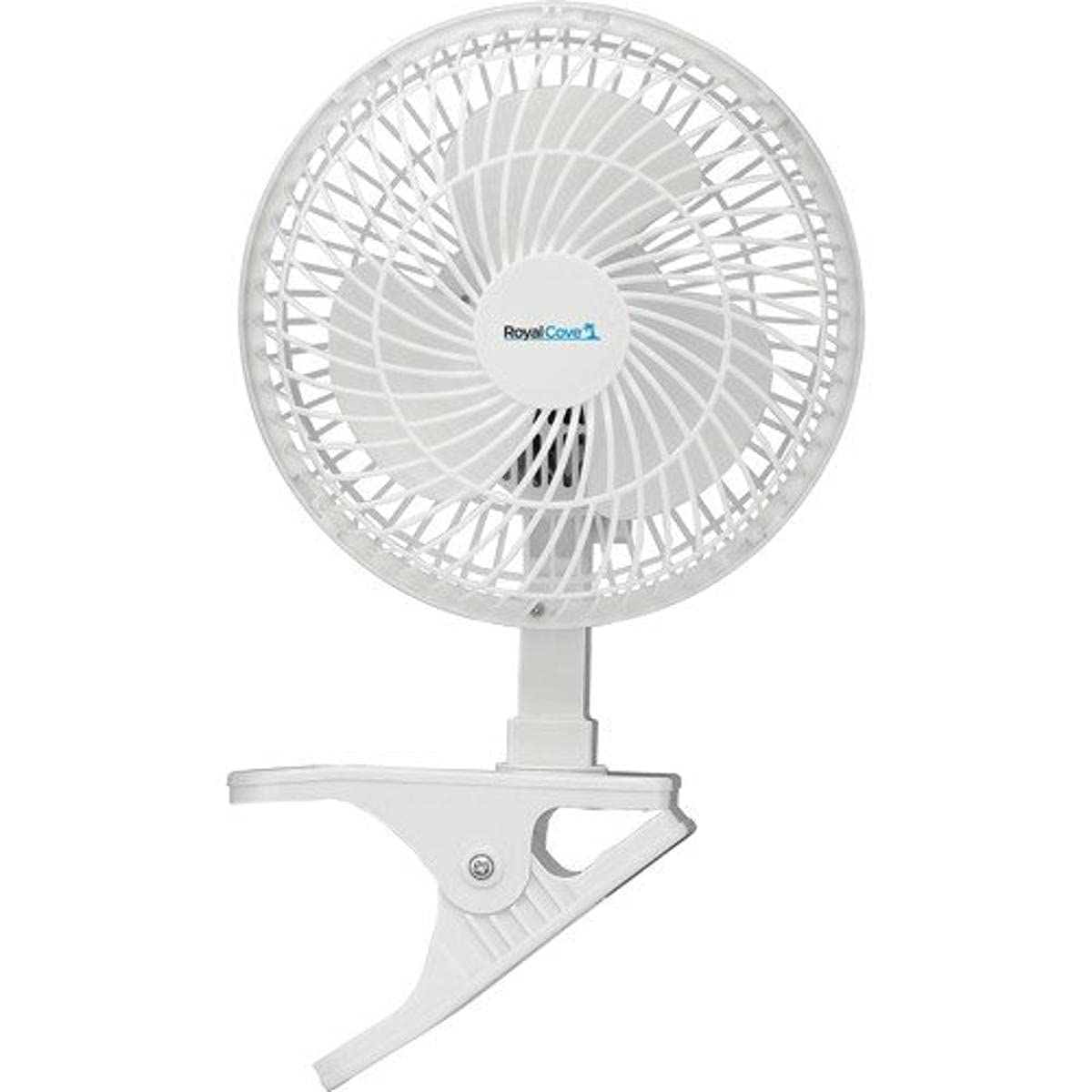
Image: GARRISON Royal Cove 2477852 2-in-1 Clip & Table Fan. This image displays the fan in its table configuration, highlighting its compact design and control buttons.
Key Features:
- 2-in-1 design: Easily converts between clip and table fan.
- Two speed options for adjustable airflow.
- Compact 6-inch size, ideal for personal use.
- Simple push-button control.
Setup
Converting from Clip to Table Fan (and vice-versa):
- To use as a Table Fan: Ensure the fan head is securely attached to the table base. Place the fan on a flat, stable surface.
- To use as a Clip Fan: Detach the fan head from the table base (if currently assembled as a table fan). Securely attach the fan head to the clip mechanism. Open the clip and firmly attach it to a stable edge, such as a desk, shelf, or bed frame. Ensure the clip has a strong grip and the fan is stable before powering on.
Placement:
- Place the fan in a location where it can provide optimal airflow without obstruction.
- Keep the fan away from water sources, direct sunlight, and heat sources.
- Ensure the power cord is not pinched or placed under heavy objects.
Operating Instructions
- Connect Power: Plug the fan's power cord into a standard electrical outlet.
- Turn On/Select Speed: Locate the control buttons on the fan. Press the appropriate button to turn the fan on and select your desired speed (typically Speed 1 for low, Speed 2 for high).
- Adjust Direction: Manually tilt the fan head to direct the airflow as needed.
- Turn Off: Press the OFF button or cycle through the speed settings until the fan turns off. Unplug the fan from the outlet when not in use for extended periods.
Maintenance
Cleaning:
- Always unplug the fan before cleaning.
- Use a soft, damp cloth to wipe the exterior surfaces of the fan. Do not use abrasive cleaners or solvents.
- To clean dust from the fan blades, use a vacuum cleaner with a brush attachment or a soft, dry cloth. Do not immerse the fan in water or allow water to drip into the motor housing.
- Ensure all parts are completely dry before plugging the fan back in.
Storage:
When not in use, store the fan in a cool, dry place, preferably in its original packaging or covered to protect it from dust.
Troubleshooting
| Problem | Possible Cause | Solution |
|---|---|---|
| Fan does not turn on. |
|
|
| Weak airflow. |
|
|
| Fan makes unusual noise. |
|
|
Specifications
| Feature | Detail |
|---|---|
| Brand | GARRISON |
| Model Number | 2477852 |
| Electric Fan Design | Table Fan (Convertible to Clip Fan) |
| Power Source | Corded Electric |
| Product Dimensions | 6"D x 6"W x 6"H |
| Special Feature | Convertible (Clip to Table) |
| Mounting Type | Clip On, Table Fan |
| Controller Type | Button Control |
| Number of Speeds | 2 |
| Wattage | 60 watts |
| Number of Blades | 3 |
| Switch Type | Push Button |
| Material | Plastic |
| Blade Material | Plastic |
| Color | white |
Warranty and Support
This GARRISON Royal Cove 2477852 fan comes with a 1-year limited warranty from the date of purchase. This warranty covers manufacturing defects in materials and workmanship under normal use.
The warranty does not cover damage resulting from misuse, abuse, accident, alteration, or unauthorized repair. Please retain your proof of purchase for warranty claims.
For warranty service or technical support, please contact the manufacturer or your retailer. Do not attempt to repair the fan yourself.
