
TP-Link TL-SG1005D V6.0(UK)
TP-Link LS1005G Litewave 5-Port Gigabit Ethernet Switch User Manual
Model: TL-SG1005D V6.0(UK)
Brand: TP-Link
1. Introduction
The TP-Link LS1005G Litewave 5-Port Gigabit Ethernet Switch is designed to expand your network capacity with ease. This unmanaged switch provides 5 auto-negotiation RJ45 ports, supporting 10/100/1000Mbps speeds, and features Auto-MDI/MDIX, eliminating the need for crossover cables.
Key features include:
- 5 Gigabit Ethernet Ports: Provides high-speed wired connections for multiple devices.
- Green Ethernet Technology: Saves power by automatically adjusting power consumption according to the link status and cable length.
- IEEE 802.3X Flow Control: Ensures reliable data transfer.
- Plug and Play: No configuration required, making setup quick and simple.
- Fanless Design: Ensures quiet operation, suitable for any environment.
- Compact Design: Features a plastic casing suitable for desktop placement or wall-mounting.

Figure 1: TP-Link LS1005G Litewave 5-Port Gigabit Ethernet Switch. This image shows the compact black casing of the switch with its five Ethernet ports and power input on the rear.
2. Setup Guide
The LS1005G switch is designed for easy plug-and-play installation. No software configuration is required.
2.1 Package Contents
- TP-Link LS1005G Litewave 5-Port Gigabit Ethernet Switch
- Power Adapter
- Quick Installation Guide

Figure 2: Product packaging for the TP-Link LS1005G switch. The box highlights key features like 5-Port Gigabit, Plug and Play, and Green Tech.
2.2 Hardware Installation
- Connect the Power Adapter: Plug one end of the provided power adapter into the power port on the back of the switch and the other end into a standard electrical outlet. The Power LED on the top of the switch should illuminate, indicating the device is powered on.
- Connect Network Devices: Use standard Ethernet cables to connect your network devices (e.g., computers, printers, network-attached storage, routers) to any of the 5 RJ45 ports on the switch. The corresponding Link/Act LED for each connected port will light up, indicating a successful connection.
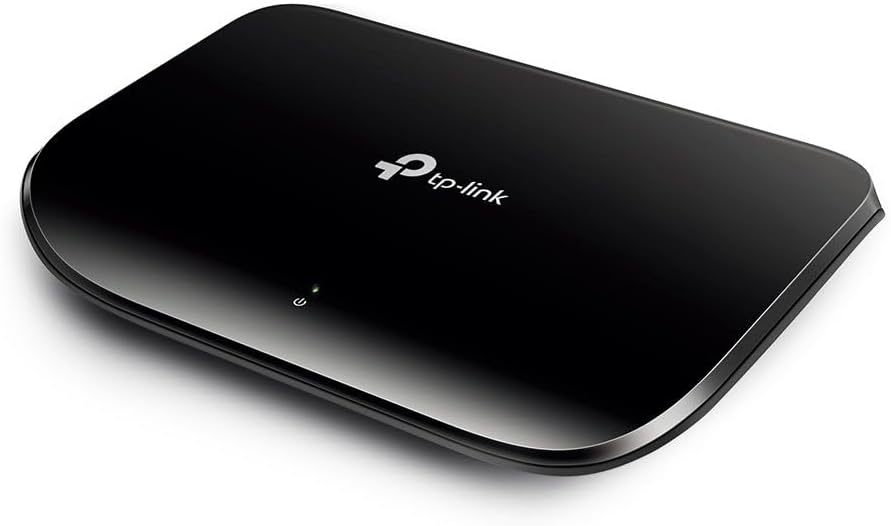
Figure 3: Rear view of the TP-Link LS1005G switch, showing the five RJ45 Ethernet ports labeled 1 through 5, and the power input port.
3. Operating the Switch
Once connected, the LS1005G switch operates automatically. It functions as a central connection point for your wired network devices, allowing them to communicate with each other and with your router for internet access.
3.1 LED Indicators
The switch features LED indicators to provide status information:
- Power LED (Green):
- On: The switch is powered on.
- Off: The switch is powered off.
- Link/Act LEDs (Green, one per port):
- On: A device is connected to the corresponding port.
- Flashing: Data is being transmitted or received through the corresponding port.
- Off: No device is connected to the corresponding port, or the connected device is powered off.

Figure 4: Top view of the TP-Link LS1005G switch, highlighting the single green power LED indicator.
4. Maintenance
To ensure optimal performance and longevity of your TP-Link LS1005G switch, follow these maintenance guidelines:
- Cleaning: Gently wipe the exterior of the switch with a soft, dry cloth. Do not use liquid or aerosol cleaners.
- Ventilation: Ensure the switch is placed in a well-ventilated area. Do not block any ventilation openings.
- Environment: Avoid placing the switch in areas with high humidity, extreme temperatures, or direct sunlight.
- Power: Use only the provided power adapter. Disconnect the power adapter during electrical storms or when unused for long periods.
5. Troubleshooting
If you encounter issues with your LS1005G switch, refer to the following common problems and solutions:
| Problem | Possible Cause | Solution |
|---|---|---|
| Power LED is off. | No power supply or faulty power adapter. | Ensure the power adapter is securely connected to the switch and a working electrical outlet. Try a different outlet. |
| Link/Act LED is off for a connected device. | Cable issue, device powered off, or faulty port. |
|
| Slow network speed. | Cable quality, network congestion, or device limitations. |
|
6. Specifications
| Feature | Detail |
|---|---|
| Model | TL-SG1005D V6.0(UK) |
| Number of Ports | 5 |
| Data Transfer Rate | 1000 Megabits Per Second (Gigabit) |
| Interface Type | RJ45 |
| Switch Type | Unmanaged, Layer 2 |
| Case Material | Plastic |
| Dimensions (LxWxH) | 7.87 x 5.91 x 5.91 inches |
| Item Weight | 4.2 ounces |
| Power Input | 230 Volts (via included power adapter) |
| Fanless Design | Yes |
| Green Ethernet | Yes |
7. Official Product Videos
No official product videos from the seller are available for embedding at this time.
8. Warranty and Support
For detailed warranty information, technical support, and frequently asked questions, please visit the official TP-Link website or contact their customer support. Product registration may be required for warranty claims.
You can find more information and support resources at the TP-Link Official Website.
Related documentsTL-SG1005D V6.0(UK)


Ask a question about this manual
Ask about setup, troubleshooting, compatibility, parts, safety, or missing instructions. Manuals+ will review the question and use this page’s manual context to help answer it.