
1. Introduction
This manual provides detailed instructions for the Sharp EL1750V EL-1750V Two-Color Printing Calculator. This device is designed for efficient financial and general calculations, featuring a two-color printing mechanism for clear record-keeping. It includes functions such as automatic tax keys, a change calculation feature, and a large display for enhanced usability.
Key features include:
- Two-color printing (positive numbers in black, negative in red) at 2.2 lines per second.
- 12-digit LCD display for large calculations.
- Built-in antimicrobial protection.
- Change calculation feature.
- Automatic Tax Keys (TAX+, TAX-).
- Rounding and Decimal Switches.
- Grand Total (GT) function.
- 4-key memory.
- Cost, Sell, Margin (CSM) keys.
2. Product Overview
Familiarize yourself with the components and key features of your Sharp EL1750V calculator.

Figure 1: Front view of the Sharp EL1750V calculator, showing the display, keypad, and paper roll.

Figure 2: Overview of key functions including Automatic Tax Keys, Rounding Switch, Decimal Switch, Grand Total Function, 4 Key Memory, Backspace Key, and Percent Key.
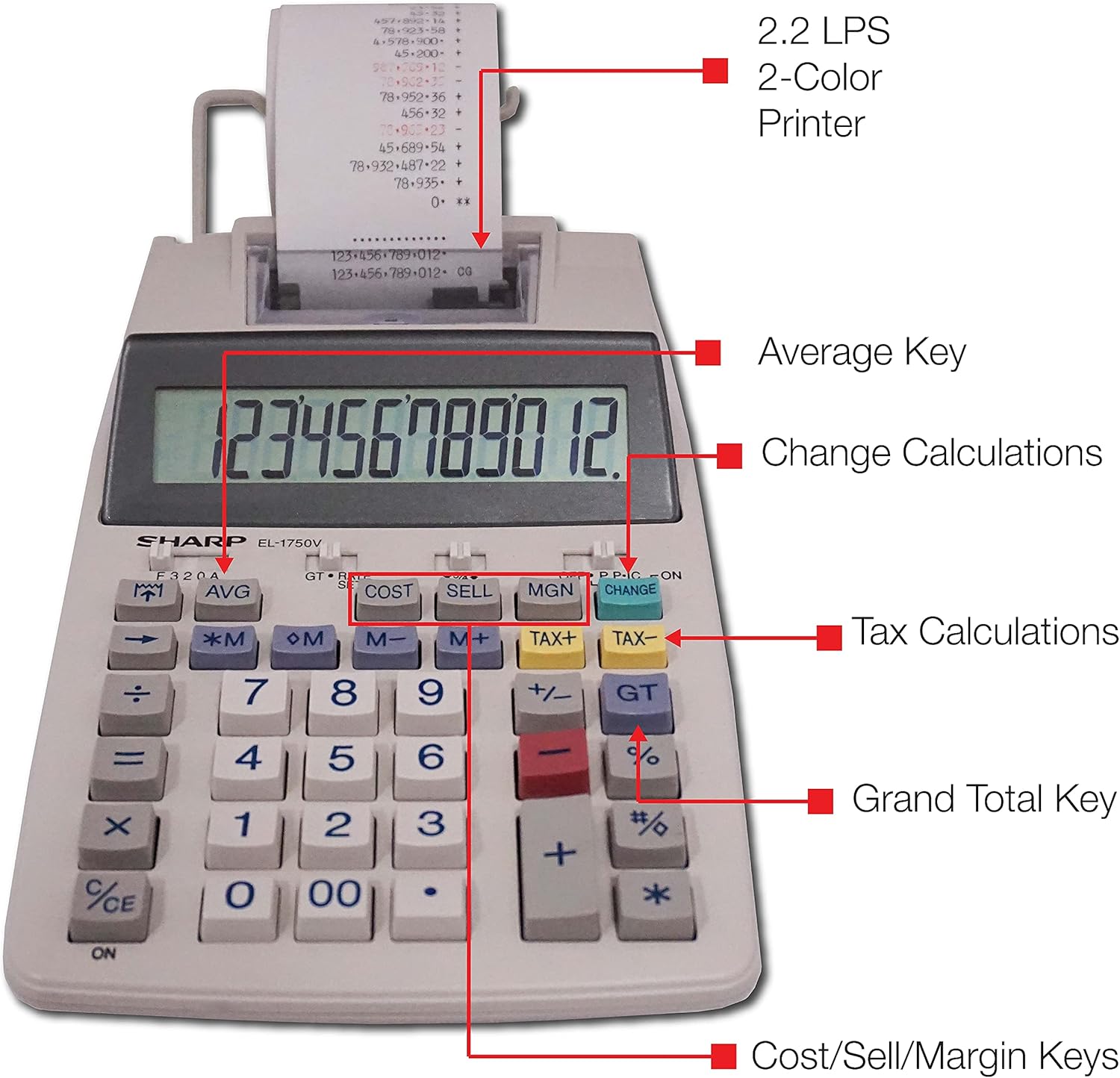
Figure 3: Detailed view highlighting the 2.2 LPS 2-Color Printer, Average Key, Change Calculations, Tax Calculations, Grand Total Key, and Cost/Sell/Margin Keys.

Figure 4: Dimensions of the Sharp EL1750V calculator, showing a width of 5.9 inches, depth of 9.1 inches, and height of 2 inches, with a 0.75 inch 12-digit LCD display.
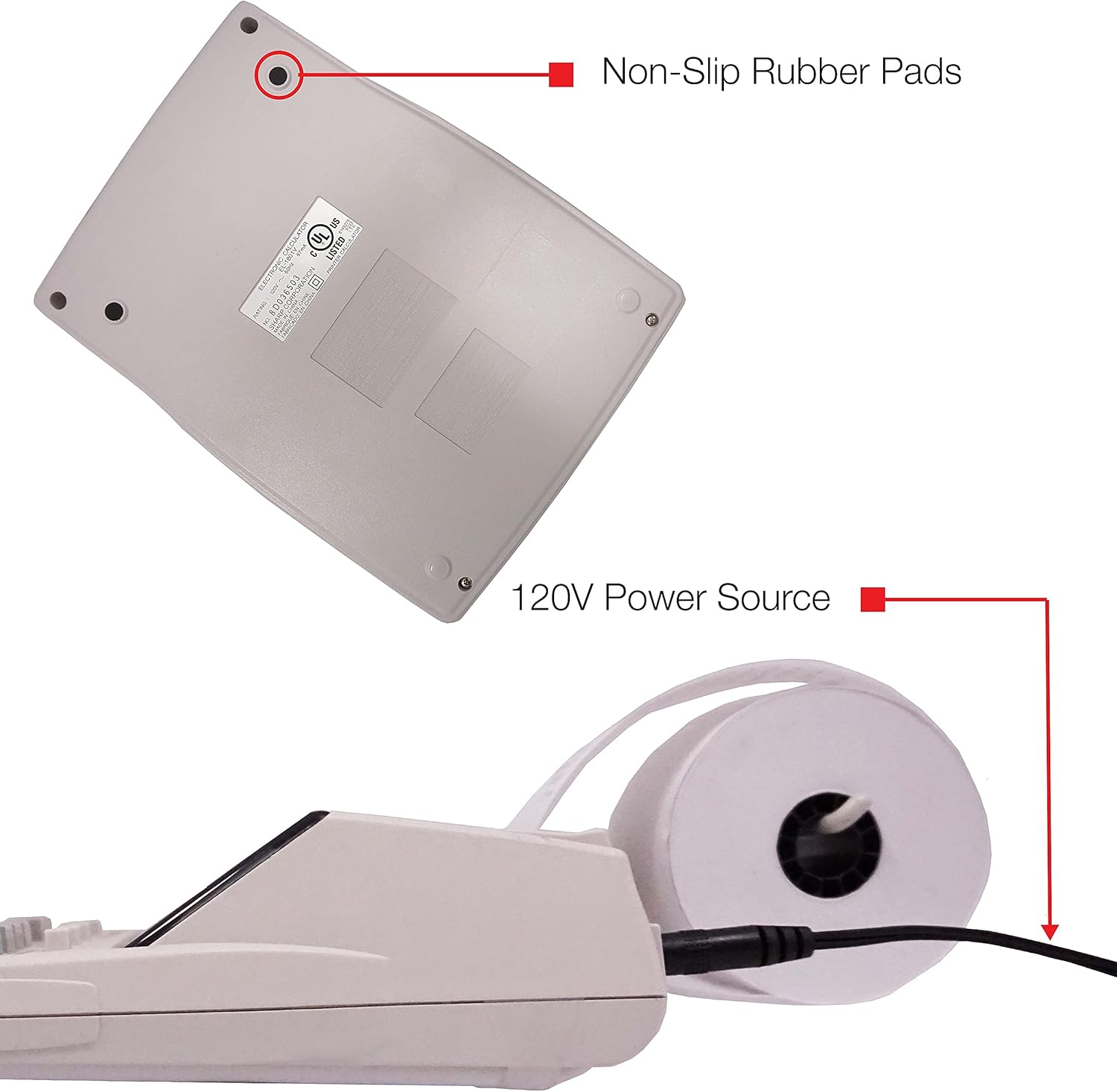
Figure 5: Bottom view of the calculator, illustrating the non-slip rubber pads and the 120V power source input.
3. Setup
3.1 Power Source
The Sharp EL1750V can be powered by an AC adapter (120V) or batteries. Ensure the correct power source is connected before operation.
- AC Adapter: Connect the provided AC adapter to the power input port on the side of the calculator (refer to Figure 5) and plug it into a standard 120V electrical outlet.
- Batteries: If using batteries, open the battery compartment (typically on the underside) and insert the required batteries, observing correct polarity.
3.2 Installing the Paper Roll
- Lift the printer cover to expose the paper roll compartment.
- Place a new paper roll into the compartment, ensuring the paper feeds from the bottom of the roll.
- Feed the leading edge of the paper into the printer mechanism slot until it emerges from the top.
- Close the printer cover.
- Press the paper feed key (often marked with an arrow pointing up) to advance the paper and ensure it is properly aligned.
4. Operating Instructions
4.1 Basic Calculations
Perform standard arithmetic operations:
- Addition (+): Enter the first number, press +, enter the second number, press =.
- Subtraction (-): Enter the first number, press -, enter the second number, press =.
- Multiplication (x): Enter the first number, press x, enter the second number, press =.
- Division (÷): Enter the first number, press ÷, enter the second number, press =.
- Clear Entry (CE/C): Clears the last entered number.
- All Clear (AC): Clears all entries and calculations.
4.2 Special Functions
- Tax Calculation (TAX+, TAX-):
- Set the tax rate using the appropriate function (refer to the calculator's specific tax rate setting procedure, usually involving a dedicated key or mode).
- Enter the amount, then press TAX+ to add tax or TAX- to subtract tax.
- Change Calculation (CHANGE):
- Enter the total amount of the sale.
- Press the CHANGE key.
- Enter the amount received from the customer.
- Press = to display the change due.
- Grand Total (GT): Press GT to recall the grand total of all previous calculations.
- Memory Functions (M+, M-, RM/CM):
- M+: Adds the displayed value to memory.
- M-: Subtracts the displayed value from memory.
- RM/CM: Recalls memory content (first press) or clears memory (second press).
- Cost, Sell, Margin (COST, SELL, MGN): These keys are used for profit margin calculations.
- Enter two of the three values (Cost, Selling Price, Margin Percentage) and press the key for the unknown value to calculate it.
- Rounding and Decimal Switches: Adjust these switches (typically located above the keypad) to control the number of decimal places and rounding method for calculations.
5. Maintenance
5.1 Cleaning
To maintain the calculator's performance and appearance:
- Wipe the exterior with a soft, dry cloth.
- For stubborn dirt, slightly dampen the cloth with water or a mild, non-abrasive cleaner.
- Do not use strong solvents or abrasive cleaners, as these can damage the surface or display.
- Avoid spraying liquids directly onto the calculator.
5.2 Paper Roll Replacement
Replace the paper roll when it runs out or the print becomes faint. Refer to Section 3.2 for installation instructions.
5.3 Ink Roller Replacement
When the print becomes faint or incomplete, the ink roller needs to be replaced. Consult your calculator's specific instructions for ink roller replacement, as the procedure may vary slightly.
6. Troubleshooting
| Problem | Possible Cause | Solution |
|---|---|---|
| Calculator does not turn on. | No power, AC adapter not connected, or batteries depleted/incorrectly installed. | Ensure AC adapter is securely plugged in. If using batteries, check battery installation and replace if necessary. |
| No print or faint print. | Paper roll empty or incorrectly installed; ink roller needs replacement. | Replace paper roll (Section 3.2). Replace ink roller (Section 5.3). |
| Display shows "E" or error message. | Calculation overflow, division by zero, or incorrect operation sequence. | Press AC to clear the error. Re-enter the calculation carefully. |
| Paper jams. | Paper roll not installed correctly or paper is creased. | Open printer cover, remove jammed paper, and re-install paper roll correctly (Section 3.2). |
7. Specifications
- Model: Sharp EL1750V
- Display: 12-digit LCD
- Printing Speed: 2.2 lines per second
- Printing Colors: 2 (Black for positive, Red for negative)
- Power Source: AC Adapter (120V) or Battery Powered
- Dimensions (Approx.): 5.9 in (W) x 9.1 in (D) x 2 in (H)
- Weight (Approx.): 0.16 ounces (Note: This weight seems unusually low for a printing calculator, likely an error in source data. User should refer to product packaging for accurate weight.)
- Material: Plastic
- Special Features: Antimicrobial protection, Change calculation, Tax functions, Cost/Sell/Margin functions, Grand Total, 4-key memory.
8. Warranty and Support
For warranty information and technical support, please refer to the documentation included with your purchase or visit the official Sharp website. Keep your purchase receipt as proof of purchase for warranty claims.
Manufacturer: Sharp
Website: www.sharpusa.com


