
Introduction
This manual provides instructions for installing your A-Tech 2GB (2 x 1GB) SO-DIMM DDR2 PC2-6400 800MHz RAM Memory kit. This memory is designed to enhance the performance of compatible Acer Aspire Revo Series systems by providing additional capacity and speed for multitasking and demanding applications.
Safety Information
WARNING: This product was designed for Acer Aspire Revo Series 1600 3700 (DDR2) R1600 R3600 R3610. Product may not work if used with other systems.
Always handle memory modules by their edges to avoid touching the gold contacts. Static electricity can damage electronic components. Use proper anti-static precautions, such as touching a grounded metal object before handling the memory, to prevent damage.
Compatibility
This A-Tech memory kit is compatible with the following Acer Aspire Revo Series models:
- Acer Aspire Revo 1600
- Acer Aspire Revo 3700 (DDR2 models)
- Acer Aspire Revo R1600
- Acer Aspire Revo R3600
- Acer Aspire Revo R3610
If your system is not listed, please verify its memory specifications against this product's specifications before installation to ensure compatibility.
Product Specifications
| Feature | Specification |
|---|---|
| Brand | A-Tech |
| Computer Memory Size | 2 GB (2 x 1GB) |
| RAM Memory Technology | DDR2 |
| Memory Speed | 800 MHz (PC2-6400) |
| Form Factor | SO-DIMM |
| Number of Pins | 200 |
| Model Number | AM003027 |

Image: A single A-Tech 2GB DDR2 SO-DIMM RAM module, showing the green PCB and black memory chips.
Installation Guide
Before You Begin
- Ensure your computer is powered off and unplugged from the wall outlet.
- Discharge any static electricity by touching a grounded metal object (e.g., the computer's metal chassis) before handling components.
- Gather necessary tools, such as a small Phillips head screwdriver, if required to open your computer case.
- Refer to your Acer Aspire Revo system's specific user manual for detailed instructions on accessing the memory slots, as procedures may vary by model.
Step-by-Step Installation
- Open the Computer Case: Carefully open your computer's case or access panel to expose the motherboard and memory slots.
- Locate Memory Slots: Identify the SO-DIMM memory slots on the motherboard. Your system may have one or two slots.
- Remove Existing Modules (if applicable): If you are replacing existing memory, gently push the small clips on both sides of the SO-DIMM slot outwards. The module will pop up at an angle. Carefully pull it out.
- Install New Memory Module: Hold the new A-Tech SO-DIMM module by its edges. Align the notch on the module with the key in the memory slot.
- Insert Module: Insert the module firmly into the slot at a 45-degree angle.
- Secure Module: Push down on the module until the clips on both sides snap into place, securing the module horizontally.
- Close Case: Once both modules are securely installed, close the computer case or access panel.
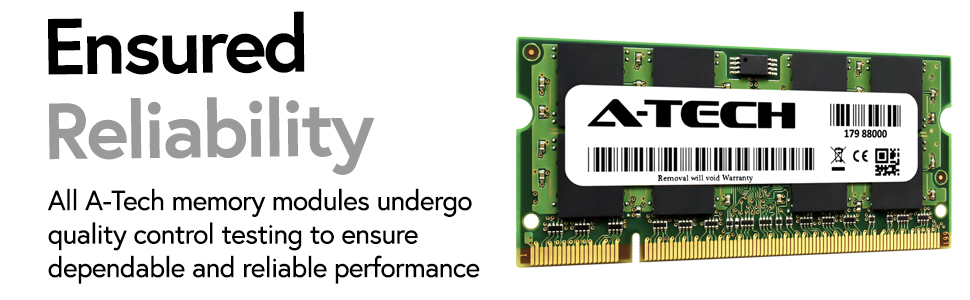
Image: A close-up of an A-Tech DDR2 SO-DIMM RAM module, highlighting its form factor suitable for laptops and mini PCs.
Post-Installation Verification
- Reconnect all cables and power on your computer.
- During startup, your system's BIOS/UEFI should automatically detect the new memory.
- Verify the installed memory in your operating system's system information (e.g., Task Manager in Windows, About This Mac in macOS, or system monitor tools in Linux).
Operating Principles and Performance Benefits
RAM (Random Access Memory) provides temporary storage for your computer's active programs and data. Upgrading your RAM, especially to a higher capacity like this 2GB kit, allows your system to handle more applications simultaneously and process data faster.
This A-Tech DDR2 PC2-6400 800MHz memory operates at a speed of 800MHz, contributing to quicker data access and overall system responsiveness. This upgrade can lead to faster loading times for applications, smoother multitasking, and improved overall system performance.

Image: A laptop with a rocket launching from its screen, illustrating the performance boost achieved with a memory upgrade.

Image: A woman comfortably working on a laptop, representing the ease of multitasking with expanded memory.
Maintenance
A-Tech RAM modules are designed for long-term reliability and generally require no ongoing maintenance once installed correctly. However, consider the following general practices for optimal system health:
- Cleanliness: Keep your computer's interior free of dust to ensure proper airflow and prevent overheating, which can affect all components, including RAM.
- Handling: When handling memory modules, always hold them by the edges to avoid touching the gold contacts or the chips, which can cause damage from static electricity or oils from your skin.
- Storage: If storing unused modules, keep them in an anti-static bag to protect them from static discharge and dust.
Troubleshooting
If you encounter issues after installing your A-Tech memory, try the following steps:
Common Issues and Solutions
- System Does Not Boot / No Display:
- Ensure the memory modules are fully seated in their slots. Gently push down on both ends until the clips snap into place.
- Verify the modules are installed in the correct slots according to your system's motherboard manual.
- Try installing only one module at a time to identify a potentially faulty module or slot.
- Confirm compatibility: Double-check that the memory type (DDR2 SO-DIMM), speed (800MHz), and capacity are supported by your Acer Aspire Revo model.
- Incorrect Memory Amount Detected:
- Ensure both modules are properly seated.
- Check your system's BIOS/UEFI settings to see if the memory is detected there.
- Update your system's BIOS/UEFI to the latest version, as this can sometimes improve memory compatibility and detection.
- System Instability / Blue Screens:
- Run a memory diagnostic tool (e.g., Windows Memory Diagnostic, MemTest86) to check for errors.
- Ensure your system's cooling is adequate to prevent overheating.
If issues persist after attempting these troubleshooting steps, please contact A-Tech customer support for further assistance.
Warranty and Support
This A-Tech memory product comes with a Limited Lifetime Warranty covering defects in materials and workmanship. This warranty ensures your investment is protected for the lifespan of the product.
For technical support, warranty claims, or any other inquiries, please contact A-Tech Components directly. Our support team is available to assist you with any questions regarding installation, compatibility, or product performance.
You can find more information and contact details on the official A-Tech website: atechmemory.com

Image: A-Tech logo with the tagline "The Experts in RAM Memory upgrades", emphasizing brand expertise.