
Introduction
The Logitech 980-000910 Bluetooth Audio Adapter allows you to wirelessly stream audio from your Bluetooth-enabled devices, such as smartphones and tablets, to any speaker system with RCA or 3.5mm inputs. This compact adapter provides a convenient way to enjoy your digital music through your existing home stereo system, computer speakers, or AV receiver.

Image: Front view of the Logitech Bluetooth Audio Adapter, showcasing its compact design, the prominent Bluetooth pairing button with a blue glow, and the Logitech logo on the side.
Package Contents
Verify that all items are present in the package:
- Logitech Bluetooth Audio Adapter (Model: 980-000910)
- RCA to 3.5 mm Audio Cable
- Power Cable
- User Documentation
Setup
1. Connect the Adapter to Your Audio System
The Logitech Bluetooth Audio Adapter can connect to your speakers or audio system using either RCA or 3.5mm (AUX) inputs.
- Choose your connection type:
- For RCA inputs (red and white ports), use the provided RCA to 3.5mm cable. Connect the RCA ends to your audio system and the 3.5mm end to the AUX input on the Bluetooth Audio Adapter.
- For 3.5mm (AUX) inputs, use a standard 3.5mm audio cable (not included) to connect your audio system to the AUX input on the Bluetooth Audio Adapter.
- Connect to Power: Plug the provided power cable into the adapter and then into an AC power source. The adapter will power on automatically.
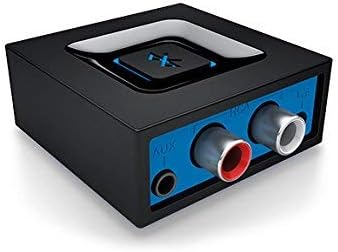
Image: Rear view of the adapter, highlighting the AUX (3.5mm) and RCA input ports for connecting to various audio systems.
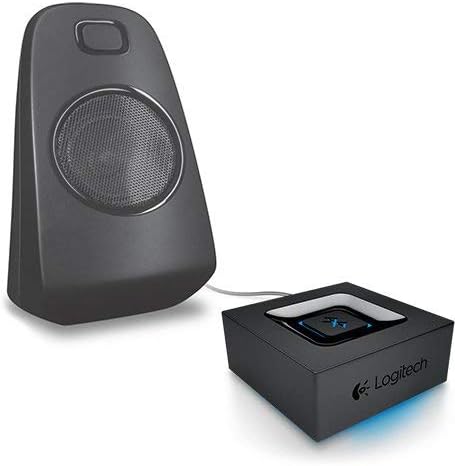
Image: The adapter positioned next to a speaker, illustrating a typical setup where the adapter is connected to an audio output device.
2. Pair Your Bluetooth Device
Once the adapter is powered on and connected to your audio system, you can pair your Bluetooth-enabled device.
- Ensure your audio system is turned on and set to the correct input source (e.g., AUX, RCA).
- On the Logitech Bluetooth Audio Adapter, press the large Bluetooth pairing button located on the top. The blue indicator light will begin to blink rapidly, indicating it is in pairing mode.
- On your smartphone, tablet, or other Bluetooth-enabled device, go to the Bluetooth settings and enable Bluetooth.
- Scan for available devices. You should see "Logitech Bluetooth Adapter" or a similar name appear in the list.
- Select the adapter from the list to connect. Once connected, the blue indicator light on the adapter will glow solid, and you will hear a confirmation tone through your speakers.
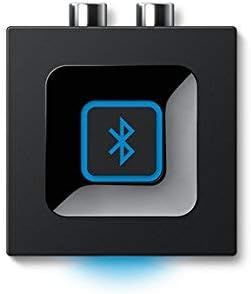
Image: Top-down view of the adapter, emphasizing the large, central Bluetooth button used for pairing.

Image: A hand pressing the Bluetooth pairing button on the adapter, demonstrating the one-push pairing action.
Operating the Adapter
Automatic Reconnection
Once paired, your device will automatically reconnect to the Logitech Bluetooth Audio Adapter when it is within range (up to 15 meters or 49.21 feet line of sight) and Bluetooth is enabled on your device.
Multipoint Bluetooth
The adapter supports multipoint Bluetooth, allowing you to pair two Bluetooth-enabled devices simultaneously, such as a smartphone and a tablet. You can switch between these devices to stream audio wirelessly without needing to re-pair each time. Simply pause audio on one device and start playing on the other.
Maintenance
To ensure the longevity and optimal performance of your Logitech Bluetooth Audio Adapter, follow these simple maintenance guidelines:
- Cleaning: Use a soft, dry cloth to clean the exterior of the adapter. Do not use liquid cleaners or aerosols, as they may damage the device.
- Storage: Store the adapter in a cool, dry place away from direct sunlight and extreme temperatures when not in use for extended periods.
- Handling: Avoid dropping the adapter or subjecting it to strong impacts.
- Ventilation: Ensure the adapter is placed in an area with adequate ventilation to prevent overheating.
Troubleshooting
If you encounter issues with your Logitech Bluetooth Audio Adapter, try the following troubleshooting steps:
- No Audio:
- Ensure the adapter is properly connected to your audio system's input (RCA or 3.5mm).
- Verify that your audio system is turned on and set to the correct input source.
- Check the volume levels on both your streaming device and your audio system.
- Cannot Pair Device:
- Make sure the adapter's Bluetooth button has been pressed and the indicator light is blinking rapidly (pairing mode).
- Ensure Bluetooth is enabled on your streaming device and it is within the 15-meter range.
- Try turning off and on Bluetooth on your streaming device, or restart the device.
- If previously paired, try "forgetting" the device on your streaming device's Bluetooth settings and re-pairing.
- Intermittent Connection/Poor Audio Quality:
- Reduce the distance between your streaming device and the adapter.
- Remove any obstacles (walls, large metal objects) that may be interfering with the Bluetooth signal.
- Avoid placing the adapter near other wireless devices that may cause interference (e.g., Wi-Fi routers, cordless phones).
Specifications
| Feature | Detail |
|---|---|
| Product Dimensions | 1.97 x 1.97 x 0.91 inches (50.8 x 22.32 x 57.15 mm) |
| Item Weight | 1.2 ounces (34 g) |
| Model Number | 980-000910 |
| Brand | Logitech |
| Hardware Interface | Bluetooth |
| Color | Black |
| Compatible Devices | Desktop, Laptop, Smartphones, Tablets (with Bluetooth) |
| Data Link Protocol | Bluetooth |
| Data Transfer Rate | 980 Megabits Per Second |
| Wireless Range | Up to 49.21 feet (15 meters) line of sight |
| Inputs | RCA, 3.5 mm (AUX) |
| Features | Multipoint Bluetooth, One-push pairing, Automatic reconnection |
| UPC | 088564682115 |
Warranty Information
The Logitech 980-000910 Bluetooth Audio Adapter comes with a 1-Year Limited Hardware Warranty from the date of purchase. This warranty covers defects in materials and workmanship under normal use. For full terms and conditions, please refer to the official Logitech warranty policy or contact customer support.
Support
For further assistance, technical support, or to view frequently asked questions, please visit the official Logitech support website or contact their customer service. You can also find more information on the Logitech Store on Amazon.


