
Introduction
This manual provides instructions for the installation, operation, and maintenance of your Elite Screens Saker series electric motorized projection screen, model SK100XHW-E24. Please read these instructions thoroughly before beginning installation or operation to ensure proper use and longevity of your product.

The Elite Screens Saker 100-inch motorized projection screen housing is shown, demonstrating its compact design.
Setup and Installation
1. Mounting the Screen
The Saker series screen is designed for both wall and ceiling installation. Use the included mounting kit and ensure the mounting surface can support the screen's weight (approximately 26.5 pounds for this model). It is recommended to mount the screen to structural studs or joists for secure installation.

A detailed view of the mounting bracket for the Elite Screens Saker projection screen, illustrating how it attaches to a wall or ceiling.
2. Connecting Control Options
The screen offers multiple control methods:
- Infrared (IR) Remote: Requires line-of-sight to the IR receiver on the screen housing.
- Radio Frequency (RF) Remote: Operates without line-of-sight, offering greater flexibility.
- Detachable 3-Way Wall Switch: For fixed control from a wall location.
- 12V Trigger Cable: Allows synchronization with a projector. When the projector powers on, the screen deploys; when the projector powers off, the screen retracts.
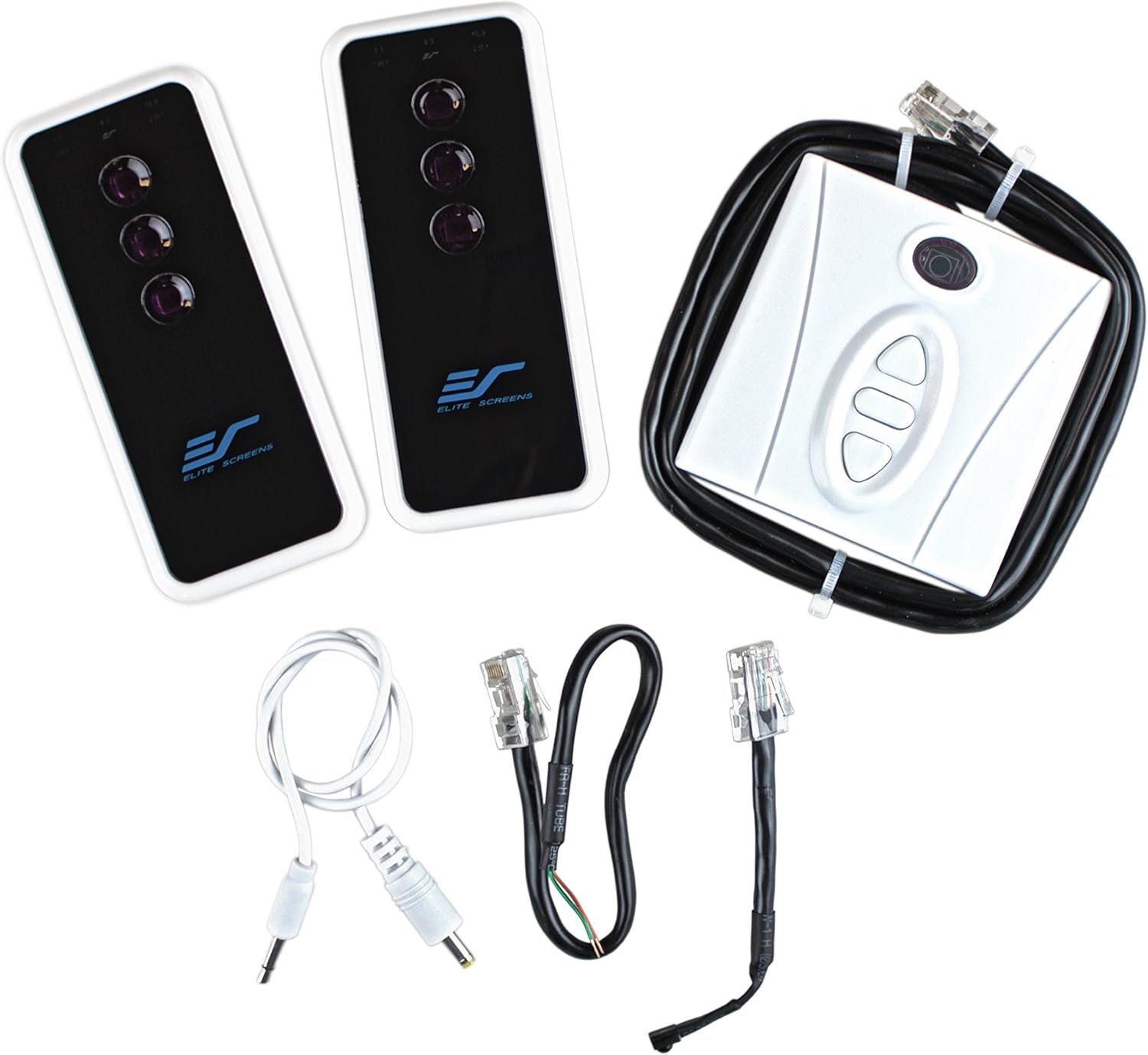
This image shows the various control options for the Saker screen, including two remote controls (infrared and radio frequency), a detachable 3-way wall switch, and the 12V trigger cables.
Operating Instructions
Using Remotes and Wall Switch
Press the "Up" button to retract the screen, "Down" to deploy, and "Stop" to pause movement at any desired height. The screen features an extra 24-inch drop, allowing for flexible positioning.
12V Trigger Operation
Connect the 12V trigger cable from the screen to your projector's 12V output port. Ensure your projector is configured to output a 12V signal upon power-on. The screen will automatically extend when the projector is turned on and retract when the projector is turned off.
Maintenance
Cleaning the Screen Material
The MaxWhite FG screen material is designed for easy cleaning. Use a soft cloth dampened with mild soap and water to gently wipe the screen surface. Avoid abrasive cleaners or harsh chemicals, as these can damage the screen material. Ensure the screen is fully dry before retracting.

A close-up of the MaxWhite FG screen material, highlighting its texture and fiberglass backing.
Troubleshooting
If you encounter issues with your projection screen, consider the following:
- Screen Not Responding: Check power connections. Ensure remote batteries are functional. For IR remotes, verify line-of-sight to the receiver.
- Screen Stops Mid-Operation: Verify there are no obstructions. Check for proper power supply.
- Image Quality Issues: Ensure the screen surface is clean. Verify projector alignment and focus.
For persistent issues, refer to the support section for contact information.
Specifications
| Feature | Detail |
|---|---|
| Model Number | SK100XHW-E24 |
| Diagonal Size | 100-inch |
| Aspect Ratio | 16:9 |
| View Size (H x W) | 49.0" H x 87.0" W |
| Overall Size (H x W x D) | 79.6" H x 100.7" W x 4.0" D |
| Extra Drop | 24-inch |
| Screen Material | MaxWhite FG, 1.1 Gain, Fiberglass-backed |
| Viewing Angle | 180 degrees |
| Casing Material | Aluminum |
| Casing Color | White |
| Operation Mode | Automatic (Motorized) |
| Control Options | IR/RF Remotes, 3-Way Wall Switch, 12V Trigger |
| Product Weight | 26.5 Pounds |

This table provides detailed dimensions for various models within the Elite Screens Saker series, including view size, overall size, and casing dimensions. Note: Refer to the SK100XHW-E24 row for specific model dimensions.
Warranty Information
This Elite Screens Saker projection screen comes with a 5-year manufacturer's warranty. This warranty covers defects in materials and workmanship under normal use. For full warranty terms and conditions, please refer to the official Elite Screens website or contact customer support.
Customer Support
Elite Screens provides Lifetime Technical Support for its products. If you require assistance with installation, operation, troubleshooting, or warranty claims, please contact the Elite Screens professional service team via email, web chat, or toll-free phone call.

A badge indicating Elite Screens offers lifetime technical support for its products.


