
1. Introduction
The Logitech K480 is a versatile Bluetooth keyboard designed for use with multiple devices. It allows seamless switching between your computer, tablet, and smartphone with a simple dial. This manual provides detailed instructions to help you get the most out of your K480 keyboard.
2. Product Overview
The Logitech K480 keyboard features a full-size layout with an integrated stand for mobile devices. Its robust design ensures stability while typing across various operating systems.
Key Features:
- Multi-device connectivity: Connects to up to three Bluetooth-enabled devices.
- Integrated stand: Securely holds your smartphone or tablet at an optimal typing angle.
- OS-adaptive layout: Automatically maps keys to Windows, Mac, Chrome OS, Android, and iOS devices.
- Long battery life: Powered by two AAA batteries.
Keyboard Components:

Figure 2.1: Top-down view of the Logitech K480 Bluetooth Multi-Device Keyboard, showcasing its full layout and integrated device stand.

Figure 2.2: The keyboard layout, highlighting its compatibility with Windows, Mac, iOS, Android, and Chrome OS.
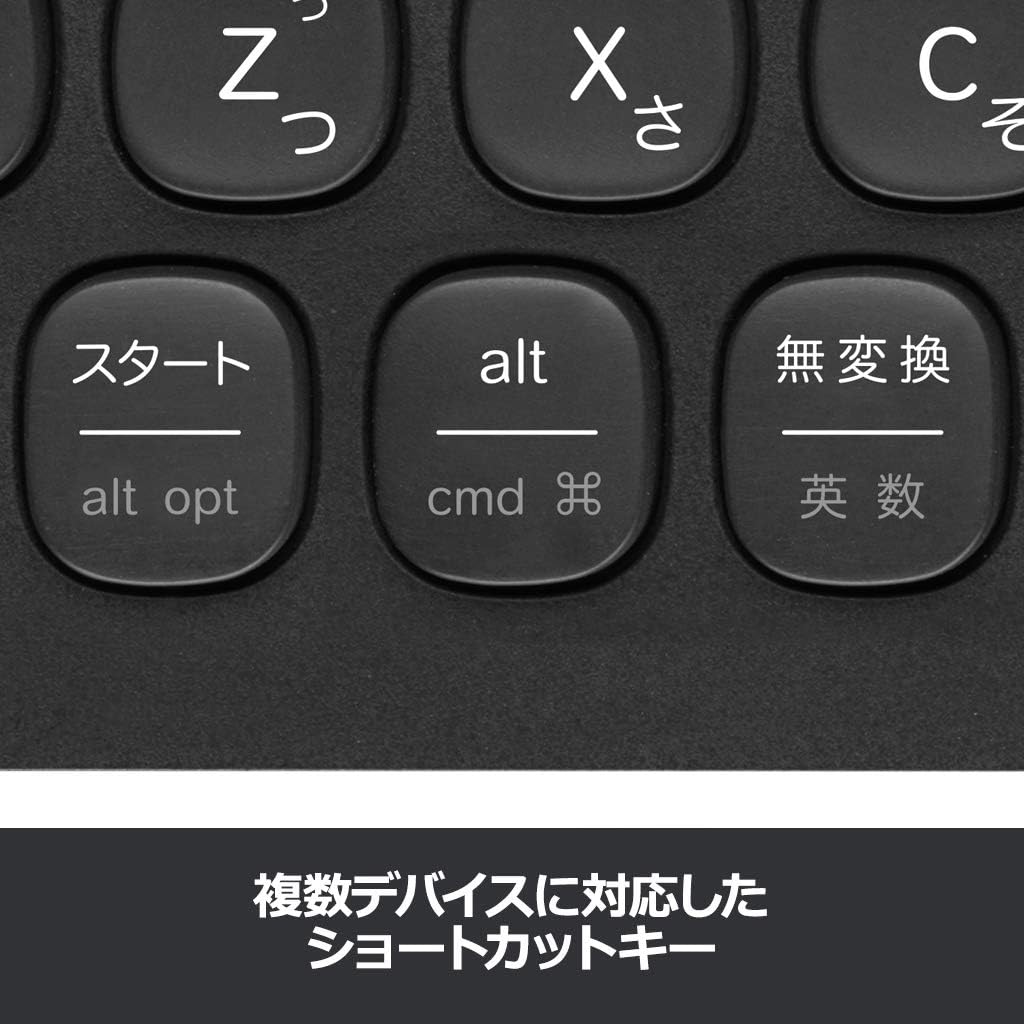
Figure 2.3: The easy-switch dial located on the upper left, allowing users to quickly switch between three paired devices.

Figure 2.4: Detail of the shortcut keys, which adapt to the connected operating system for enhanced productivity.
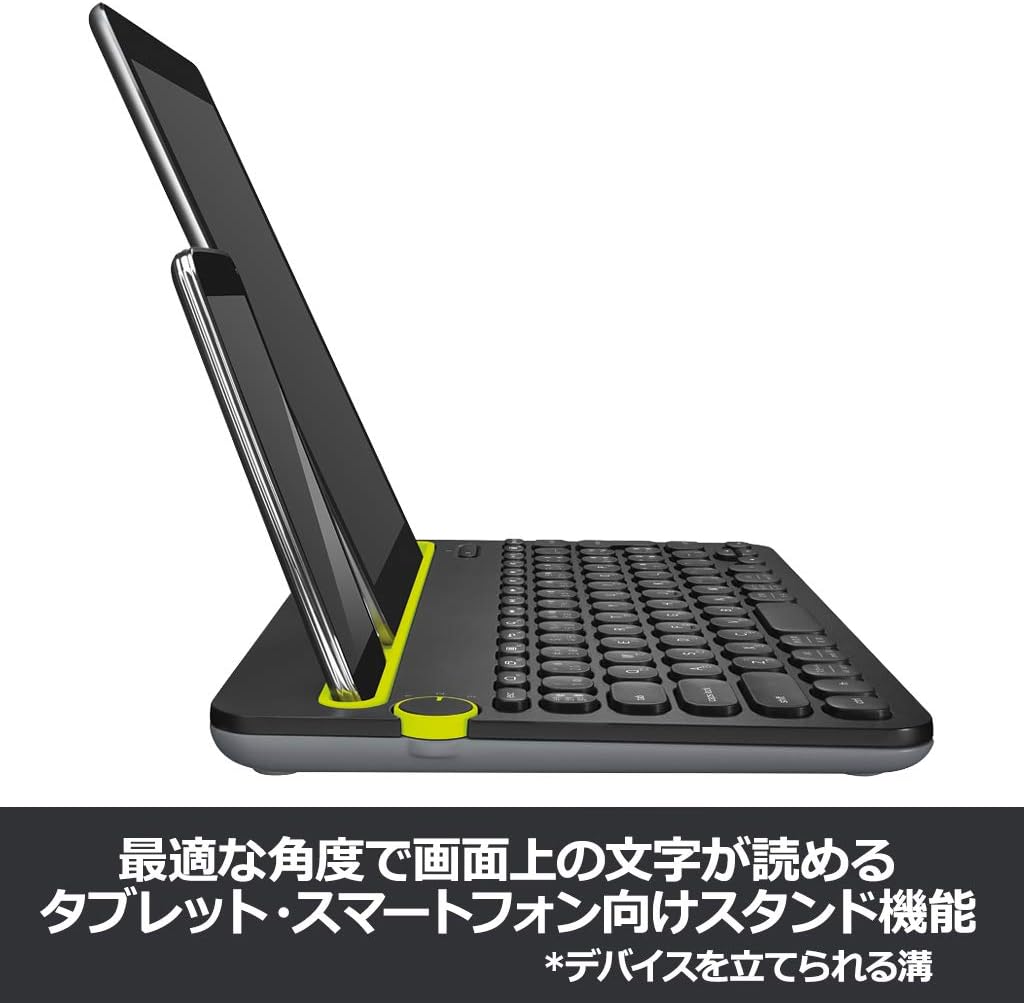
Figure 2.5: The integrated stand holding both a tablet and a smartphone, demonstrating its multi-device support and stable viewing angle.
3. Setup
3.1 Battery Installation
- Locate the battery compartment on the underside of the keyboard.
- Open the battery compartment cover.
- Insert two AAA batteries, ensuring correct polarity (+/-).
- Close the battery compartment cover.
3.2 Bluetooth Pairing
The K480 keyboard can be paired with up to three devices.
- Turn on the keyboard using the power switch located on the side.
- Select a desired channel (1, 2, or 3) on the easy-switch dial.
- Press and hold the 'i' (for iOS/Mac) or 'pc' (for Windows/Android/Chrome OS) button for 3 seconds until the LED indicator for the selected channel starts blinking rapidly. This indicates the keyboard is in pairing mode.
- On your device (computer, tablet, or smartphone), go to Bluetooth settings.
- Search for available devices and select "Logitech Keyboard K480".
- Follow the on-screen instructions, which may include entering a code displayed on your device using the K480 keyboard and pressing Enter.
- Once paired, the LED indicator will glow solid for a few seconds and then turn off. Your keyboard is now connected.
- Repeat these steps for up to two additional devices using channels 2 and 3.
4. Operating Instructions
4.1 Switching Between Devices
To switch between your paired devices, simply turn the easy-switch dial to the corresponding channel (1, 2, or 3) where your device is paired. The keyboard will automatically connect to the selected device.
4.2 Using the Integrated Stand
The integrated stand is designed to hold most smartphones and tablets. Simply place your device into the slot. The stand supports both portrait and landscape orientations, providing a stable and comfortable viewing angle for typing.
4.3 Shortcut Keys
The K480 keyboard features a set of shortcut keys that adapt to the operating system of your connected device. These keys provide quick access to common functions such as media control, volume adjustment, and home screen navigation.
- Windows/Android/Chrome OS: Standard function keys (F1-F12) and media controls are available.
- iOS/Mac: Specific keys for Mac and iOS functions are integrated, such as Command (cmd) and Option (alt opt).
Refer to your device's operating system documentation for specific shortcut key functionalities.
5. Maintenance
5.1 Cleaning
To clean your keyboard, use a soft, lint-free cloth slightly dampened with water or a mild cleaning solution. Avoid using abrasive cleaners, solvents, or aerosol sprays directly on the keyboard. Ensure no liquid enters the keycaps or internal components.
5.2 Battery Replacement
When the keyboard's battery indicator light signals low power, or if you experience intermittent connectivity, it's time to replace the batteries. Follow the battery installation steps in Section 3.1.
6. Troubleshooting
6.1 Connection Issues
- Keyboard not connecting: Ensure the keyboard is powered on and the correct channel is selected on the easy-switch dial. Verify Bluetooth is enabled on your device.
- Failed pairing: Make sure the keyboard is in pairing mode (blinking LED). Remove any previous pairings of the K480 from your device's Bluetooth settings and attempt to pair again.
- Intermittent connection: Replace the batteries. Ensure the keyboard is within the Bluetooth range (typically 10 meters or 33 feet) of your device and there are no significant obstructions.
6.2 Keys Not Responding
- Specific keys not working: Check for debris under the keycap. If the issue persists, try cleaning the keyboard.
- All keys not working: Ensure the keyboard is connected to your device. Try turning the keyboard off and on, or re-pairing it with your device. Replace batteries if necessary.
6.3 Keyboard Layout Issues
If the keyboard layout does not match your device's operating system, ensure you selected the correct OS during the initial pairing process (by pressing 'i' for iOS/Mac or 'pc' for Windows/Android/Chrome OS). You may need to re-pair the keyboard if the wrong OS was selected.
7. Specifications
| Brand | Logitech |
| Model Number | K480BK |
| Connectivity Technology | Bluetooth |
| Compatible Devices | Smartphones, Tablets, PCs |
| Compatible OS | Android, Chrome OS, iOS, Mac, Windows |
| Keyboard Layout | QWERTY |
| Product Dimensions | 29.9 x 19.5 x 2 cm |
| Item Weight | 815 g |
| Power Source | 2 x AAA Batteries |
8. Warranty and Support
8.1 Warranty Information
The Logitech K480 Bluetooth Multi-Device Keyboard comes with a 2-year limited hardware warranty from the date of purchase. This warranty covers defects in materials and workmanship under normal use. Please retain your proof of purchase for warranty claims.
8.2 Customer Support
For further assistance, technical support, or to inquire about warranty services, please visit the official Logitech support website or contact their customer service department. Contact information can typically be found on the Logitech website or product packaging.


