
1. Introduction
This manual provides detailed instructions for the installation, operation, and maintenance of your REXING F9US Dash Camera. Please read this manual thoroughly before using the device to ensure proper functionality and to maximize your user experience.
2. Package Contents
Please verify that all items listed below are included in your package:
- REXING F9US Dash Camera
- In-car charging cable
- Windshield Suction Cup mount
- USB cable
- User Manual
Note: A Micro SD Card (Class 10 or higher, up to 128GB) is required for operation and is not included in the package.
3. Product Overview
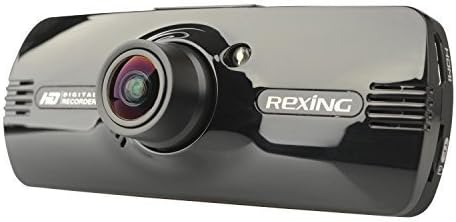
Image: REXING F9US Dash Camera
The REXING F9US Dash Camera is a compact, high-definition car dashboard camera designed to record your driving. It features a 170-degree wide-angle lens, a 2.7-inch 16:9 TFT LCD screen, and supports Full HD 1080p video recording. Key features include G-Sensor for automatic accident detection, Wide Dynamic Range (WDR) technology for optimal video quality in varying light conditions, and motion detection for recording when the vehicle is parked.
4. Setup
4.1 Installing the Micro SD Card
- Ensure the dash camera is powered off.
- Locate the Micro SD card slot on the side of the camera.
- Insert a Class 10 or higher Micro SD card (up to 128GB) into the slot until it clicks into place.
- To remove, gently push the card in until it springs out.
4.2 Mounting the Dash Camera
- Clean the desired area on your windshield thoroughly.
- Attach the suction cup mount to the camera.
- Press the suction cup firmly against the windshield and flip the lever to secure it.
- Adjust the camera angle to ensure a clear view of the road.
4.3 Connecting Power
- Connect the in-car charging cable to the camera's power input port.
- Plug the other end of the cable into your vehicle's 12V power outlet (cigarette lighter socket).
- The camera will typically power on automatically when the vehicle's ignition is turned on.
4.4 Initial Settings
Upon first use, or after a reset, you may need to set the date, time, and language. Navigate through the menu using the camera's buttons.
5. Operating Instructions
5.1 Basic Recording
- Once powered on and connected to power, the camera will automatically begin loop recording. A flashing red record indicator will confirm recording is active.
- To manually start/stop recording, press the REC button.
5.2 Menu Navigation
The camera features several buttons for navigation and control:
- MENU Button (bottom left): Press once to enter video settings, press twice to enter tool settings.
- EVENT Button (top right, with a triangle): Functions as an 'Up' button in menus. When held for 3 seconds during recording, it locks the current video file.
- MIC Button: Functions as a 'Down' button in menus.
- REC Button: Functions as 'Select' or 'OK' in menus.
- Picture Button (bottom right): When held, enters review mode to view recorded files.
5.3 Playback and File Management
- To view recordings on the camera, enter review mode using the Picture button.
- To transfer files to a computer, connect the camera via the USB cable. The camera will appear as a removable disk.
- The camera also supports HDMI output for viewing on a larger display.
6. Features Explained
6.1 Loop Recording
The camera continuously records video in segments (e.g., 2, 3, or 5 minutes). When the memory card is full, the oldest unlocked video file is automatically overwritten by the newest recording. This ensures continuous recording without manual intervention.
6.2 G-Sensor (Accident Auto Detection Feature)
The built-in G-Sensor detects sudden movements or impacts (e.g., in case of a collision). When triggered, the current video segment is automatically locked and saved to prevent it from being overwritten by loop recording. These files are stored in a protected folder.
6.3 Wide Dynamic Range (WDR) Technology
WDR technology enhances video quality by balancing exposure in scenes with high contrast, such as driving from a dark tunnel into bright sunlight. This ensures clearer images with more detail in both bright and dark areas.
6.4 Motion Detection
When enabled, the camera will automatically start recording if it detects motion in front of the lens while the vehicle is parked. This feature is useful for monitoring your vehicle when it's unattended.
6.5 Night Vision
The camera supports night vision capabilities to improve recording quality in low-light conditions. Note that the built-in LED light is primarily for use when the camera is outside the car in battery mode, acting as a flashlight. For in-car recording, it's generally recommended to keep it off to avoid windshield reflections.
7. Maintenance
- Cleaning: Use a soft, dry cloth to clean the camera lens and screen. Avoid using abrasive cleaners or solvents.
- SD Card Formatting: It is recommended to format the Micro SD card periodically (e.g., once a month) within the camera's settings to ensure optimal performance and prevent data corruption. Back up any important files before formatting.
- Storage: Store the camera in a cool, dry place away from direct sunlight and extreme temperatures when not in use.
8. Troubleshooting
| Problem | Possible Solution |
|---|---|
| Camera does not power on. | Ensure the power cable is securely connected to both the camera and the vehicle's 12V outlet. Check the vehicle's power outlet for functionality. |
| Camera powers off unexpectedly or stops recording. | Verify the power connection is stable. Ensure the Micro SD card is Class 10 or higher and formatted correctly. Try a different Micro SD card. |
| Video quality is poor or blurry. | Clean the camera lens. Ensure the protective film (if any) has been removed from the lens. Check if the windshield is clean. |
| Micro SD card error. | Format the Micro SD card within the camera's settings. Ensure the card is Class 10 or higher. Try a different, reputable brand Micro SD card. |
| Date and time are incorrect. | Adjust the date and time settings in the camera's menu. |
9. Specifications
| Feature | Detail |
|---|---|
| Video Resolution | 1080FHD (1920x1080), 1080P (1440x1080), 720P (1280x720), WVGA (848x480), VGA (640x480), QVGA (320x240) |
| Lens | 170 degree 6-layers glass lens |
| Screen Size | 2.7 inch 16:9 TFT LCD |
| Video File Format | MOV |
| Image File Format | JPG |
| Memory Card Support | Up to 128GB Class10 or upper Micro SD/TF Card (not included) |
| Connectivity | HDMI, AV-OUT, USB |
| Audio Recording | Supported |
| Language System | English, French, Spanish, Portuguese, German, Italian, Simplified Chinese, Traditional Chinese, Russian, Japanese |
| Product Dimensions | 7 x 5 x 3 inches |
| Item Weight | 12.1 ounces |
| Battery | 1 Lithium Polymer battery required (internal) |
10. Warranty and Support
For information regarding product warranty, technical support, or service inquiries, please visit the official REXING website or contact REXING customer service directly. Please have your product model number (F9US) and purchase details available when contacting support.


