
HumanWare Stratus4 M
HumanWare Victor Reader Stratus4 M User Manual
Model: Stratus4 M (Part No. 95-STRATUSWFAC4MUK)
Introduction
The HumanWare Victor Reader Stratus4 M is a user-friendly audio book player designed for ease of use and accessibility. It allows you to enjoy DAISY and MP3 audio books and music from various sources, including CDs, SD cards, and USB flash drives.
This manual provides comprehensive instructions for setting up, operating, maintaining, and troubleshooting your Victor Reader Stratus4 M.

Figure 1: The HumanWare Victor Reader Stratus4 M, showcasing its intuitive button layout and integrated speaker.
Setup
1. Unpacking and Initial Inspection
Carefully remove the Victor Reader Stratus4 M from its packaging. Inspect the device for any visible damage. Ensure all components are present.
2. Charging the Device
Before first use, it is recommended to fully charge the device. Connect the provided power adapter to the charging port on the Victor Reader Stratus4 M and plug it into a standard electrical outlet. The charging indicator light will show the charging status.
3. Powering On/Off
To power on the device, press and hold the Power button (usually marked with a circle and a vertical line) until you hear an audible cue or see an indicator light. To power off, press and hold the same button until the device shuts down.
Operating Instructions
1. Inserting Media
The Victor Reader Stratus4 M supports CDs, SD cards, and USB flash drives.
- CDs: Gently insert a CD into the CD slot until it clicks into place.
- SD Cards: Locate the SD card slot and insert the SD card with the metal contacts facing down until it locks.
- USB Flash Drives: Plug your USB flash drive into the USB port.

Figure 2: A user demonstrating the insertion of a CD into the Victor Reader Stratus4 M.
2. Basic Playback and Navigation
The device features simple 4-arrow keys for navigation.
- Play/Pause: Press the central button to start or pause playback.
- Volume Control: Use the dedicated volume buttons (usually marked with '+' and '-') to adjust the audio level.
- Navigation: Use the arrow keys to navigate through chapters, sections, pages, or music tracks, depending on the media type.
- Fast Forward/Rewind: Hold down the left or right arrow keys for fast forward or rewind.
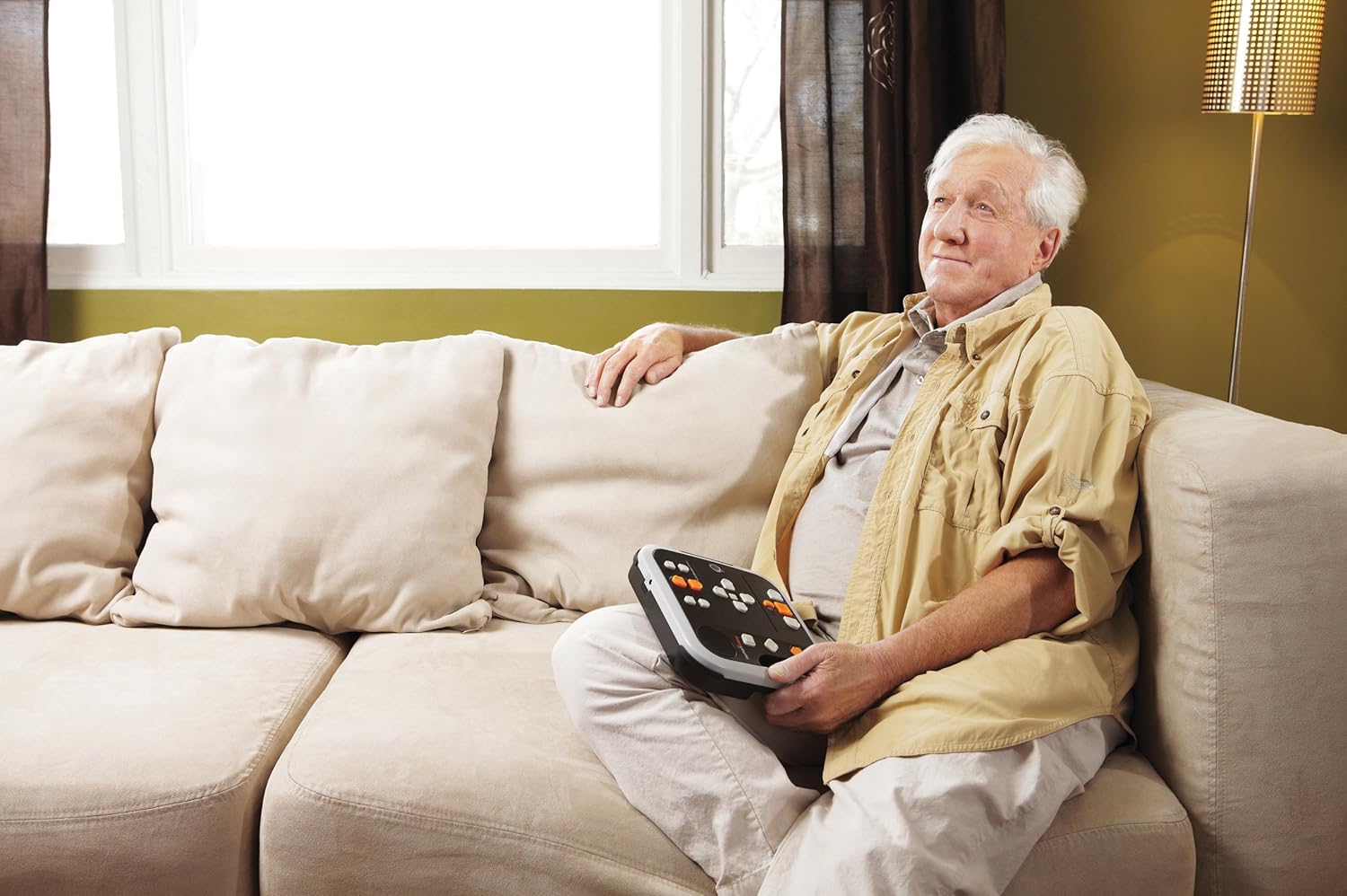
Figure 3: An elderly man relaxing on a couch, holding and operating the Victor Reader Stratus4 M, highlighting its portability and ease of use.
3. Text-to-Speech Function
The Victor Reader Stratus4 M includes a built-in text-to-speech feature, allowing it to read computer text documents. Refer to the device's specific button layout for activating this function, typically indicated by a button with a speech bubble or 'TTS' icon.
4. Connecting External Devices
You can connect various external devices to enhance your listening experience:
- Headset: Plug a standard 3.5mm headset into the headphone jack for private listening.
- External Speaker: Connect an external speaker to the audio output jack for louder playback.
- Personal Computer/Smartphone: The USB port can be used to connect the device to a computer or smartphone for transferring files or managing content. Consult your device's specific connection modes (e.g., mass storage mode).

Figure 4: A young girl interacting with the Victor Reader Stratus4 M, demonstrating its accessibility for users of all ages.
Maintenance
1. Cleaning
To clean the exterior of your Victor Reader Stratus4 M, use a soft, dry, lint-free cloth. For stubborn marks, slightly dampen the cloth with water. Avoid using harsh chemicals, abrasive cleaners, or solvents, as these can damage the device's finish.
2. Storage
When not in use for extended periods, store the device in a cool, dry place away from direct sunlight and extreme temperatures. Remove any media (CDs, SD cards, USB drives) before storing.
3. Battery Care
Although the specifications state "Batteries included: No" and "Batteries Required: No", the device contains an internal rechargeable battery. To prolong battery life, avoid fully discharging the battery frequently. Charge the device regularly, even if not in constant use, to maintain battery health.
Troubleshooting
If you encounter issues with your Victor Reader Stratus4 M, try the following common troubleshooting steps:
- Device not powering on: Ensure the device is charged. Connect it to the power adapter and try again.
- No audio: Check the volume level. Ensure headphones or external speakers are properly connected if in use. Try playing a different media file or CD to rule out media issues.
- Media not recognized: Ensure the CD, SD card, or USB drive is inserted correctly. Check if the media format (DAISY, MP3) is supported. Try a different media source.
- Buttons unresponsive: Try restarting the device by powering it off and then on again.
For persistent issues, refer to the official HumanWare support resources or contact customer service.
Specifications
| Feature | Detail |
|---|---|
| Brand | HumanWare |
| Model Name | Stratus4 M |
| Part Number | 95-STRATUSWFAC4MUK |
| Compatible Media Types | DAISY, MP3 (from CDs, SD cards, USB flash drives) |
| Special Features | Text-to-Speech, Multi-Media Support |
| Connectivity Technology | USB |
| Compatible Devices | Speaker, Headset, Personal computer, Smartphone |
| Screen Size | 2 inches |
| Included Components | Memory, SD Card (Note: SD card may be sold separately or included depending on package) |
| Power Source | Internal Rechargeable Battery (charged via AC adapter) |
Warranty and Support
For information regarding product warranty, please refer to the documentation included with your purchase or visit the official HumanWare website. HumanWare provides support for their products.
If you require technical assistance or have questions not covered in this manual, please contact HumanWare customer support. Contact details can typically be found on the HumanWare website or on your product packaging.
Manufacturer: HumanWare
Ask a question about this manual
Ask about setup, troubleshooting, compatibility, parts, safety, or missing instructions. Manuals+ will review the question and use this page’s manual context to help answer it.