
1. Introduction
The Anker AH401 is a compact 4-Port USB 3.0 SuperSpeed Hub designed to expand the connectivity of your computer. It allows you to connect up to four USB devices simultaneously, offering data transfer rates of up to 5 Gigabits per second. This hub features a 3.3-foot integrated cable for flexible placement and is designed for plug-and-play operation without the need for additional drivers.
2. Package Contents
- Anker AH401 4-Port USB 3.0 SuperSpeed Hub (with integrated 3.3-foot USB cable)
3. Product Overview
The Anker AH401 hub features four USB 3.0 ports arranged for convenient access. Its compact design ensures it occupies minimal desk space.

Image 1: Anker AH401 USB 3.0 Hub with dimensions. The hub measures approximately 4.2 inches (106mm) in length, 1.6 inches (40mm) in width, and 0.9 inches (22mm) in height.
The ports are designed with sufficient spacing to accommodate various USB devices, including wider flash drives or card readers, without obstructing adjacent ports.

Image 2: The Anker AH401 USB Hub demonstrating wide berth and vertical positioning, allowing all ports to be used simultaneously with various USB devices like card readers and flash drives.
4. Setup and Connection
The Anker AH401 hub is designed for simple plug-and-play operation. No software drivers are typically required for most operating systems.
- Locate an available USB 3.0 port on your computer (often identified by a blue interior or a 'SS' SuperSpeed logo).
- Connect the integrated USB cable of the Anker AH401 hub into the USB 3.0 port on your computer.
- The hub will be automatically recognized by your operating system.

Image 3: The Anker AH401 USB Hub connected to a desktop computer, illustrating how to plug the hub into an available USB port.
5. Operating the USB Hub
Once connected, the hub is ready for use. You can connect various USB devices to its four ports.
- Insert your USB devices (e.g., flash drives, external hard drives, keyboards, mice, printers, scanners) into any of the four available USB 3.0 ports on the hub.
- The hub supports USB 3.0 SuperSpeed data transfer rates, which are significantly faster than USB 2.0. Actual speeds may vary based on the connected device and your computer's capabilities.
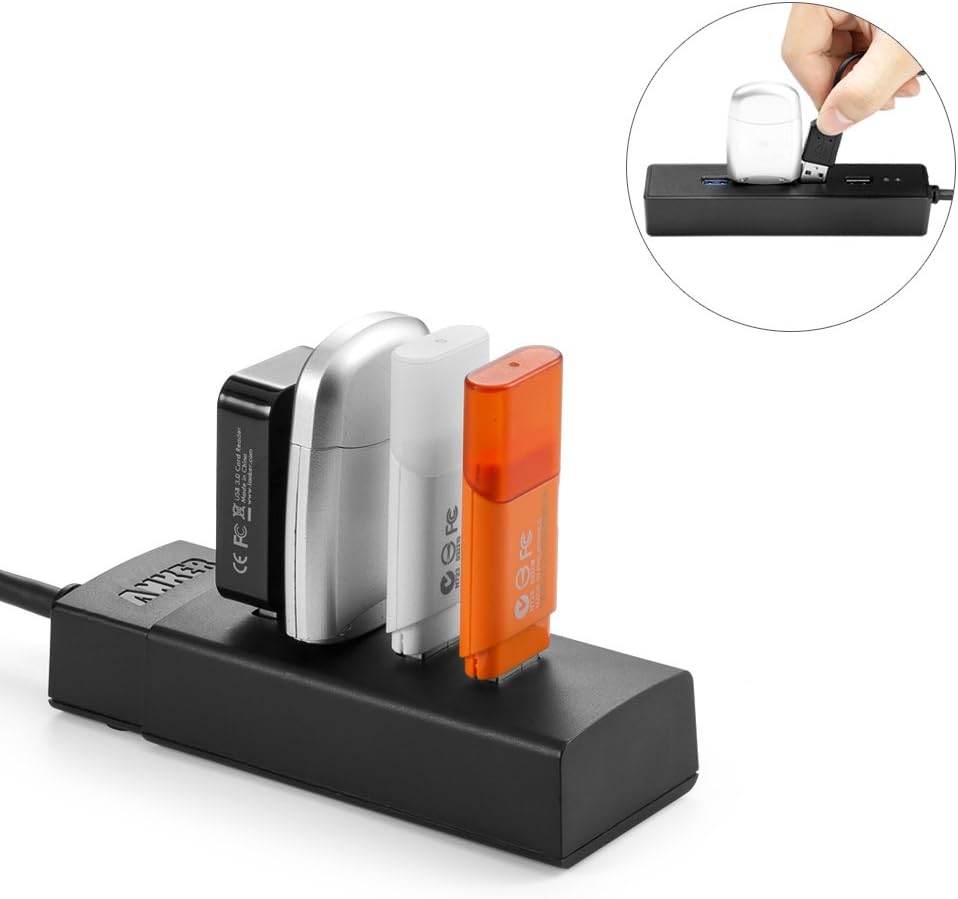
Image 4: The Anker AH401 USB Hub with multiple USB devices, such as card readers and flash drives, connected and in use.
Power Considerations
This is a bus-powered hub, meaning it draws power directly from your computer's USB port. While suitable for most low-power devices like flash drives, keyboards, and mice, it may not provide sufficient power for high-power devices such as certain external spinning hard drives. If you experience issues with high-power devices, consider connecting them directly to your computer's USB port or using a self-powered hub.
6. Maintenance
To ensure optimal performance and longevity of your Anker AH401 USB hub, follow these simple maintenance guidelines:
- Keep the hub clean by wiping it with a soft, dry cloth. Avoid using liquid cleaners or solvents.
- Store the hub in a cool, dry place away from direct sunlight and extreme temperatures.
- Avoid placing heavy objects on the hub or subjecting it to physical shock.
- Ensure the USB cable is not bent sharply or tangled, which could damage the internal wiring.
7. Troubleshooting
If you encounter issues with your Anker AH401 USB hub, please refer to the following common problems and solutions:
- Issue: Devices are not recognized or disconnect randomly.
- Solution 1: Ensure the hub's integrated USB cable is securely connected to your computer's USB port.
- Solution 2: Disconnect and reconnect the hub from your computer.
- Solution 3: Try connecting the hub to a different USB port on your computer.
- Solution 4: If using high-power devices (e.g., external hard drives), connect them directly to your computer's USB port or consider a self-powered USB hub.
- Solution 5: Update your computer's USB 3.0 host controller drivers. For example, some systems with Renesas USB 3.0 host controllers may require a manual driver update.
- Issue: Data transfer speeds are slower than expected (e.g., USB 2.0 speeds).
- Solution 1: Ensure the hub is connected to a USB 3.0 port on your computer. USB 3.0 ports are often blue or marked with 'SS'.
- Solution 2: Verify that the connected device itself is a USB 3.0 device. USB 2.0 devices will operate at USB 2.0 speeds even when connected to a USB 3.0 hub.
- Solution 3: Update your computer's USB 3.0 host controller drivers.
- Issue: Mouse or keyboard performance becomes choppy when multiple devices are connected.
- Solution: This can occur if multiple data-intensive devices are connected to the hub, exceeding the bandwidth of the single USB port it's connected to. Try connecting high-bandwidth devices directly to separate USB ports on your computer.
8. Specifications
| Model Number | AK-68ANHUB-LB4A |
| Product Dimensions | 4.13 x 1.57 x 0.83 inches |
| Item Weight | 6.4 ounces |
| Brand | Anker |
| Hardware Interface | USB |
| Special Feature | Plug and Play |
| Compatible Devices | Devices with USB interfaces such as Scanners, Hard Disk Drives, Projectors, USB Flash Drives, MP3 Players, Printers, Tablets, Digital Cameras, Dashcams, Smartphones, Card Readers, and Laptops. |
9. Warranty and Support
Anker products are designed and manufactured to high-quality standards. For information regarding warranty coverage, technical support, or customer service, please visit the official Anker website or contact their customer support directly. Please have your product model number (AK-68ANHUB-LB4A) available when seeking support.