
Baseus B00GHAKZ2A
Baseus Bluetooth 5.0 Car Audio Adapter User Manual
Model: B00GHAKZ2A
1. Introduction
This user manual provides detailed instructions for the Baseus Bluetooth 5.0 Car Audio Adapter. This high-quality P2 Bluetooth receiver adapter is designed to enable wireless audio streaming from your mobile device to your car's auxiliary input, even if your car's sound system does not have built-in Bluetooth. It supports Bluetooth 5.0 for stable and high-quality stereo sound transmission without delays or noise. The adapter also features an integrated microphone for hands-free calling, allowing you to answer phone calls with audio routed through your car's speakers.
Please read this manual thoroughly before using the product to ensure proper operation and to maximize its performance and longevity.
2. Safety Information
- Do not expose the device to extreme temperatures, direct sunlight, or high humidity.
- Keep the device away from water and other liquids.
- Do not attempt to disassemble, repair, or modify the device yourself. Refer all servicing to qualified personnel.
- Ensure all connected equipment (speakers, USB input, P2 input, mobile phone, etc.) are functioning correctly and in good condition for optimal performance.
- Avoid operating the device in a manner that distracts you from driving. Always prioritize road safety.
3. Product Overview
The Baseus Bluetooth 5.0 Car Audio Adapter is a compact and versatile device designed to enhance your in-car audio experience. It features a durable zinc alloy construction and a flexible coiled cable for convenient use.

Figure 3.1: The Baseus Bluetooth 5.0 Car Audio Adapter, showcasing its main unit, coiled cable, and 3.5mm P2 audio jack. The adapter is made of zinc alloy and features a control button and an indicator light.

Figure 3.2: A close-up view of the Baseus Bluetooth adapter, highlighting its compact design and the coiled cable, which allows for flexible placement and reduces clutter.

Figure 3.3: The product packaging, illustrating the adapter's features and components, including the main unit, 3.5mm P2 jack, and the coiled cable.
Key Features:
- Bluetooth 5.0: Provides a stable and fast wireless connection.
- High-Quality Stereo Sound: Delivers clear audio without delays or noise.
- Integrated Microphone: Enables hands-free calling through your car's speakers.
- Wide Compatibility: Works with Android and iOS Apple devices.
- Durable Construction: Made from zinc alloy for enhanced longevity.
- Plug-and-Play Power: Powered via USB, no internal battery required.
4. Setup
Follow these steps to set up your Baseus Bluetooth 5.0 Car Audio Adapter:
- Connect to Power: Plug the USB end of the adapter into a USB port in your car (e.g., car stereo USB port, cigarette lighter adapter with USB output). The adapter does not have an internal battery and requires continuous power.
- Connect to Audio Input: Plug the 3.5mm P2 audio jack into your car's auxiliary (AUX) input port. This is typically labeled "AUX" or has a headphone jack icon.
- Power On Car Stereo: Turn on your car's stereo system and select the AUX input source.
- Pair with Your Device:
- On your mobile phone (Android or iOS), go to the Bluetooth settings.
- Ensure Bluetooth is enabled.
- Scan for available devices. The adapter should appear as "Baseus" or a similar name.
- Select the adapter to pair. Once paired, the indicator light on the adapter may change or stop blinking, indicating a successful connection.
- Test Connection: Play some audio from your phone (e.g., music from Spotify, Deezer, YouTube) to confirm that sound is coming through your car's speakers.
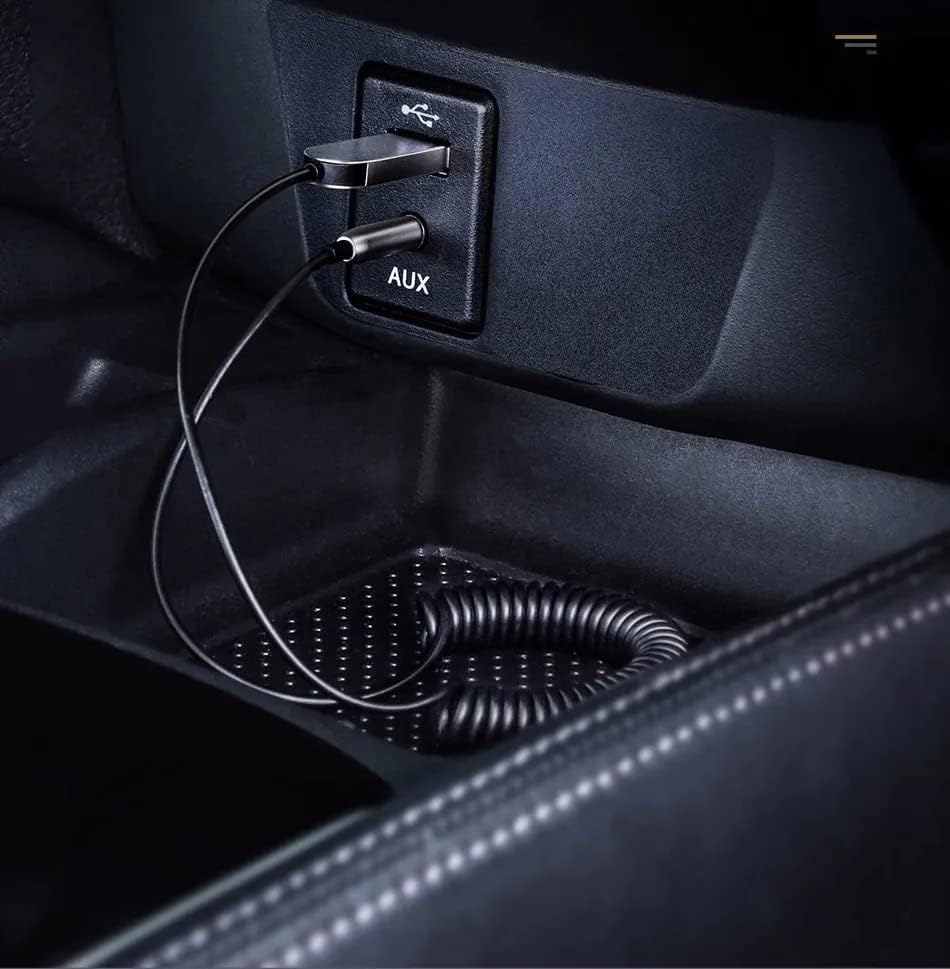
Figure 4.1: The Baseus adapter correctly connected to both the USB power source and the 3.5mm AUX input in a car's center console.
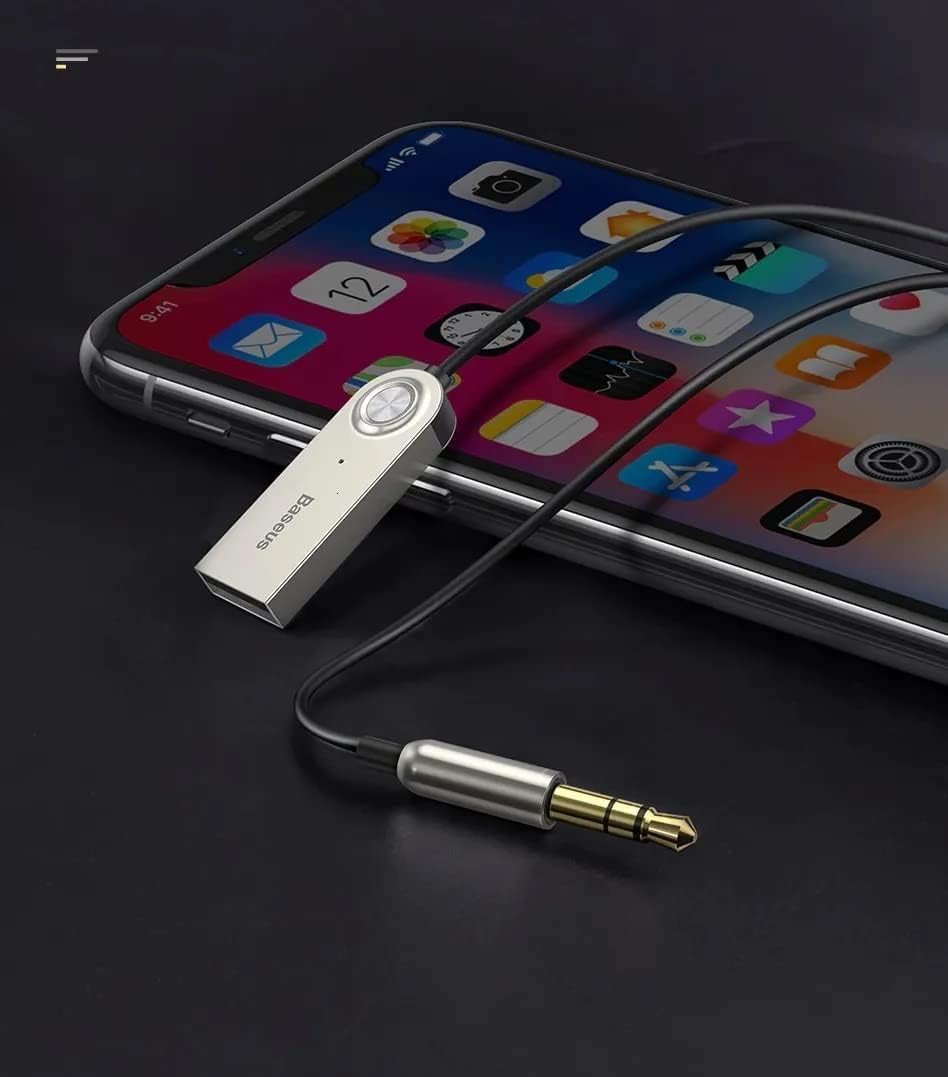
Figure 4.2: The Baseus adapter connected to a smartphone, illustrating the wireless audio connection for streaming music or making calls.
The adapter will automatically connect to the last paired device when powered on, provided the device's Bluetooth is active and within range.
5. Operating Instructions
5.1 Music Playback
- Once paired, open your preferred music application (e.g., Spotify, Deezer, YouTube, local music player) on your mobile device.
- Start playing music. The audio will be transmitted wirelessly to your car's stereo system via the AUX input.
- Control music playback (play/pause, next/previous track, volume) directly from your mobile device. The adapter itself does not have dedicated music control buttons.

Figure 5.1: The adapter can be used with any audio system that has a 3.5mm AUX input, such as a home stereo or portable speaker, extending its versatility beyond just car use.

Figure 5.2: Demonstrating the adapter's use with a laptop and a portable speaker, showing its capability to provide wireless audio to various devices with an AUX input.
5.2 Hands-Free Calling
- When a call comes in, the audio will automatically switch from music to the call.
- Answer calls directly from your mobile phone. The integrated microphone on the adapter will pick up your voice, and the caller's voice will be heard through your car's speakers.
- To ensure the best call quality, position the Baseus receiver as close as possible to yourself. The further away the receiver is, the lower the voice call quality may be.
- End calls from your mobile phone. Audio will resume to music playback if it was active before the call.
6. Maintenance
- Cleaning: Use a soft, dry cloth to clean the adapter. Do not use liquid cleaners or aerosols.
- Storage: When not in use, store the adapter in a cool, dry place, away from direct sunlight and extreme temperatures.
- Cable Care: Avoid excessive pulling or bending of the coiled cable to prevent damage.
7. Troubleshooting
| Problem | Possible Cause | Solution |
|---|---|---|
| No sound from car speakers. |
|
|
| Poor audio quality (static, distortion). |
|
|
| Call quality is poor. |
|
|
| Adapter not discoverable for pairing. |
|
|
8. Specifications
| Feature | Detail |
|---|---|
| Brand | Baseus |
| Model | B00GHAKZ2A |
| Bluetooth Version | 5.0 |
| Audio Output | 3.5mm P2 Auxiliary Jack |
| Power Input | USB (no internal battery) |
| Material | Zinc Alloy |
| Integrated Microphone | Yes |
| Maximum Cable Length | 1.20 meters (approx. 3.9 feet) |
| Bluetooth Range | Up to 5 meters (approx. 16 feet) |
| Color | Silver |
9. Warranty and Support
For warranty information and technical support, please refer to the documentation provided with your purchase or visit the official Baseus website. Keep your proof of purchase for any warranty claims.
For further assistance, you may contact Baseus customer support through their official channels. Ensure you have your product model number (B00GHAKZ2A) ready when contacting support.
Related documentsB00GHAKZ2A

Ask a question about this manual
Ask about setup, troubleshooting, compatibility, parts, safety, or missing instructions. Manuals+ will review the question and use this page’s manual context to help answer it.