
1. Introduction
This manual provides comprehensive instructions for the installation, configuration, operation, and maintenance of the Planet IGS-10020HPT Industrial 8-Port 10/100/1000T 802.3at PoE + 2-Port 100/1000X SFP Managed Switch. Please read this manual thoroughly before operating the device to ensure proper usage and to prevent damage.
1.1 Product Overview
The Planet IGS-10020HPT is a robust industrial-grade managed Ethernet switch designed for demanding environments. It features 8 Gigabit Ethernet ports with Power over Ethernet Plus (PoE+) capabilities and 2 Gigabit SFP ports for fiber optic connections. This switch supports advanced management functions and operates reliably across a wide temperature range.
1.2 Key Features
- 8 x 10/100/1000BASE-T Gigabit Ethernet ports with 802.3at PoE+ capability
- 2 x 100/1000BASE-X SFP slots for fiber optic uplink
- Supports IEEE 1588v2 Transparency for precise time synchronization
- ERPS Ring support for network redundancy
- DIDO (Digital Input/Digital Output) for external device monitoring and control
- Integrated Cybersecurity Features for enhanced network security
- Wide operating temperature range: -40 to 75°C (-40 to 167°F)
- Dual 12~48V DC power input with 52V Power Boost for PoE
- Managed switch capabilities for advanced network control
- e-Mark Certified for vehicle applications
2. Package Contents
Please verify the contents of your package. If any items are missing or damaged, contact your vendor immediately.
- Planet IGS-10020HPT Industrial Managed PoE+ Switch
- Quick Installation Guide (if included)
- Mounting Kit (DIN-rail or wall-mount brackets)
- Terminal Block Connector for Power Input and DIDO
3. Physical Description
3.1 Front Panel Layout
The front panel of the IGS-10020HPT features the Ethernet ports, SFP slots, console port, and LED indicators.

Figure 3.1: Front and side view of the Planet IGS-10020HPT Industrial Managed PoE+ Switch. This image shows the device from an angled perspective, highlighting the 8 PoE+ Gigabit Ethernet ports, 2 SFP slots, console port, and LED indicators on the front panel. The ribbed metal casing for heat dissipation is also visible.
- Console Port: RJ45 port for local management access.
- PoE Ports (1-8): 10/100/1000BASE-T ports with 802.3at PoE+ capability.
- SFP Ports (9-10): 100/1000BASE-X SFP slots for fiber optic transceivers.
- LED Indicators: Power (P1, P2), Fault, Ring, PoE status, Link/Act for each port.
- Reset Button: For resetting the device to factory defaults.
3.2 Top Panel Layout
The top panel provides connections for power input and digital input/output.

Figure 3.2: Top view of the Planet IGS-10020HPT. This image displays the two green terminal block connectors on the top surface. The top connector is labeled for "2 Digital Input" and "2 Digital Output" (DI0, DI1, DO0, DO1, GND, GND). The bottom connector is for dual DC power input (DC1, Fault, Input DC 48V, DC2).
- Power Input (DC1, DC2): Dual redundant DC power inputs (12~48V DC).
- Fault Relay: Output for alarm signaling.
- Digital Input (DI0, DI1): For connecting external sensors or switches.
- Digital Output (DO0, DO1): For controlling external devices or alarms.
3.3 Side Panel with Mounting Brackets
The side panels are designed for heat dissipation and feature mounting points for DIN-rail or wall-mount brackets.
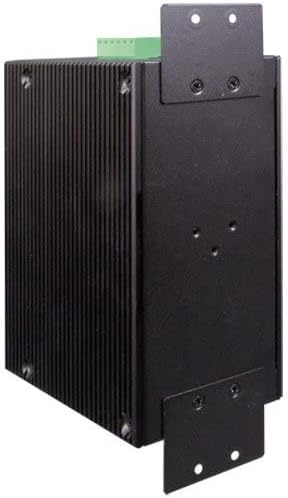
Figure 3.3: Side view of the Planet IGS-10020HPT. This image shows the ribbed metal casing and the attached L-shaped mounting brackets, indicating options for installation.
4. Installation
4.1 Safety Precautions
- Ensure the power is disconnected before installation or maintenance.
- Install the device in a well-ventilated area.
- Avoid exposing the device to moisture or extreme temperatures outside its operating range.
- Ground the device properly to prevent electrical hazards.
4.2 Mounting the Switch
The IGS-10020HPT can be mounted on a DIN-rail or directly to a wall using the provided brackets.
4.2.1 DIN-Rail Mounting
- Attach the DIN-rail clip to the rear of the switch using the screws.
- Hook the top edge of the DIN-rail clip over the top of the DIN-rail.
- Push the bottom of the switch towards the DIN-rail until it snaps into place.
4.2.2 Wall Mounting
- Attach the wall-mount brackets to the sides of the switch using the screws.
- Mark the desired mounting points on the wall using the brackets as a template.
- Drill pilot holes and insert appropriate wall anchors if necessary.
- Secure the switch to the wall using screws through the bracket holes.
4.3 Power Connection
Connect the power source to the terminal block connector on the top panel.
- Ensure the power source is within the specified range (12~48V DC).
- Connect the positive (+) and negative (-) wires from your DC power supply to the corresponding terminals (DC1 or DC2) on the terminal block.
- For redundant power, connect a second power supply to the other DC input.
- Securely tighten the terminal block screws.
4.4 Network Connection
4.4.1 Ethernet Ports
Connect standard RJ45 Ethernet cables from your network devices (e.g., IP cameras, access points, computers) to the 10/100/1000BASE-T ports (1-8) on the front panel. These ports will automatically detect the speed and duplex mode of the connected device. PoE-enabled devices will receive power automatically.
4.4.2 SFP Ports
Insert compatible 100BASE-FX or 1000BASE-X SFP transceivers into the SFP slots (9-10). Connect fiber optic cables from your fiber network to the installed SFP transceivers.
5. Operating the Switch
5.1 Powering On
After connecting the power supply, the switch will power on automatically. Observe the P1 and P2 LEDs on the front panel. They should illuminate to indicate active power input.
5.2 LED Indicators
Monitor the LED indicators on the front panel to understand the switch's status:
- P1/P2 (Power): On when power input 1/2 is active.
- FAULT: On when a system fault is detected.
- RING: Indicates the status of the ERPS ring.
- PoE (per port): On when PoE power is being supplied to the connected device.
- Link/Act (per port): On when a valid network link is established, blinks during data activity.
5.3 Management Access
The IGS-10020HPT is a managed switch, offering various methods for configuration and monitoring:
- Web-based Management: Access the switch's web interface via a standard web browser by entering its IP address.
- Console Port: Connect a console cable from your computer to the RJ45 console port for command-line interface (CLI) access.
- SNMP: The switch supports SNMP for network management system integration.
Refer to the full software user manual (available on the Planet Technology website) for detailed instructions on configuring advanced features such as VLANs, QoS, security settings, and ERPS ring management.
6. Maintenance
6.1 Cleaning
Periodically clean the exterior of the switch with a soft, dry cloth. Do not use liquid or aerosol cleaners. Ensure ventilation openings are free from dust and debris.
6.2 Firmware Updates
Check the Planet Technology website regularly for firmware updates. Keeping the firmware up-to-date ensures optimal performance, security, and access to new features. Follow the instructions provided with the firmware update package carefully.
6.3 Resetting to Factory Defaults
To reset the switch to its factory default settings, press and hold the Reset button on the front panel for approximately 5-10 seconds until the LEDs indicate a reset sequence. Use this function with caution as it will erase all custom configurations.
7. Troubleshooting
This section provides solutions to common issues you might encounter.
| Problem | Possible Cause | Solution |
|---|---|---|
| Switch does not power on. | No power input; faulty power supply; incorrect wiring. | Verify power connections and power supply functionality. Check P1/P2 LEDs. |
| No link on an Ethernet port. | Faulty cable; incorrect cable type; connected device is off or faulty. | Check cable integrity; ensure connected device is powered on and functioning. Try a different port or cable. |
| PoE device not receiving power. | Device not 802.3af/at compliant; cable too long; power budget exceeded. | Verify device PoE compatibility; check cable length; ensure total PoE power consumption does not exceed switch capacity. Check PoE LED for the port. |
| Cannot access web management interface. | Incorrect IP address; network configuration issue; firewall blocking access. | Verify the switch's IP address and your computer's network settings. Try connecting via the console port. |
If the problem persists after attempting these solutions, please contact Planet Technology technical support.
8. Specifications
| Feature | Description |
|---|---|
| Model | IGS-10020HPT |
| Ports | 8 x 10/100/1000BASE-T (PoE+), 2 x 100/1000BASE-X SFP |
| PoE Standard | IEEE 802.3af/at Power over Ethernet Plus |
| Max Watts/Port | 30W (depends on power input) |
| Data Transfer Rate | 10/100/1000 Mbps |
| Power Input | Dual 12~48V DC (52V Power Boost for PoE) |
| Operating Temperature | -40 to 75°C (-40 to 167°F) |
| Case Material | Metal |
| Dimensions (LxWxH) | 5.98 x 4.21 x 2.83 inches (15.19 x 10.69 x 7.19 cm) |
| Item Weight | 2.42 pounds (1096 grams) |
| Certifications | e-Mark Certified (among others) |
| Features | IEEE 1588v2 Transparency, ERPS Ring, DIDO, Cybersecurity Features |
9. Warranty and Support
Planet Technology products are backed by a manufacturer's warranty. For specific warranty terms and conditions, please refer to the warranty card included with your product or visit the official Planet Technology website.
For technical support, product documentation, or firmware updates, please visit the Planet Technology official website or contact their customer service department. When contacting support, please have your product model number (IGS-10020HPT) and serial number ready.
Official Website: www.planet.com.tw


